




Assurance Wireless users sometimes need their phone number for account access, porting, or activation issues. Most devices let you view the number in just a few taps. You can also find it through your account dashboard or by calling another phone.
This guide explains every reliable way to locate your number, including options for lost phones or older Assurance models.
1) Check your phone settings (fastest method)
Find your number on Android
On most Assurance Wireless Android phones, open the Settings > About phone > Status or Phone identity, and look for the Phone number field. You usually see the active number next to that label, tied to the SIM card in your device.
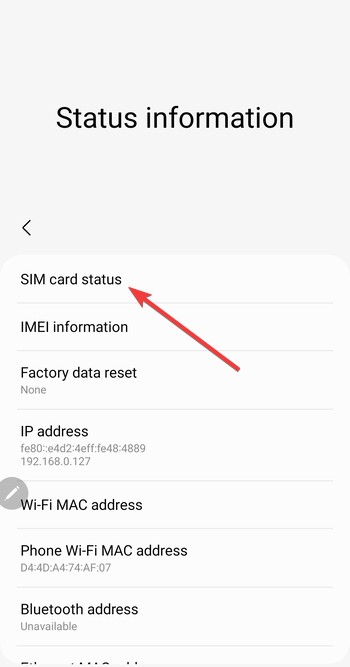
Find your number on older or feature phones
On older or basic Assurance Wireless phones, press the Menu > Settings or Phone Info, then look for an entry such as My number or Phone number. If the phone does not show any number in these menus, keep the device on and use a call or text to another phone to reveal the line.
2) Dial a quick code or call to reveal your number
Call or text another phone
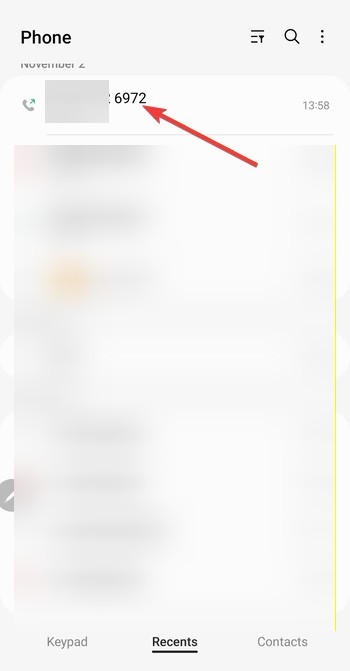
Pick up your Assurance Wireless phone, place a call to a nearby phone, and check the caller ID on the receiving screen to see the number. If you prefer, send a short text message instead and read the sender's information or contact details on the other device.
Use device information codes
On some models, you can open the Phone app, dial a standard information code such as a manufacturer-specific service code, then review the details that appear on screen for entries like Line number or MSISDN. Because Assurance Wireless uses different phone models, this option may not work on every device, so treat it as a backup if settings menus and calls do not help.
3) Use the Assurance Wireless account portal
Access your account dashboard
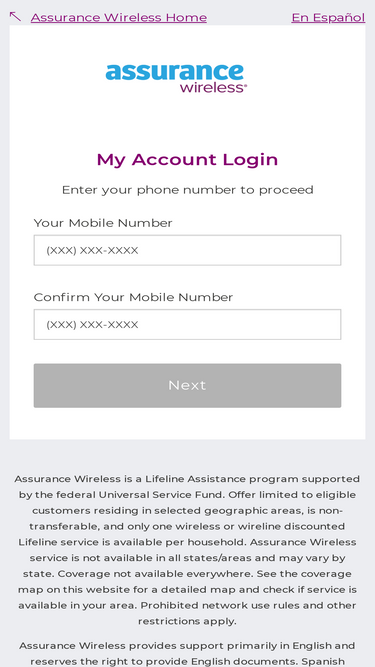
On a browser, go to the My Account page on the Assurance page, sign in with your phone number and your account PIN, then open the section that shows your plan or line details. In that dashboard area, look for a label such as Phone number or Your number, which displays the active line assigned to your account.
Recover your PIN if you can’t sign in
If you cannot remember your PIN, open the My Account sign-in page, click or tap Forgot PIN, enter your Assurance Wireless phone number in the field provided, then follow the instructions to enter the verification code sent to your device and create a new PIN. After you reset your PIN, you can sign in again and review your account details, including the phone number.
4) Locate your number from your SIM card or phone packaging
Check the starter kit or mailer
Find your original Assurance Wireless starter kit or mailing envelope, then look over any activation slips, labels, or inserts for a printed phone number field. When you see a number, compare it with the SIM details or device label so you can confirm that the printed number matches the SIM and phone you currently use.
Read SIM card details
Power off your phone, remove the SIM tray, and inspect the SIM card to see whether the carrier printed a phone number along with the ICCID and other codes. If you spot a number that looks like a standard phone number, compare it with information in your starter kit or account so you can confirm the match; keep in mind that many SIMs only show technical identifiers, so you may not always find the number this way.
5) Contact Assurance Wireless support when nothing else works
When your phone will not turn on, the SIM stays inactive, or you cannot sign in to your account, you can call Assurance Wireless support from another phone. An agent can review your account after you verify your identity and then confirm the active phone number on your line.
But before you contact support, write down your full name, your service address, and your device IMEI, and have your account PIN ready if you remember it. When the agent asks for verification, share these details so the system can locate your account quickly and confirm that you are the account holder.
6) Troubleshooting steps if your number doesn’t display
- SIM not activated: If your SIM has not activated yet, restart the phone, turn mobile data on, and keep the device powered while it connects to the network for several minutes. After the SIM finishes provisioning, reopen the settings page where you checked earlier, and confirm whether the phone now shows the correct number in the status or phone identity section.
- Number shows as Unknown: When Android still shows the number as Unknown, power off the device, remove and reinsert the SIM card, then turn the phone back on and confirm that you have signal bars.
FAQs
How do I change my Assurance Wireless phone number? You must contact Assurance Wireless support and request a number change, because the agent needs to adjust your account and line details.
Can I check if my number is active? You can call or text another phone and confirm that the call connects or the message arrives, which shows that your number works.
Can I port out my Assurance Wireless number? Yes, you can usually port your Assurance Wireless number to another carrier when you have your phone number and your account PIN.
Summary
- Check your Assurance Wireless phone number in your device’s Settings menu.
- Call or text another phone to reveal the number instantly.
- Sign in to your Assurance Wireless online account to view your line details.
- Look for printed information in your SIM kit or device mailer.
- Contact Assurance Wireless support if you can’t access your device or account.
Conclusion
Most Assurance Wireless devices make it easy to view your phone number through the Settings menu or by calling another device. If you can’t find it on the phone, you can confirm it through your online account or printed SIM materials. Support can also recover it after identity verification. Once you confirm the number, save it in your contacts so you can access it quickly whenever you need it.



Discussion (0)
Be the first to comment.