




Your Roku PIN controls who can install channels or make purchases on your device. If you’ve forgotten it or bought a used Roku that still asks for a PIN, there’s an easy way to figure it out or reset it. This guide explains everything you need tp figure out your Roku PIN and fix PIN-related issues effortlessly.
1) What the Roku PIN is and why you need it
Your Roku PIN (Personal Identification Number) is a 4-digit code that helps prevent unauthorized activity on your account. It’s used for approving purchases, managing subscriptions, and restricting content with parental controls.
Roku may request your PIN when you buy or rent movies, add paid channels, or manage restricted profiles. The prompt ensures your account settings remain protected from accidental or unwanted access.
2) How to check your Roku PIN online
The fastest way to find or change your PIN is through your Roku account dashboard. You can view PIN preferences, confirm their status, or set a new one if needed.
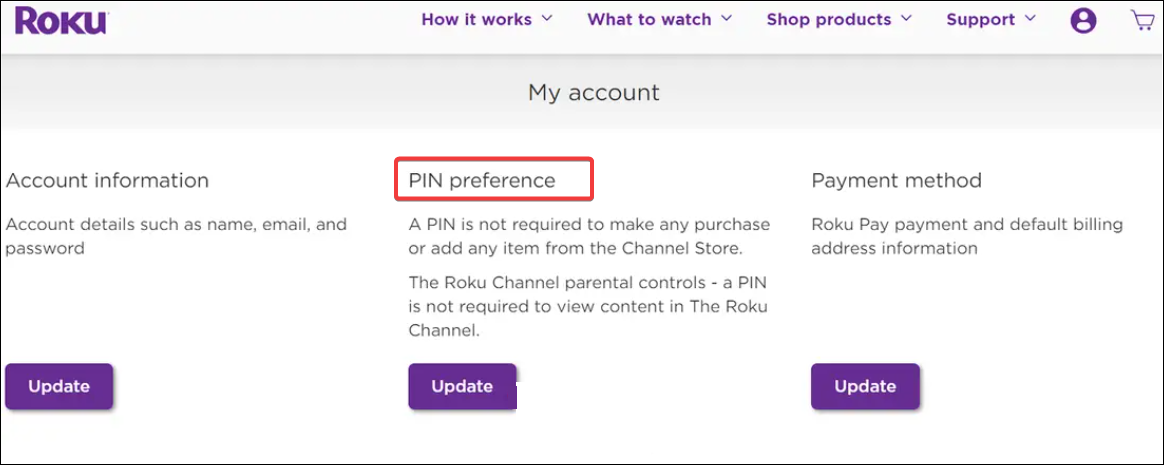
Go to the official Roku account login page in your browser. Enter the same email address used on your Roku device. Now, click My Account and locate PIN Preference under your account settings.
3) View or change your PIN settings
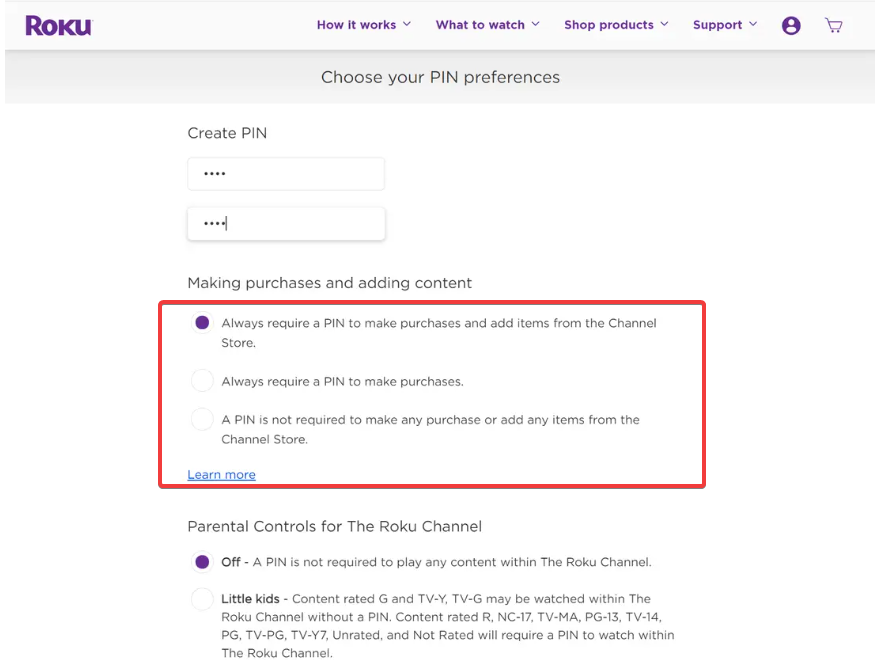
In the PIN Preference section, you’ll see options such as Always require a PIN, Only for purchases, or Never require a PIN. You can also click Update to create a new PIN if you don’t remember the old one.
4) What to do if you forgot your Roku PIN
Sign in to your Roku account from a computer or mobile device and go to PIN Preference. Next, select Update and enter a new 4-digit code. Now, click Save Changes to confirm the update.

Finally, restart your Roku device or TV to make sure the new PIN syncs. The next time Roku asks for a PIN, use the one you just set.
5) How to handle a used Roku or secondhand device
If you bought a Roku from someone else and it still asks for their PIN, that means the device is linked to their account. You’ll need to unlink it and connect your own account instead.
To do this, Press Home on your Roku remote. Go to Settings > System > Advanced system settings. Next, select Factory reset and enter the onscreen code to confirm the reset. After the reset, link your Roku to your own account and create a new PIN.
6) Troubleshooting common Roku PIN issues
- Roku still asks for the old PIN after reset: Log out of all Roku devices and sign back in with your updated account credentials. Make sure you’re using the same email address associated with the new PIN.
- PIN required for every action: Change your PIN preference to Only for purchases if you find the constant prompts annoying. This allows normal navigation while still protecting payments and subscriptions.
Tips to keep your Roku PIN secure
- Create a unique 4-digit PIN not tied to personal info.
- Never share your Roku login credentials.
- Enable email notifications for purchases to detect unauthorized activity.
- Review your account settings regularly to ensure the correct PIN preference is selected.
FAQs
What if I don’t remember my Roku account email? Check your Roku device by going to Settings > System > About. The registered email will appear on-screen.
Can I use the same PIN on multiple Roku devices? Yes. As long as they’re all linked to the same Roku account, they’ll share one PIN setting.
Does my Roku TV have a different PIN than my streaming stick? No. The PIN belongs to your Roku account, not the hardware itself.
Summary
- Your Roku PIN protects purchases and parental settings on your account.
- You can view and change PIN preferences in your Roku account dashboard.
- If you forget your PIN, create a new one instead of trying to recover it.
- Used Roku devices may require a factory reset to remove the old account.
- Adjust your PIN preference to limit when it’s required for actions.
Conclusion
To figure out your Roku PIN, sign in to your Roku account and check the PIN Preference section. You can’t view the existing PIN, but you can reset it anytime. If you’re using a pre-owned Roku, factory reset it and create your own PIN for full access. Keeping your account updated and protected ensures a safer streaming experience.


Discussion (0)
Be the first to comment.