Does your Windows computer play a sound each time you start it, just before showing the sign in screen? At first, you might like this sound but after so many years of using Windows computers and devices, you may find it annoying. Here's how to disable the startup sound in all modern versions of Windows:
NOTE: This guide works for Windows 7, Windows 10 and Windows 8.1. The screenshots we used are from Windows 10. However, everything works and looks the same in all three versions of Windows.
Step 1: Open the Control Panel and go to Hardware and Sounds
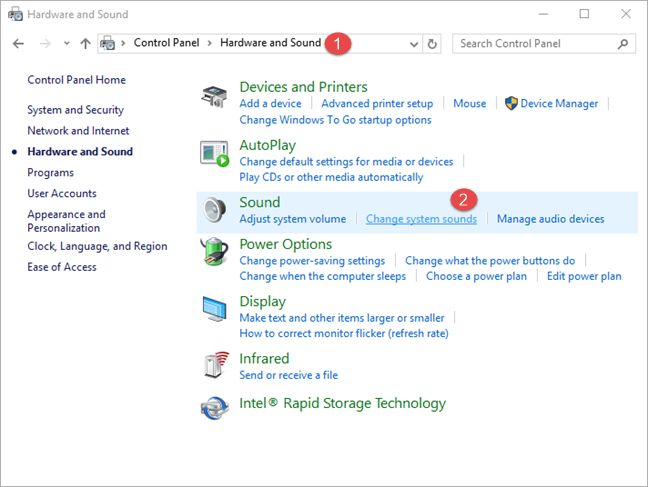
Open Control Panel and go to Hardware and Sound. In the Sound section, click or tap the link that says: "Change system sounds".
Windows, startup, sound, disable, turn off
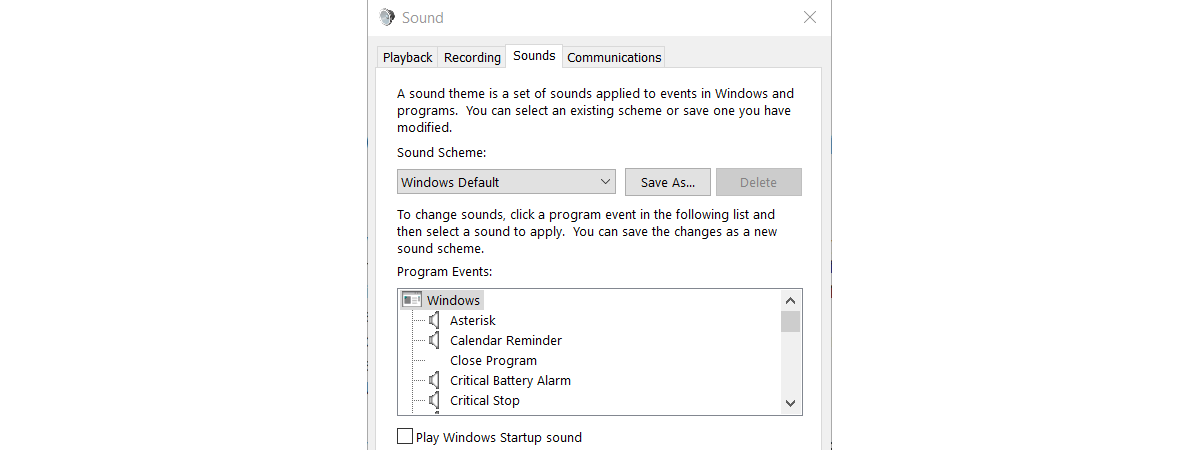
The Sound window opens and here you will find the setting that you need to change.
Step 2: Disable the Windows startup sound
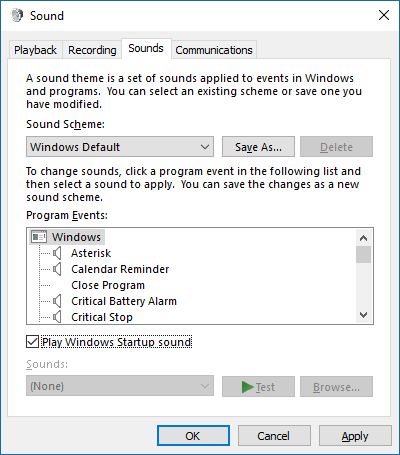
If the Sounds tab is not opened, then click or tap on it. Then look for the setting that says: "Play Windows Startup sound".
Windows, startup, sound, disable, turn off
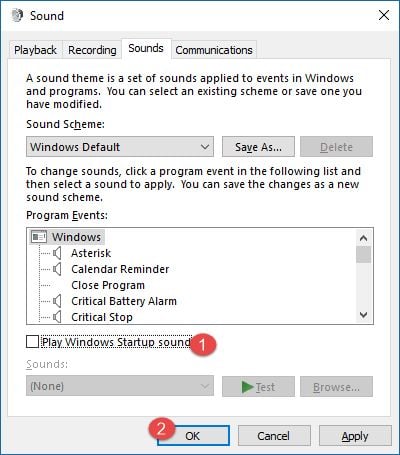
Uncheck this setting and press OK.
Windows, startup, sound, disable, turn off
The Windows startup sound
If you want to make sure that you understand which sound you disable using this procedure, you can play it using the controls below.
This sound is played by Windows when loading the login screen, where you select the user that you want to use and then log in. It's not the sound that plays when you sign into Windows.
Conclusion
That's it! As you can see, the whole process is fast and easy. If you are looking for other interesting tips on changing the sounds in Windows, don't hesitate to read our recommendations below.
Thanks. However, for me, the box was already UNCHECKED.
Robin ·
Thank you!
George Bollenbacher ·
For those who tried all this and still hear the annoying whoop at logon and logoff, it probably isn’t Windows, but another app using the same sound. In my case, it was Skype, which opens automatically when Windows starts. When I turned off the sound for “I sign in” and “I sign out”, in Tools>Options>Sounds, peace returned.
ina ·
When I follow the directions, the box is already unchecked. I still hear a two note sound when Windows opens. Any ideas how to disable THAT? I’m fine with the other sounds.
George Bollenbacher ·
It probably isn’t Windows, but another app using the same sound. In my case, it was Skype, which opens automatically when Windows starts. When I turned off the sound for “I sign in” and “I sign out”, in Tools>Options>Sounds, peace returned.
steve ·
Mine is the same way, can’t disable the sound.
Rakesh ·
Lots of Thanks sir
Its a Great tips to disable startup sound in windows , now we can disable it when feel irritating






Discussion (7)
Thanks. However, for me, the box was already UNCHECKED.
Thank you!
For those who tried all this and still hear the annoying whoop at logon and logoff, it probably isn’t Windows, but another app using the same sound. In my case, it was Skype, which opens automatically when Windows starts. When I turned off the sound for “I sign in” and “I sign out”, in Tools>Options>Sounds, peace returned.
When I follow the directions, the box is already unchecked. I still hear a two note sound when Windows opens. Any ideas how to disable THAT? I’m fine with the other sounds.
It probably isn’t Windows, but another app using the same sound. In my case, it was Skype, which opens automatically when Windows starts. When I turned off the sound for “I sign in” and “I sign out”, in Tools>Options>Sounds, peace returned.
Mine is the same way, can’t disable the sound.
Lots of Thanks sir
Its a Great tips to disable startup sound in windows , now we can disable it when feel irritating