As mentioned in many other articles, one of the biggest changes in Windows 8.1 is related to Search and its strong integration with Bing. In this operating system, Bing provides you with search suggestions and web results when performing any kind of search, directly from the Start screen. Some users will love this but will want to tweak the way it works while others will be freaked out and will want to disable it. Here's how to configure the search experience in Windows 8.1.
Where to Find the Search Settings in Windows 8.1
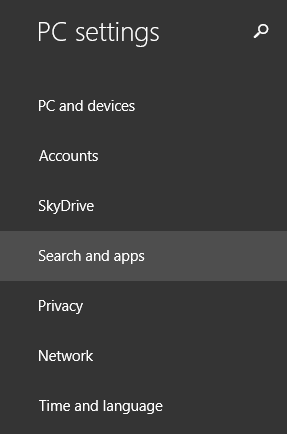
All your search related settings are found in PC Settings. To learn how to open it, read this guide: Six Ways to Access PC Settings.
Then, go to Search and apps.
Search, charm, Windows 8.1, Bing, turn off, disable, integration
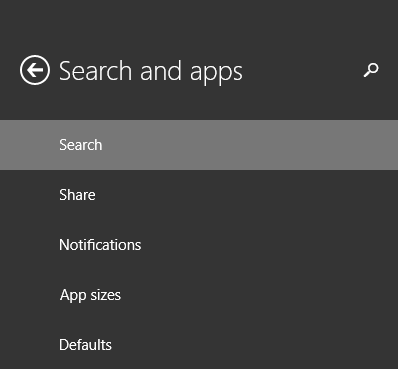
Here you will find several sections. The only one that has search related settings is named Search. Click or tap on it.
Search, charm, Windows 8.1, Bing, turn off, disable, integration
On the right, lots of settings and switches are now displayed. Let's take a look at them one by one.
How to Clear Your Search History in Windows 8.1
Windows 8.1 stores by default your recent search history. This is for many reasons, including for providing better results with each subsequent search but also to create a more detailed search profile. This profile may be used also when displaying adverts through Microsoft apps and/or services.
Search, charm, Windows 8.1, Bing, turn off, disable, integration
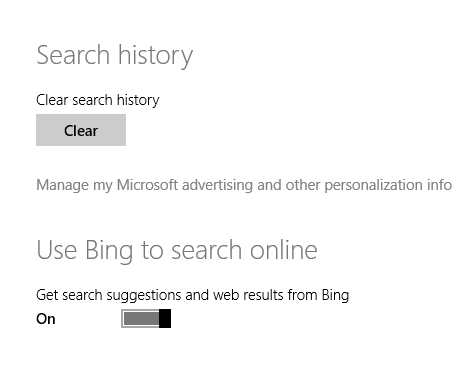
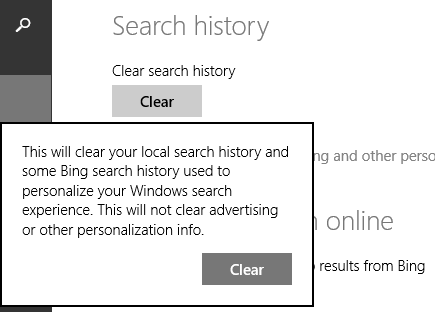
You can clear your search history, including your local one, on your PC and your Bing search history that was used to personalize your Windows search experience.
To do so, click or tap the Clear button under Search history.
Search, charm, Windows 8.1, Bing, turn off, disable, integration
Then, confirm your choice by clicking or tapping Clear one more time.
How to Turn Off Bing Search in Windows 8.1
The next section is about turning on or off the Bing search integration. If you don't to perform searches using Bing directly from Windows 8.1, then set the "Use Bing to search online" switch to Off.
Search, charm, Windows 8.1, Bing, turn off, disable, integration
From now on, all your searches in Windows 8.1 will be local searches, displaying only apps, settings and files found on your device. Search will no longer display search suggestions from Bing and it will no longer return websites, web images or web videos as search results.
How to Customize How Bing Search is Used in Windows 8.1
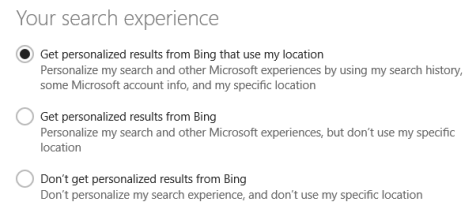
If you do want to use Bing search but you want control over what kind of results you get and if more or less data is stored about you, then you should look at the next section, named Your search experience.
Here you have three options:
"Get personalized results from Bing that use my location" - this is the default setting and it stores and uses the most personal data. Windows and Bing will use your search history to personalize Search and other services, use some of your Microsoft account information and your specific location. If you consider this to be too much, don't use this setting.
"Get personalized results from Bing" - The only difference between this setting and the previous one is that it doesn't use your specific location. All other data is used to personalize Search and other services.
"Don't get personalized results from Bing" - This is the best setting in my perspective and I encourage you to use it. Your Search experience is not personalized and your search history, location and other data is not used to provide results. This is almost the same as performing anonymous searches on Bing.
Search, charm, Windows 8.1, Bing, turn off, disable, integration
How to Filter Adult Content in Windows 8.1 Search Results
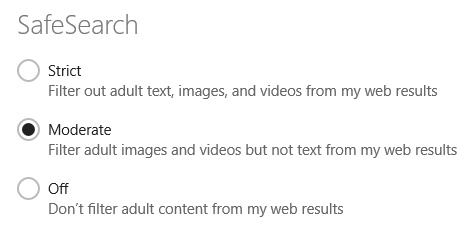
By default, Windows 8.1 filters adult images and videos but not text from your web search results. This is because the SafeSearch feature is set to Moderate.
Search, charm, Windows 8.1, Bing, turn off, disable, integration
If your children are using your PC or device, you should set this to Strict so that you can block all adult content. Otherwise, if you want to access adult content, then set this to Off, so that it is not blocked.
How to Configure Search with Bing over Metered Connections
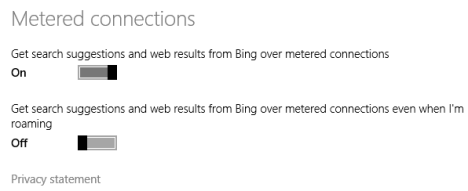
By default, the Search in Windows 8.1 will return suggestions and web results each time there is an internet connection available. It does that even when using metered connections like 3G or 4G.
If you would like to turn off this behavior, go to the Metered connections section on the bottom and set the appropriate switch to Off.
Search, charm, Windows 8.1, Bing, turn off, disable, integration
By default, when you are roaming Bing is turned off when using Search. If you want to change this behavior, set the appropriate switch to On.
Conclusion
As you can see, configuring how Search works, if your search history and personalized data is used by Bing, can be performed with ease. If you have any questions on this subject or any issues you would like to share, don't hesitate to leave a comment.
The only answer seems to be a complete reformat because there is no facility to uninstall this intrusive search engine. I detest being told to use something I don’t want on a machine that I own. with an empty hard drive I can install whatever I like. It is not surprising that Bill Gates feels he can dictate to the world but it is galling.
diane ·
The tutorial doesn’t address the issue I am having. The Search Charm does not return any results for “files.” All I get is “No results for files.” I have contacted, Dell Technical Support, Windows Support, and Microsoft Support. Each refers me to another. Very frustrating, and not able to search for documents on my computer using the Search Charm.
christian gibson ·
It’s a pity that searching from Windows 8.1 automatically uses Bing. Of course Microsoft is anxious to promote Bing, but ramming it down our throats doesn’t win customers. Yes, you can switch off automatically using Bing (a hassle, which many users won’t know how to do) but there doesn’t seem to be an option to swap Bing for Google or another search engine when searching directly from Windows. If there is, Microsoft is keeping it well hidden! Basically Windows is a good user friendly operating system, despite its detractors. But Microsoft are very soon going to lose customer loyalty if they continue with this sort of practice. DON’T BE EVIL !!!
PCezar ·
Very good step by step tutorial. Thanks.
Ciprian Adrian Rusen ·
Thank you! If you like it don’t hesitate to share it on Facebook, Google+ or Twitter. 🙂














Discussion (5)
The only answer seems to be a complete reformat because there is no facility to uninstall this intrusive search engine. I detest being told to use something I don’t want on a machine that I own. with an empty hard drive I can install whatever I like. It is not surprising that Bill Gates feels he can dictate to the world but it is galling.
The tutorial doesn’t address the issue I am having. The Search Charm does not return any results for “files.” All I get is “No results for files.” I have contacted, Dell Technical Support, Windows Support, and Microsoft Support. Each refers me to another. Very frustrating, and not able to search for documents on my computer using the Search Charm.
It’s a pity that searching from Windows 8.1 automatically uses Bing. Of course Microsoft is anxious to promote Bing, but ramming it down our throats doesn’t win customers. Yes, you can switch off automatically using Bing (a hassle, which many users won’t know how to do) but there doesn’t seem to be an option to swap Bing for Google or another search engine when searching directly from Windows. If there is, Microsoft is keeping it well hidden! Basically Windows is a good user friendly operating system, despite its detractors. But Microsoft are very soon going to lose customer loyalty if they continue with this sort of practice. DON’T BE EVIL !!!
Very good step by step tutorial. Thanks.
Thank you! If you like it don’t hesitate to share it on Facebook, Google+ or Twitter. 🙂