Did you know you can modify the User Account Control (UAC) settings to change the security level in Windows 10? Although most users are barely aware of its existence, the Windows 10 User Account Control (UAC) is a core security feature that prevents apps from making unauthorized changes to your computer or device. Read this guide to learn how to change the UAC notification levels and decide how often you get the "Do you want to allow this app to make changes to your PC?" prompt in Windows 10:
First things first: About the User Account Control in Windows 10
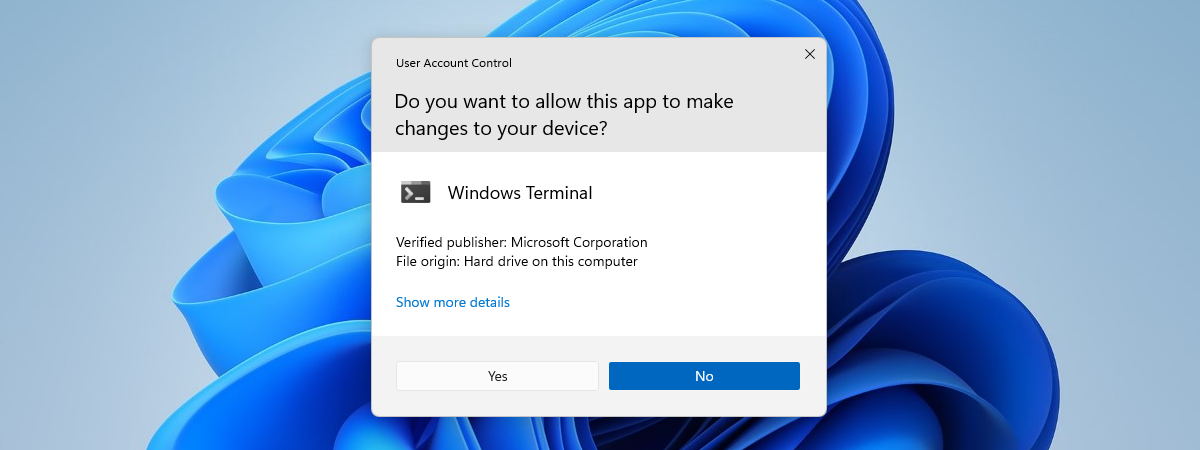
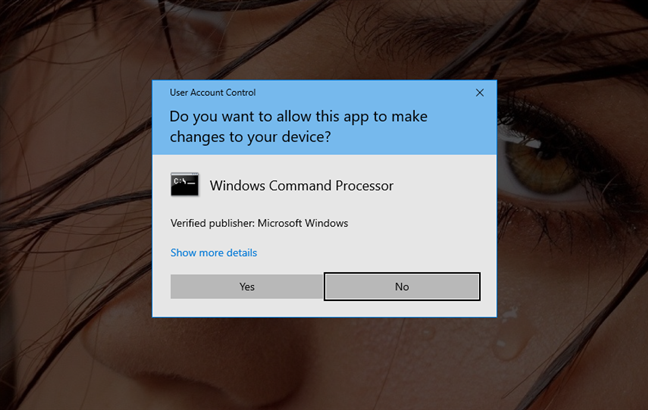
The User Account Control (UAC) has been part of the Windows security system since Windows Vista. Initially considered too annoying, it has since been improved. The result is the more relaxed UAC version you come across in Windows 10. The Windows 10 User Account Control pops up when you run a desktop app that requires administrator permissions in order to function or are changing important system settings requiring administrative approval.
The User Account Control window
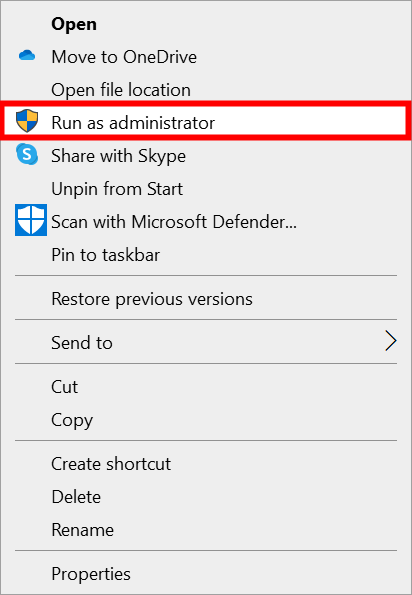
Tasks that require administrator privileges and are likely to trigger a UAC prompt, like Run as administrator, are marked by a yellow and blue security shield icon.
The yellow and blue shield icon is shown next to tasks that might trigger the UAC
Before changing the security level of the UAC in Windows 10, we recommend learning more about the User Account Control, its role, and why it is essential to keep it turned on, by reading: What is UAC (User Account Control) and why you should never turn it off.
If you still want to change its settings afterward, keep in mind that you need administrative permissions to modify the User Account Control security level.
How to access the User Account Control Settings in Windows 10
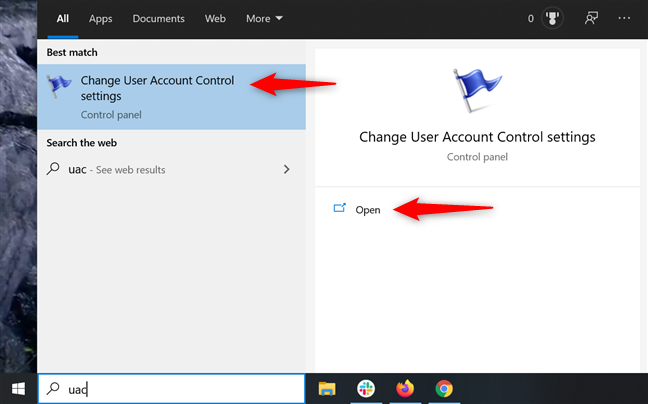
To change the way UAC works, you need to access the "User Account Control Settings" window. The easiest way to do that is by typing "uac" into your taskbar's search field. Then click or tap on "Change User Account Control settings" or on the Open option on the right.
Open UAC settings
This opens the "User Account Control Settings" window, which you can use to change the security level in Windows 10.
User Account Control settings
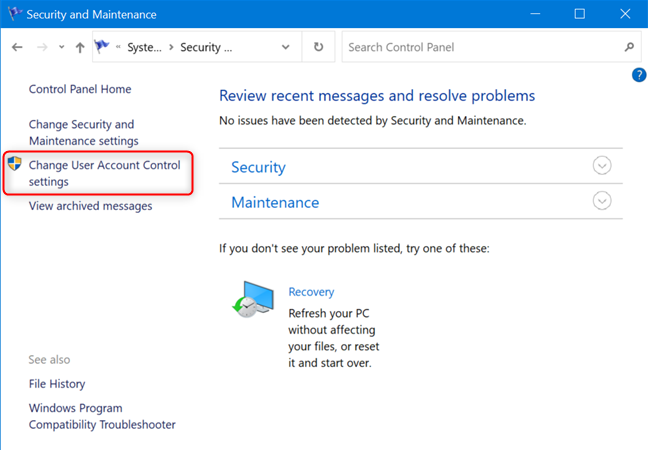
You can get to the same place by opening the Control Panel and accessing: "System and Security -> Security and Maintenance -> Change User Account Control settings."
Click or tap Change User Account Control settings
Which UAC notification level is the default?
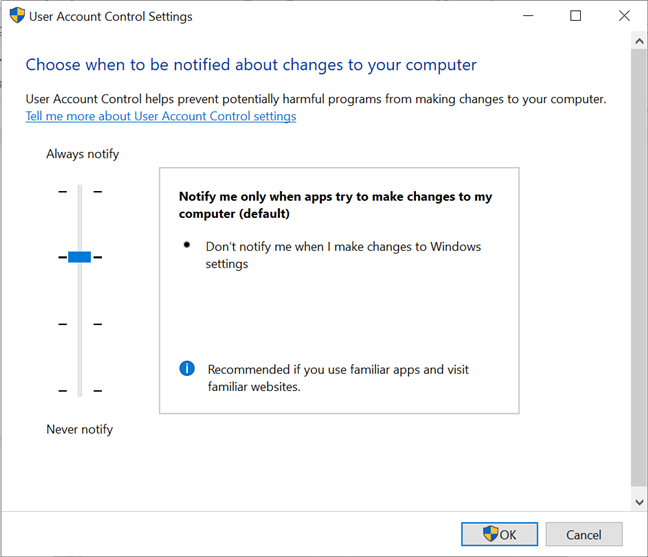
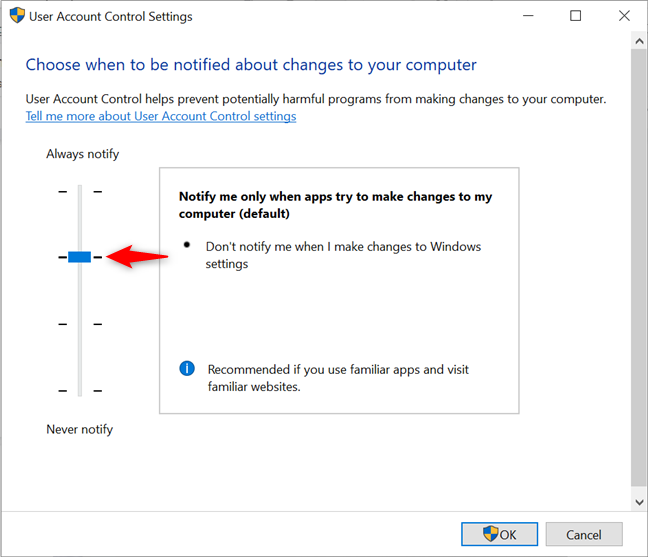
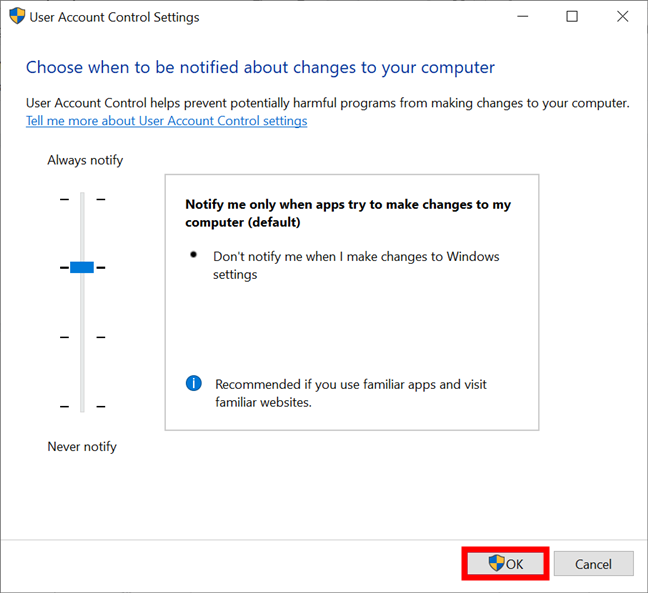
The "User Account Control Settings" window only has one slider, and you can use it to adjust "when to be notified about changes to your computer." By default, the Windows 10 User Account Control is set to the "Notify me only when apps try to make changes to my computer" security level.
The slider is set to Notify me only when apps try to make changes to my computer
Still secure, while not the strictest option you can use, selecting this default security level ensures that the UAC notifies you only before programs make changes requiring administrative permissions. If you manually make changes to Windows, you don't get a UAC prompt.
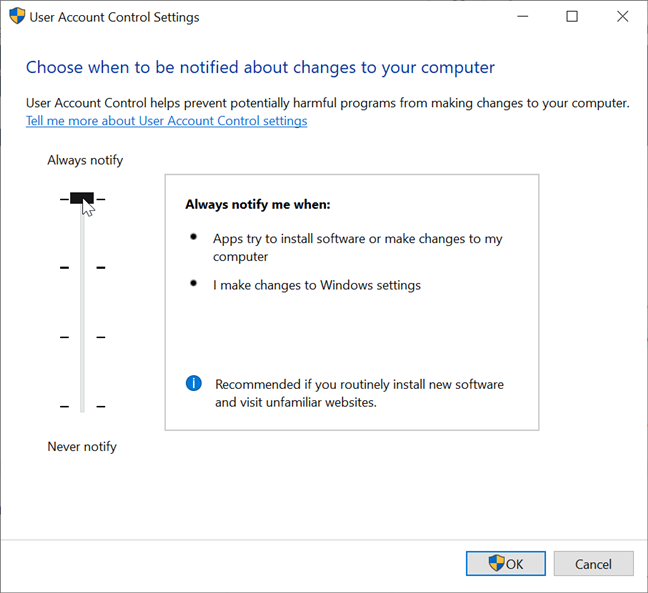
Because the UAC pops up only if an app or file wants to make changes, this setting is less annoying and less secure than the top and strictest security level, "Always notify" - which also triggers UAC intervention to confirm user actions.
How to change the User Account Control level in Windows 10
There are four options available on the slider in the "User Account Control Settings" window. To change the security level provided by the UAC in Windows 10, simply move the slider to the appropriate position by clicking or tapping on the desired level. You can also click or tap on the slider and drag it to the option you want to use.
Move the slider to the desired security level
Check the pane on the right for a brief description of how each setting impacts your Windows 10 security notifications. We went over the differences between the four security levels at length in What is UAC (User Account Control) and why you should never turn it off. Make your choice, and then click or tap OK.
Select a security level and press OK
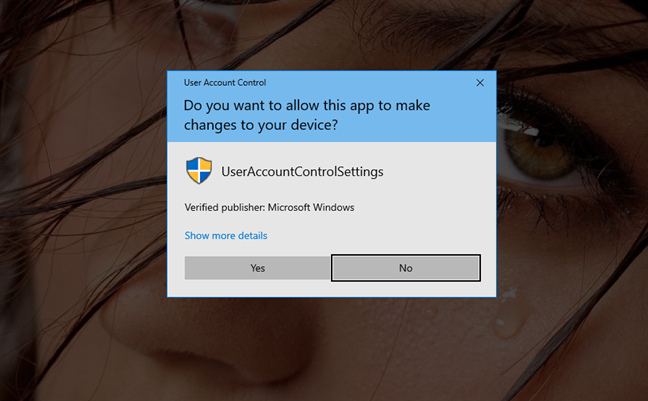
You might receive a User Account Control prompt asking you to confirm this change.
Confirm the User Account Control changes
IMPORTANT: You need to restart your Windows 10 computer or device before the new User Account Control settings are applied.
Disable UAC or Which UAC level provides the lowest level of security?
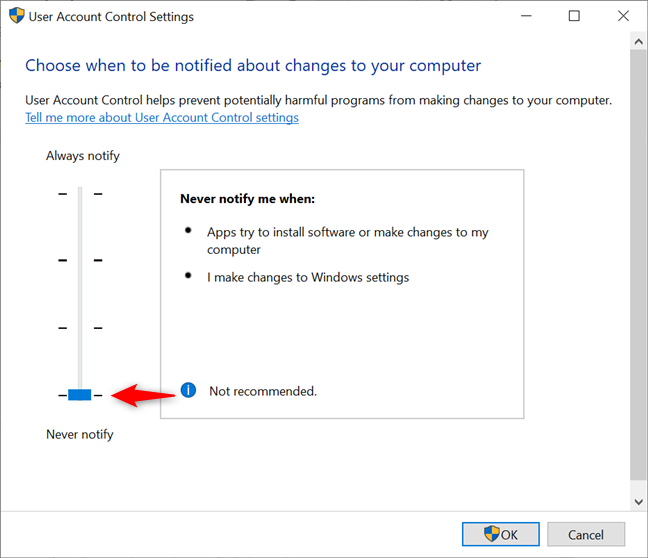
If you went over our guide insisting not to turn off UAC and you're still determined to disable it, move the slider to the bottom Never notify option, the lowest level of security. This turns the User Account Control off, making it easier for malicious programs to infect and take control of your Windows 10 computer or device. On the bright side, the annoying notifications stop, as all apps are allowed to do as they wish without your permission.
While many find the notifications an annoyance, the Windows 10 User Account Control is essential for the security of your system. We always keep UAC enabled at the recommended (default) level to prevent any unwanted malware. What about you? Did you increase or decrease your security level? Before you close this tutorial, do not hesitate to share with us which UAC level you're currently using and why in the comments below.
All the bloat ware and messages are very annoying I like my computer to be as fast as possible, I hold meetings with staff and use multiple monitors and search and present information while on video conference and so much of my resources is taken up from other rubbish, I have uninstalled a lot of apps the most frustrating is Xbox and entertainment apps, they all gone now and UAC is off. on start up RAM is about 35% and everything else about 2%, power is at max and GPU is also at max
Kenithy ·
Wonder if UAC can prevent applications that require them to run as administrator from seeing what other applications are running, or worse. See documents and pictures from user accounts because the application has administrator right. I have a brokerage account (ThinkorSwim) that require the software to run with high privileges. It worries me.
diomedes2000 ·
Is there a way to change the level of notification without disabling the UAC (to prevent the computer from rebooting) via command line (so I can put it in a script).
If I change the level of notification manually in a window, it does not require a reboot.
I have to run a deployment script for hundreds of computers via a batch file but I get prompted via notification. I don’t want to disable the UAC. Our group policy will snap it back to its current setting (highest level) after a few minutes anyway. I just need it make my deployments faster.
I have Windows 7 Eneterprise edition w/SP1
Jennifer ·
My computer won’t let me click on “Change User Account Control Settings” a popup comes up Saying, “These Files Can’t be opened. Your internet security settings prevented one or more files from being opened.”
And I get that same exact message when I click on Google chrome.. How do I fix this???
UAC for users has now been changed to prevent the lower two levels. An irrelevant message that suggests Administrator can do that is simply wrong; you have to be Administrator to set the ADMIN’s UAC to that level. It’s driving my customers NUTS! Thanks for being so paternalistic, M$!
Prasanna Venkat ·
when i installing new application the notification appearence tile was non transperentancy…how to change this visual apperence…..!! that is similar to Non-Aero themes…… !! pls give me a solution…!!!
Raul ·
UAC on doesn’t seem to work with Kerberos; any way around that beside turning disabling UAC? Tested this by disabling from the client and then Kerberos worked. Updates from the GPO though restrored setting, breaking the Keberos seamless login. How to get around this?
Also, if the Win7 client is logged into the secure intranet, why would UAC be required as yet another layer on top of 1). Account requirment (authorized user access) 2). VPN secure access 3). intRAnet access..
4). now UAC?
I find it useful, but the lack of one thing makes it unacceptable. I should be able to say “always remember to let this file I’m saying to accept right now run, whenever this file is run again”, so I don’t have to have the stupid box pop up each and every time I run the same file. For instance, to run CCleaner, which I do a dozen times a day, I have to hit the stupid “let it run” each time — if it had the option, like Zonealarm and other packages do, to let me click “always do this for this program”, then I wouldn’t have any complaints about it.
If there is an ability to do this, I have not found it in Microsoft Help, nor through web-browsing looking for instructions.
Anonymous ·
I’m running Vista right now, and I like UAC as it is. With smart browsing habits, I’m able to use only an on-demand anti-malware application, rather than an active scanning solution. I like the performance boost I get from this, especially for games.
Really, after you get the system configured for the first time, UAC is a very low price to pay for the security you receive.
Ciprian ·
I couldn’t agree with you more. After using Windows Vista since it’s launch, i’ve quickly arrived to the conclusion that it is a very small price to pay for a lot more security and less headaches.












Discussion (12)
All the bloat ware and messages are very annoying I like my computer to be as fast as possible, I hold meetings with staff and use multiple monitors and search and present information while on video conference and so much of my resources is taken up from other rubbish, I have uninstalled a lot of apps the most frustrating is Xbox and entertainment apps, they all gone now and UAC is off. on start up RAM is about 35% and everything else about 2%, power is at max and GPU is also at max
Wonder if UAC can prevent applications that require them to run as administrator from seeing what other applications are running, or worse. See documents and pictures from user accounts because the application has administrator right. I have a brokerage account (ThinkorSwim) that require the software to run with high privileges. It worries me.
Is there a way to change the level of notification without disabling the UAC (to prevent the computer from rebooting) via command line (so I can put it in a script).
If I change the level of notification manually in a window, it does not require a reboot.
I have to run a deployment script for hundreds of computers via a batch file but I get prompted via notification. I don’t want to disable the UAC. Our group policy will snap it back to its current setting (highest level) after a few minutes anyway. I just need it make my deployments faster.
I have Windows 7 Eneterprise edition w/SP1
My computer won’t let me click on “Change User Account Control Settings” a popup comes up Saying, “These Files Can’t be opened. Your internet security settings prevented one or more files from being opened.”
And I get that same exact message when I click on Google chrome.. How do I fix this???
What is the answer?
UAC for users has now been changed to prevent the lower two levels. An irrelevant message that suggests Administrator can do that is simply wrong; you have to be Administrator to set the ADMIN’s UAC to that level. It’s driving my customers NUTS! Thanks for being so paternalistic, M$!
when i installing new application the notification appearence tile was non transperentancy…how to change this visual apperence…..!! that is similar to Non-Aero themes…… !! pls give me a solution…!!!
UAC on doesn’t seem to work with Kerberos; any way around that beside turning disabling UAC? Tested this by disabling from the client and then Kerberos worked. Updates from the GPO though restrored setting, breaking the Keberos seamless login. How to get around this?
Also, if the Win7 client is logged into the secure intranet, why would UAC be required as yet another layer on top of 1). Account requirment (authorized user access) 2). VPN secure access 3). intRAnet access..
4). now UAC?
This tutorial might help you: Use the Task Scheduler to Launch Programs Without UAC Prompts
I find it useful, but the lack of one thing makes it unacceptable. I should be able to say “always remember to let this file I’m saying to accept right now run, whenever this file is run again”, so I don’t have to have the stupid box pop up each and every time I run the same file. For instance, to run CCleaner, which I do a dozen times a day, I have to hit the stupid “let it run” each time — if it had the option, like Zonealarm and other packages do, to let me click “always do this for this program”, then I wouldn’t have any complaints about it.
If there is an ability to do this, I have not found it in Microsoft Help, nor through web-browsing looking for instructions.
I’m running Vista right now, and I like UAC as it is. With smart browsing habits, I’m able to use only an on-demand anti-malware application, rather than an active scanning solution. I like the performance boost I get from this, especially for games.
Really, after you get the system configured for the first time, UAC is a very low price to pay for the security you receive.
I couldn’t agree with you more. After using Windows Vista since it’s launch, i’ve quickly arrived to the conclusion that it is a very small price to pay for a lot more security and less headaches.