



If, like us, you check the battery level on your Android smartphone very often, displaying the battery percentage on the home screen and the lock screen is a must. Luckily, the steps involved to always display the remaining battery life are not complicated. This tutorial illustrates how to turn on battery percentage on Android smartphones and tablets, including Samsung Galaxy devices:
NOTE: This guide applies to Android 12, and it was created using a Google Pixel 4a and a Samsung Galaxy S21 FE. The procedures are similar on most Android-powered devices, with earlier versions of Android as well. You might come across some small differences, depending on your device's manufacturer. If you do not know your Android version, here’s how to check the Android version on your smartphone or tablet.
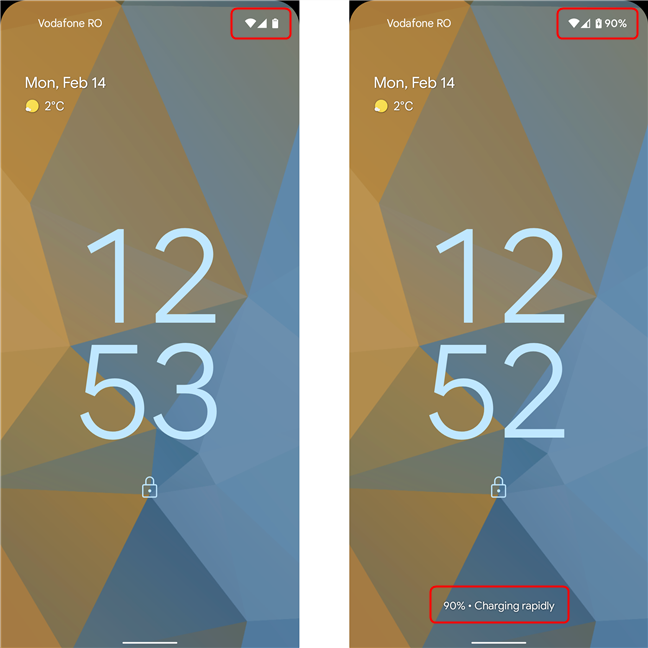
 When charging (right) the battery percentage is displayed on the screen
If you don't want the battery percentage permanently taking up space on your Android's status bar, but you'd still like to check it easily, you may see it by accessing Quick Settings. To open the Quick Settings, swipe down anytime from the upper side of the screen. The battery percentage is shown by default on the status bar displayed in the Quick Settings. Here’s how it looks on a Samsung Galaxy S21 FE:
When charging (right) the battery percentage is displayed on the screen
If you don't want the battery percentage permanently taking up space on your Android's status bar, but you'd still like to check it easily, you may see it by accessing Quick Settings. To open the Quick Settings, swipe down anytime from the upper side of the screen. The battery percentage is shown by default on the status bar displayed in the Quick Settings. Here’s how it looks on a Samsung Galaxy S21 FE:
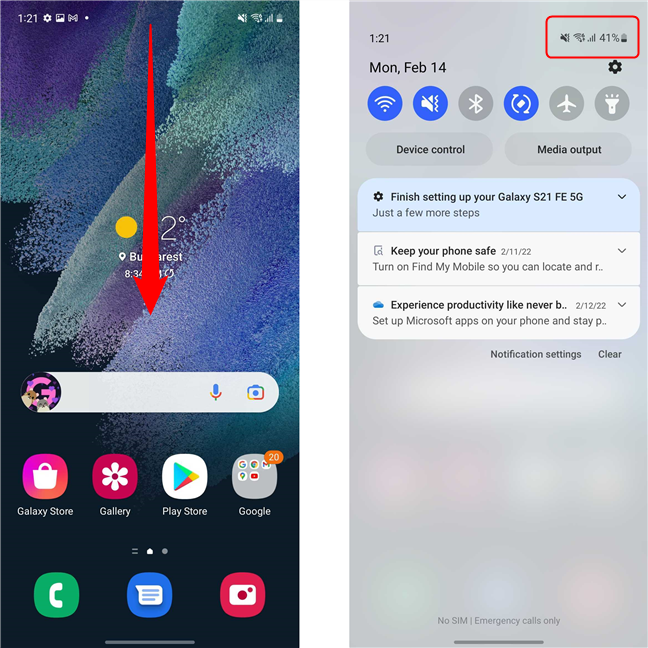 Check the battery percentage by accessing Quick Settings
On other devices like the Google Pixel 4a, by default, the Quick Settings menu displays an estimate of the remaining battery life, using days and hours.
Check the battery percentage by accessing Quick Settings
On other devices like the Google Pixel 4a, by default, the Quick Settings menu displays an estimate of the remaining battery life, using days and hours.
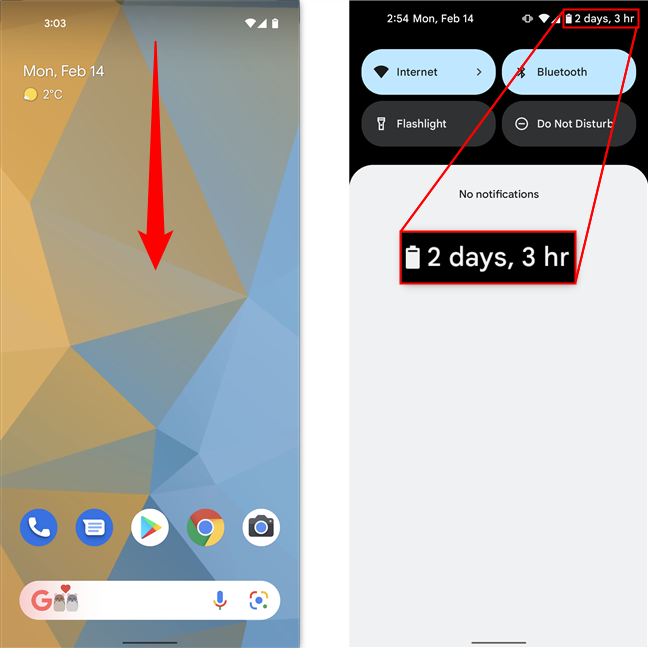 On Pixel smartphones, a battery life estimation is shown instead of the percentage
This works great if you don't use your device intensely or if you’re always near a charger. However, if you want the battery percentage to be a constant addition on your Android's status bar, follow the steps in the next section.
On Pixel smartphones, a battery life estimation is shown instead of the percentage
This works great if you don't use your device intensely or if you’re always near a charger. However, if you want the battery percentage to be a constant addition on your Android's status bar, follow the steps in the next section.
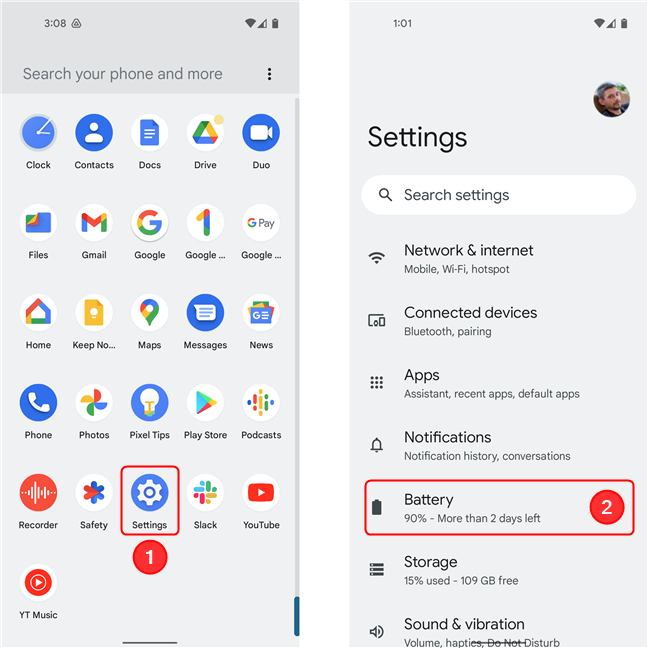 Open Settings, then go to Battery
The Battery settings screen displays the percentage and time you have until recharging, together with several options related to battery management. Look for an entry called Battery percentage. Tap on Battery percentage to turn on the switch next to the option and show the battery percentage on your Android smartphone or tablet. The battery percentage is instantly displayed on your Android's status bar.
Open Settings, then go to Battery
The Battery settings screen displays the percentage and time you have until recharging, together with several options related to battery management. Look for an entry called Battery percentage. Tap on Battery percentage to turn on the switch next to the option and show the battery percentage on your Android smartphone or tablet. The battery percentage is instantly displayed on your Android's status bar.
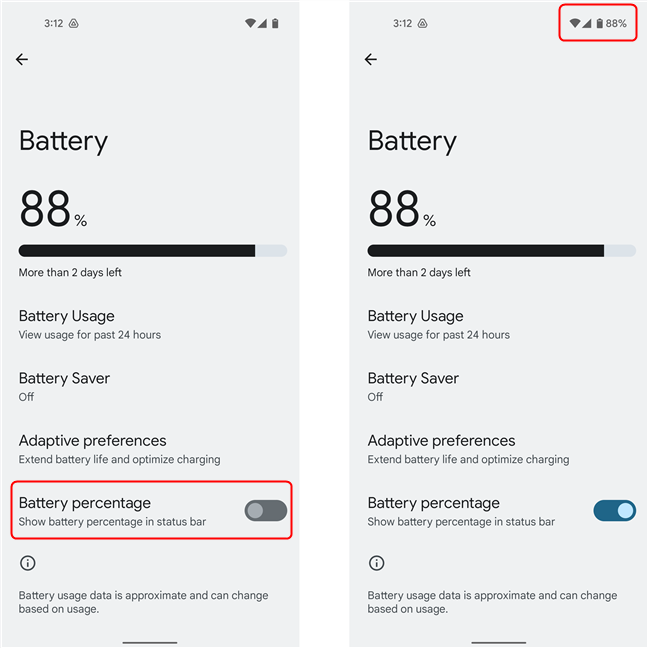 You can toggle the switch to show or hide the percentage
If you ever need more room on your Android's status bar, all you have to do is turn off the switch. The battery icon then replaces the percentage, and you can go back to guessing how much battery you have left on your Android smartphone or tablet.
You can toggle the switch to show or hide the percentage
If you ever need more room on your Android's status bar, all you have to do is turn off the switch. The battery icon then replaces the percentage, and you can go back to guessing how much battery you have left on your Android smartphone or tablet.
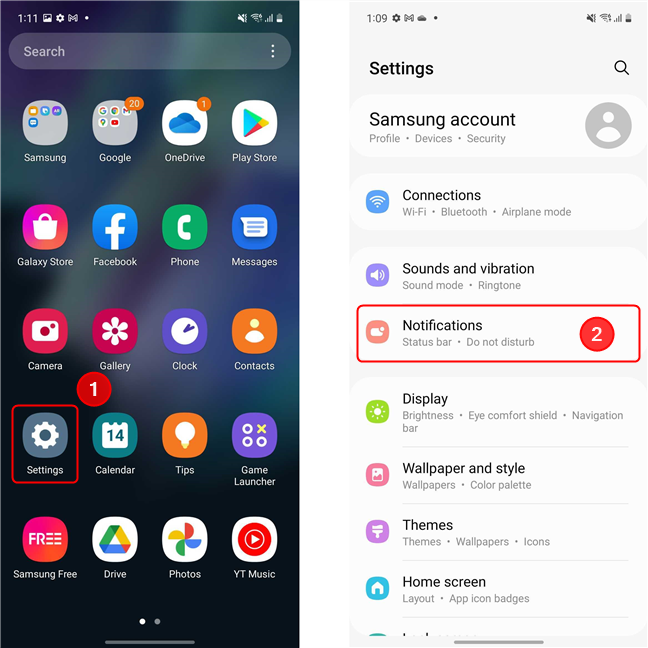 On Samsung Galaxy devices, you must access Notifications in the Settings app
Scroll down to Advanced settings and tap on it. Next, find the “Show battery percentage” switch and turn it on. The battery percentage is immediately shown on your status bar.
On Samsung Galaxy devices, you must access Notifications in the Settings app
Scroll down to Advanced settings and tap on it. Next, find the “Show battery percentage” switch and turn it on. The battery percentage is immediately shown on your status bar.
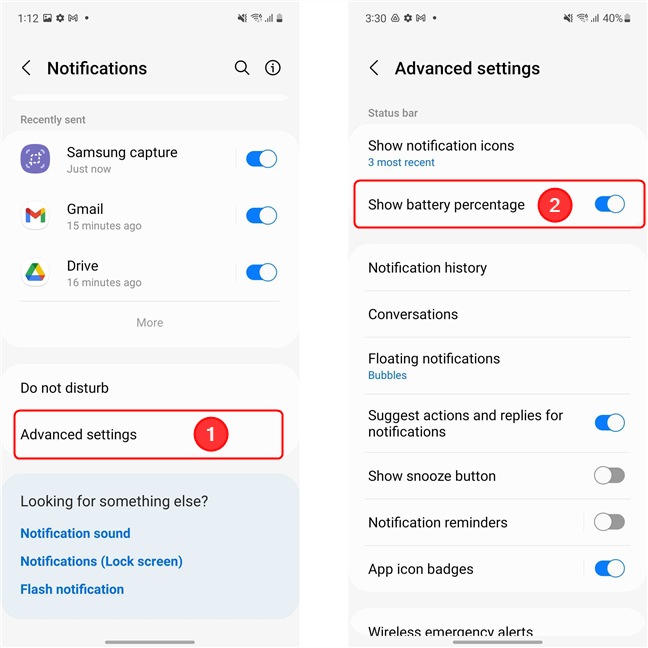 Scroll down and tap on Advanced settings, then toggle the Show battery percentage switch
TIP: To get to the setting faster, simply open Settings and use the Search option. Type in “battery percentage” and then click on the result.
Scroll down and tap on Advanced settings, then toggle the Show battery percentage switch
TIP: To get to the setting faster, simply open Settings and use the Search option. Type in “battery percentage” and then click on the result.
How to display battery percentage using Android’s Quick Settings
There are many Android devices that, by default, don’t show the remaining battery percentage on the status bar found at the top of the screen. Instead, they display a battery icon, and you are expected to estimate how much is left based on how full it is. However, the exact battery life is displayed on the Lock screen while your Android device is charging, as seen below. Depending on the device you're using, this info might be displayed somewhere else on your Android's screen.How to turn on battery percentage on Android 12
To turn on battery percentage and have it constantly show on your Android's status bar, you need to first access Settings. Under the Battery option, you can see the remaining battery percentage, together with an estimation of how long until the battery is depleted. Tap on Battery to access more settings. Alternatively, you can insert “battery percentage” in the search field at the top of the Settings screen and then click on the result.How to show battery percentage on Samsung Galaxy smartphones and tablets
While most devices have similar options to those shown earlier, Samsung devices have a slightly different menu structure. On your Samsung Galaxy smartphone, go to Settings, and tap on Notifications.

Discussion (21)
My wife and I have identical Motorola G62 running Android 13. If you pick my wife’s phone up, on the lock screen it has a large central display showing battery remaining as both a percentage and a circular graph, plus date and time. On my phone the lock screen only shows date and time. Battery remaining is only shown in the status bar, not on the main screen. How do I change my phone to also show the large battery display? Thanks, Arthur
Different phone manufacturers can have different ways to display this information. If your phone is made by another company, you’re stuck with its way to display the battery percentage, you can’t have it shown like Motorola.
This does not help with current version.
Thanks so much for this tutorial!
After installing lineageOS 10 on my Samsung Note 3, I found no way to make the battery percentage permanently visible. The trick was to look it up under settings as mentioned in the article. Glad it works!
(A battery indication without percentage is nearly the same as a car with a broken fuel-level indicator. Need to use the kilometer day counter while driving. :-L )
Thanks again!
Glad to help. Don’t hesitate to subscribe to our newsletter, for more useful guides like this one.
Doesn’t seem to work for samsung 10 on latest patch level.
Both the WiFi indicator as well as the battery level are where the front facing camera is and therefore not visible.
That is an unfortunate bug that should be reported back to Samsung so that they fix it.
For the latest update 8/2020
Go to Settings click Notifications then click Status Bar listed below click Show Battery Percentage on.
For the fast way Go to Settings click the Search Button type in Show Battery Percentage and follow the search result to Status Bar and then click Show Battery Percentage on.
Thank you! Finally found Battery Percentage on Display Settings, Status Bar
how do I show battery left as a number on android 10 system?
I have a Samsung J7 Pro. My battery percentage has disappeared from next to the battery icon on the notification? bar across the top of the screen. I’m running Android 9.1.1 OS. I cannot for the life of me find where to turn it back on.
Thanks, Les
I have a Samsung Galaxy A10E phone running Android 9. I cannot get my phone to display Battery Life as a percentage on the menu screen. The category “Battery” is found under Digital Wellbeing in Settings. There is no option (that I could find) to change battery display. Thanks.
Try Settings > Notifications > Status Bar
Galaxy A70 smartphone does not have ‘show battery percentage’ to select under battery in Settings
Samsung J7 and Android 9. I’ve had the percentage display up until 3 days ago. Now it’s gone and I cannot find how to change it back.
The battery percentage is not available to show on the galaxy A70 Samsung phone
Thanks for sharing! Useful tips!
Glad to help. Do not hesitate to subscribe to our newsletter, for more useful tutorials.
Works well with my Nokia 2
Unfortunately, none of that works on my Moto X. The battery percentage displays inside the battery icon where it might possibly be read with a microscope. 🙂
I’m afraid each manufacturer does as it pleases. This should be a standard feature on all Android devices.