



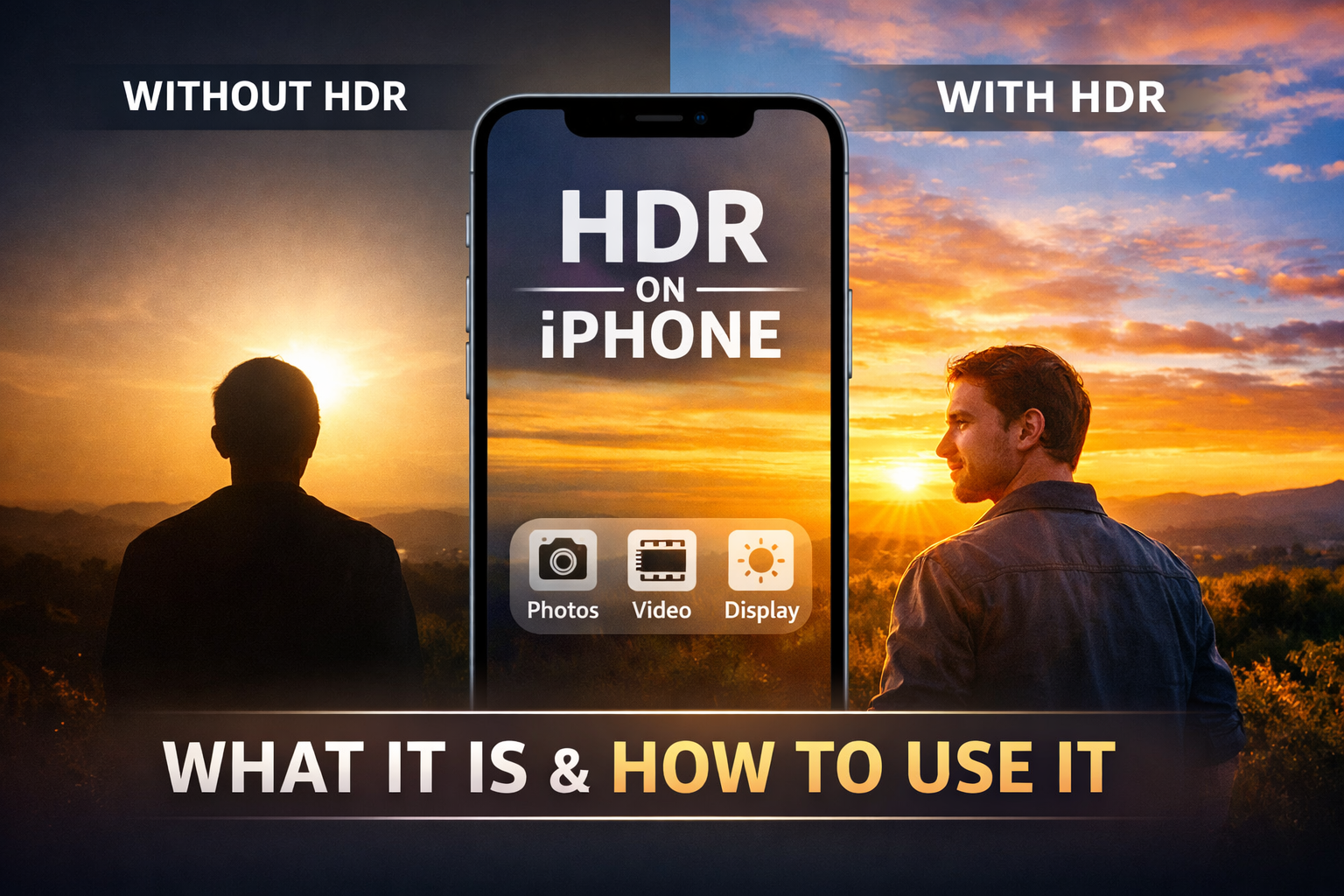
HDR on iPhone helps you capture photos and videos with a better balance between bright and dark areas. When lighting conditions challenge the camera, HDR preserves details that standard shots often lose.
Many iPhone users turn HDR on without fully understanding what it does or when it helps. This guide explains how HDR works on iPhone, how to control it, and when you should actually use it.
Table of contents
What HDR means on iPhone
HDR stands for High Dynamic Range. On iPhone, it means the camera captures more detail in highlights and shadows within the same photo or video.

Instead of choosing between a bright sky and a visible subject, HDR blends multiple exposures into one balanced result.
How HDR works on iPhone
Your iPhone captures several images at different brightness levels within a split second. The system then merges the best parts of each image into a single photo or video.
You never see the extra captures, but you see the improved lighting balance in the final result.
Smart HDR for photos
Smart HDR activates automatically when your iPhone detects challenging lighting. It analyzes faces, highlights, and shadows to keep skin tones natural while preserving background detail.
On newer iPhones, Smart HDR runs by default with limited manual control.
HDR for video recording
HDR video records with expanded brightness and color depth. Highlights appear brighter, while dark areas retain more detail than standard video.
HDR video works best in scenes with strong contrast, such as outdoor daylight or mixed indoor lighting.
HDR display and playback
iPhone displays HDR content with higher brightness and richer contrast. HDR photos and videos look more vivid when viewed on supported iPhone screens.
When you share HDR content, other devices may convert it to standard format automatically.
How to turn HDR on or off on iPhone
Apple limits manual HDR controls on newer models, but you can still manage how HDR behaves.
Enable or disable Smart HDR for photos
- Open Settings.
- Tap Camera.


- Turn Smart HDR on or off if the option appears.
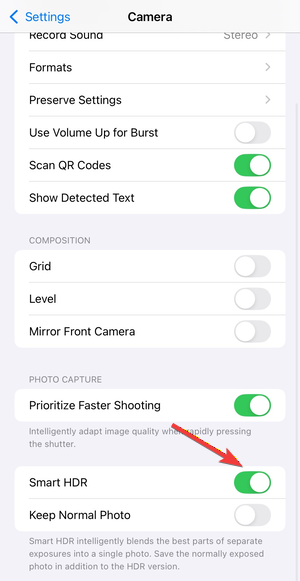

On recent iPhones, Smart HDR stays enabled permanently and works automatically. But if you disable it, you will see HDR among the camera symbols on your iPhone.
Turn HDR video recording on or off
- Open Settings.
- Tap Camera, then tap Record Video.
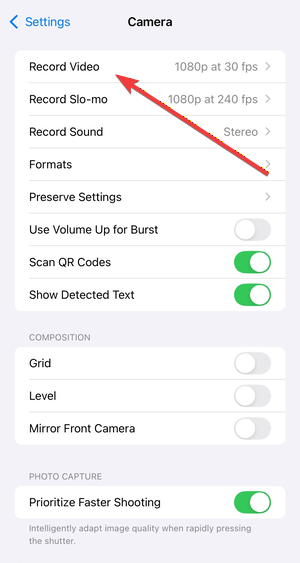

- Toggle HDR Video on or off.


Disabling HDR video can reduce file sizes and improve compatibility with older devices.
When to use HDR on iPhone
HDR works best in specific lighting conditions. Knowing when to rely on it prevents flat or unnatural results.
Scenes where HDR improves photos
HDR helps most when scenes include bright and dark areas at the same time. This includes sunsets, backlit portraits, landscapes, and indoor photos with bright windows.
The feature preserves sky detail while keeping subjects properly exposed.
Situations where HDR can hurt image quality
HDR may reduce contrast in evenly lit scenes. It can also struggle with fast-moving subjects, creating blur or unnatural textures.
In low-light scenes, HDR sometimes introduces noise instead of improving detail.
HDR on iPhone vs standard photos and video
HDR changes how images look and how much space they consume.
Image quality differences you can actually see
HDR photos show more detail in shadows and highlights. Standard photos often look punchier, with stronger contrast and deeper blacks.
HDR video appears brighter and smoother, especially on compatible displays.
File size and storage impact
HDR photos take slightly more space than standard images. HDR video uses significantly more storage, especially at higher resolutions and frame rates.
If storage runs low, disabling HDR video can help.
Common HDR problems on iPhone and how to fix them
- HDR photos look washed out or over-processed: HDR sometimes flattens contrast to preserve detail. To reduce this, lock exposure manually or shoot without HDR in evenly lit scenes. Editing contrast slightly can also restore depth.
- HDR video looks too bright or inconsistent: HDR video adapts to lighting changes quickly. Turning off HDR video can create more consistent results in controlled lighting environments. Adjusting display brightness also changes how HDR video appears during playback.
Tips for getting the best HDR results on iPhone
- Use HDR only when lighting contrast demands it.
- Lock focus and exposure for more predictable results.
- Review HDR shots before sharing to confirm natural colors.
FAQs about HDR on iPhone
Does HDR drain battery on iPhone?
HDR processing uses a bit more power during capture, but most users will not notice a meaningful battery difference in daily use.
Can I remove HDR after taking a photo on iPhone?
You cannot fully remove HDR processing after the shot, but you can edit the photo to increase contrast, lower highlights, and deepen shadows to reduce the HDR look.
Why does my iPhone not show an HDR toggle?
Apple manages HDR automatically on many newer iPhones, so iOS may hide the Smart HDR switch. Your iPhone can still use HDR, but it decides when to apply it.
Why does HDR look different after I share a photo or video?
Some apps and platforms convert HDR to standard dynamic range for compatibility. The conversion can change brightness, contrast, and color, especially on non-HDR displays.
Summary
- HDR balances bright highlights and dark shadows in photos and videos.
- Smart HDR works automatically and adjusts based on scene conditions.
- HDR improves high-contrast scenes but may flatten evenly lit shots.
- HDR video looks better but uses more storage space.
HDR on iPhone works best as a selective tool rather than a permanent setting. Use it when scenes include strong lighting contrast, and turn it off when you want punchier, more natural results. Once you understand how HDR behaves, you can choose when it enhances your photos instead of letting it decide for you.



Discussion (0)
Be the first to comment.