




Google Pay usually works without issues, so when it suddenly fails, something specific has changed. In most cases, the problem comes from NFC being disabled, Google Play Services acting up, or your bank blocking mobile payments. You can fix most Google Pay issues in a few minutes by following the steps below, starting with the simplest checks.
Table of contents
- Why Google Pay stops working
- Quick checks before deeper fixes
- Fix Google Pay tap-to-pay not working
- Fix Google Pay app not opening or crashing
- Fix card declined or removed in Google Pay
- Fix Google Pay stopped working after an update
- Fix Google Pay not working on Wear OS or smartwatch
- When Google Pay still doesn’t work
- Tips to prevent Google Pay issues
- FAQs
- Summary
Why Google Pay stops working
Google Pay depends on several system-level components to function correctly. NFC hardware, Google Play Services, device security settings, and bank authorization all need to work together. A recent Android update, app corruption, or a silent bank restriction can break this chain and stop payments instantly.
Quick checks before deeper fixes
Start here to rule out the most common causes.
- Turn off Airplane mode and enable mobile data or Wi-Fi.
- Unlock your phone before paying, since Google Pay will not work on a locked screen.
- Confirm your device supports NFC and contactless payments.
These checks often fix Google Pay issues without touching app settings.
Fix Google Pay tap-to-pay not working
Contactless payment failures usually point to NFC or default payment settings.
Check NFC and default payment app
You need to set up NFC on Android for contactless payment to work well. Start by opening Settings → Connected devices → NFC and make sure NFC is turned on. Then go to Settings → Apps → Default apps → Tap & pay and confirm Google Pay is selected. Android updates sometimes reset this option without warning.
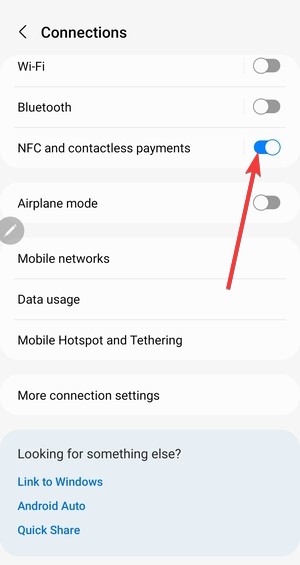
Re-enable contactless payments in Google Pay
Open Google Pay, tap your profile picture, go to Settings → Contactless setup, and confirm tap-to-pay is enabled. If Google Pay shows setup incomplete, follow the prompts to finish activation.
Remove phone cases and test hardware
Thick cases, metal plates, or damaged NFC antennas can block payments. Remove the case and try again at a terminal. If payments still fail everywhere, your NFC hardware may have an issue.
Fix Google Pay app not opening or crashing
If Google Pay fails before you reach the payment screen, app, or system data is usually the cause.
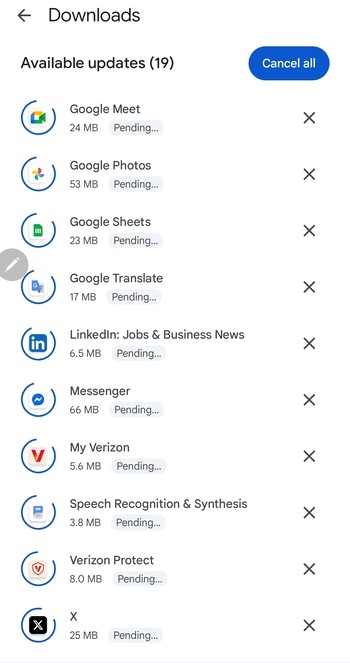
Update Google Pay and Google Play Services
Open the Play Store and update Google Pay, Google Wallet, and Google Play Services. Google Pay relies heavily on Play Services for authentication and token handling.
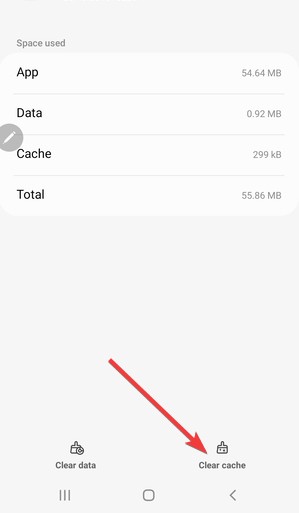
Clear cache without deleting data
Go to Settings → Apps → Google Pay → Storage and tap Clear cache. Do not tap Clear data unless nothing else works, since that removes cards and settings.
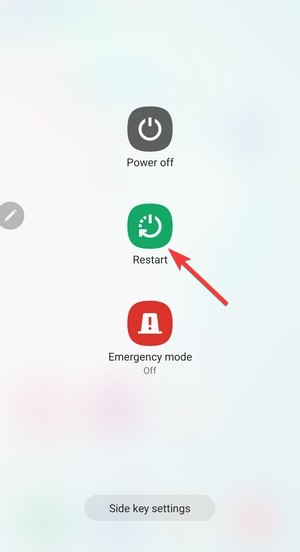
Restart Android system services
Restart your phone to refresh background services. This simple step fixes many Google Pay crashes caused by stalled system processes.
Fix card declined or removed in Google Pay
Card-related errors often confuse users because the app still looks fine.
Verify bank support and region availability
Not all banks support Google Pay in every country. Check whether your card issuer officially supports Google Pay in your region before troubleshooting further.
Re-add the card to Google Pay
Remove the affected card, restart your phone, then add the card again. This forces Google Pay to create a fresh payment token and often fixes unexplained declines.
Contact your bank for silent blocks
Banks sometimes block mobile payments for security reasons without notifying you. A quick call or in-app chat usually resolves this within minutes.
Fix Google Pay stopped working after an update
Problems that appear right after updates usually relate to system changes.
Check Google Wallet migration issues
Google continues shifting features between Google Pay and Google Wallet. Open both apps and confirm your cards appear correctly. If one app looks incomplete, finish setup prompts.
Refresh Google Play Services data
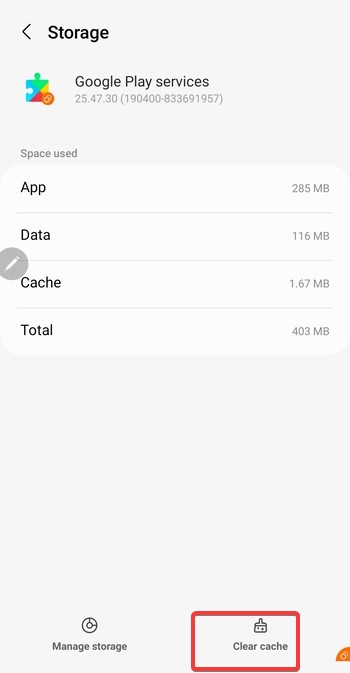
Go to Settings → Apps → Google Play Services → Storage and clear the cache. This step fixes many update-related payment failures without affecting personal data.
Fix Google Pay not working on Wear OS or smartwatch
Smartwatch payments fail even when phone payments work correctly.
Sync Google Pay between phone and watch
Open the companion app for your watch and confirm Google Pay sync is enabled. Unsynced cards prevent payments on Wear OS devices.
Re-enable NFC and screen lock on the watch
Wear OS requires NFC and a screen lock to allow payments. Set a PIN or pattern on the watch and confirm NFC is enabled.
When Google Pay still doesn’t work
At this point, deeper limitations may exist.
Check device compatibility
Google Pay will not work on rooted devices, phones with unlocked bootloaders, or uncertified Android builds. You can verify certification status in the Play Store settings.
Use alternative payment methods temporarily
Use a physical card or your bank’s official payment app while you resolve the issue. This avoids checkout problems while troubleshooting continues.
Tips to prevent Google Pay issues
- Keep Google Pay, Google Wallet, and Google Play Services updated.
- Avoid aggressive battery optimization for Google Pay.
- Leave NFC enabled if you use contactless payments regularly.
- Restart your phone after major Android updates.
FAQs
Why does Google Pay work online but not in stores?
Online payments do not use NFC, so tap-to-pay failures usually point to NFC or hardware issues.
Is Google Pay safe to keep enabled all the time?
Yes. Google Pay requires device unlock and secure authentication before every payment.
Can I use Google Pay without internet access?
Tap-to-pay works offline for a limited number of transactions, but setup and card changes require internet access.
Summary
- Check NFC, default payment settings, and basic connectivity first.
- Fix app issues by updating Google Pay and clearing cache.
- Resolve card declines by re-adding cards or contacting your bank.
- Address update, smartwatch, or compatibility-related problems last.
Most Google Pay issues come from disabled NFC, outdated system services, or silent bank restrictions. By following the steps above in order, you can identify the cause quickly and restore contactless payments without factory resets or complex fixes. If Google Pay still fails after all checks, device compatibility or bank support usually explains the problem.


Discussion (0)
Be the first to comment.