



Touch ID is meant to be fast and reliable, so when it stops working, it immediately slows everything down. If your iPhone or iPad no longer recognizes your fingerprint, fails during setup, or Touch ID has vanished from Settings, the issue usually falls into one of three categories: sensor problems, software glitches, or hardware damage.
This guide walks through practical fixes to restore Touch ID on iPhone and iPad, starting with quick checks and moving toward deeper system solutions.
Why Touch ID Is Not Working On iPhone Or iPad
Touch ID can fail for several everyday reasons. In most cases, the sensor itself is fine, but something interferes with how it reads your fingerprint.
- Dirty or obstructed Touch ID sensor
- Wet, oily, or damaged fingertips
- Screen protector or case blocking the Home button
- Corrupted fingerprint data
- iOS bugs after an update
- Unauthorized screen replacement
Quick Fixes To Try First
Start with these basic steps. They resolve the majority of Touch ID problems without changing system settings.
- Clean your finger and the Touch ID sensor using a dry microfiber cloth
- Remove thick screen protectors or cases that cover the Home button
- Wash and fully dry your hands before trying again
- Restart your iPhone or iPad to clear temporary glitches
Remove And Re-Add Fingerprints
If Touch ID still fails, the stored fingerprint data may be inaccurate or corrupted. Removing and re-adding fingerprints often restores proper recognition.
- Open Settings and tap Touch ID & Passcode
- Enter your device passcode
- Tap each saved fingerprint and select Delete Fingerprint
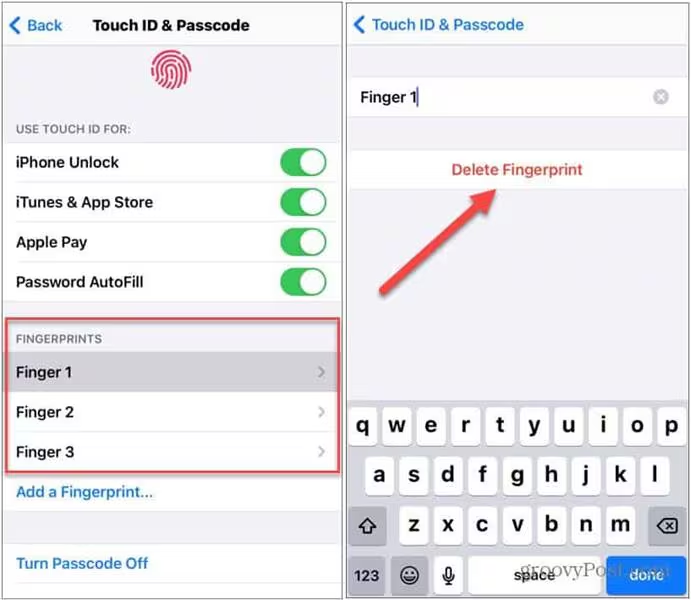
- Tap Add A Fingerprint and carefully rescan your finger
- Enable Touch ID for unlocking and purchases if disabled
Update iOS To Fix Touch ID Bugs
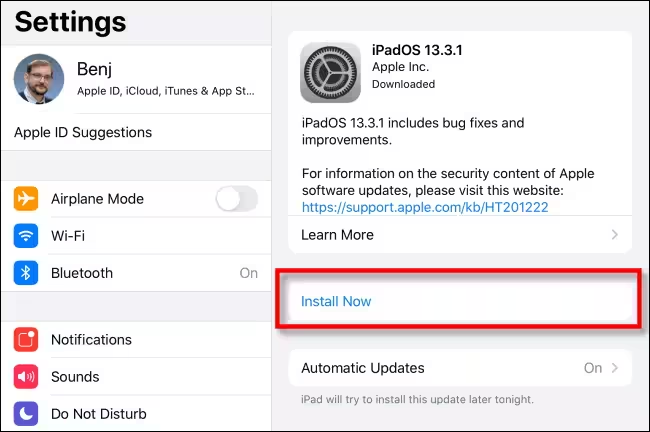
Software bugs can prevent Touch ID from working correctly, especially after major updates. Installing the latest iOS version often includes silent fixes for biometric issues.
- Open Settings
- Go to General → Software Update
- Install any available updates
Reset All Settings Without Erasing Data
If Touch ID settings are misconfigured at the system level, resetting all settings can help without deleting personal data.
- Open Settings
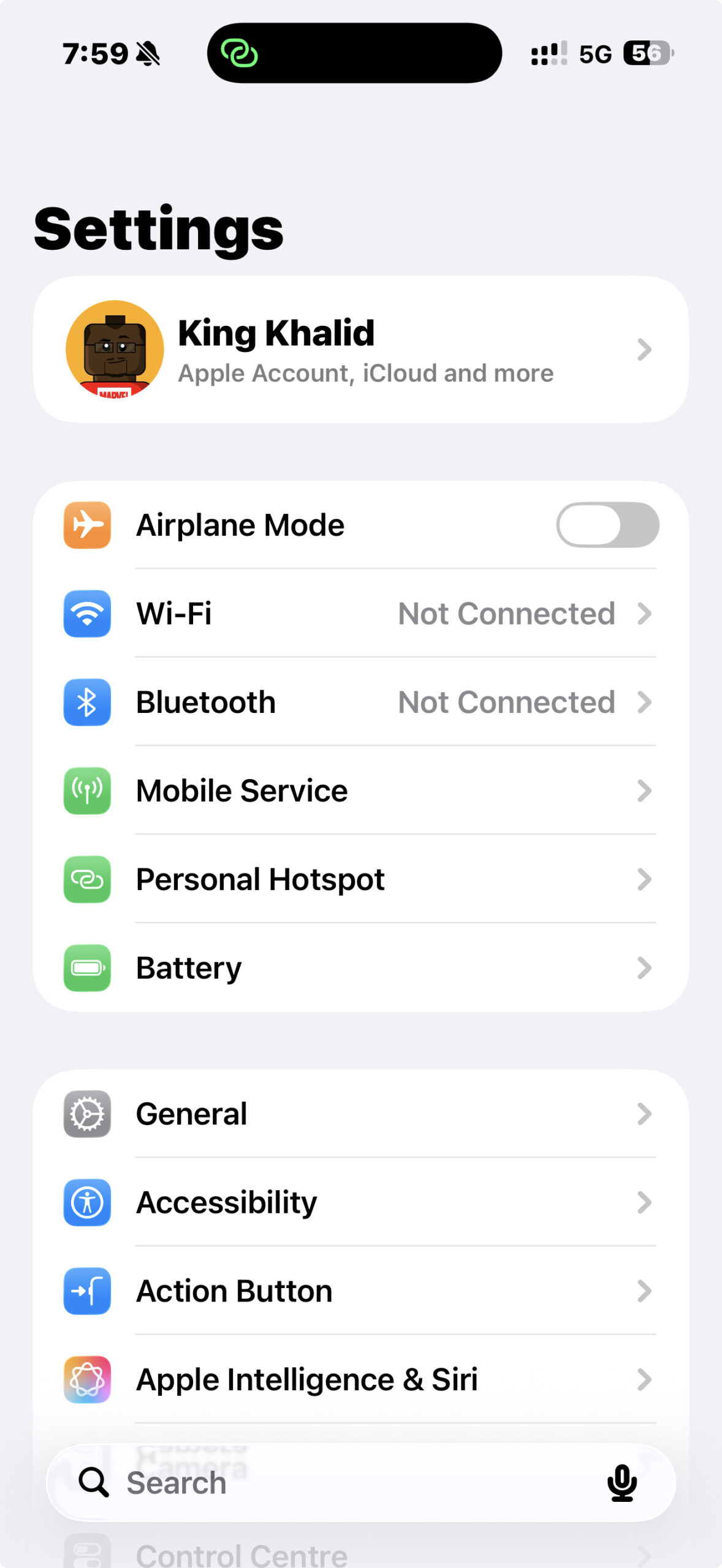
- Go to General → Transfer Or Reset iPhone
- Tap Reset → Reset All Settings
- Enter your passcode and confirm
Check App-Specific Touch ID Restrictions
If Touch ID works for unlocking but not inside certain apps, the issue may be app-specific.
- Open the affected app and review its security settings
- Enable biometric authentication inside the app
- Check Settings → Touch ID & Passcode to confirm access is allowed
- Update or reinstall the app if needed
Touch ID Not Working After Screen Replacement
If Touch ID stopped working after a screen repair, the cause is likely hardware-related. Touch ID sensors are paired to the device’s logic board and cannot be re-paired by third-party repair shops.
If the original Home button was replaced or damaged, Touch ID may be permanently disabled. Only Apple or authorized service providers can restore full functionality if the original sensor remains intact.
Troubleshooting Common Problems
If Touch ID options are grayed out or missing entirely from Settings, your device may no longer detect the sensor. This typically indicates hardware damage rather than a software issue.
Also check for recent drops, liquid exposure, or overheating, as internal damage may not be visible externally.
Tips
- Restart your device weekly to prevent sensor-related glitches
- Re-register fingerprints every few months for better accuracy
- Avoid exposing your iPhone to excessive heat or moisture
- Use screen protectors designed for Touch ID compatibility
- Only use Apple-authorized repair services
FAQ
Why is Touch ID missing from Settings?
This usually indicates a hardware communication failure between the sensor and the logic board.
Can iOS updates break Touch ID?
Rarely, but software bugs can temporarily affect Touch ID, which updates often resolve.
Does resetting all settings delete data?
No. It resets preferences but keeps apps, photos, and files intact.
Can Touch ID be fixed after a third-party repair?
Only if the original Home button was preserved and not damaged.
Summary
- Clean the Touch ID sensor and your finger
- Re-add fingerprints
- Update iOS
- Reset all settings
- Check for hardware damage after repairs
Conclusion
When Touch ID stops working on iPhone or iPad, the fix is often simpler than it looks. Most issues stem from sensor interference or software glitches, not permanent damage.
If Touch ID remains unavailable after troubleshooting, Apple Support can confirm whether a hardware repair is required.


Discussion (0)
Be the first to comment.