



If your smart TV keeps turning off by itself, you can usually fix it at home without calling a technician. Most shutdown problems come from power settings, software glitches, HDMI-CEC controls, or overheating rather than a dead TV. By working through a few simple checks, you can stop the random black screen and get back to watching without interruptions.
This guide shows you how to fix a smart TV that keeps turning off, whether it happens after a few minutes, only in certain apps, or in a constant on/off loop. The same steps apply to most major brands, including Samsung, LG, Sony, TCL, Hisense, Vizio, and Roku TV. Start with the quick power and settings checks, then move to deeper fixes only if the problem will not go away.
Fix A Smart TV That Keeps Turning Off
Work through these steps in order and test the TV after each one. If your smart TV randomly turns off or keeps turning off and on in a loop, these fixes cover the most common causes.
- Unplug The TV And Use A Wall Outlet Only — Turn the TV off, unplug it from the outlet, and wait at least 30 seconds. Plug it directly into a known-good wall outlet instead of a power strip or surge protector, then turn it back on. This cold power reset clears minor glitches and rules out a bad power strip when your TV keeps turning off by itself.

- Check the Power Cord And Outlet — Make sure the power cord sits firmly in both the TV and the outlet with no wiggle. Inspect the cord for kinks, cuts, or burn marks, and test another outlet if you suspect a loose or weak wall socket. A failing cord or outlet often causes a smart TV to shut off under load.
- Disable Sleep Timer and Auto Power Off — Open your TV Settings, then go to the Time, Timers, or Power section and look for options like Sleep Timer, Auto Power Off, or Power Saving. Turn these off or set them to a more extended period. If your TV turns off after 15, 30, or 60 minutes, a timer or eco mode is usually the cause.
- Turn Off Eco or Power Saving Modes — Go to Settings > General > Power or Eco and disable options such as Eco Mode, Auto Power Saving, or No Signal Power Off. These features shut down a smart TV when it detects low input or no remote activity, which can appear as random shutdowns.
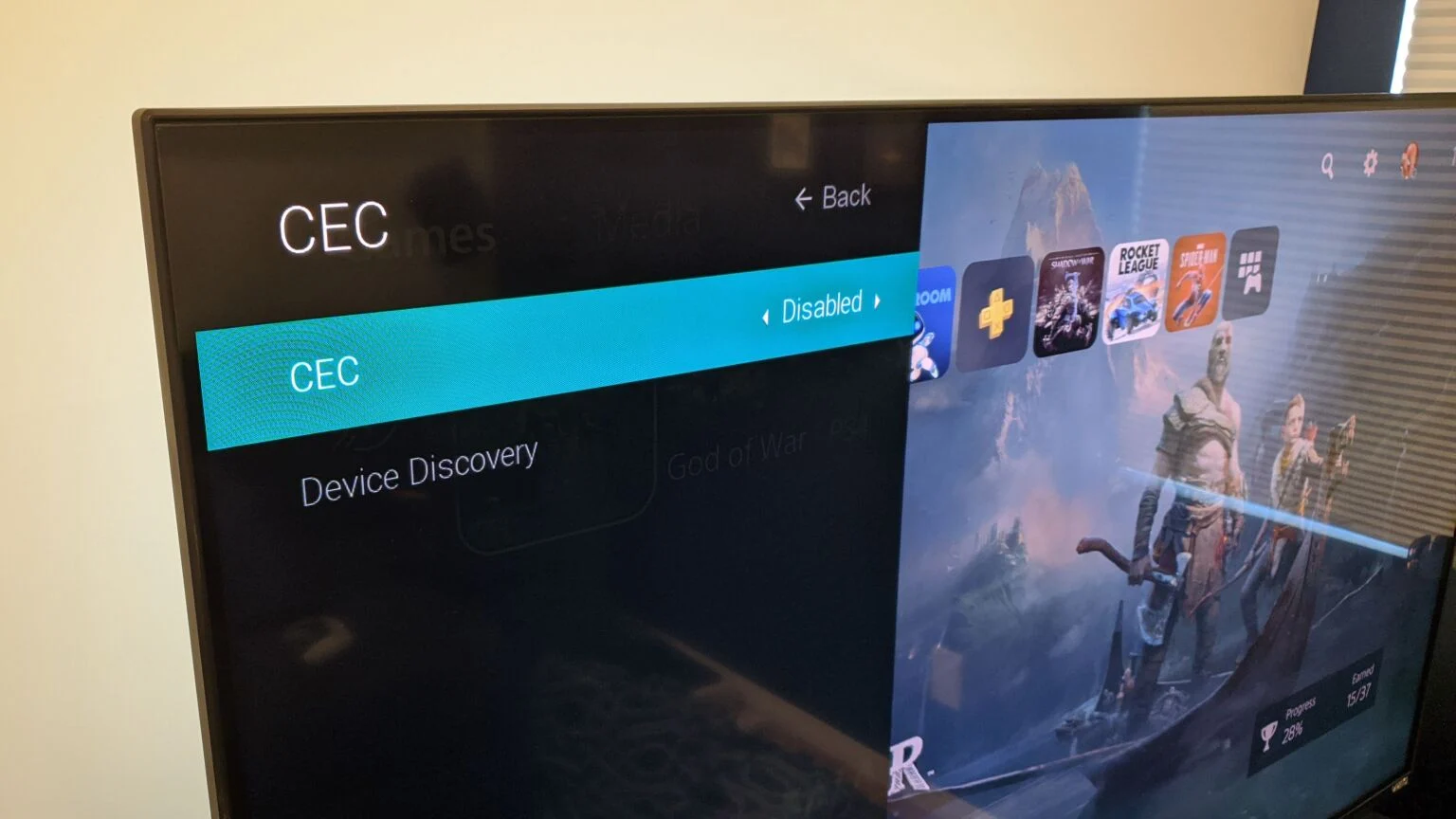
- Disable HDMI-CEC and Test External Devices — In Settings, look for HDMI-CEC (also called Anynet+, Simplink, or Bravia Sync) and temporarily turn it off. Then unplug game consoles, streaming boxes, soundbars, and Blu-ray or DVD players, and test the TV with only the power cable attached. Misbehaving HDMI devices or CEC commands can cause a smart TV to turn off and on by itself.
- Disconnect Wi-Fi and Smart Assistants — Open your network settings and disconnect the TV from Wi-Fi for a short test. If it stops shutting down, a cast session, mobile app, routine, or voice assistant like Alexa or Google Assistant may have been sending power or sleep commands to your smart TV.
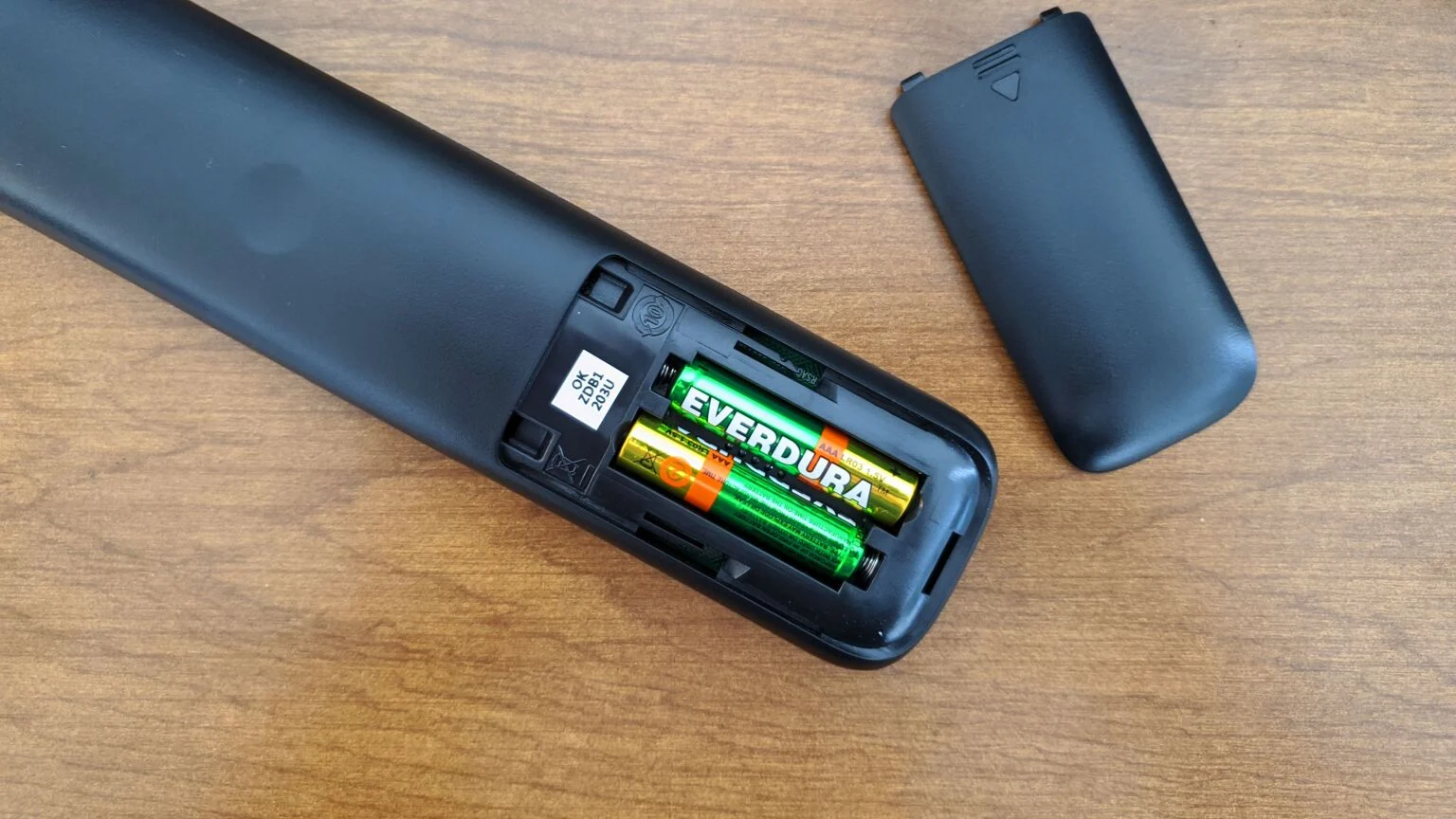
- Check The Remote For Stuck Buttons Or Low Batteries — Remove the batteries from the remote and try using only the power button on the TV. If the TV stops turning off, the remote was likely sending constant signals. Replace the batteries, clean around the power button, and make sure no buttons feel sticky or stuck down.
- Improve Ventilation And Clean Dust — Make sure the TV has a few inches of space on all sides and does not sit inside a closed cabinet or right against a wall. Power off the TV and gently clear dust from vents on the back or sides. Overheating will trigger a safety shutdown, so a smart TV that shuts off after a while and then works again later often points to overheating.
- Check For Software Or Firmware Updates — Go to Settings > Support > Software Update or a similar menu and run a manual update check. Install any available firmware updates, then restart the TV. Outdated software can cause random reboots, app crashes, and a smart TV that keeps turning off while streaming.
- Reset Picture and Power Settings — Before you wipe everything, try resetting only picture and power-related settings. Many TVs offer a Reset Picture or Reset Settings option that restores default settings for modes, timers, and power-saving features without removing apps or accounts.
- Factory Reset The Smart TV — If the TV still shuts down, perform a complete factory reset from Settings > System > Reset or Settings > General > Reset. This returns the TV to its original state and resolves deeper software issues that cause it to randomly turn off. You need to sign in to apps and set up Wi-Fi again afterward.
- Call Support If It Still Turns Off — If your TV turns off within seconds of powering on, makes clicking sounds, shows distorted colors, or will not stay on even after a factory reset, you may have a failing power board, backlight, or main board. At that point, contact the manufacturer or a local repair shop to check for hardware failure.
Troubleshooting Common Problems
Some smart TV shutdown issues only appear in specific situations. Use these quick checks when your symptoms match one of these patterns.
If the TV turns off after the same amount of time every night, focus on any sleep timer, auto power off, child lock, or eco settings that cut power after inactivity. Turning off those options often fixes a smart TV that shuts off exactly after 30 or 60 minutes.
If your smart TV keeps turning off only when you use a particular app, such as Netflix or YouTube, clear the app's cache or reinstall it from the TV app store. Also, check for a software update, because app crashes can look like random shutdowns when the whole system restarts.
If the TV turns off and on repeatedly, unplug it from power and disconnect all HDMI devices for several minutes. Then plug it back in and test with no external gear. If the loop stops, add devices back one by one until you find the one causing the issue.
If the smart TV only shuts off when the room gets warm or when you use it for hours, assume a heat issue. Improve airflow, move the TV away from heaters or direct sunlight, and lower the backlight level a bit to reduce heat buildup.
Tips
- Keep your smart TV firmware up to date so known power and stability bugs stay fixed.
- Use a high-quality surge protector or line conditioner to protect the TV from voltage spikes.
- Label HDMI cables and ports so you can quickly disconnect or swap devices during troubleshooting.
- Leave some space behind wall-mounted TVs so the vents can breathe and stay cooler.
- Turn off unused CEC, eco, and sleep timer features if your TV setup is simple and you only want manual control.
FAQ
Why Does My Smart TV Keep Turning Off By Itself
A smart TV usually turns off by itself because of power settings, HDMI-CEC commands, overheating, or unstable power. Check timers, eco modes, external devices, and ventilation first before assuming the TV hardware failed.
Why Does My Smart TV Turn Off And Then Back On
A TV that turns off and on in a loop often deals with a bad update, a stuck remote button, or a misbehaving HDMI device sending power commands. Unplug the TV, remove remote batteries, and test with all HDMI cables disconnected to see if the loop stops.
Can Overheating Make My TV Shut Down
Yes, modern smart TVs include thermal protection that shuts the set down when internal components get too hot. Poor ventilation, dust in the vents, and high backlight levels in a warm room all make overheating more likely.
When Should I Call A Technician
Contact support if the TV shuts off within seconds even on a clean outlet, shows visible artifacts, makes clicking noises, or still turns off randomly after a factory reset. Those signs point to a failing power board, main board, or backlight that needs professional repair.
Summary
- Unplug the TV, plug it into a known-good wall outlet, and inspect the power cord.
- Turn off sleep timers, eco modes, auto power off, HDMI-CEC, and test without external devices.
- Disconnect Wi-Fi and smart assistants, check the remote, and improve ventilation around the TV.
- Update the TV software, then reset settings or perform a factory reset if shutdowns continue.
- Call support or a repair shop if your smart TV still keeps turning off, which suggests hardware damage.
Conclusion
Most of the time, you can fix a smart TV that keeps turning off by yourself with simple checks to power, settings, and connected devices. System updates, HDMI-CEC controls, and eco features can all shut down the TV even when nothing looks obviously wrong.
If you work through these steps in order, you should quickly find whether the problem comes from a setting, an accessory, or the TV hardware itself. Once you isolate the cause, you can keep your smart TV stable and avoid surprise shutdowns during movies, games, or live sports.


Discussion (0)
Be the first to comment.