




When iMessage notifications are not working on iPhone, important messages can arrive silently without alerts, banners, or sounds. This issue usually stems from notification settings, Focus modes, muted conversations, or system-level restrictions that block message alerts.
Below are reliable ways to fix iMessage notifications not working, restore alerts, and ensure your iPhone notifies you properly when new messages arrive.
Check That iMessage Is Enabled
If iMessage is disabled, message notifications may not trigger correctly, especially after a SIM change or device setup.
- Open Settings
- Tap Messages
- Make sure iMessage is turned on
Review iMessage Notification Settings
Disabled notifications prevent alerts from appearing on the Lock Screen or Notification Center.
- Go to Settings
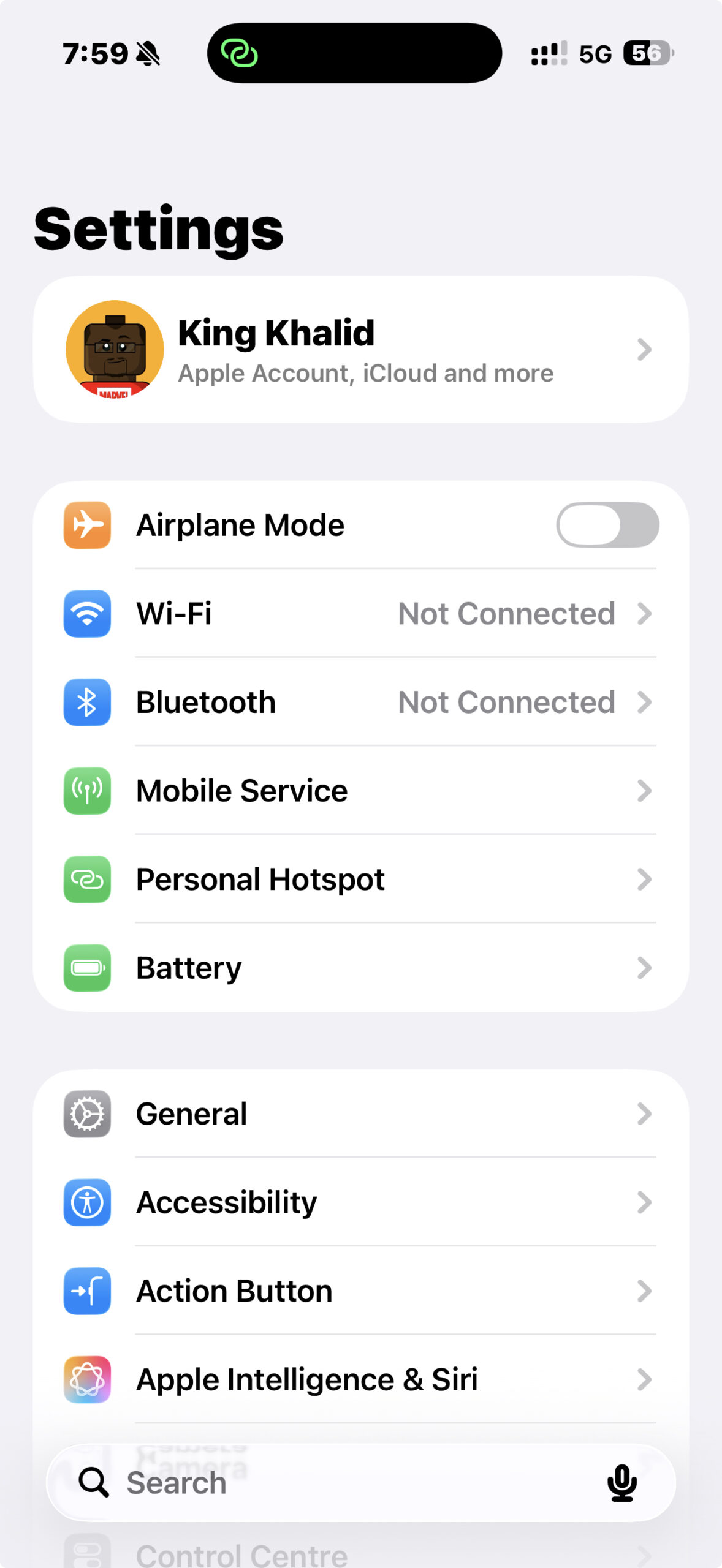
- Go to Notifications → Messages
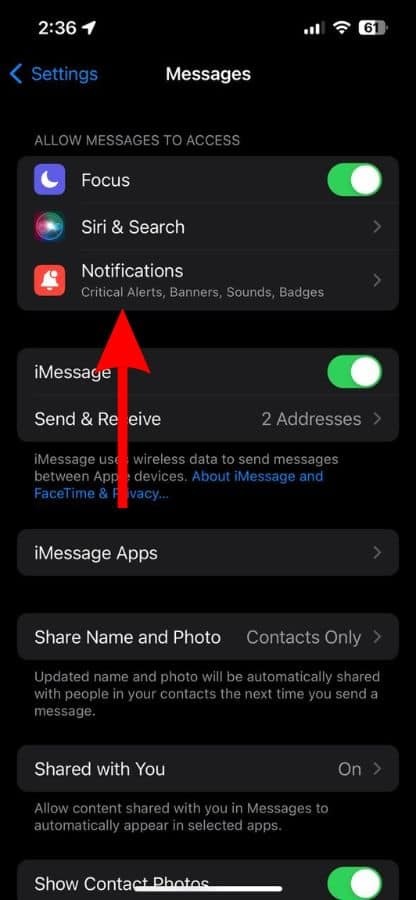
- Turn on Allow Notifications

- Enable Lock Screen, Notification Center, and Banners
- Select a sound under Sounds
Disable Focus Mode Or Allow Messages Through
Focus modes often block iMessage alerts unless Messages is explicitly allowed.
- Open Settings → Focus
- Select the active Focus profile
- Tap Apps and add Messages as an allowed app
- Turn off Share Across Devices if other devices trigger Focus mode
Make Sure Conversations Are Not Muted
Muted chats suppress alerts even when notifications are enabled system-wide.
- Open Messages
- Open the affected conversation
- Tap the contact name → Info
- Turn off Hide Alerts
Turn Off Filter Unknown Senders
This feature silences messages from numbers not saved in Contacts.
- Go to Settings → Messages
- Disable Filter Unknown Senders
Disconnect Bluetooth Devices
Connected headphones or speakers may redirect notification sounds away from the iPhone speaker.
- Open Settings → Bluetooth
- Disconnect or turn off connected audio devices
Check Custom Text Tones
Contacts with custom text tones set to “None” will not produce alerts.
- Open Contacts
- Select the affected contact
- Tap Edit → Text Tone
- Choose a valid alert sound
Restart Your iPhone
A restart clears temporary glitches that prevent notifications from triggering.
- Power off the iPhone
- Wait 30 seconds
- Turn the device back on
Update iOS
Outdated iOS versions may contain notification-related bugs.
- Go to Settings → General → Software Update
- Install any available update
Troubleshooting Common Problems
If iMessage notifications still do not work, confirm the correct date and time settings, check blocked contacts, and ensure you are not actively inside a conversation when expecting alerts.
Tips
- Use a loud alert sound for Messages
- Avoid using multiple Focus profiles at the same time
- Save important contacts to avoid filtered messages
- Restart after major iOS updates
FAQ
Why am I not getting iMessage notifications but messages still arrive?
This usually happens due to Focus mode, muted conversations, or disabled notification alerts.
Can iMessage notifications stop working after switching iPhones?
Yes. iMessage may need reactivation after a device transfer or SIM change.
Do Bluetooth devices affect message alerts?
Yes. Notifications may play through connected Bluetooth accessories instead of the iPhone speaker.
Summary
- Check iMessage and notification settings
- Disable Focus mode restrictions
- Unmute conversations and contacts
- Restart and update the iPhone
Conclusion
When iMessage notifications are not working on iPhone, the issue is usually tied to notification settings, Focus modes, or muted conversations rather than a serious system fault. By checking these areas, you can restore alerts and ensure important messages never arrive silently again.



Discussion (0)
Be the first to comment.