




Windows 7 can fail to start because of corrupted boot files, failed updates, or sudden power loss. When that happens, downloading a Windows 7 recovery disc gives you access to Startup Repair, System Restore, and Command Prompt without reinstalling the operating system.
This guide shows where to safely download a Windows 7 recovery disc, how to create bootable USB or DVD media, and how to use it to fix common startup problems.
Table of contents
- What a Windows 7 recovery disc does (and does not do)
- Check this before downloading a recovery disc
- How to download a Windows 7 recovery disc safely
- How to create a Windows 7 recovery disc from another PC
- How to make a bootable USB or DVD from the recovery disc
- How to boot from the Windows 7 recovery disc
- How to use the Windows 7 recovery tools
- Common problems and quick fixes
- Tips to avoid fake or dangerous Windows 7 recovery downloads
- FAQs
- Summary
What a Windows 7 recovery disc does (and does not do)
A recovery disc loads Windows Recovery Environment instead of Windows itself. It gives you repair tools when your PC cannot start normally.
What you can fix with a recovery disc
You can repair damaged boot files, roll back system changes, restore from restore points, and access Command Prompt for manual fixes. These tools work without touching your personal files.
What a recovery disc cannot fix
A recovery disc cannot reinstall Windows 7, remove activation locks, or reset forgotten passwords. It also cannot upgrade your system or replace missing Windows editions.
Check this before downloading a recovery disc
These quick checks prevent wasted downloads and compatibility issues.
Do you know your system type (32-bit or 64-bit)?
A recovery disc must match your system architecture.
- On a working Windows 7 PC, click Start.
- Right-click Computer and choose Properties.
- Check System type for 32-bit or 64-bit.
If Windows does not boot, check the sticker on the PC or the manufacturer’s specs online.
Can your PC still boot at all?
This determines which method works best.
- If Windows boots: create a recovery disc locally.
- If Windows does not boot: download a recovery ISO or create one from another PC.
How to download a Windows 7 recovery disc safely
Microsoft no longer hosts Windows 7 recovery ISOs, so you must rely on trusted third-party sources.
Official Microsoft options (when available)
Microsoft only allows creating a recovery disc from an existing Windows 7 system. There is no official standalone download anymore.
- On a working Windows 7 PC, open Control Panel.
- Click Backup and Restore.
- Select Create a system repair disc.


- Insert a blank DVD.
- Click Create disc.


Trusted third-party recovery disc downloads
You can download Windows 7 ISO files on some long-standing sites. Just make sure you get the recovery ISOs originally built from Microsoft tools.
- Download a Windows 7 System Repair Disc ISO that matches 32-bit or 64-bit.
- Verify the file size and description before proceeding.
- Store the ISO on a clean USB drive or local disk.
Avoid sites that bundle installers, force download managers, or hide file details.
How to create a Windows 7 recovery disc from another PC
This method works if you have access to any other Windows 7 machine.
Create a recovery disc using Windows 7
This produces an official repair disc.
- Insert a blank DVD into the working PC.
- Open Control Panel.
- Go to Backup and Restore.
- Click Create a system repair disc.
- Select the DVD drive.
- Click Create disc.
- Label the disc clearly once finished.
Can Windows 10 or 11 create a Windows 7 recovery disc?
No. Newer Windows versions create recovery media only for their own version. You must use Windows 7 itself.
How to make a bootable USB or DVD from the recovery disc
After downloading an ISO, you must turn it into bootable media.
Burn the recovery disc to a DVD
DVD works best for older PCs.
- Insert a blank DVD.
- Right-click the ISO file.
- Select Burn disc image.
- Choose your DVD drive.
- Click Burn.
- Wait for the process to finish.
Create a bootable USB recovery drive
USB works better for PCs without DVD drives.
- Insert a USB drive (at least 1 GB).
- Open a trusted USB boot tool.
- Select the recovery disc ISO.
- Choose the USB drive.
- Start the creation process.
- Safely eject the USB when finished.
This erases all data on the USB drive.
How to boot from the Windows 7 recovery disc
You must start the PC from the disc or USB, not from the hard drive.
Access the boot menu or BIOS
Most systems use a special key at startup.
- Turn off the PC.
- Insert the recovery DVD or USB.
- Turn the PC on.
- Immediately press F12, Esc, F8, F10, or Del. If you see Press any key to boot from CD or DVD, just press any key.


- Select the DVD drive or USB device.
- Press Enter.
What to do if the disc or USB doesn’t boot
These fixes solve most boot issues.
- Re-enter BIOS setup.
- Move the DVD or USB to the top of the boot order.
- Disable Secure Boot if present.
- Enable Legacy Boot on newer systems.
- Save changes and restart.
How to use the Windows 7 recovery tools
Once the recovery environment loads, choose the correct repair option.
Run Startup Repair
This is the safest first option.
- Select your keyboard layout and click Next.


- Select Repair your computer on the next page.
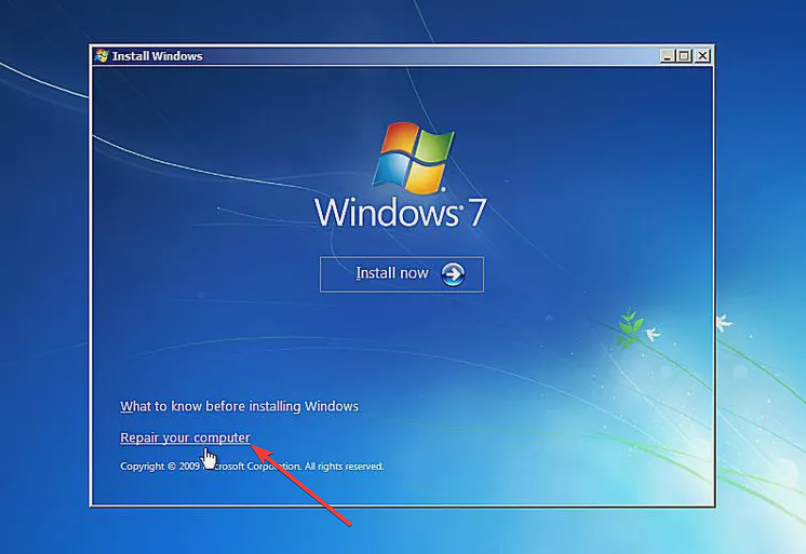

- Choose Startup Repair.
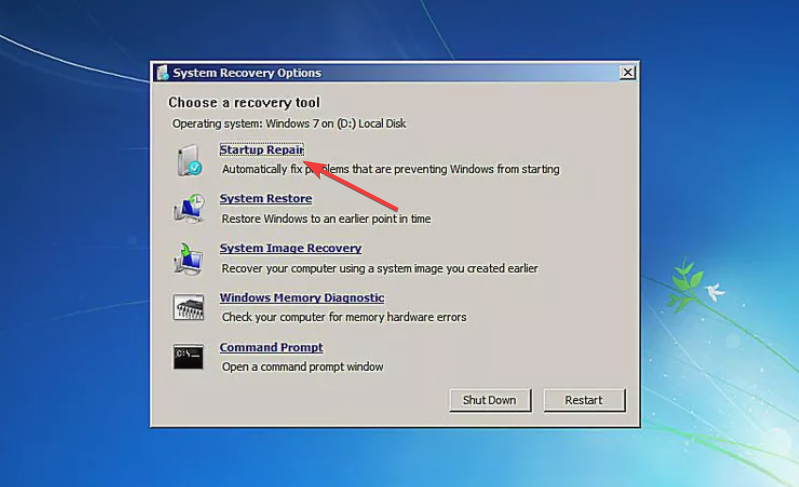

- Wait while Windows scans and fixes boot issues.
- Restart when prompted.
Use System Restore
This rolls back system files without deleting personal data.
- Select System Restore.

- Choose a restore point dated before the problem.
- Confirm the restore.
- Restart after completion.
Open Command Prompt for advanced recovery
Use this only if other tools fail.
- Select Command Prompt.
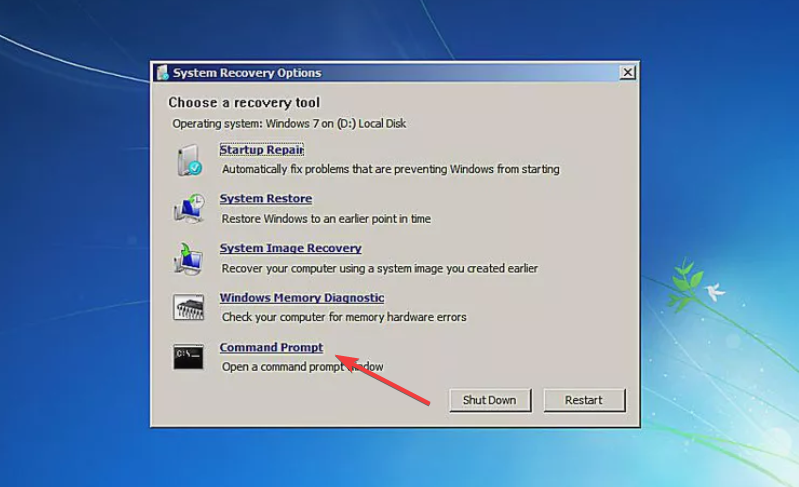
- Type bootrec /fixmbr and press Enter.
- Type bootrec /fixboot and press Enter.
- Restart the PC.
Common problems and quick fixes
Recovery disc not detecting Windows installation
This usually means disk or partition issues.
- Open Command Prompt.
- Type diskpart and press Enter.
- Type list volume and press Enter.
- Check that the Windows partition appears.
Keyboard or mouse not working in recovery mode
Some drivers load incorrectly.
- Use a wired USB keyboard or mouse.
- Plug devices into the rear USB ports.
- Avoid USB hubs.
Tips to avoid fake or dangerous Windows 7 recovery downloads
- Avoid sites that rename files or hide ISO details.
- Never download executables instead of ISO files.
- Scan all downloads before use.
- Do not enter license keys or personal data.
FAQs
Can I use one recovery disc for multiple PCs?
Yes, as long as the system architecture matches.
Does the recovery disc delete my files?
No, repair tools work without touching personal data.
Can I upgrade Windows using a recovery disc?
No, it only provides repair tools.
Summary
- Confirm your system architecture before downloading.
- Use official disc creation when possible.
- Download only trusted recovery ISOs.
- Create bootable DVD or USB media correctly.
- Start with Startup Repair before advanced tools.
A Windows 7 recovery disc remains the fastest way to fix startup problems without reinstalling the OS. If repairs fail after multiple attempts, consider backing up files and performing a clean Windows installation as the final step.


Discussion (0)
Be the first to comment.