




Safari on iPhone includes built-in tools that let you customize website settings for better readability, privacy, and performance. You can change text size, enable Reader Mode, request desktop websites, and manage permissions on a per-site basis, making each website behave exactly how you prefer.
These Safari website settings can apply to all sites or only to specific ones, and you can also sync them across Apple devices using iCloud. Below is how to access and adjust these options step by step.
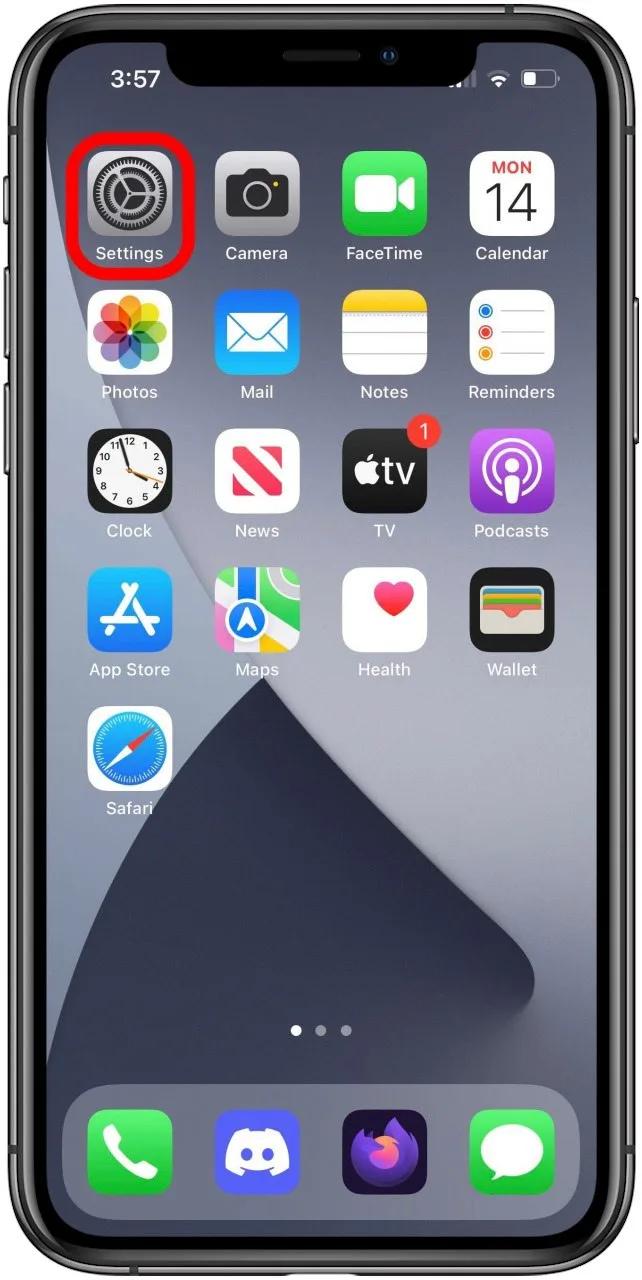
- Open the Settings app on your iPhone
- Scroll down and tap Safari
- Scroll to the Settings For Websites section
This section controls default Safari website behavior across all sites unless overridden for individual pages.
- Page Zoom lets you set a default zoom level for websites
- Request Desktop Website forces sites to load their desktop layout
- Reader enables Reader Mode automatically when available
- Camera, Microphone, and Location control site permissions
How To Change Safari Settings For Individual Websites
Using global settings may not always make sense, which is why Safari allows per-site customization. This ensures one website can use Reader Mode or a larger text size without affecting others.
- Open Safari and visit the website
- Tap the menu icon to the left of the address bar
- Tap the three-dot menu
- Select Website Settings
From here, you can change Page Zoom, enable Reader Mode automatically, request the desktop site, or adjust permissions. Safari remembers these preferences for that website.
How To Sync Safari Website Settings Across Apple Devices
If you use multiple Apple devices, Safari can sync your website settings through iCloud. This ensures the same browsing experience on iPhone, iPad, and Mac.
- Open Settings
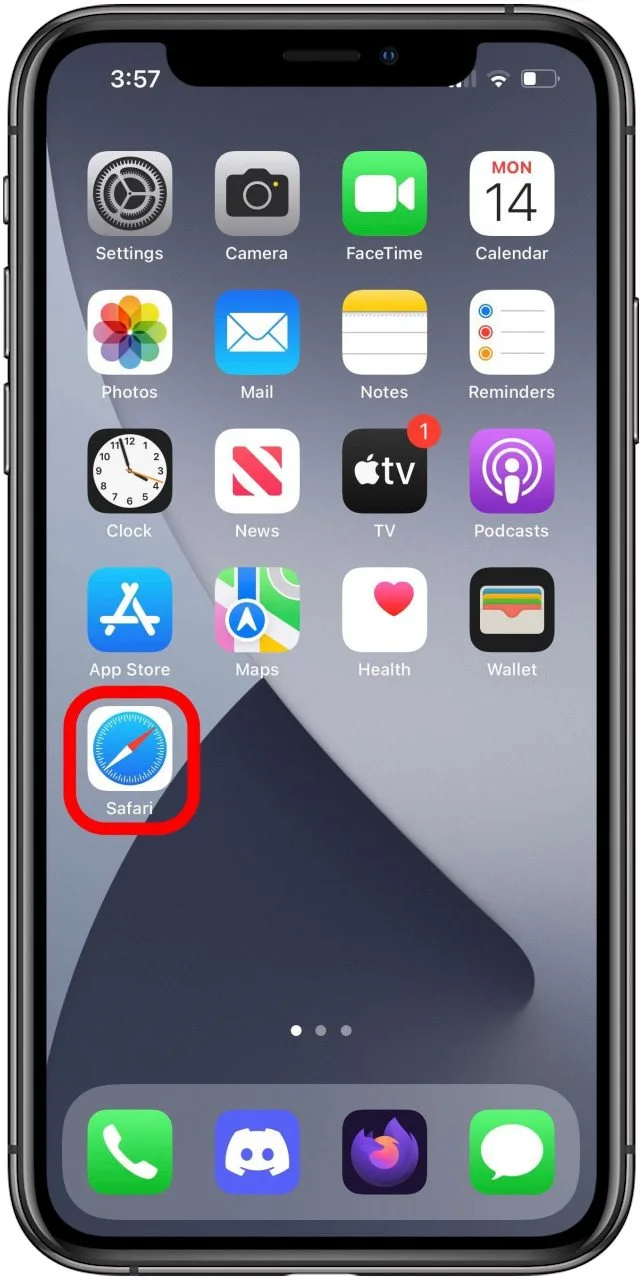
- Open Safari
- Scroll to Settings For Websites
- Turn on Share Across Devices
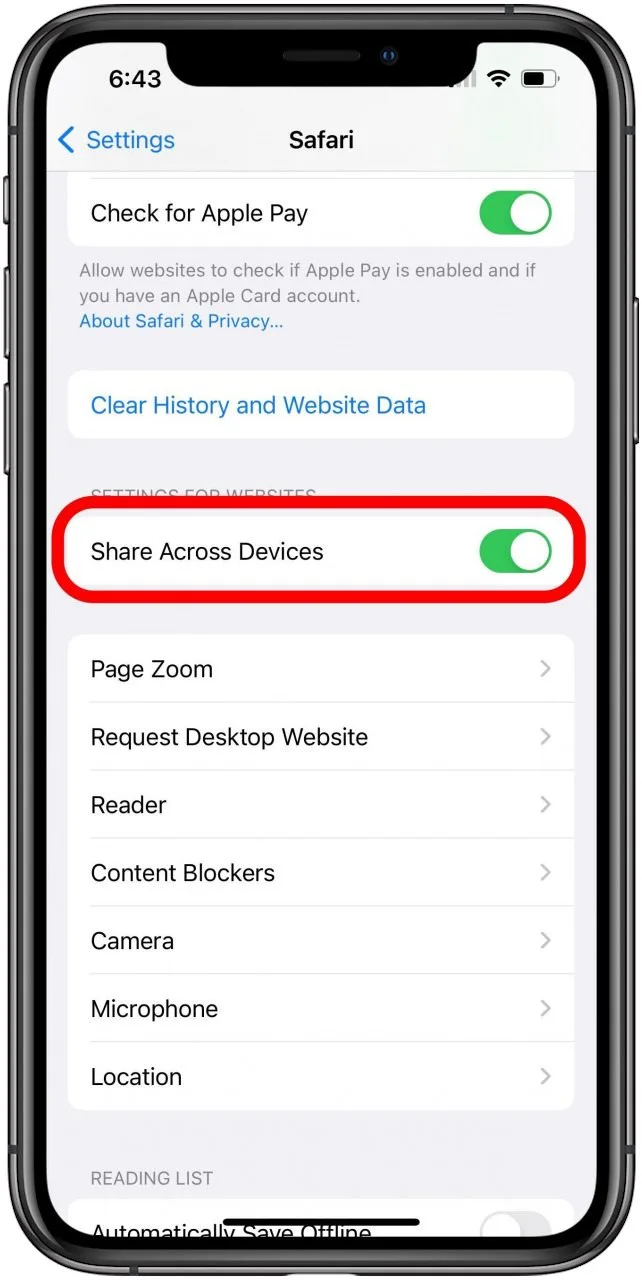
Once enabled, Safari website settings automatically sync to devices signed in with the same Apple ID.
Troubleshooting Common Problems
If Safari website settings do not apply as expected, ensure you are not using a private browsing tab, as private tabs do not save site preferences. Also confirm that Share Across Devices is enabled if syncing is not working.
Restarting Safari or your iPhone can also resolve cases where settings appear stuck or outdated.
Tips
- Use Page Zoom instead of pinch-to-zoom for consistent text sizing
- Enable Reader Mode automatically for content-heavy websites
- Review camera and location permissions regularly for privacy
- Use per-site settings instead of global ones for better control
FAQ
Do Safari website settings apply to all sites?
By default, settings apply globally, but per-site settings override them when configured.
Can Safari settings sync across devices?
Yes, enabling Share Across Devices syncs website settings through iCloud.
Why do my Safari settings reset?
Private browsing tabs do not save settings, and clearing Safari data can remove saved preferences.
Summary
- Safari allows global and per-site website customization on iPhone
- Settings include Page Zoom, Reader Mode, and site permissions
- Preferences can sync across Apple devices using iCloud
Conclusion
Customizing website settings in Safari on iPhone gives you greater control over readability, privacy, and performance. By using per-site settings and iCloud syncing, Safari adapts to how you browse, not the other way around.


Discussion (0)
Be the first to comment.