



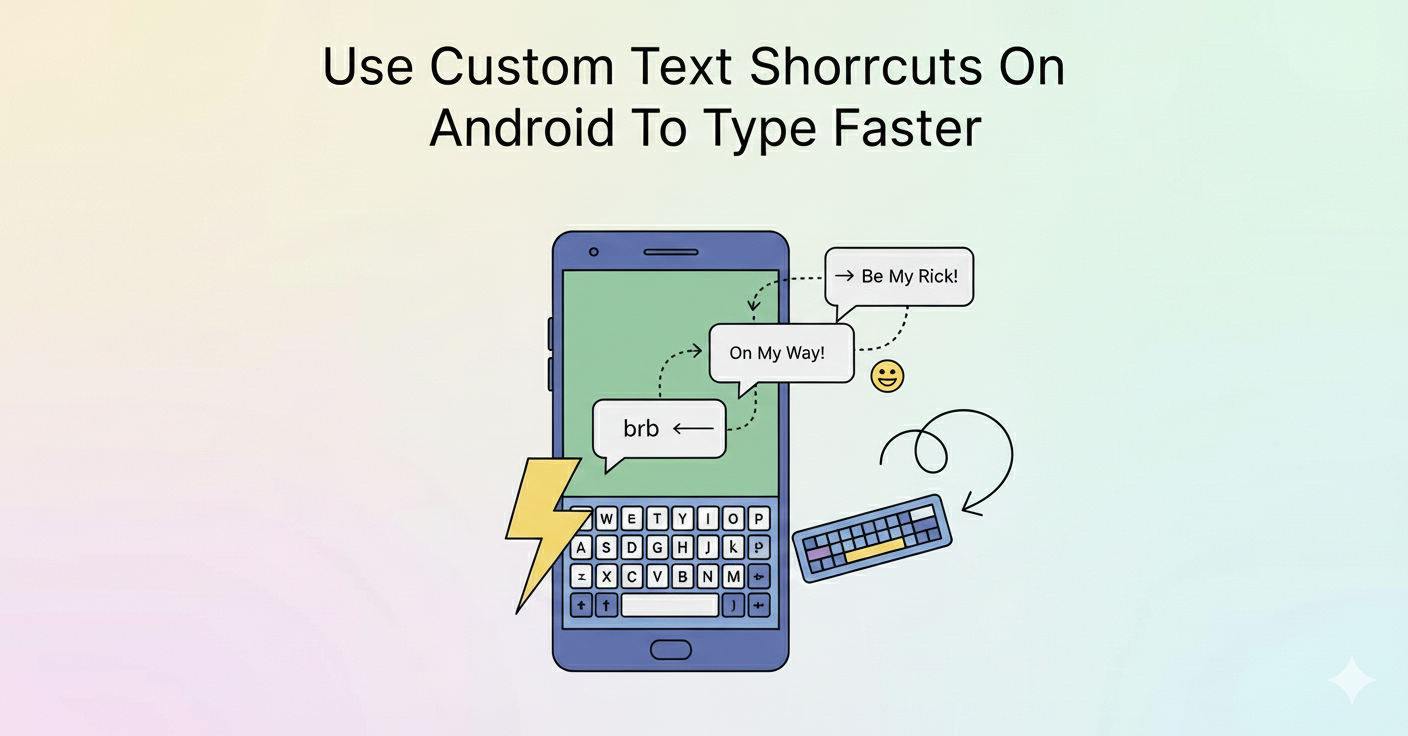
Typing the same phrases over and over on your Android phone can quickly become frustrating. Custom text shortcuts solve this problem by letting you type a short abbreviation that automatically expands into a longer word, sentence, or block of text.
Android does not include a system-wide text replacement feature like iOS, but most popular Android keyboards offer this functionality. At the time of writing, Gboard, Samsung Keyboard, and Microsoft SwiftKey all support custom text shortcuts.
Set Up Custom Text Shortcuts On Android
The steps vary slightly depending on your keyboard, but once shortcuts are created, they work across apps like Messages, WhatsApp, Gmail, Notes, and browsers, as long as the same keyboard remains active.
Create Custom Text Shortcuts In Gboard Using System Settings
Gboard is the default keyboard on many Android phones, including Pixel devices. You can create text shortcuts directly from Android system settings without opening a messaging app.
- Open the Settings app on your Android phone.
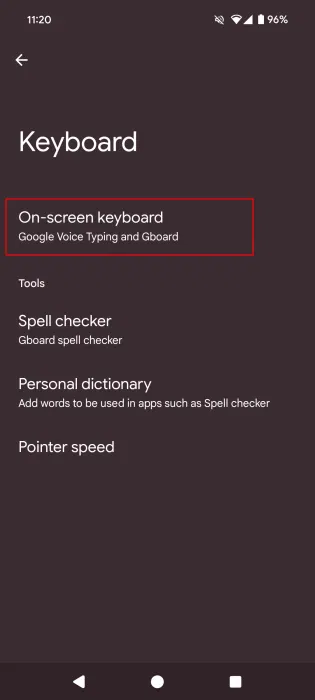
- Go to System, then tap Keyboard.

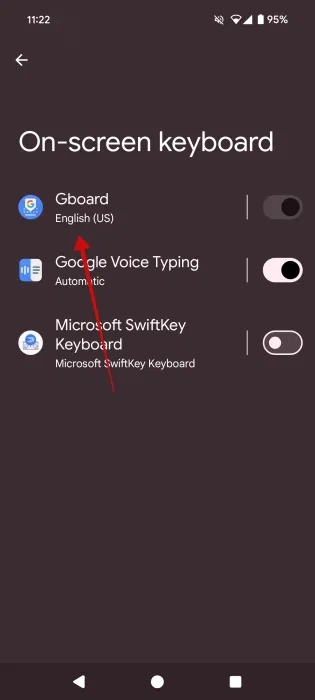
- Select On-screen keyboard.
- Tap Gboard to open its settings.
- Select Dictionary.
- Tap Personal dictionary.
- Select your language.
- Tap the + icon in the top-right corner.
- Enter the full word or phrase in the top field.
- Enter the shortcut in the bottom field.
- Tap the back arrow to save.
When you type the shortcut, Gboard suggests the expanded phrase in the suggestion strip.
Create Custom Text Shortcuts In Gboard From The Keyboard
You can also access Gboard’s shortcut settings directly while typing in any app.
- Open any app with a text field.
- Bring up the Gboard keyboard.
- Tap the four-square icon in the top bar.
- Select the gear icon to open Gboard settings.
- Tap Dictionary, then Personal dictionary.
- Select your language.
- Tap the + icon to add a shortcut.
This method is useful when you want to add shortcuts while actively typing.
Set Up Custom Text Shortcuts In Samsung Keyboard
Samsung Keyboard includes a dedicated Text Shortcuts section, making it easy to manage abbreviations on Galaxy devices.
- Open any app to bring up the Samsung Keyboard.
- Tap the gear icon to open keyboard settings.
- Select Text Shortcuts.
- Tap the + icon.
- Enter the shortcut.
- Enter the expanded phrase.
- Tap Add to save.
Set Up Custom Text Shortcuts In SwiftKey
SwiftKey uses its Clipboard feature to store reusable text snippets with optional shortcuts.
- Open an app to bring up the SwiftKey keyboard.
- Tap the three-dot menu.
- Select Settings.
- Tap Rich Input.
- Select Clipboard.
- Tap Add A New Clip.
- Enter the phrase.
- Add an optional shortcut.
- Tap Save.
How To Use Custom Text Shortcuts On Android
Once shortcuts are created, using them is simple and consistent across keyboards.
- Tap a text field to open the keyboard.
- Type the shortcut.
- Select the expanded phrase from the suggestion bar.
Text shortcuts are keyboard-specific, so they only work when that keyboard is set as default.
Troubleshooting Common Problems
If shortcuts do not expand, confirm that the correct keyboard is active.
Avoid using common words as shortcuts, as this can cause accidental expansions.
Some apps limit suggestion bars, which can prevent shortcut expansion.
Tips
- Use unique abbreviations that do not form real words.
- Create shortcuts for emails, phone numbers, and addresses.
- Use lowercase shortcuts for faster triggering.
- Review saved shortcuts regularly.
FAQ
Does Android support text replacement by default?
Android relies on keyboard apps to provide this feature.
Can shortcuts include emojis or symbols?
Yes, expanded text can include emojis, symbols, and accents.
Do shortcuts sync across devices?
Some keyboards sync shortcuts if cloud sync is enabled.
Will shortcuts work offline?
Yes, once saved, shortcuts work without an internet connection.
Summary
- Android text shortcuts are handled by keyboard apps.
- Gboard allows setup through system settings or the keyboard.
- Samsung Keyboard and SwiftKey also support shortcuts.
- Shortcuts save time for frequently typed content.
Conclusion
Custom text shortcuts make Android typing faster, cleaner, and more efficient. By configuring them through your keyboard settings, you can replace long phrases with short triggers and reduce repetitive typing across all your apps.
Discussion (0)
Be the first to comment.