




Creating a file using Command Prompt removes friction from everyday Windows tasks. Instead of opening File Explorer and a text editor, you can create files instantly with a single CMD command, which makes this approach ideal for quick notes, scripts, logs, and troubleshooting when the desktop interface fails.
In this guide, we have covered the different commands you can use to create a file using CMD, with some extras on how to fix common issues when they show up.
Table of contents
- Create a file using Command Prompt (quick answer)
- Open Command Prompt correctly
- Create a text file using echo
- Create a file using type nul
- Create a file using copy con
- Create files with specific extensions
- Create a file in another directory
- Verify the file was created
- Common errors and how to fix them
- CMD vs PowerShell for file creation
- Tips for creating files faster in CMD
- FAQ
- Summary
Create a file using Command Prompt (quick answer)
If you only need a file created right now, this command works in most cases.
- Press Windows + R.
- Type cmd and press Enter.


- Run this command and press Enter:
echo. > example.txt


- The file appears in the current folder immediately.
Open Command Prompt correctly
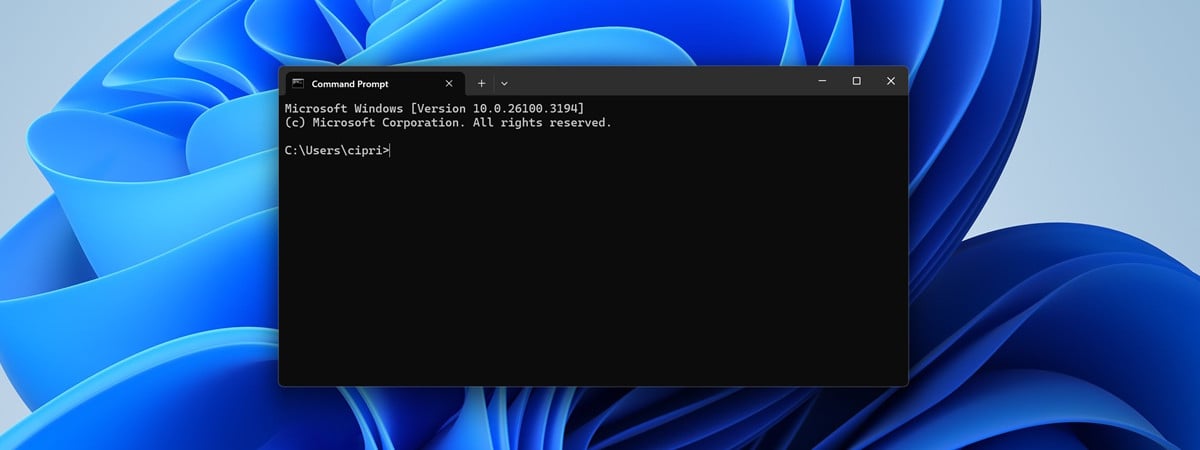
Opening Command Prompt the right way prevents permission and path issues.
- Press Windows.
- Type Command Prompt.
- Click Open for normal use.
- Click Run as administrator if you plan to write files in system folders.


Open CMD in a specific folder
This avoids mistakes caused by working in the wrong directory.
- Open File Explorer.
- Navigate to the folder where you want the file.
- Click the address bar.
- Type cmd and press Enter.


- Command Prompt opens directly in that folder.
Create a text file using echo
The echo command creates files quickly and can insert text at the same time.
Create an empty text file
- Open Command Prompt.
- Navigate to the target folder:
cd Documents - Next, run:
echo. > notes.txt


- Windows creates a blank text file.
Create a text file with content
- Open Command Prompt.
- Run:
echo This is a test file > notes.txt

- Open the file to confirm the text appears inside.
Create a file using type nul
This method creates truly empty files without hidden characters.
- Open Command Prompt.
- Navigate to the target directory.
- Run:
type nul > empty.txt - The file is created with zero content.
Create a file using copy con
Use this method when you want to type multiple lines directly in Command Prompt.
- Open Command Prompt.
- Run:
copy con manual.txt

- Type your content line by line.
- Press Ctrl + Z.
- Press Enter to save the file.
Save and exit copy con safely
Always use Ctrl + Z before pressing Enter. Closing the window cancels the operation.
Create files with specific extensions
Command Prompt does not restrict file types. The extension defines the file’s purpose.
- Open Command Prompt.
- Run one of these commands:
echo. > script.bat,echo. > log.log,echo. > data.csv - Windows creates the file using the specified extension.
Create a file in another directory
You can create files anywhere by specifying the full path.
- Open Command Prompt.
- Run:
echo. > C:\Users\Public\test.txt


- Check the target folder to confirm creation.
Verify the file was created
If you do not see the file immediately, confirm it using CMD.
- In Command Prompt, run:
dir - Look for the file name in the list.
- Use:
type filename.txt - Confirm the file opens correctly.
Common errors and how to fix them
Most failures happen because of permissions or incorrect paths.
Access is denied
- Run Command Prompt as administrator.
- Choose a folder inside your user directory.
File not appearing
- Confirm the active directory with:
cd - Use dir to list files.
Wrong file extension
- Make sure File Explorer shows extensions.
- Rename the file if needed.
CMD vs PowerShell for file creation
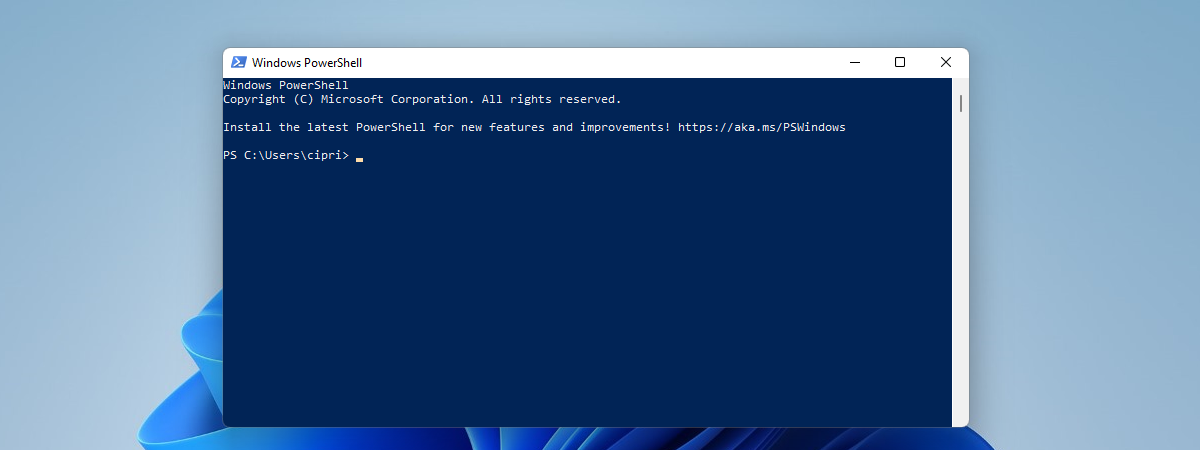
Command Prompt works best for quick file creation and legacy scripts. PowerShell offers more control for automation and complex tasks, but usesa different syntax.
Tips for creating files faster in CMD
- Use Tab to autocomplete folder and file names.
- Confirm your directory before creating files.
- Prefer type nul for clean, empty files.
FAQ
Can I overwrite an existing file using CMD?
Yes. Running the same command replaces the file without warning.
Can I edit files after creating them?
Yes. Open them in Notepad or any text editor.
Does this work on Windows 10 and Windows 11?
Yes. All commands in this guide work on both versions.
Summary
- Open Command Prompt in the correct folder.
- Use echo, type nul, or copy con.
- Verify file creation using dir.
Command Prompt offers the fastest way to create files without extra tools. For most users, echo or type nul provides the simplest and safest solution.
Discussion (0)
Be the first to comment.