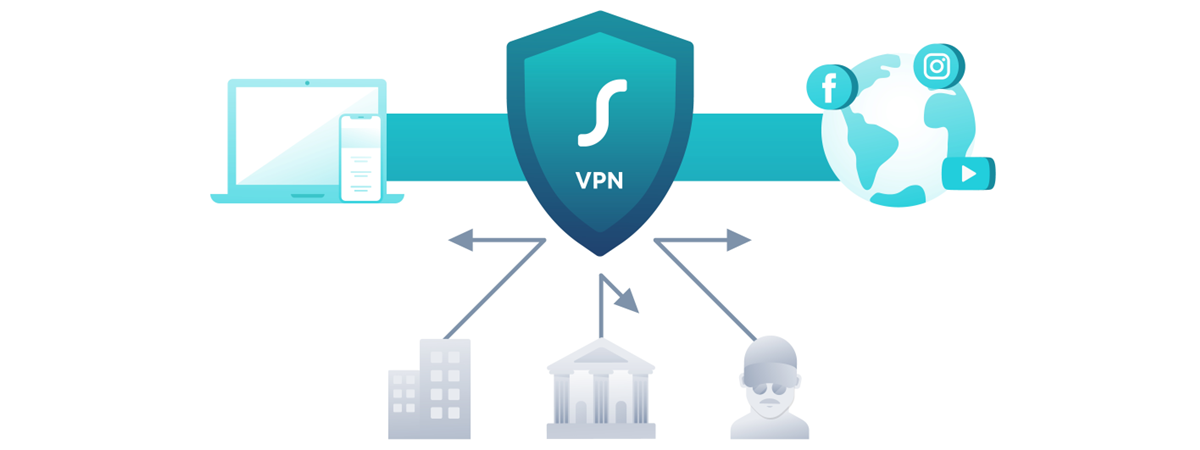
VPN connections are handy tools. We use them to get access to our company's network while traveling, to be anonymous on the internet, or to access blocked content on the internet. If you own an iPhone or an iPad and you want to set up and use a VPN on it, then you have come to the right place. In this article, we show you how to create, configure and connect to a VPN on any device with iOS:
NOTE: To illustrate this tutorial, we used screenshots taken on an iPhone SE with iOS 12. On other iPhone models and iPads, things might look a bit different, but the steps are the same.
What you need to connect to a VPN
If you want to connect and use a Virtual Private Network (VPN) on your iPhone or iPad, you must know a few details before making the connection:
The IP address or the URL of the VPN server to which you want to connect
Your VPN authentication credentials, usually in the form of a username and password
Other configuration options related to the VPN connection you are about to set up, such as a secret, RSA SecurID, or RemoteID.
Once you have all the information about the VPN connection that you intend to set up, go ahead and follow the steps in this guide. For more details about Virtual Private Networks and how they work, read What is VPN? What does it do?.
How to create and configure a VPN connection in iOS
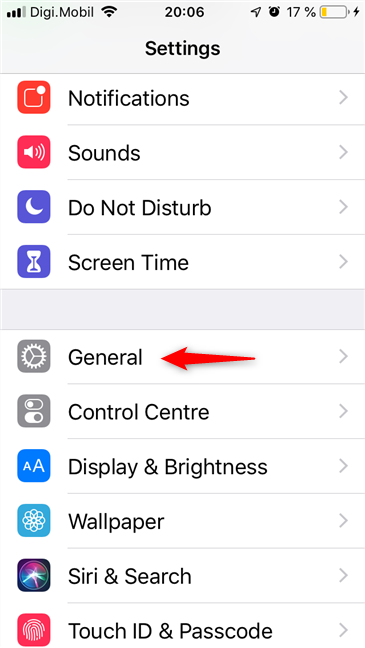
The first thing you must do to be able to create a VPN connection in iOS is to open the Settings app on your iPhone or iPad. In the Settings app, tap on General.
The General entry from the Settings of an iPhone
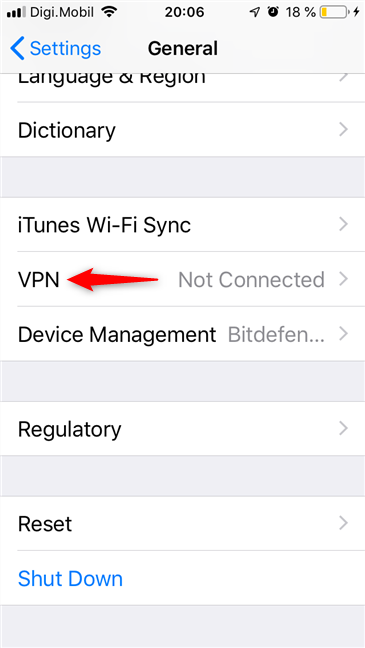
Scroll down until you find the VPN entry. Tap on it.
The VPN settings on an iPhone
Now you have reached the VPN screen, which is the place where you can create new VPN connections, edit existing ones, and also connect or disconnect.
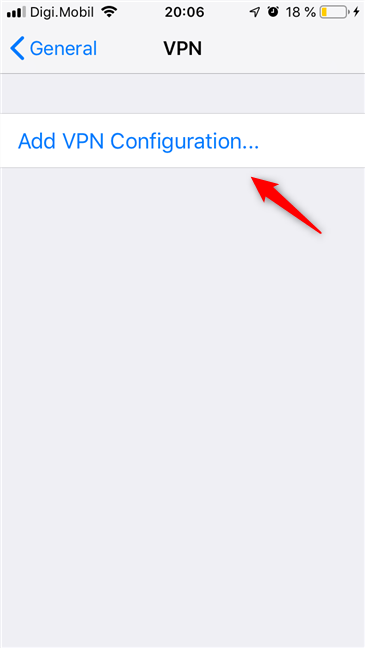
If this is the first time you create a VPN connection on your iPhone or iPad, you should see only one option: "Add VPN Configuration...". Tap on it.
Add VPN Configuration
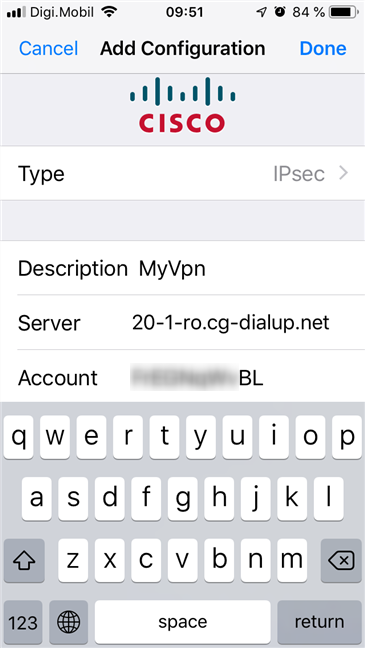
iOS then opens a screen called "Add Configuration." On it, there are multiple fields to fill and options to choose from. Start by choosing what Type of VPN you intend to create. In iOS 12 on an iPhone, the options we had are IKEv2, IPSec and L2TP. Then, enter the other details requested. Depending on what type of VPN connection you are configuring, the requested details can differ, but some of the common ones include:
Description - enter a short description to help you identify the VPN connection
Server - the address of the VPN server to which you connect
Account - the username required to connect to the VPN
Password - the password associated with the VPN account
Secret - a unique password requested by your VPN provider
You can get all the details of the VPN connection from your network administrator or your VPN provider. Once you have entered every piece of information, tap Done at the top-right corner of the screen.
Entering the details of a new VPN connection
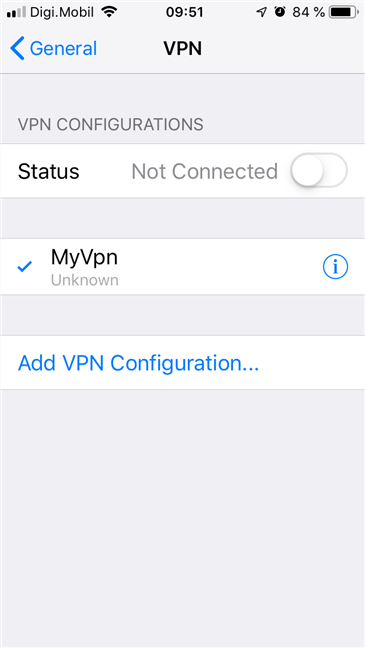
Your VPN connection is saved and you are back to the VPN screen, where you can see it listed.
The VPN connection is saved and listed on the VPN screen
How to connect to a VPN on an iPhone or iPad
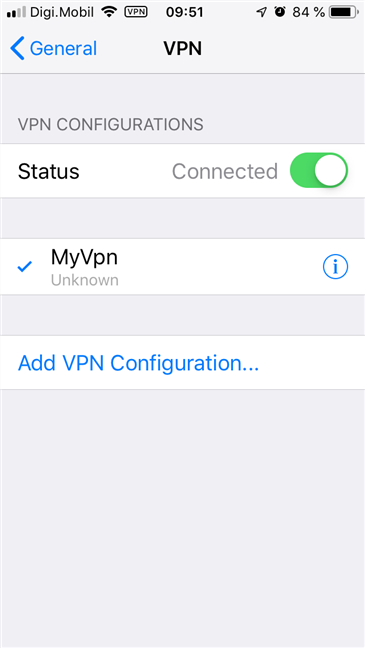
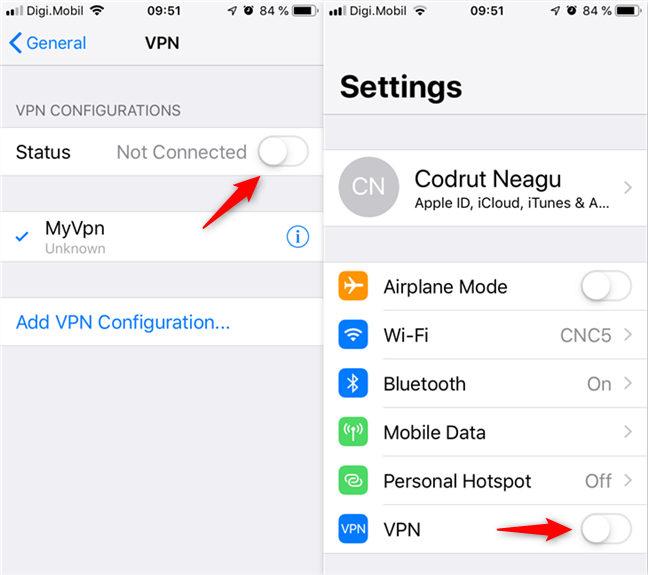
If you want to connect using VPN, on the VPN screen, turn the Status switch On.
The iPhone is connected to the VPN
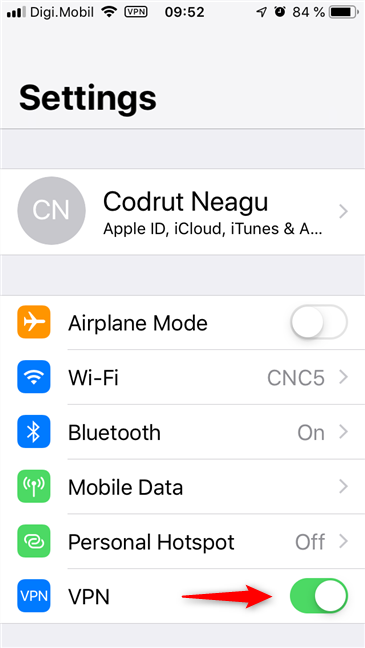
If you do not want to go all the way to Settings -> General -> VPN to do that, you should know that iOS also adds a shortcut to the VPN switch on the main Settings screen, in the networks area. This is a much faster way to connect to your VPN.
The VPN switch on your iPhone's settings
How to disconnect from a VPN on an iPhone or iPad
To disconnect a VPN connection on your iPhone or iPad, turn Off the VPN switch from the Settings or the Status switch from "Settings -> General -> VPN."
The VPN can be disconnected from multiple places in the Settings
Are you using VPNs on your iPhone or iPad?
As you have seen, creating, configuring and using VPN connections are all easy things to do on an iPhone or iPad. However, before trying to create a new VPN connection, you must have all its connection details ready. Before closing this tutorial, we would like to know whether you are you using a VPN on an iPhone or an iPad. Also, what is your reason for using a VPN? Comment below and let's discuss.
I’m currently using a VPN for security, and would like to add Avast antivirus but it shows to have a VPN also can it be cut off so that it does not conflict
With my Express VPN? Thank you Bob Stultz
Ciprian Adrian Rusen ·
You can install multiple VPN services on your device. They don’t conflict with each other unless you start them simultaneously. If you use them one at a time, there’s no problem.








Discussion (2)
I’m currently using a VPN for security, and would like to add Avast antivirus but it shows to have a VPN also can it be cut off so that it does not conflict
With my Express VPN? Thank you Bob Stultz
You can install multiple VPN services on your device. They don’t conflict with each other unless you start them simultaneously. If you use them one at a time, there’s no problem.