




It can sometimes be difficult to tell whether a PDF is searchable, especially if you're not familiar with how PDF files work. In reality, these types of files are very common, and you’ve likely used them before.
Simply put, a searchable PDF is a file where you can select, copy, paste, or search for text. These files are typically created using OCR (Optical Character Recognition) or exported directly from software like Microsoft Office.
Structurally, a searchable PDF usually contains two layers: the original image layer and a hidden text layer underneath. This text layer is what allows you to search, highlight, and copy content without needing any additional tools.
What’s the Difference Between Searchable and Non-Searchable PDFs?
PDF files generally fall into two categories: searchable and non-searchable. The difference mainly comes down to how the file was created and how its content is structured.
A searchable PDF, as the name suggests, allows you to select, copy, paste, and search text. These files are usually processed with OCR (Optical Character Recognition), which adds a hidden text layer on top of the original image. Although it may look like a regular scanned document, the content can actually be searched and edited.
A non-searchable PDF, on the other hand, is essentially just an image. It’s typically created by scanning a document and contains only visual data, without any readable text layer. As a result, you can’t select or search for text within it.
A simple way to tell the difference is to open the file and try selecting some text or using Ctrl + F to search. If it works, it’s a searchable PDF; if not, it’s a non-searchable one.
Three Common Types of PDF Files
1. Text-based PDFs
These PDFs are typically created by exporting documents directly from tools like Microsoft Word or other office software. The content is already in text form, so you can easily search, select, copy, and edit it.
2. Image-based PDFs
This type usually comes from scanned documents, photos, or screenshots. Essentially, it’s just a picture of a page. While it may look like a normal document, it doesn’t contain actual text data, which means you can’t search or copy anything from it.
3. OCR PDFs
These files start as image-based PDFs but are processed using OCR (Optical Character Recognition). The software recognizes the text within the image and adds a hidden text layer. Visually, the document stays the same, but it becomes searchable and editable.
It’s worth noting that OCR processing typically requires dedicated software. However, once the conversion is done, the PDF can be opened and used normally in any standard PDF reader.
How to Convert a Scanned Paper Document or Image into a Searchable PDF
1. Use Google Docs
Using Google Docs to convert a PDF into a searchable file is a free and convenient option, as long as you have a stable internet connection. Everything can be done directly in your browser.
Follow these simple steps:
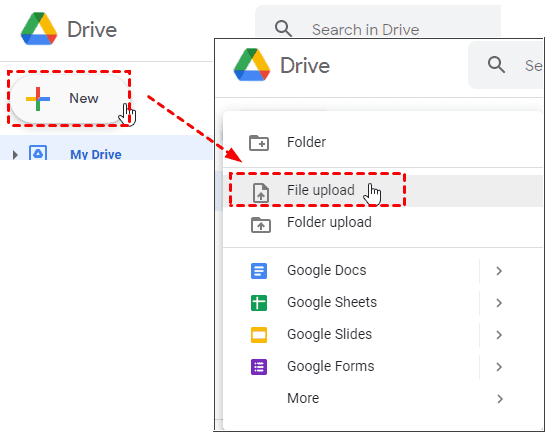
- Open Google Drive, click “New” > “File upload”, and select your PDF file.
- Right-click the uploaded file and choose “Open with” > “Google Docs.”

- Wait a few moments. If your PDF is image-based and clear enough, Google will automatically attempt OCR processing.
- Go to “File” > “Download” > “PDF Document (.pdf)” to save the searchable PDF.

Another advantage of using Google Docs is its seamless integration with Google Workspace. This makes it especially useful if you frequently collaborate on documents or need quick access across multiple devices.
2. Use Adobe Acrobat Pro
Adobe Acrobat Pro is a powerful all-in-one PDF tool that includes advanced OCR capabilities, allowing you to convert image-based PDFs into searchable and editable files. However, compared to other methods, it comes at a higher cost.
The basic process is fairly straightforward:
- Open Adobe Acrobat Pro and import the PDF file you want to process.
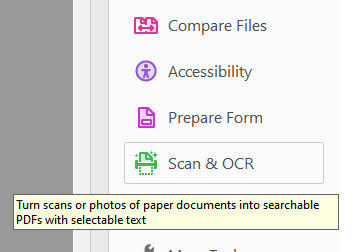
- Go to “Tools” and select “Scan & OCR.”
- Click “Recognize Text” to start the OCR process.
- Once completed, use the built-in tools to review the results.
- Finally, save the file and your PDF will now be searchable and editable.
Overall, Adobe Acrobat Pro delivers reliable and accurate results, especially when working with complex layouts or formal documents. That said, its interface and features can feel a bit overwhelming for new users at first.
If you only need to process a few files occasionally, it might be more than you need. But for frequent use or when accuracy really matters, it remains a solid and dependable choice.
3. Use Online OCR Tools
Many online OCR tools allow you to quickly convert PDFs into searchable files without installing any software. While the exact steps may vary depending on the service, the general process is usually the same:
- Visit a reliable online OCR tool (such as iLovePDF or Smallpdf)
- Click the upload button and select your PDF file
- Set the output format to “Searchable PDF” and choose the language (if needed)
- Click the convert button
- Download the searchable PDF once processing is complete
The biggest advantage of these tools is convenience. There’s no need to install anything—you can complete the entire process directly in your browser on Windows. For small, simple files, it’s often as quick as upload and download.
However, there are a few practical limitations to keep in mind.
First is privacy. Since files are uploaded to third-party servers, this method may not be suitable for sensitive documents such as contracts, invoices, or internal materials.
Second is usage limits. Platforms like iLovePDF and Smallpdf typically offer free plans, but they often restrict the number of uses per day, file size, or page count. If you use them frequently, you’ll likely run into these limits.
Finally, there’s consistency of results. For more complex documents—such as those with tables or book-style layouts—online OCR may produce errors or formatting issues, which may require manual correction afterward.
For occasional use, these tools are more than enough. But for long-term or high-volume tasks, a more stable local solution is usually a better choice.
4. Use a CZUR Scanner with OCR Support
If you frequently handle scanned documents on Windows or need to work with multi-page files, books, or archives, using a scanner with built-in OCR can be a much more efficient option.
Devices like CZUR scanners stand out because they can generate searchable PDFs during the scanning process, rather than requiring a separate OCR step afterward.
The workflow is straightforward:
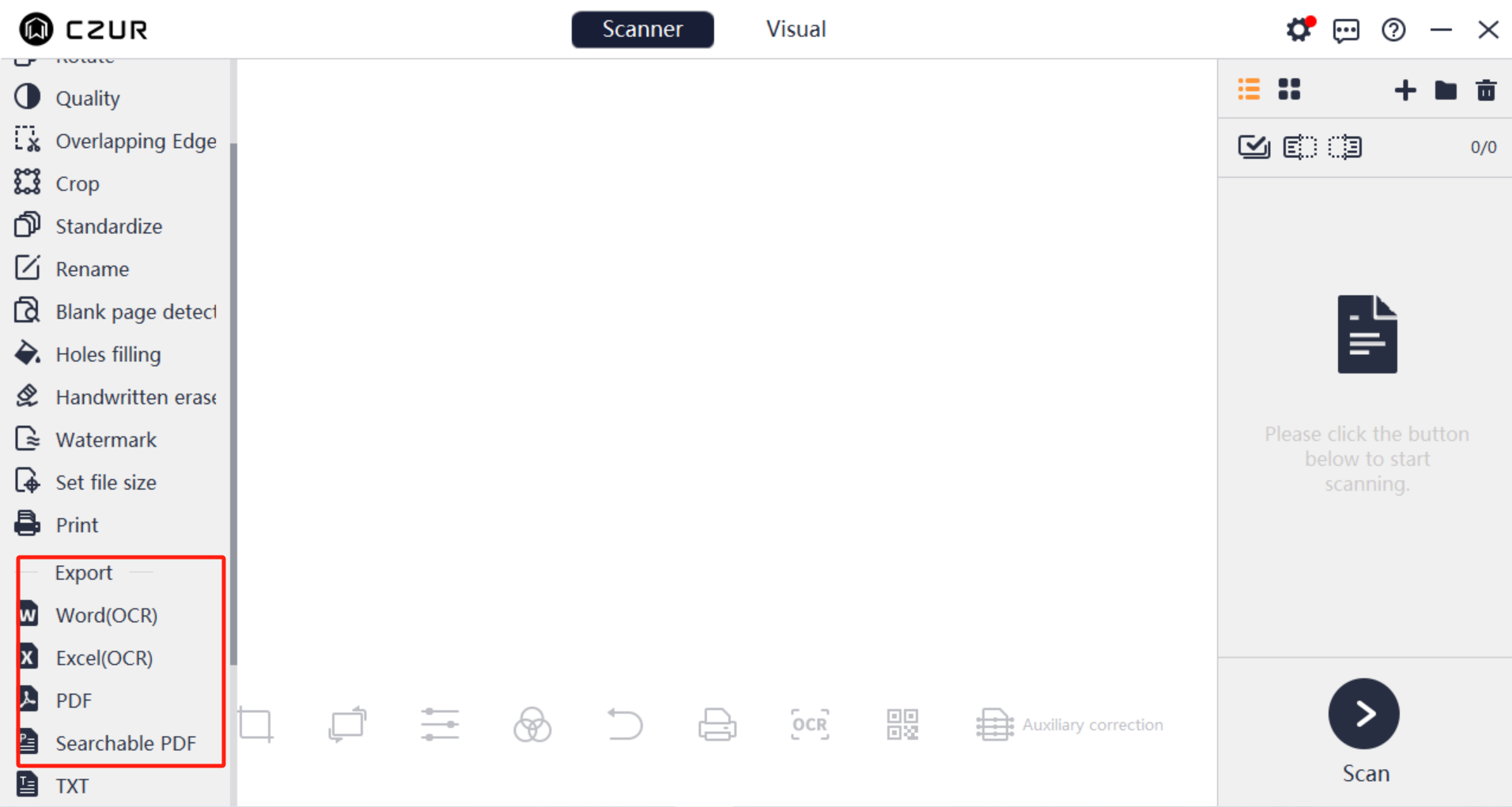
- Install and open the CZUR scanning software, then connect your device.
- Place the document or book within the scanning area and adjust its position.
- Start scanning and capture each page (you can also enable auto-scan).
- Once finished, export the file and choose “Searchable PDF” as the output format.
Compared to online tools, this approach is better suited for long-term use. With CZUR scanners, scanning and OCR happen simultaneously, eliminating the need for post-processing—something that makes a noticeable difference when dealing with multi-page documents.
Another advantage is consistency. For books, tables, or complex layouts, recognition accuracy is typically higher, and formatting is more likely to remain intact.
There’s also a clear benefit in terms of data security. Since everything is processed locally, there’s no need to upload files, which is especially important for sensitive materials like contracts, financial documents, or internal records.
That said, this kind of setup makes the most sense if you have ongoing scanning needs. For occasional use, online tools or mobile apps are often sufficient. But if you want to build a more stable and efficient workflow on Windows, an integrated scanning solution like this can save a significant amount of time.
5. Common Searchable PDF Issues and How to Fix Them
When creating searchable PDFs, unsatisfactory results are often caused by a few common issues:
Low Scan Quality
If your file is blurry, skewed, or scanned at a resolution below 300 DPI, OCR will struggle to recognize the text accurately. It’s best to rescan the document in good lighting and enable automatic enhancement features such as deskewing, noise removal, and contrast adjustment. For existing files, try improving the image quality before running OCR.
Difficulty Recognizing Handwritten Text
Most OCR tools are designed for printed text and have limited support for handwriting. Even advanced software may produce inconsistent results. In such cases, you may need to use dedicated handwriting recognition tools or manually add important content.
Inaccurate Multi-language Recognition
Many OCR tools default to English, which can lead to errors when processing documents with multiple languages. To improve accuracy, make sure to select the correct language settings in advance or use OCR tools that support multiple languages and Unicode.
Final Words
Making your PDF searchable allows you to quickly find specific words and sections, significantly improving your workflow.
In urgent situations, you can use Google Drive and Google Docs to achieve this. However, this method often causes formatting issues, such as broken spacing or misaligned text—especially when dealing with image-heavy PDFs.
A more reliable approach is to use a professional PDF editor with built-in OCR capabilities. For Windows users, tools like PDF Pro combine editing, conversion, OCR, and security features, making them suitable for everyday document tasks.
If your needs go beyond editing existing PDFs—such as digitizing physical documents and directly generating searchable files—then using a scanner with OCR support (like the CZUR ET Max) is a more efficient solution.

Discussion (0)
Be the first to comment.