



Desktop users rely on Control F to quickly locate words on a page, but iPhones do not offer a visible keyboard shortcut. That does not mean the feature is missing. iOS includes built-in tools that replicate Control F behavior inside browsers.
At the time of writing, Safari and Chrome both support searching within a page. The feature appears under different names, such as Find On Page or Find In Page, but the result is the same.
Use Control F On iPhone In Safari
Safari includes a built-in text search that works directly from the address bar. This is the fastest way to search within a webpage on iPhone.
- Open Safari and load the webpage
- Tap the address bar
- Type the word or phrase you want to find
- Scroll down to On This Page
- Tap Find next to the searched word

The word is highlighted on the page, and arrows appear to jump between matches.
Use Control F On iPhone In Chrome
Chrome uses a dedicated Find In Page option inside its menu. The feature works similarly to Safari.
- Open Chrome and load the webpage
- Tap the three dots menu
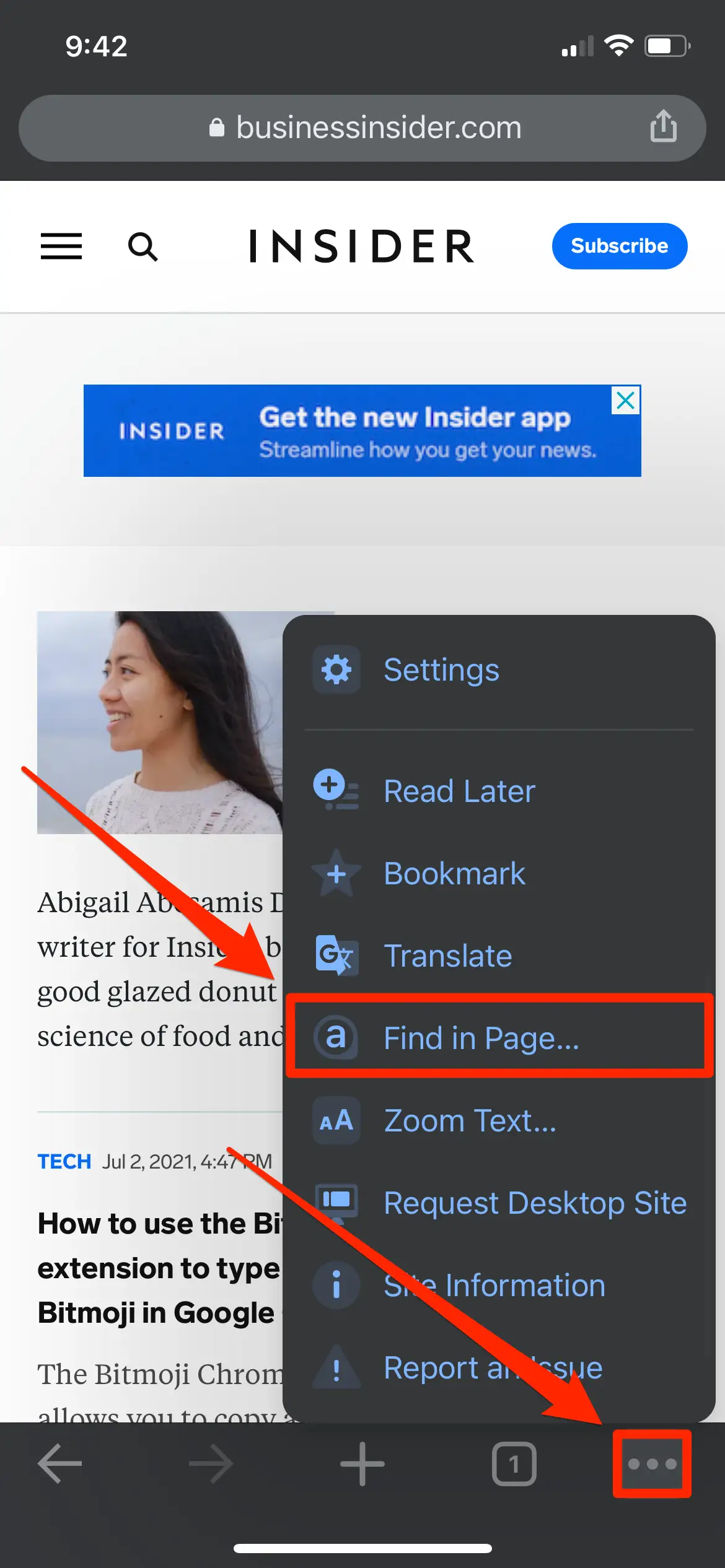
- Select Find In Page
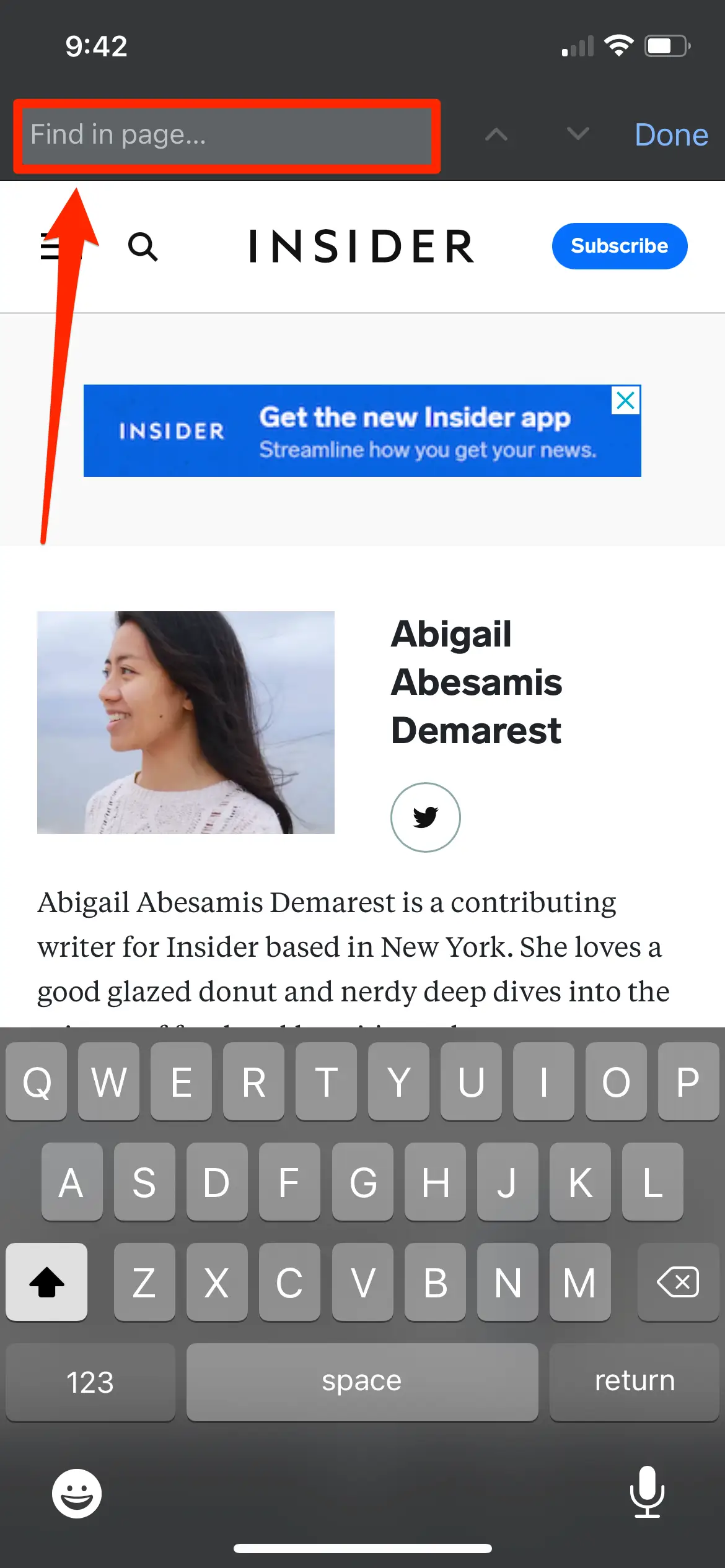
- Type the word or phrase
Chrome highlights all matches and shows arrows to navigate results.
Search A Word On iPhone Using The Share Sheet
The Share Sheet provides a browser-agnostic way to search text. This method works in both Safari and Chrome.
- Open the webpage
- Tap the Share icon
- Select Find On Page or Find In Page
- Enter the word you want to search
The search bar appears instantly, highlighting all matches.
Troubleshooting Common Problems
If Find On Page does not appear, scroll further down the menu or update the browser app. Reader mode and PDF previews may hide the option.
Some webpages block text selection, which limits search accuracy.
Tips
- Use simple keywords for better match results
- Exit Reader mode before searching
- Rotate the phone for easier navigation
- Use the Share Sheet method if menus differ
FAQ
Is Control F available system-wide on iPhone?
No. Control F works only inside browsers and supported apps.
Can I Control F inside PDFs on iPhone?
Yes, but only if the PDF viewer supports text search.
Does Control F work in all apps?
No. Each app must implement its own search feature.
Is this feature available on iPad?
Yes. The same methods apply to iPadOS.
Summary
- iPhone does not use a keyboard shortcut for Control F
- Safari and Chrome include Find On Page tools
- The Share Sheet offers a universal option
- Results highlight text just like desktop browsers
Conclusion
Control F on iPhone exists, even without a keyboard shortcut. Safari, Chrome, and the Share Sheet all provide reliable ways to search for text within a page.
Once you know where to look, finding words on iPhone becomes just as efficient as on a desktop.



Discussion (0)
Be the first to comment.