



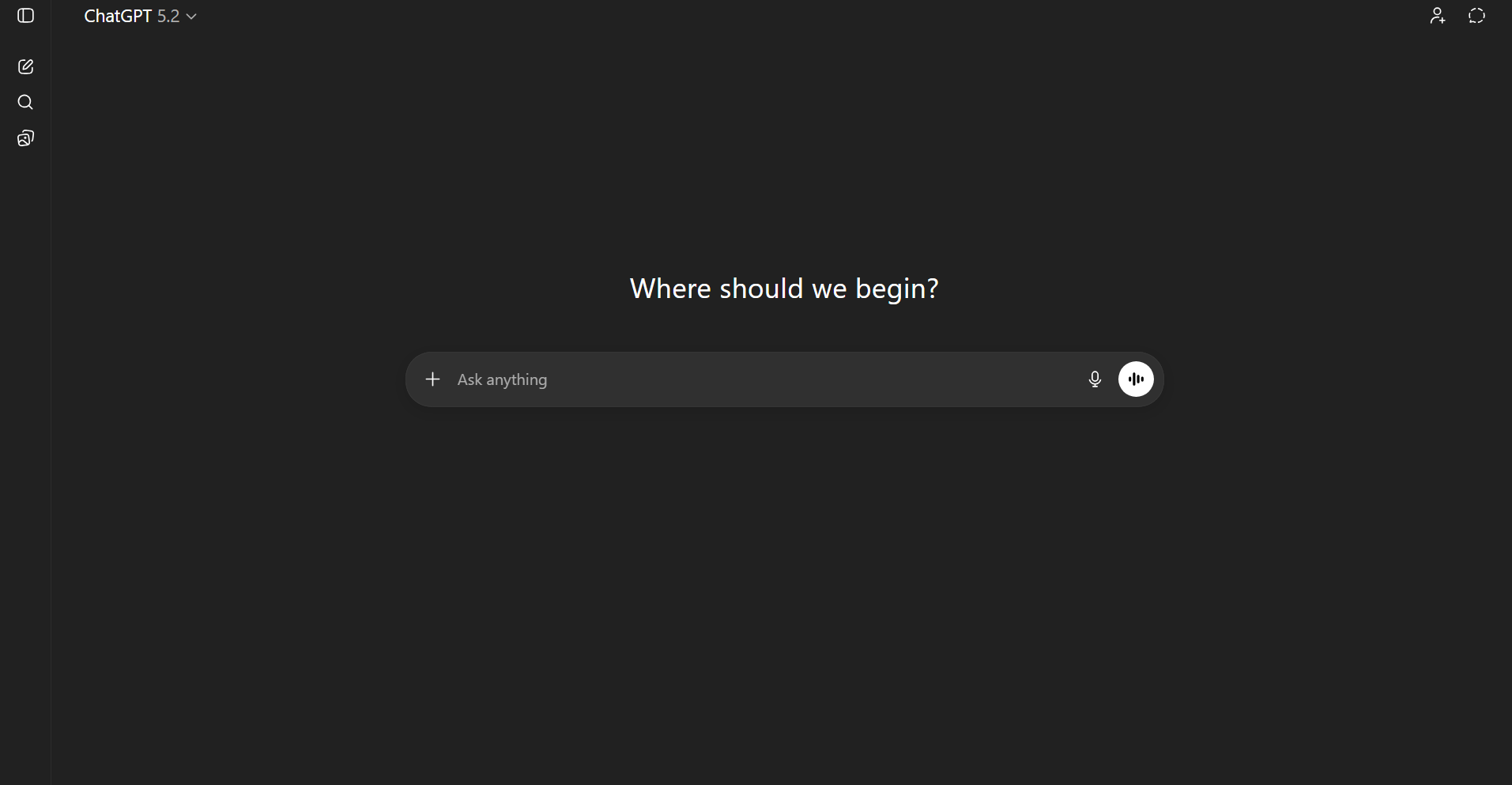
Many users search for a way to download and install ChatGPT on Windows 11 or Windows 10 as a desktop app. While ChatGPT itself is primarily a web-based service, there are official and safe ways to access it on your PC without risking malware or fake installers.
This guide explains how to use ChatGPT on Windows properly, what official options are available, and what you should avoid when downloading ChatGPT-related software.
Can You Download ChatGPT on Windows?
ChatGPT does not have a traditional standalone installer for Windows that you download as an EXE file from OpenAI.
ChatGPT is officially available as:
- A web-based application
- A Progressive Web App created from the browser
- Integrated AI features through Microsoft tools
Any website offering a “ChatGPT full version download” as a separate installer should be treated with caution.
Official Ways to Use ChatGPT on Windows 11 and 10
There are safe and supported ways to use ChatGPT on a Windows PC.
These methods do not require cracked software or third-party installers.
Use ChatGPT in a Web Browser (Recommended)
The simplest and safest way to use ChatGPT is through your browser.
Steps:
- Open any modern browser
- Visit the official ChatGPT website
- Sign in with your account
- Start using ChatGPT instantly
This method works on both Windows 10 and Windows 11 and always gives access to the latest updates.
Install ChatGPT as a Desktop App Using Edge or Chrome
You can install ChatGPT as a desktop-style app using browser features.
Install ChatGPT Using Microsoft Edge
Steps:
- Open Microsoft Edge
- Visit the official ChatGPT website
- Click the three-dot menu
- Select Apps
- Click Install this site as an app
- Confirm installation
ChatGPT will now appear like a desktop app with its own window.
Install ChatGPT Using Google Chrome
Steps:
- Open Google Chrome
- Visit the ChatGPT website
- Click the install icon in the address bar
- Click Install
This creates a Progressive Web App that launches from your desktop or Start menu.
Microsoft Copilot and ChatGPT Integration
On Windows 11, Microsoft offers Copilot, which uses AI technology similar to ChatGPT.
Important points:
- Copilot is built into Windows 11
- It integrates with Microsoft services
- It does not replace the full ChatGPT experience
- Features depend on region and updates
Copilot is useful for quick assistance, while ChatGPT offers deeper conversational use.
What to Avoid When Downloading ChatGPT
To stay safe, avoid:
- Third-party “ChatGPT installers”
- Cracked or modified versions
- Torrent downloads
- Apps asking for system-level permissions
These downloads often contain malware or fake software.
Final Thoughts
ChatGPT does not need to be downloaded as a traditional Windows program to work effectively. The safest and most reliable way to use ChatGPT on Windows 11 or Windows 10 is through the official website or by installing it as a browser-based desktop app using Edge or Chrome.
Avoid unofficial installers and stick to supported methods to ensure security and access to the latest features.
FAQs
Is ChatGPT free on Windows
Yes, the basic version is free to use through the web.
Can I use ChatGPT offline
No, ChatGPT requires an internet connection.
Does ChatGPT have a Windows app
There is no traditional installer, but browser-based apps work like desktop apps.
Is ChatGPT safe to use
Yes, when accessed through official websites or trusted browsers.

Discussion (0)
Be the first to comment.