



If you want to change fonts on iPhone, Apple gives you limited but useful customization options. You cannot replace the system font, but you can adjust font size, enable bold text, and install custom fonts for supported apps. These tools improve readability and let you personalize documents, emails, and designs without jailbreaking.
Understanding Font Limitations On iPhone
iOS uses Apple’s San Francisco font system-wide and does not allow changing it. This restriction keeps the interface consistent and readable across all devices. However, iPhone font settings still let you customize how text looks in supported areas.
How To Change Font Size On iPhone
Adjusting text size is the simplest way to customize fonts on iPhone. This change applies system-wide in most Apple apps and many third-party apps that support Dynamic Type.
- Open Settings
- Tap Display & Brightness
- Select Text Size
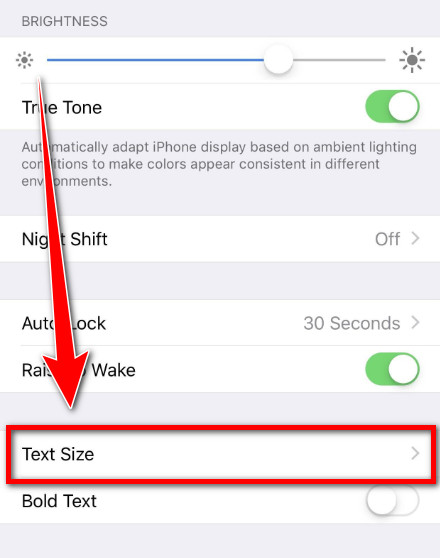
- Move the slider to increase or decrease text size
How To Make Text Bold And Improve Readability
Bold text and accessibility options make fonts easier to read, especially for users with vision difficulties.
- Open Settings
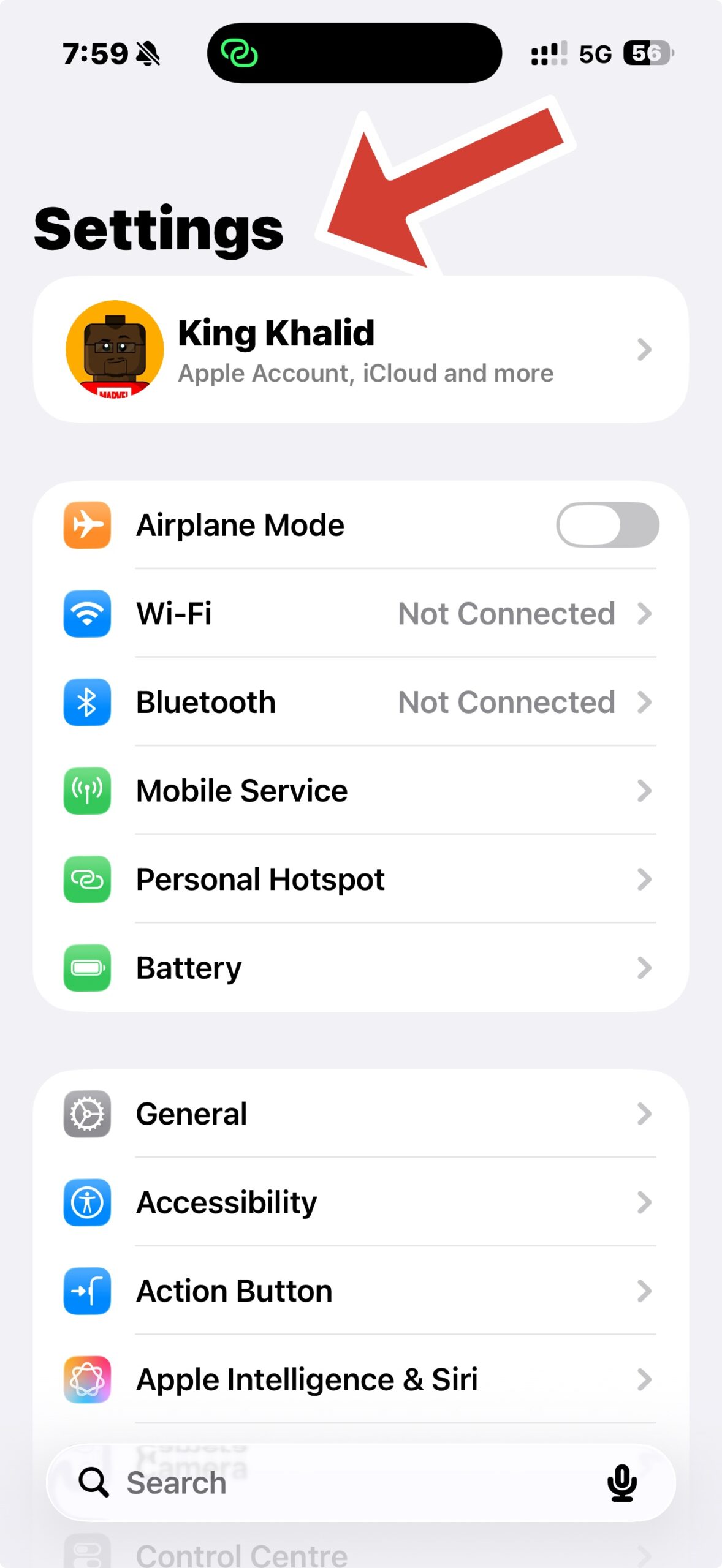
- Tap Display & Brightness
- Enable Bold Text
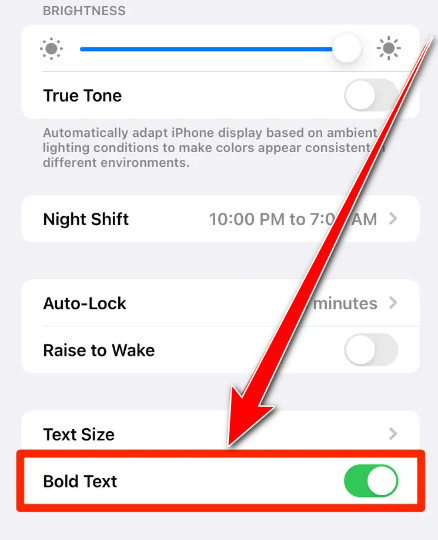
You can also visit Settings > Accessibility > Display & Text Size to increase contrast or enable larger text.
How To Change Fonts In Apple Apps
Some Apple apps allow font customization inside the app itself. These changes do not affect the system font.
Notes App
Notes supports text styles like Title, Heading, and Body. You can adjust formatting but cannot select a new font family.
Pages And Keynote
Pages and Keynote let you choose different fonts and typefaces. These apps also support custom fonts installed on your iPhone.
Mail App
Mail allows font selection when composing messages. You can choose from available fonts for outgoing emails.
How To Install Custom Fonts On iPhone
You can install custom fonts on iPhone for use in compatible apps like Pages, Keynote, and design tools.
- Open Settings
- Tap General
- Select Fonts
- Download available system fonts or install fonts using trusted font apps
How To Use Font Apps And Profiles
Font apps let you install additional fonts using configuration profiles. These fonts appear in supported apps once installed.
- Download a trusted font app from the App Store
- Install the font profile when prompted
- Confirm installation in VPN & Device Management
How To Change Keyboard Fonts On iPhone
Some keyboard apps allow decorative font styles while typing. These work only in apps that support custom keyboards.
- Install a font keyboard app
- Go to Settings > General > Keyboard
- Add the new keyboard and allow full access
Troubleshooting Common Problems
If fonts do not appear, confirm the app supports custom fonts and restart your iPhone. Remove and reinstall font profiles if necessary. Avoid installing fonts from unknown sources.
Tips
- Use bold text instead of decorative fonts for better readability
- Limit the number of installed font profiles
- Choose fonts optimized for iOS to avoid display issues
- Restart your iPhone after installing new fonts
FAQ
Can I change the system font on iPhone?
No, iOS does not allow changing the system font without jailbreaking.
Do custom fonts work in all apps?
No, only apps that support custom fonts can use them.
Are font profiles safe?
Yes, if downloaded from trusted sources and reputable apps.
Summary
- You cannot change the default iPhone system font
- You can adjust font size and enable bold text
- Custom fonts work in supported apps only
- Font apps install fonts using profiles
Conclusion
While Apple limits system-wide font changes, iPhone still offers useful ways to customize text. Adjusting font size, enabling bold text, and installing custom fonts in supported apps can significantly improve readability and personalization without compromising system stability.


Discussion (0)
Be the first to comment.