




If you’ve ever wanted to make your documents or designs stand out, DaFont is one of the easiest places to find free fonts. But if you’re not sure how to download and install them safely, this guide shows you every step, from finding the right font to using it in Word, Photoshop, or Canva.
Before you start
- Go to the Dafont official website by typing in the URL manually to avoid fake pages
- Check the license of any font before downloading, as some are only free for personal use, while others may be donationware or require a license purchase.
- Preview any font before downloading to know what it looks like
Step 1: Go to the official website

Go to the DaFont official website to download fonts that are free from malware. To get the best experience, browse fonts by category, author, or theme. Try exploring categories like “Script,” “Sans Serif,” or “Vintage.” You can type your own sample text into the preview box to see how it looks before downloading.
Step 2: Download the Font File

Once you’ve chosen your font, click the Download button on the right side of the screen. The font downloads as a ZIP file and usually appears in your browser’s default “Downloads” folder. Check the file size and name to confirm a successful download.
Step 3: Unzip the Font Folder

Font files on DaFont come compressed for easier sharing. Right-click the ZIP file and choose Extract All on Windows, or double-click to unzip on macOS. Inside the folder, you’ll find font files ending in .ttf or .otf -these are the ones you’ll install.
Step 4: Install the Font on Your Device
Install on Windows 11/10

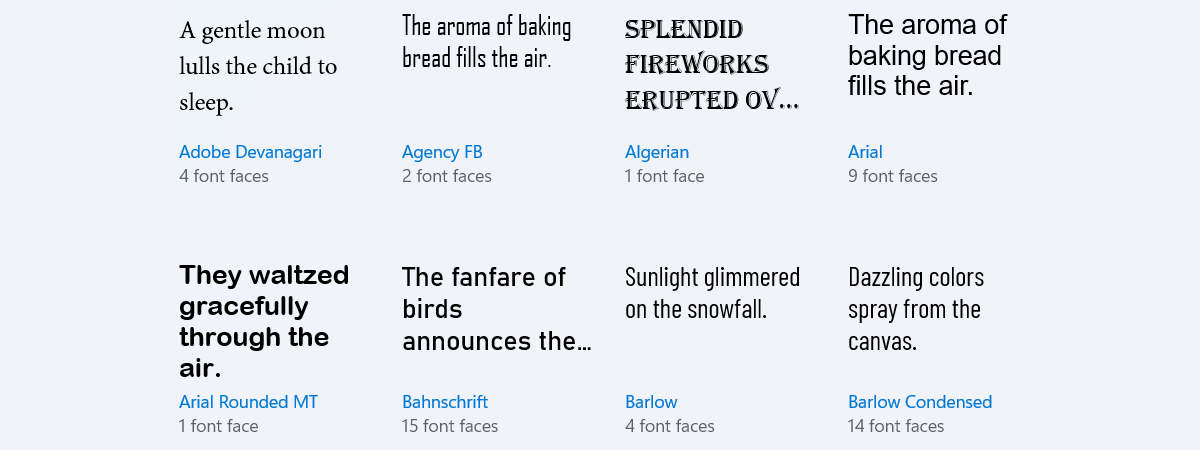
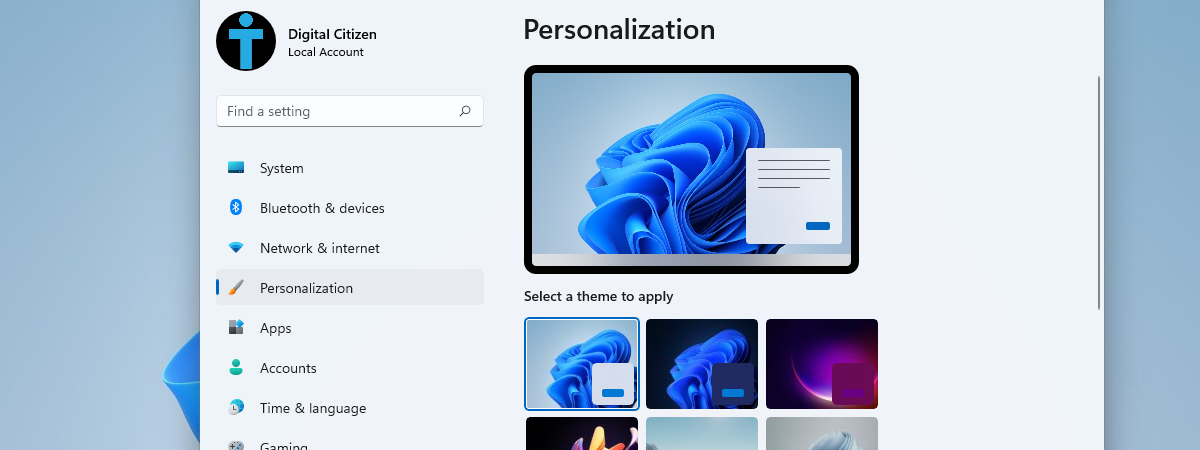
Right-click the font file and select Install. This will install the font on your PC and automatically register it across your applications. Alternatively, open Settings > Personalization > Fonts and drag the file into the window.
Install on macOS (Ventura or later)
Double-click the font file, then click Install Font in Font Book. The font appears instantly in macOS system fonts and becomes available to all apps like Pages, Photoshop, and Word.
Install on Linux
Copy the font file to the ~/.fonts folder, or open your Font Manager to import it. Log out or restart your session so Linux can detect and load the new font.
Install on iPhone or iPad
Use an app like iFont or AnyFont to install downloaded fonts. Once added, you can use them in supported apps like Keynote, Pages, or Canva mobile.
Step 5: Verify the Font in Your Applications
After installation, open a text or design app and search for the font name in the font list. If it doesn’t appear immediately, close and reopen the program. For system-wide use, a quick reboot ensures it’s fully loaded.
Troubleshooting Common Font Issues
If your font doesn’t appear, recheck that you extracted the ZIP file correctly. Fonts saved in subfolders might not install properly. Also, confirm that you downloaded a TrueType or OpenType file—other formats may not be compatible with some apps.
Should you see missing letters or symbols, reinstall the font or clear the font cache. These small resets often fix display errors without extra tools.
Tips for Safe and Organized Font Use
- Scan all downloads with your antivirus software before installation.
- Avoid adding hundreds of fonts at once - too many can slow your PC’s performance.
- For large collections, consider using a font manager to keep everything tidy and easy to browse.
FAQs
Are all fonts on DaFont free to use? No. Many are free only for personal projects. Check each font’s license details before using them commercially.
Why doesn’t my font appear in Word or Photoshop? Some programs cache font lists at startup. Restarting the app or your computer helps refresh the list so your new font appears.
What’s the difference between TTF and OTF fonts? TTF (TrueType) is compatible with most systems, while OTF (OpenType) includes more advanced design features like ligatures and alternate characters.
Summary
- Visit DaFont’s official website.
- Browse and preview fonts by category.
- Check the font license before downloading.
- Click Download to get the ZIP file.
- Unzip and locate the .ttf or .otf font file.
- Install on your device following OS steps.
- Verify in your apps and restart if needed.
Conclusion
Downloading fonts from DaFont is quick and safe when you follow the right steps. By verifying licenses, unzipping correctly, and installing on your system, you can start using creative fonts across all your favorite apps in minutes.
Discussion (0)
Be the first to comment.