




CPU overclocking helps your Windows PC run faster when you need extra performance for gaming, editing, or multitasking. The right software lets you raise clock speeds safely while tracking temperature, voltage, and stability. This guide explains the best tools for Intel and AMD systems and shows how to pick the right one for your build.
1) Intel Extreme Tuning Utility (XTU)

Intel XTU provides direct access to CPU multipliers, voltages, and turbo behaviors on supported Intel processors. Its clean layout helps beginners understand what each slider changes. It works best on unlocked K-series chips where Intel allows full tuning.
XTU includes built-in stress testing, so you can confirm stability before pushing clocks higher. Real-time telemetry shows temperatures, load, and throttling. The tool also saves custom profiles to switch between performance and efficiency modes easily.
Advanced users can track per-core ratios and tune cache speeds for bigger gains. Enthusiasts often pair XTU with monitoring tools for deeper insights. It remains the safest choice for Intel CPUs because it follows Intel’s own voltage guidelines.
2) AMD Ryzen Master

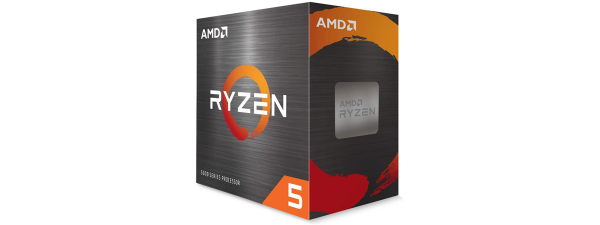
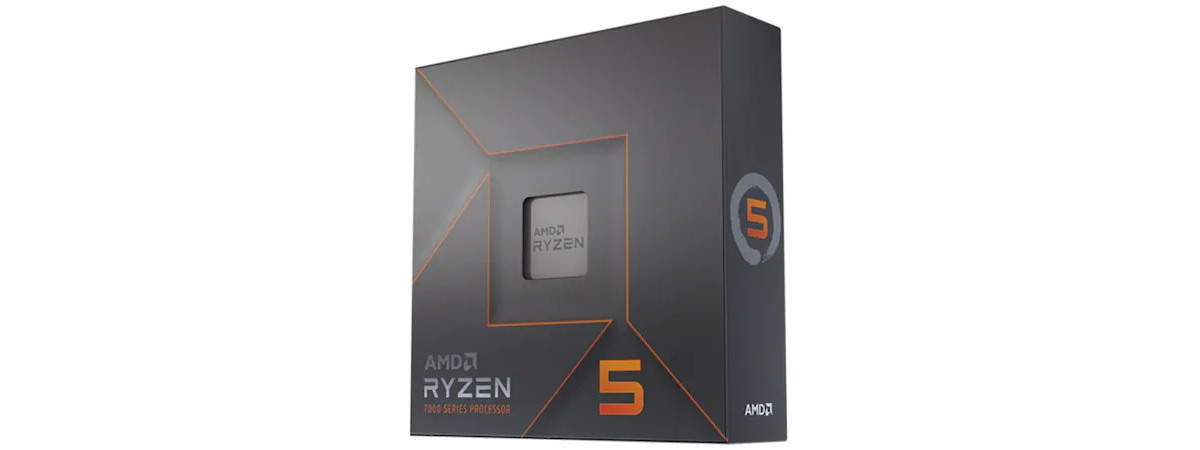
Ryzen Master gives AMD users a full dashboard for tuning cores, voltages, and memory. It works with most Ryzen CPUs, including modern 5000 and 7000 series models. The layout helps new users understand which adjustments impact heat and stability.
The tool shows per-core utilization and lets you adjust boost behaviors for heavy workloads. A built-in temperature graph helps you watch cooling performance as you test different settings. Auto-overclocking presets help beginners move quickly without complex steps.
More advanced users can adjust precision boost, curve optimizer values, and memory timings. Ryzen Master also provides profile switching for quick performance changes. It remains the most reliable tool for AMD CPUs thanks to deep platform integration.
3) ThrottleStop

ThrottleStop focuses on removing artificial limits on Intel laptops and older desktop CPUs. Many laptop makers lock down clock speeds, and this tool helps you reclaim lost performance. It works well on CPUs affected by thermal, power, or VRM throttling.
The interface exposes advanced controls that other tools hide. You can tune turbo behavior, adjust BD PROCHOT, and give your processor more room to boost. Monitoring tabs show whether Intel’s power limits restrict performance.
ThrottleStop appeals mostly to advanced users because tuning requires careful temperature monitoring. You can set multiple performance profiles to handle heavy or light workloads. Users often combine it with cooling pads to maintain safe operating temperatures.
4) MSI Center

MSI Center offers quick overclocking features for MSI motherboard owners. It integrates CPU tuning, fan control, and hardware monitoring in one interface. Beginners appreciate its clean layout and guided presets.
The app provides auto-tuning modes that raise CPU frequencies based on your cooling headroom. Real-time charts show how each change affects power and temperature. It also helps you fine-tune fan curves for better airflow.
MSI Center works best when paired with supported Z-series motherboards. Advanced users can manually adjust voltages and multipliers if they want precise control. MSI updates the tool often to match new chipsets and Windows versions.
5) ASUS AI Suite 3

ASUS AI Suite 3 delivers automatic CPU tuning for ASUS motherboards. The software analyzes your system’s cooling and raises clock speeds through its 5-Way Optimization engine. It offers one-click performance boosts without manual tuning.
You can adjust CPU multipliers, voltages, and load-line calibration settings from within the interface. Monitoring graphs show real-time temperatures and power draw. The fan tuning module helps you balance noise and cooling efficiency.
Advanced users can switch to manual mode for deeper control. This mode allows fine-grained voltage adjustments and power limit changes. It works smoothly on modern ASUS boards and supports both Intel and AMD models.
6) EVGA Precision X1

Precision X1 focuses on GPU tuning, but it includes system-wide monitoring that complements CPU overclocking. Many users rely on it to watch temperatures, load, and fan speeds while adjusting CPU settings elsewhere. Its real-time telemetry helps identify heat or voltage spikes.
The layout prioritizes charts and graphs so you see how the system behaves under stress. Built-in stress tests reveal whether your system stays stable. Users with EVGA graphics cards benefit from its unified interface.
Even though it’s not a dedicated CPU overclocker, many builders use it as an essential monitoring layer. Precision X1 pairs well with Intel XTU or Ryzen Master for full control. It works best on gaming setups that need constant visibility into system behavior.
7) CPU-Z + HWMonitor

CPU-Z and HWMonitor serve as monitoring companions for any overclocking tool. CPU-Z shows frequencies, multipliers, and detailed CPU specs. HWMonitor tracks temperatures, voltages, and fan speeds.
These tools help you confirm whether your overclock applies correctly. They also show thermal behavior during long gaming or rendering workloads. Many users rely on them to detect instability early.
You can use them alongside any overclocking app for a safer experience. They require no configuration and work on nearly all Windows versions. Both tools remain popular because they offer reliable and lightweight monitoring.
How to choose the right overclocking software
Windows 10 and Windows 11 compatibility
Modern tools support both Windows 10 and Windows 11, but newer CPUs sometimes require updated software. Choosing a tool with frequent updates reduces bugs and stability issues. Most brand-specific tools work best with their matching motherboards.
Intel vs AMD support
Intel users benefit most from XTU and ThrottleStop. AMD users should rely on Ryzen Master for safe tuning. Motherboard utilities work well when paired with branded hardware.
Auto-tuning vs manual control
Auto-tuning helps beginners get a safe boost with fewer risks. Manual control offers higher gains but requires more testing. Choose based on your skill level and cooling capacity.
Safety tips for overclocking
Start with small frequency increases
Raising clocks slowly helps you detect instability early. Small changes lower the risk of crashes or heat spikes. This approach works best on both Intel and AMD setups.
Monitor temperature and voltage
Overclocked CPUs run hotter and may draw more power. Monitoring helps you keep the system within safe limits. Most users aim to keep load temperatures below 85°C.
Run stability tests
Stress testing reveals whether the system handles heavy workloads. Tools like Cinebench and Prime95 help confirm long-term stability. Running tests after each change keeps your PC safe.
How to undo a bad overclock
Reset BIOS settings
Resetting the BIOS clears unstable voltage and frequency settings. Most boards include a safe-mode button or a simple reset option. This restores factory-stable values immediately.
Reduce voltage or multiplier
Lowering voltage reduces heat and improves stability. Reducing multipliers drops the CPU frequency slightly. Small rollbacks often solve random crashes and freezes.
Use Windows Safe Mode if the system fails to boot
Safe Mode loads Windows with minimal drivers. This helps you remove unstable software profiles. It also allows you to reinstall monitoring tools or reset settings.
FAQs
Is software overclocking safe? Software tuning remains safe when you raise values slowly and monitor temperatures. Most tools include built-in safety checks.
Does overclocking void warranty? Some manufacturers consider overclocking outside the intended spec. Always check your hardware policy before pushing limits.
Which tool gives the biggest performance boost? Intel users often see top gains from XTU. AMD users usually benefit most from Ryzen Master.
Do you need special cooling to overclock? Strong air cooling works for light overclocks. Liquid cooling helps maintain stability at higher speeds.
Summary
- Intel XTU works best for Intel chips.
- Ryzen Master gives AMD users precise control.
- ThrottleStop helps older Intel laptops run faster.
- Motherboard tools simplify tuning on MSI and ASUS boards.
- Monitoring tools like CPU-Z improve safety.
- Small steps, stable temps, and stress testing prevent damage.
Conclusion
The best CPU overclocking software depends on the processor you use and the level of control you want. Tools like Intel XTU and Ryzen Master offer safe tuning paths for most Windows systems. With small adjustments, proper cooling, and careful monitoring, your PC can run faster without compromising stability.
Discussion (0)
Be the first to comment.