



Desktop shortcuts remain one of the easiest and fastest ways to open your favorite apps, files, or system locations. However, Windows 11 tries to keep your screen as minimal as possible, so you’re not the only one wondering where icons like This PC or Network went. If you’re trying to add icons back or simply want to clean things up by removing icons from your desktop, read on. In this guide, I’ll show you how to add or remove desktop icons and shortcuts in Windows 11, as well as how to hide everything temporarily, in case you want to enjoy your wallpaper and nothing more. Let’s get started:
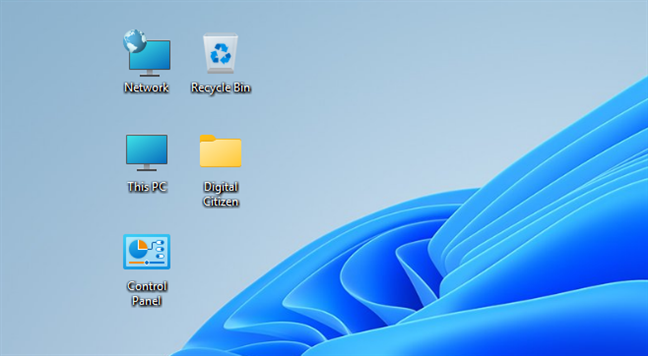
 All the system desktop icons in Windows 11
Out of the box, Windows 11 embraces a minimal approach and shows only one default icon: the Recycle Bin. Yet, you can choose to bring back any of the classic icons if you want:
All the system desktop icons in Windows 11
Out of the box, Windows 11 embraces a minimal approach and shows only one default icon: the Recycle Bin. Yet, you can choose to bring back any of the classic icons if you want:
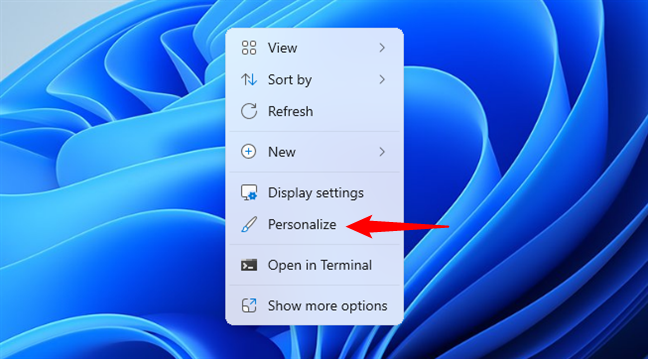
 Right-click the desktop and choose Personalize
Windows 11 takes you to the Personalization section of the Settings app. On the right, scroll down if necessary and click or tap Themes.
Right-click the desktop and choose Personalize
Windows 11 takes you to the Personalization section of the Settings app. On the right, scroll down if necessary and click or tap Themes.
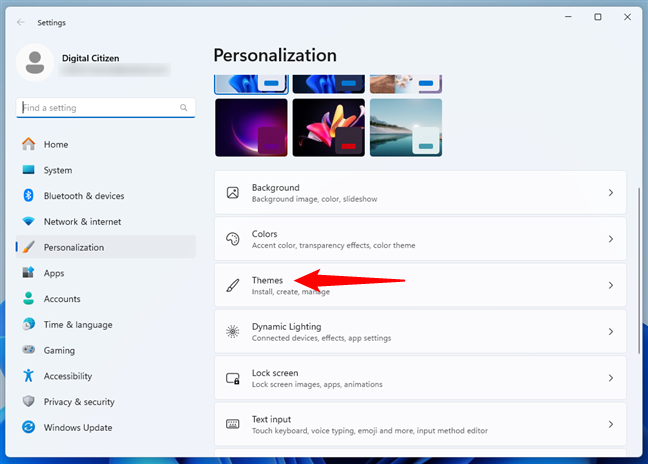
 Access the Themes settings
Next, look for the Related settings section and click or tap Desktop icon settings.
Access the Themes settings
Next, look for the Related settings section and click or tap Desktop icon settings.
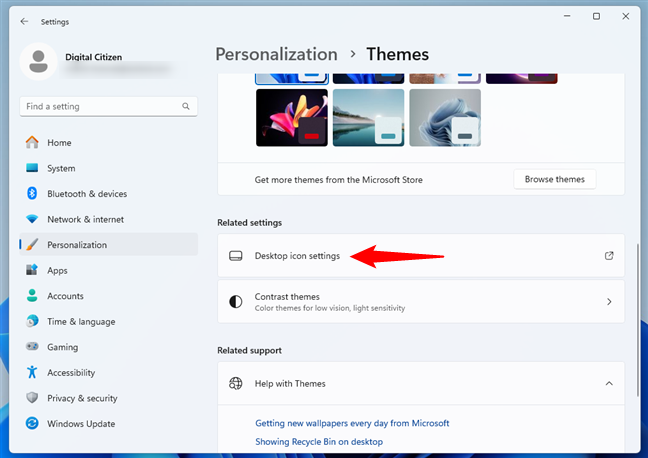
 Click on Desktop icon settings
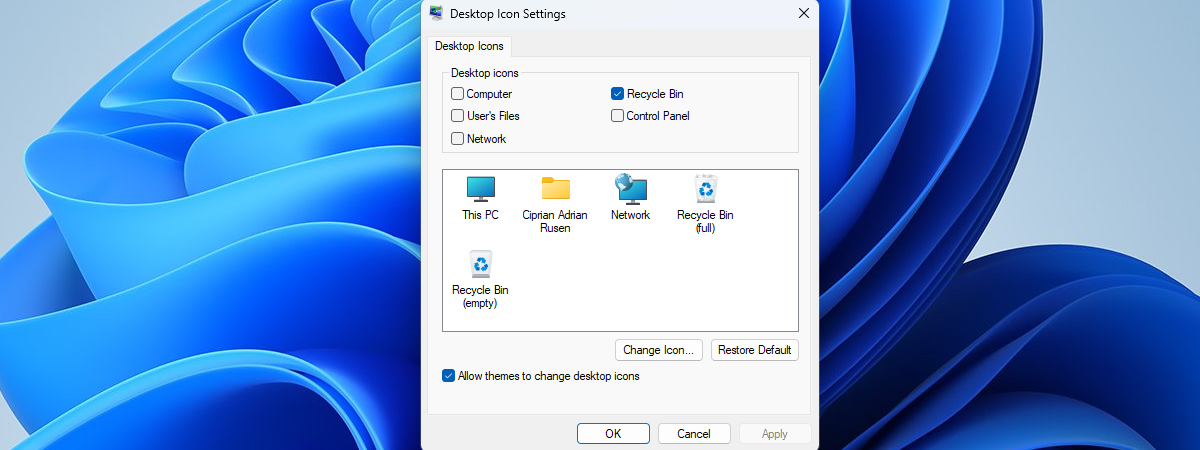
This opens a small window called Desktop Icon Settings. Here, you can select which default icons to display by checking their boxes. These are the same default shortcuts that have been around for years: This PC, Network, Control Panel, User’s Files, and Recycle Bin. When you’re done, press OK.
Click on Desktop icon settings
This opens a small window called Desktop Icon Settings. Here, you can select which default icons to display by checking their boxes. These are the same default shortcuts that have been around for years: This PC, Network, Control Panel, User’s Files, and Recycle Bin. When you’re done, press OK.
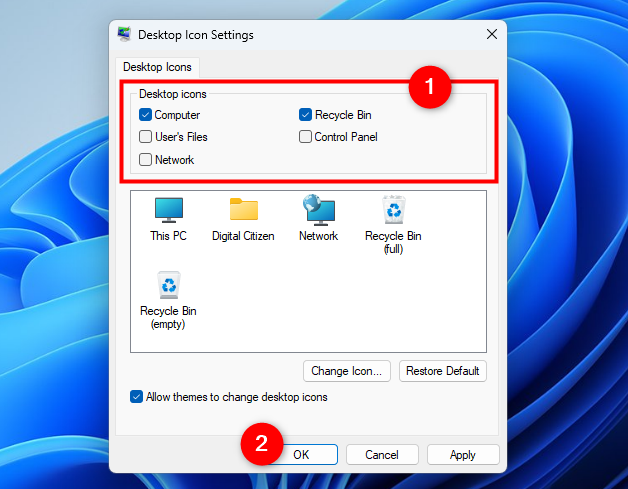
 Select the icons you want to add to the desktop
TIP: If no shortcuts or desktop icons appear on your screen, no matter what you try, you might need to restore them manually. We’ve explained how to bring back the default Windows icons in our step-by-step guide on restoring desktop shortcuts.
Select the icons you want to add to the desktop
TIP: If no shortcuts or desktop icons appear on your screen, no matter what you try, you might need to restore them manually. We’ve explained how to bring back the default Windows icons in our step-by-step guide on restoring desktop shortcuts.
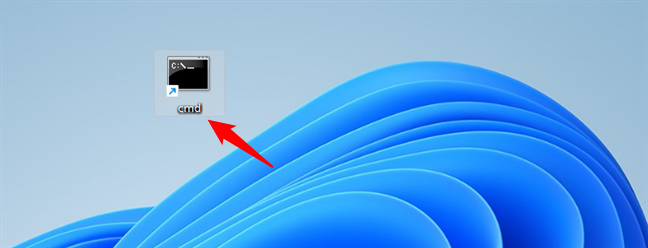
 Select the shortcut to remove from the desktop
Then, press Delete on your keyboard, and it’s instantly removed from your desktop, no further confirmation required.
Select the shortcut to remove from the desktop
Then, press Delete on your keyboard, and it’s instantly removed from your desktop, no further confirmation required.
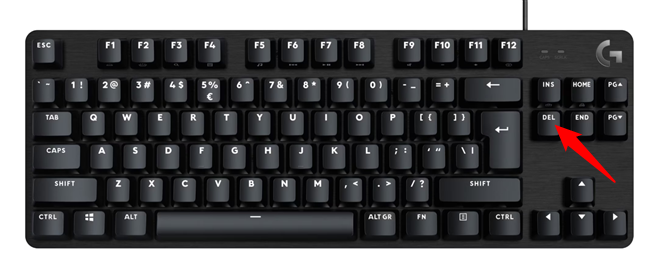
 How to delete a shortcut using the keyboard
If you prefer using the mouse (or touch), right-click (or press and hold) the shortcut, then choose Delete from the context menu.
How to delete a shortcut using the keyboard
If you prefer using the mouse (or touch), right-click (or press and hold) the shortcut, then choose Delete from the context menu.
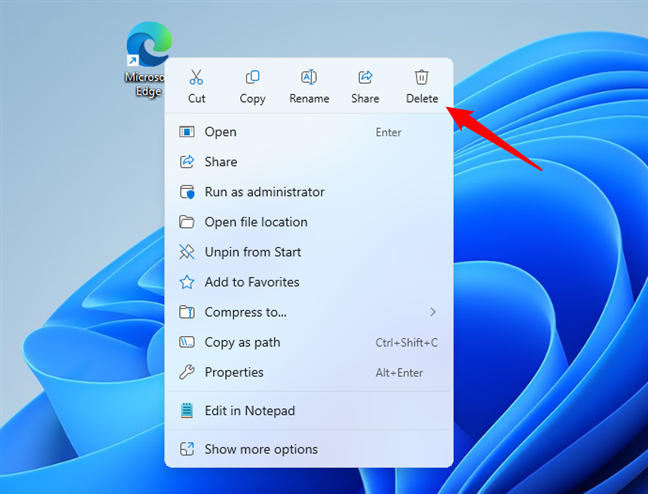
 Right-click a shortcut and choose Delete
Last but not least, you can also drag and drop the shortcut into the Recycle Bin.
Right-click a shortcut and choose Delete
Last but not least, you can also drag and drop the shortcut into the Recycle Bin.
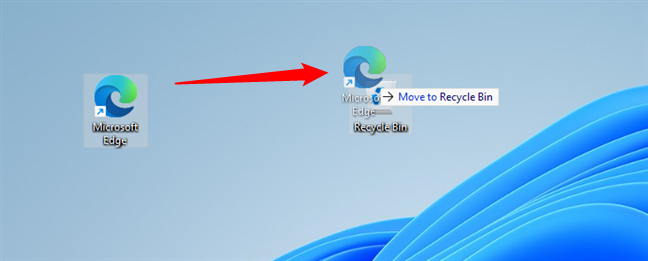
 Drag and drop a shortcut in the Recycle Bin
Just make sure you’re not deleting something important from your desktop. Deleted shortcuts are easy to replace, but deleted files may not be, although there’s always a chance to get them back.
Drag and drop a shortcut in the Recycle Bin
Just make sure you’re not deleting something important from your desktop. Deleted shortcuts are easy to replace, but deleted files may not be, although there’s always a chance to get them back.
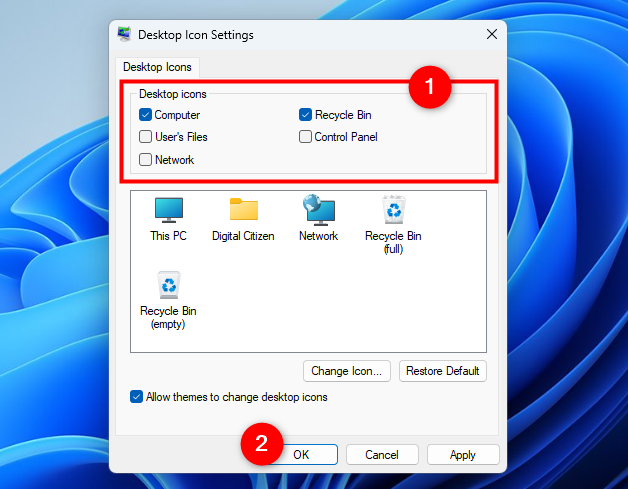 How to remove default shortcuts from the desktop
Once there, uncheck the icons you no longer want on your desktop. Click or tap OK, and Windows 11 makes them disappear.
How to remove default shortcuts from the desktop
Once there, uncheck the icons you no longer want on your desktop. Click or tap OK, and Windows 11 makes them disappear.
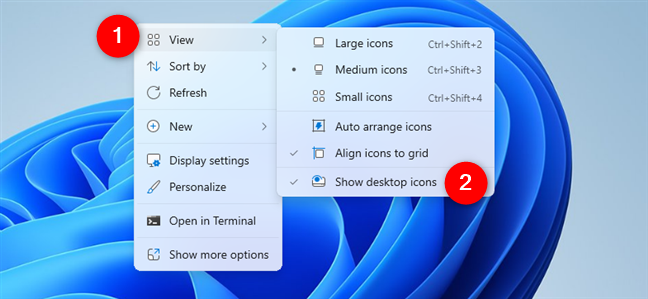
 How to show or hide the desktop icons in Windows 11
When you’re ready to bring them back, repeat the same steps and make sure the Show desktop icons option is checked. All your shortcuts will reappear, just like before.
How to show or hide the desktop icons in Windows 11
When you’re ready to bring them back, repeat the same steps and make sure the Show desktop icons option is checked. All your shortcuts will reappear, just like before.
What are desktop icons or shortcuts in Windows 11?
Just like in earlier versions of Windows, desktop icons in Windows 11 help you access everything faster. You can add shortcuts to all kinds of files on your computer and create custom ones for your favorite apps, games, files, and folders. There’s also a set of predefined icons built into the operating system.- This PC - lets you explore your computer’s storage, as well as the shared content from other networked computers. You can access partitions, folders, files, libraries, and more.
- Network - displays a list of computers and devices currently connected to your network, along with the folders and devices they’ve made available for sharing.
- Control Panel - offers the classic interface for accessing key system settings and configurations.
- User’s files (Username folder) - gives you quick access to personal folders linked to your user account, such as Documents, Downloads, Music, and Pictures.
- Recycle Bin - holds deleted files and folders temporarily, giving you a chance to recover them before they’re permanently erased.
How to add an icon to the desktop in Windows 11
If you’re trying to add a shortcut for a specific program, file, or even a website, you can easily do that using the methods shown in our previous guide about creating shortcuts in Windows: How to create shortcuts for files, folders, apps, and web pages in Windows. When it comes to the system icons, like This PC or Network, the process is a bit different in Windows 11:How to show default desktop icons in Windows 11
To enable built-in Windows icons, such as Recycle Bin or your User’s Files, you first need to access a settings panel that’s a bit hidden. Here’s how to do it: Right-click or press and hold an empty space on your desktop and choose Personalize from the menu.How to remove shortcuts from the desktop in Windows 11
If your desktop is starting to look messy, getting rid of shortcuts can make a difference. The good news is that cleaning things up is just as simple as adding them: To delete a shortcut from the desktop, first, select it.How to remove default shortcuts from the desktop in Windows 11
Want to get rid of icons like Recycle Bin or This PC? Go back to the Desktop icon settings window, the same one used for adding them. In short, right-click on the desktop, choose Personalization, access Themes, and then click or tap Desktop icon settings.How to hide all desktop icons in Windows 11
Sometimes, you just want to clear everything off the screen without actually deleting anything. Windows 11 lets you hide your desktop icons in just a couple of clicks or taps: Right-click or press-and-hold on an empty area of your desktop. Click, tap, or hover over View, and then click or tap Show desktop icons to toggle them off.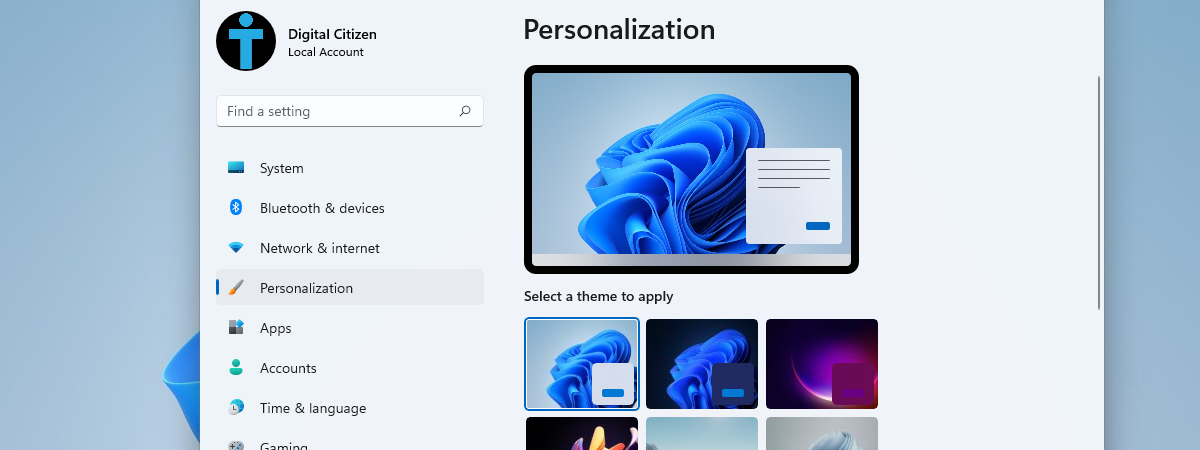

Discussion (0)
Be the first to comment.