



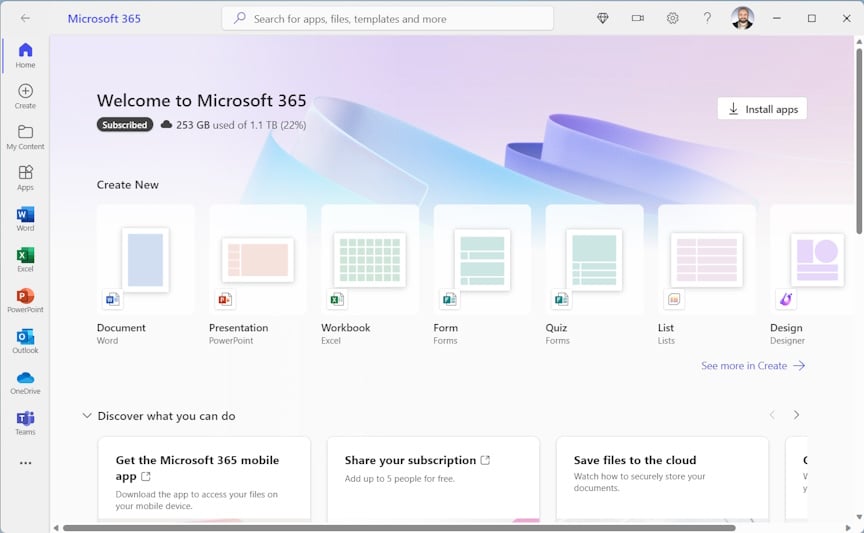
Microsoft Office is one of the most widely used productivity suites in the world. It includes apps like Word, Excel, and PowerPoint that help you write documents, create spreadsheets, and build presentations.
Not everyone can or wants to pay for a Microsoft 365 subscription. The good news is that there are several safe and legal ways to use Microsoft Office without paying a subscription fee. This guide explains eight of those options, so you can choose the one that fits your needs.
1. Use Microsoft Office Web Apps for Free
You can use Word, Excel, PowerPoint, and other Office apps online in your web browser at no cost. All you need is a free Microsoft account.
Open your browser, sign in with your Microsoft account, and start working from the Office home page. The web versions let you create, edit, and share documents without installing anything on your device. They include the most basic tools you need for everyday work.
This is one of the easiest ways to use Office for free if you don’t need advanced desktop features.
2. Try Microsoft 365 Free Trial
Microsoft often offers a free trial of Microsoft 365 that lasts about one month. During the trial, you get full access to the desktop versions of Office apps, plus OneDrive storage.
Sign up with a Microsoft account, start the trial, and download the apps to your PC or Mac. If you cancel before the trial ends, you won’t be charged.
This is a good option if you want to try the full desktop experience or need Office for a short period.
3. Check If Your School Offers Free Office
Students, teachers, and staff at many schools and universities can get Microsoft Office for free through the education licensing program.
If your school is part of this program, you can sign in with your school email address to access Word, Excel, PowerPoint, OneNote, and other tools without paying.
This option gives you long-term access as long as you remain eligible through your school.
4. Use Microsoft Office Mobile Apps
You can download Microsoft Office apps on your phone or tablet without paying. Apps like Word, Excel, and PowerPoint are available on both iOS and Android.
Once installed, sign in with a Microsoft account and start creating or editing files. These mobile versions work well for everyday tasks and are free for basic editing.
They are especially handy when you need to make quick changes on the go.
5. Join Someone’s Microsoft 365 Family Plan
A Microsoft 365 Family subscription can be shared with multiple users. If a family member or friend already pays for a plan, they might be able to add you.
Each person gets their own sign-in and access to Office apps, OneDrive storage, and other features. This is a good way to use the full version of Office without paying for a separate subscription.
Just make sure sharing follows Microsoft’s terms for Family plans.
6. Join the Microsoft Developer Program
If you are a developer or want to build add-ins and test workflows, you can join the Microsoft 365 Developer Program. It offers a free developer sandbox with access to Microsoft 365 tools for testing and development.
This option gives access to the suite in a development environment. It’s designed for developers, not general personal use, but it does let you work with Office apps legally and for free while you build and test.
7. Look for Refurbished Computers With Office Included
Some refurbished PCs and laptops come with Microsoft Office pre-installed and activated. These devices are sold by trusted resellers with valid Office licenses.
If you buy one of these systems, you can use Office without an additional subscription. Make sure to verify that the Office license is genuine and transferable with the device.
This is more of a hardware route, but it can be worth it if you also need a new or renewed computer.
8. Use Free Alternatives When Needed
If none of the above methods work for you, consider using free office suites that are similar to Microsoft Office. These tools can open and edit Microsoft file formats, and they do not require a subscription.
Popular free alternatives include:
- LibreOffice – a full suite with word processing, spreadsheets, and presentations
- Apache OpenOffice – another open source office suite
- Google Docs, Sheets, Slides – web-based tools with collaboration features
- Zoho Office – online suite for documents and spreadsheets
Free alternatives are especially useful if you need offline access or don’t require every advanced Office feature.
Quick Comparison: Free Office Options
| Option | Cost | Offline Use | Best For |
|---|---|---|---|
| Office Web Apps | Free | No | Basic editing and collaboration |
| Microsoft 365 Trial | Free for ~1 month | Yes | Full desktop features |
| School/University License | Free (if eligible) | Yes | Students and educators |
| Mobile Office Apps | Free | Limited | On-the-go editing |
| Family Plan Sharing | Free (shared) | Yes | Full Office features with a shared account |
| Developer Program | Free | Yes (sandbox) | Testing and development |
| Refurbished PC w/ Office | Free (with device) | Yes | Users needing both PC and Office |
| Free Alternatives | Free | Yes | Office alternatives |
Tips Before You Start
- Always use official Microsoft sources or trusted partners.
- Avoid pirated software or illegal activation tools. These can harm your device or violate laws.
- Free online versions require an internet connection.
- Office web versions may not include every advanced feature found in desktop apps.
Frequently Asked Questions (FAQs)
Can I use Office for free forever?
Yes. You can keep using the web versions of Word, Excel, and PowerPoint for free as long as you have a Microsoft account and internet access.
Do mobile Office apps require a subscription?
No. Most basic editing features in the mobile apps are free, though some advanced tools may require Microsoft 365.
Is it safe to get Office through educational licenses?
Yes. If you qualify through your school or university, this is one of the best legal ways to get the full Office experience for free.
Can I use Office offline with the free web version?
No. The web version needs an internet connection. Offline work is possible with mobile apps or with a trial or shared Microsoft 365 plan.
Getting Microsoft Office for free is possible if you know where to look and choose the option that matches your needs. For light work and quick edits, the web and mobile versions are more than enough. If you need full desktop features, a free trial, school access, or a shared family plan can give you the complete experience without paying upfront.
Before deciding, think about how often you use Office and whether you need offline access. Using official and legal options keeps your data safe and ensures the apps work properly. With these methods, you can stay productive without committing to a paid subscription.

Discussion (0)
Be the first to comment.