



YouTube sometimes stops loading or freezes on Roku due to network issues, outdated software, or app glitches. If your YouTube app fails to open, buffers endlessly, or shows playback errors, you can restore normal streaming with a few quick adjustments. This guide explains why the problem occurs and shows the fastest ways to fix YouTube not working on Roku without advanced troubleshooting.
You can confirm the issue by opening other streaming channels on Roku or testing YouTube on a different device. If only the Roku app fails, simple fixes like restarting the device, updating Roku OS, or reinstalling YouTube usually solve the problem. Follow the steps below to get the app running smoothly again.
Fix YouTube Not Working On Roku
Start with the simplest fixes first. These steps apply to most YouTube playback failures, slow buffering, and app crashes.
Check For YouTube Server Issues
YouTube occasionally experiences outages that affect app performance on Roku. Test YouTube on your phone, tablet, or computer to confirm that the service works normally.
- Try loading YouTube on another device connected to the same Wi-Fi network.
- If it fails everywhere, wait for YouTube’s servers to recover.
Restart Your Roku Device
A restart clears temporary glitches that prevent the YouTube channel from opening or loading. This fix resolves most minor app issues.
- Press Home on the Roku remote.
- Open Settings > System.
- Select System Restart > Restart.
- Open YouTube again after the device reboots.
Check Roku Internet Connection
A weak or unstable Wi-Fi signal can stop YouTube from loading videos. Roku includes a built-in connection test to verify your network performance.
- Press Home on the remote.
- Go to Settings.

- Network.
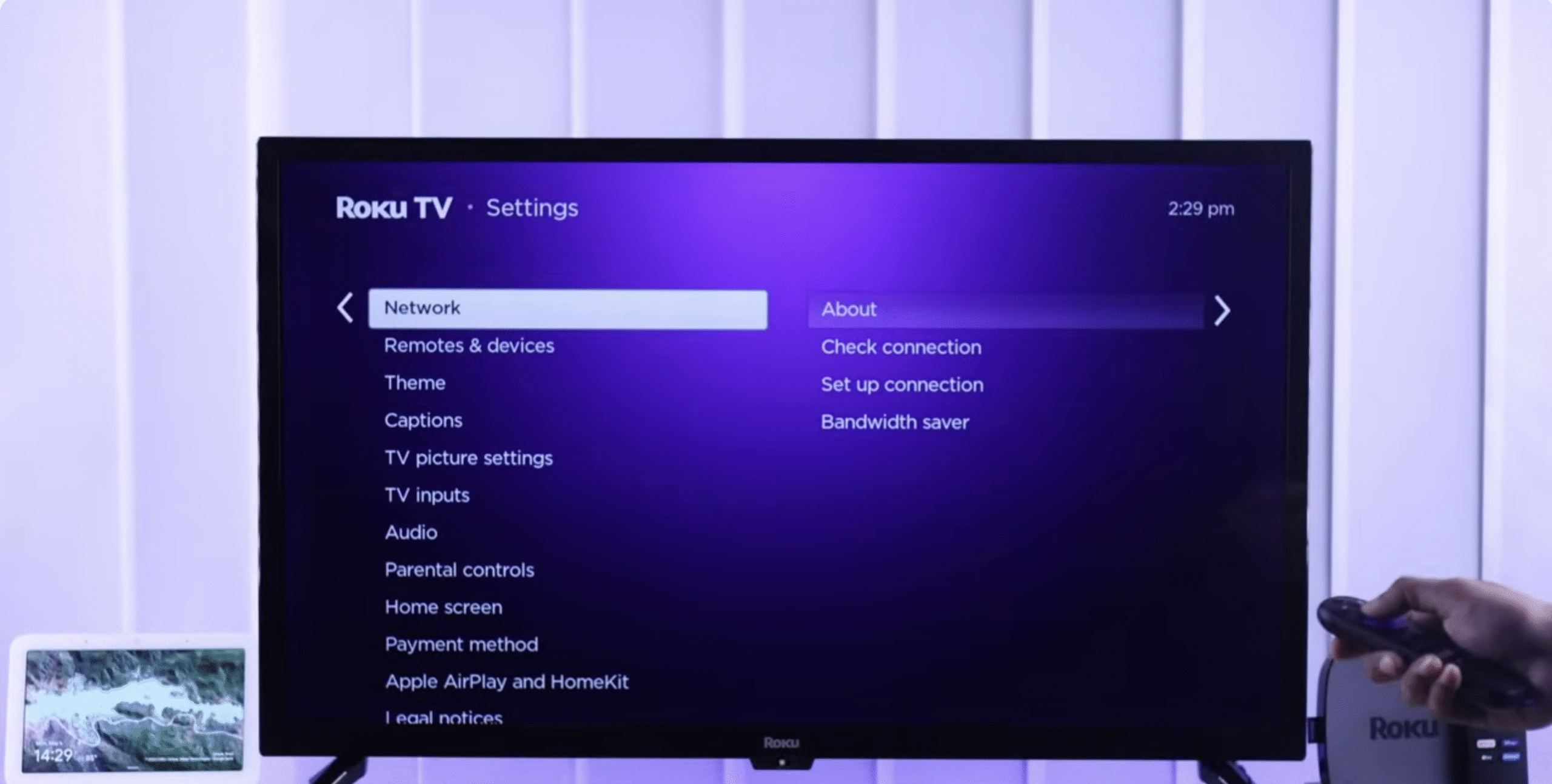
- Choose Check Connection.

- If speeds are low, restart your router or move Roku closer.
Improve Your Wi-Fi Signal
YouTube streaming requires steady bandwidth. If your home network is congested or weak, Roku may fail to load videos.
- Restart your Wi-Fi router.
- Limit the number of devices using your network.
- Move your Roku player closer to the router.
- Use a wired Ethernet connection if your Roku model supports it.
Update Your Roku OS
Outdated Roku firmware can cause app compatibility issues, including problems with YouTube playback or sign-in failures. Updating the OS ensures your device runs the latest patches.
- Press Home.
- Open Settings > System.
- Select System Update.
- Choose Check Now and install updates if available.
Reinstall The YouTube App
If the YouTube channel crashes repeatedly, reinstalling the app refreshes its data and resolves corrupt files.
- Press Home on your Roku remote.
- Highlight YouTube and press *.
- Select Remove Channel.
- Restart Roku from Settings > System Restart.
- Return to the Streaming Channels store and reinstall YouTube.
Factory Reset As A Last Resort
A factory reset restores Roku to its original settings. Use this method only when all other fixes fail, because it removes all installed channels and stored preferences.
- Press Home on the remote.
- Go to Settings > Advanced System Settings.
- Select Factory Reset.
- Follow the on-screen steps and set up Roku again.
Troubleshooting Common Problems
Some issues appear more often when YouTube fails on Roku. These checks help you identify and fix specific symptoms quickly.
- Videos freeze or buffer: Test your internet speed and reboot your router.
- YouTube won’t sign in: Update Roku OS and reinstall the app.
- Audio plays but no video shows: Restart Roku and switch HDMI ports.
- Roku channel crashes immediately: Remove and reinstall YouTube.
Tips
- Use the 5 GHz Wi-Fi band for smoother HD and 4K playback.
- Clear space around your router to improve signal strength.
- Restart your Roku once a week to avoid app glitches.
- Set your YouTube video quality to Auto for stable streaming.
FAQ
Why does YouTube stop loading on Roku? Weak Wi-Fi, outdated software, and temporary app bugs commonly cause loading failures.
Why does YouTube buffer even with fast internet? Your Roku may have a poor Wi-Fi signal or outdated firmware affecting performance.
Why won’t YouTube open after restarting Roku? The app may be corrupted. Removing and reinstalling it usually fixes the problem.
Why does YouTube freeze during playback? Network congestion or an unstable connection interrupts video streaming.
Summary
- Check if YouTube servers are down.
- Restart your Roku device.
- Test and improve your internet connection.
- Update your Roku OS.
- Remove and reinstall the YouTube channel.
These steps fix most issues where YouTube stops loading, crashes, or freezes on Roku.
Conclusion
You can restore normal streaming quickly by checking your network connection, updating your Roku device, and reinstalling the YouTube channel if needed. These fixes resolve most cases of YouTube not working on Roku and help your device run more reliably going forward.


Discussion (0)
Be the first to comment.