


Microsoft has released Windows 11 KB5132057, an optional update that introduces faster File Explorer searches, a redesigned Windows Search experience, and several improvements to gaming and everyday system usability.
Released on November 19, 2026, the update is available for Windows 11 versions 25H2 and 26H2. It advances their operating system builds to 26200.10075 and 26300.10075, respectively.
One of the most noticeable changes involves File Explorer, where searches performed from This PC now use the Windows indexing system. This should make finding files faster, particularly on computers containing large numbers of documents and folders.
Early feedback suggests the improvement is already making a difference. One Windows 11 user reported that File Explorer searches now return results almost immediately, even when searching through folders containing thousands of files.
The update also introduces a modernized Run dialog, improved Windows Hello facial recognition, additional Xbox Mode functionality, and fixes for several existing Windows problems.
File Explorer Search Now Uses Windows Indexing for Faster Results
Microsoft has changed how File Explorer handles searches initiated from This PC.
Previously, searches from this location could take considerably longer than searches performed from File Explorer's Home section.
With KB5132057, searches from This PC now use the Windows indexer, which maintains a searchable database of files and their associated information.
This allows Windows to retrieve information about indexed files without repeatedly scanning every folder during a search.
The change is intended to improve search speed and make the experience more consistent across File Explorer.
A Reddit user identified as u/thet39 reported significant improvements after installing the update and enabling the new functionality on Windows 11 Build 26300.10075.
According to the user, searches that previously required noticeable loading time now produce results almost instantly.
The user tested folders containing hundreds and thousands of files, including content associated with OneDrive and iCloud.
However, the improvement may vary depending on whether the relevant files and locations are indexed.
Microsoft has confirmed the indexing change, but broader testing is still needed to determine how much faster File Explorer becomes across different configurations.
Windows Search Gets a Redesigned Interface and More Useful Results
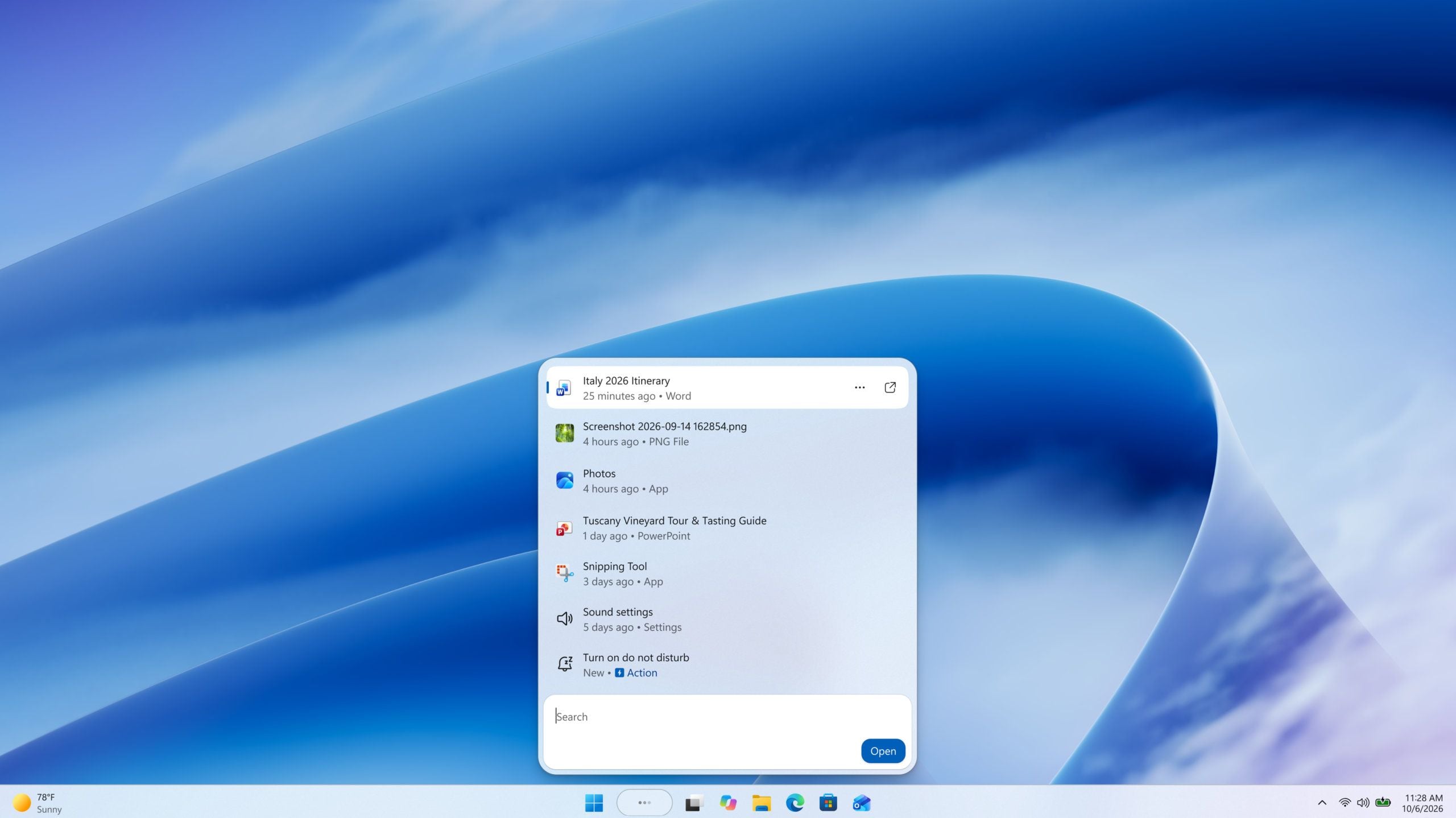
KB5132057 also introduces a redesigned Windows Search interface based on WinUI 3.
The updated design combines search results into a more streamlined list, making applications, documents, settings, and web information easier to access.
Microsoft has also improved typo recognition and the relevance of search results.
Another addition is richer file previews.
Instead of opening a document to identify its contents, you can preview information about supported files directly from Windows Search.
The new experience includes previews for documents, presentations, and images.
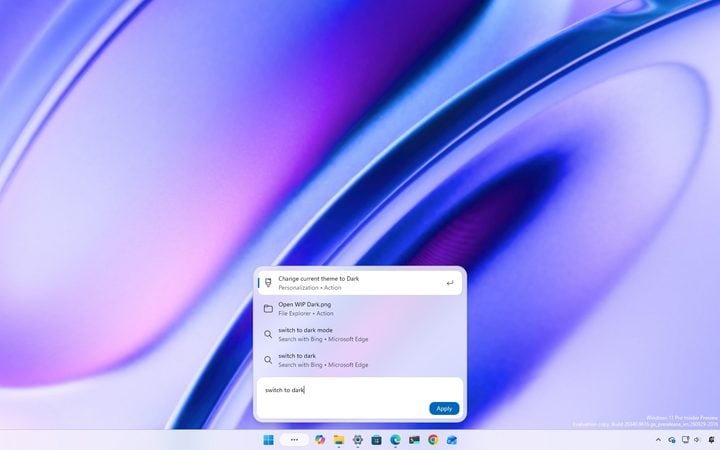
Windows Search is also gaining inline actions that allow certain system settings to be changed without opening the Settings application.
For example, you can use supported search actions to adjust screen brightness, enable Bluetooth, mute devices, change system themes, or arrange application windows.
These additions are intended to reduce the number of steps required to perform common tasks.
Windows 11 KB5132057 Includes Several Other Improvements
The update introduces changes across multiple Windows components.
| Feature | Improvement |
|---|---|
| File Explorer | Faster searches from This PC using Windows indexing |
| Windows Search | Redesigned interface, better results, and file previews |
| Search actions | Direct access to selected system controls |
| Run dialog | Updated design available through Settings |
| Windows Hello | Improved facial recognition in low light |
| Xbox Mode | Quick Settings access from Gaming Task View |
| Game streaming | Reduced visible mouse pointer latency |
| Android passkeys | Fix for authentication failures |
| File History | Backup restoration improvements |
| Windows shutdown | Correction for inaccurate shutdown warnings |
Some features are being introduced gradually, meaning they may not appear immediately on every eligible computer.
Xbox Mode Now Provides Easier Access to Quick Settings
Microsoft has also introduced improvements for PC gamers using Xbox Mode.
The updated experience allows access to the full Windows Quick Settings panel directly from Gaming Task View.
Previously, changing certain settings could require leaving the full screen gaming interface and returning to the Windows desktop.
The new integration makes it easier to adjust common system controls without interrupting the handheld style gaming experience.
Microsoft has also addressed visible mouse cursor latency during screen capture sessions.
The improvement is relevant to game streaming and other activities involving captured screen content.
However, reduced pointer latency during screen capture does not necessarily mean that games themselves will run faster or experience lower input latency.
The change specifically targets the responsiveness of the visible mouse pointer during these activities.
Windows Hello Can Improve Facial Recognition in Dark Environments
Another usability improvement affects Windows Hello facial recognition.
Microsoft has introduced a feature that can temporarily increase screen brightness when facial authentication is performed in poorly lit environments.
The additional illumination can help compatible cameras recognize a person's face when surrounding lighting is insufficient.
This may be particularly useful for laptop owners who regularly sign in while working in dim rooms.
The update also introduces a redesigned Run dialog, which can be enabled through Windows Settings.
The modern interface replaces the appearance of the traditional Run window while retaining its familiar functionality for launching programs, opening locations, and executing commands.
How to Install Windows 11 KB5132057
KB5132057 is an optional update rather than a mandatory security release.
You can look for it through Windows Update on supported systems.
- Open Settings on your Windows 11 computer.
- Select Windows Update.
- Navigate to Advanced options.
- Open Optional updates.
- Look for KB5132057 and install it if available.
- Restart your computer if Windows requests it.
The update supports Windows 11 versions 25H2 and 26H2, moving them to builds 26200.10075 and 26300.10075.
Microsoft is using a gradual rollout for several of the new features.
Consequently, installing KB5132057 does not guarantee immediate access to every improvement.
Some functionality may become available later as Microsoft expands deployment to additional devices.
The faster File Explorer search experience is among the most promising changes, particularly for people who regularly work with large collections of files.
Combined with the redesigned Windows Search interface, Xbox Mode enhancements, and smaller reliability fixes, KB5132057 introduces several practical improvements to Windows 11 ahead of their wider availability.


Discussion (0)
Be the first to comment.