




If you want to enhance Windows Hello face recognition in Windows 11, you can improve the system’s accuracy by updating your face data and adjusting your setup environment. Windows Hello uses biometric technology to recognize your face and securely sign you into your computer.
Sometimes the feature may become less accurate due to lighting changes, glasses, or appearance differences. Fortunately, Windows 11 includes an option to improve recognition so the system can adapt to these changes.
What Is Windows Hello Face Recognition?
Windows Hello is a biometric authentication feature that allows you to sign in using your face, fingerprint, or PIN. The face recognition feature uses infrared cameras to scan your facial features and verify your identity.
Benefits of Windows Hello include:
- Faster login without typing passwords
- Improved security with biometric authentication
- Protection against unauthorized access
- Convenient sign-in experience
Face recognition works best on devices with compatible infrared cameras.
Why Enhance Windows Hello Face Recognition?
Enhancing face recognition helps Windows learn additional facial details and improve accuracy.
You may need to enhance recognition if:
- Windows Hello fails to recognize you sometimes
- You started wearing glasses or grew facial hair
- Lighting conditions have changed
- You want more reliable face detection
Updating recognition allows Windows to store more facial data for better matching.
How to Enhance Windows Hello Face Recognition
Follow these steps to improve recognition accuracy.
1: Open Windows Settings
- Click the Start button.
- Open Settings.
- Select Accounts.
2: Open Sign-in Options
- Click Sign-in options.
- Locate Facial recognition (Windows Hello).
3: Improve Recognition
- Click Improve recognition.
- Follow the on-screen instructions.
- Look at the camera as Windows scans your face again.
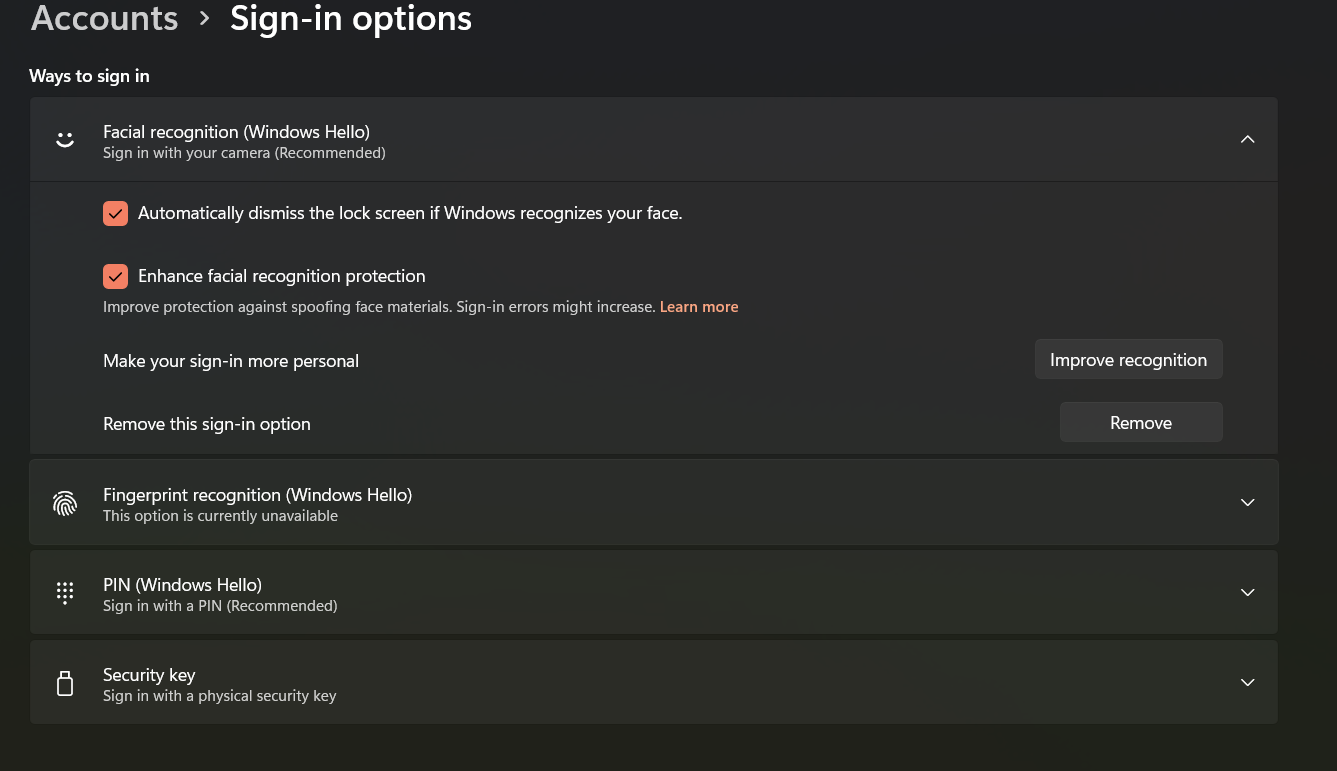
Windows will update your biometric data to improve recognition accuracy.
Tips to Improve Windows Hello Face Recognition
You can further enhance performance by adjusting your setup.
Helpful tips include:
- Ensure good lighting when setting up recognition
- Sit at a normal distance from the camera
- Keep the camera lens clean
- Register your face with and without glasses
- Avoid strong backlighting behind you
These steps help the camera capture clearer facial data.
Check Camera Compatibility
Windows Hello face recognition requires an infrared (IR) camera.
To check camera support:
- Open Device Manager.
- Expand Cameras.
- Look for a device labeled Windows Hello Face or IR Camera.
Without an infrared camera, facial recognition may not work properly.
Reset Windows Hello Face Data
If recognition problems continue, you can reset the setup.
Steps to reset:
- Open Settings.
- Go to Accounts > Sign-in options.
- Remove Facial recognition (Windows Hello).
- Set it up again from scratch.
Re-registering your face can fix many detection issues.
Final Thoughts
Learning how to enhance Windows Hello face recognition in Windows 11 can improve both convenience and security. By updating facial recognition data and ensuring proper lighting and camera positioning, you can make the system more reliable.
If problems persist, resetting and setting up Windows Hello again usually restores accurate recognition.
FAQs
How do I improve Windows Hello face recognition?
Go to Settings > Accounts > Sign-in options and select Improve recognition under Facial recognition.
Why does Windows Hello sometimes fail to recognize me?
Lighting changes, glasses, facial hair, or camera positioning can affect recognition accuracy.
Do I need a special camera for Windows Hello?
Yes. Windows Hello face recognition requires an infrared (IR) camera.
Can I reset Windows Hello face recognition?
Yes. Remove the existing setup and register your face again in Sign-in options.


Discussion (0)
Be the first to comment.