




If you want the latest drivers or non-critical fixes, you can download optional updates in Windows 11 from the Settings app. These updates are not installed automatically, but they can improve performance, fix bugs, or add new features.
What Are Optional Updates in Windows?
Optional updates are updates that Windows does not install automatically. These usually include:
- Driver updates (graphics, audio, network)
- Feature improvements
- Non-critical bug fixes
They are safe to install but not always necessary.
Why Install Optional Updates?
You may want to install them if:
- Your device has hardware issues
- You need updated drivers
- You want the latest improvements
- A specific update fixes a problem
They can help improve system stability.
How to Download Optional Updates in Windows 11
Follow these steps to access and install them.
1: Open Settings
- Press Windows + I
- Go to Windows Update
2: Go to Advanced Options
- Click Advanced options
3: Open Optional Updates
- Scroll down
- Click Optional updates
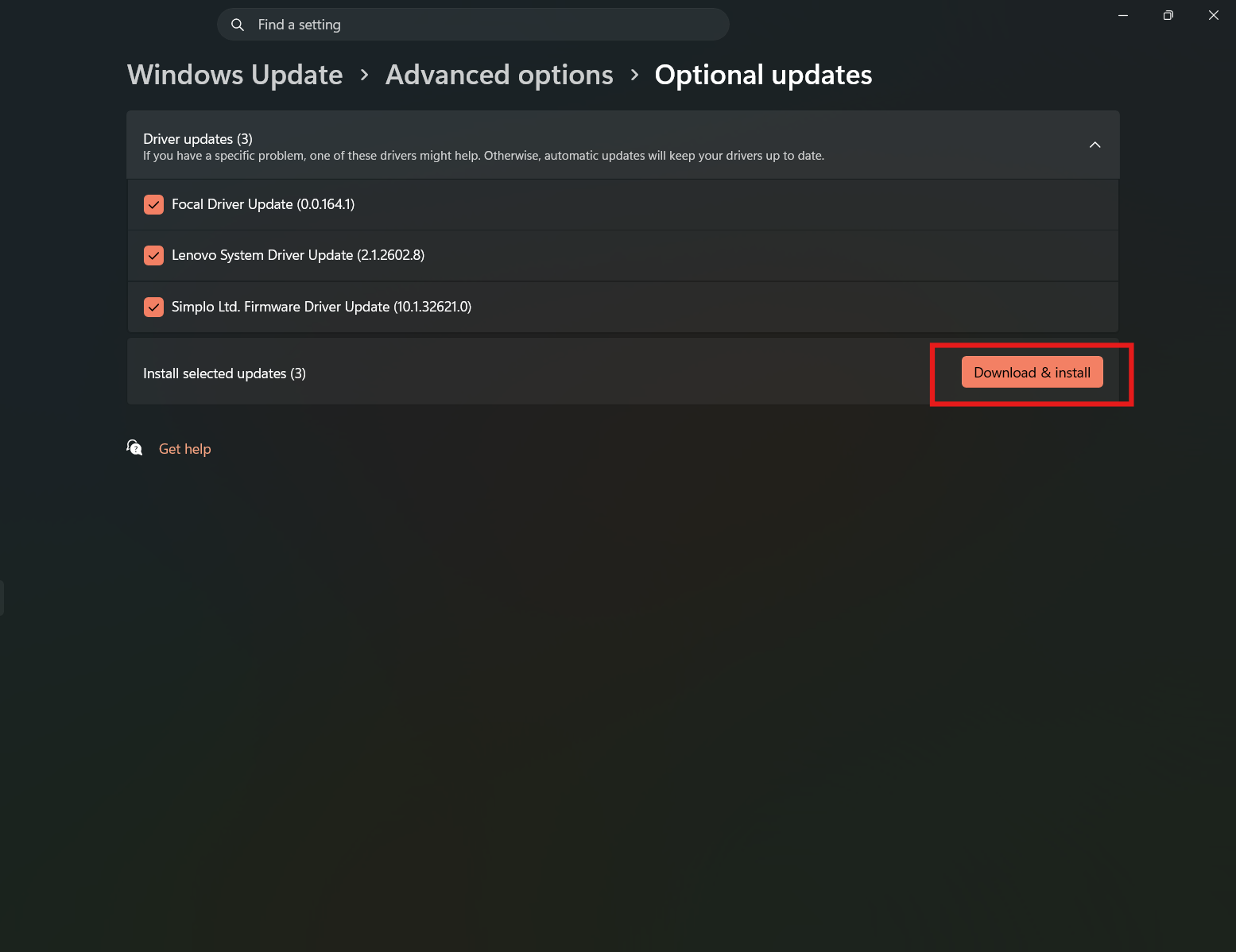
4: Select Updates
- Expand categories like:
- Driver updates
- Other updates
- Select the updates you want
5: Download and Install
- Click Download & install
- Wait for the process to complete
- Restart your PC if required
Types of Optional Updates
You may see different categories.
Driver Updates
- Graphics drivers
- Audio drivers
- Network drivers
Feature Updates
- Small improvements to Windows features
Preview Updates
- Early versions of upcoming updates
Should You Install Optional Updates?
It depends on your situation.
Install them if:
- You are facing issues
- You need updated drivers
Skip them if:
- Your system is working fine
- You want maximum stability
Common Issues and Fixes
Optional updates not showing:
- Check for updates first
- Restart your system
Update fails:
- Retry installation
- Run Windows Update troubleshooter
Final Thoughts
Learning how to download optional updates in Windows 11 gives you more control over your system. While they are not mandatory, they can help fix issues and improve performance when needed.
Use them carefully and install only what is relevant to your system.
FAQs
Where are optional updates in Windows 11?
Go to Settings > Windows Update > Advanced options > Optional updates.
Are optional updates safe?
Yes, but they are not always necessary.
Should I install driver updates?
Only if you are facing issues or need improvements.
Why don’t I see optional updates?
They may not be available for your system at the moment.


Discussion (0)
Be the first to comment.