



You are in the middle of a task and your laptop feels sluggish. The fans are loud. The chassis is warm. Switch to the desk and everything feels snappier again. Move back to the bed and the slowdown returns.
This is not your imagination and it is not a coincidence. The surface your laptop sits on directly affects how well it can cool itself, and cooling determines how fast it is allowed to run. Understanding the relationship between surface and performance explains a lot about why your laptop behaves differently throughout the day.
How Laptop Cooling Actually Works
Almost every laptop pulls cool air in through vents on its bottom panel, passes it over the processor and other heat-generating components, and exhausts the warm air out through vents on the sides or rear. The whole system depends on a steady supply of fresh air flowing in through the underside.
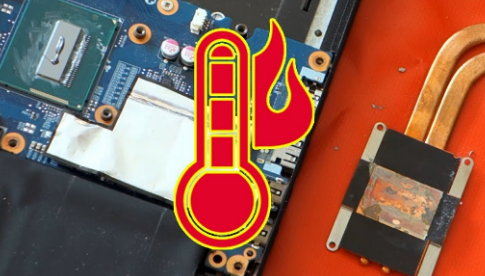
When that supply is interrupted, heat builds up. When heat builds up too far, the laptop triggers a protection mechanism called thermal throttling, which automatically reduces the processor's clock speed to generate less heat. Your CPU might drop from 3.8GHz to 2.4GHz in a matter of seconds. The laptop stays safe, but it is now running at a fraction of its capability.
Every surface your laptop sits on either helps or hinders this airflow. The difference can be dramatic.
On a Hard Desk: The Best Possible Scenario
A flat, hard desk is the surface every laptop is designed to sit on. The bottom of the laptop rests on small rubber feet that lift the chassis a few millimetres above the surface. This gap creates a consistent channel of air flowing into the bottom vents from all sides.
The hard surface does not deform or press against the vents. The gap stays constant. Fresh air enters, warm air exits, and the cooling system operates as the engineers intended. Temperatures stay lower, the processor sustains its maximum clock speeds for longer, and performance remains consistent across the session.
If you sit your laptop on a desk with a rear stand or a laptop riser that increases the angle slightly, you improve the airflow further. Elevating the rear by two or three centimetres increases the gap beneath the laptop and draws in more air per unit of time. Most users who make this change notice lower fan speeds and more sustained performance during demanding tasks.
On a Bed or Sofa: The Worst Case
Soft surfaces are where laptop performance suffers most severely, and the reason is mechanical.
When you place a laptop on a duvet, blanket, pillow, or sofa cushion, the soft material moulds around the underside of the chassis. The bottom vents press directly into the fabric. In the worst cases, the vents are completely blocked. The cooling system is now trying to pull air from a surface that has none to give.
The processor temperature climbs rapidly under these conditions. Within minutes of a demanding task, many laptops are running hot enough to trigger thermal throttling. The fans spin loudly as they attempt to compensate, but without fresh air entering through the bottom, they are moving warm recirculated air rather than cooling the components.
The performance difference is measurable. Studies and independent testing consistently show that gaming laptops can see CPU clock speeds drop by 30 to 50 percent within ten to fifteen minutes on a soft surface compared to a hard desk running the same workload. Frame rates in games, video rendering speeds, and compilation times are all affected. The laptop is not broken. It is simply protecting itself from the situation it has been placed in.
There is a secondary effect worth knowing. Soft surfaces also trap the heat the laptop radiates outward through its chassis. A blanket draped against the sides prevents warm exhaust air from dispersing, which compounds the temperature rise further.
On Your Lap: Somewhere in the Middle
Using a laptop directly on your lap produces results that fall between a desk and a bed, and the outcome varies considerably depending on how you sit.
Your legs are a harder surface than a sofa cushion, which means the bottom vents are less likely to be completely blocked. However, thighs are not flat and do not hold still. Depending on how you sit, one corner of the laptop may sit lower than the other, partially blocking a section of the vents. As you move, the ventilation changes moment to moment.
Your body heat is an additional factor. A hard desk has no temperature of its own. Your lap is typically around 34 to 36 degrees Celsius. The air the laptop pulls in from beneath is significantly warmer than room temperature air, which reduces the cooling system's ability to bring components down to a safe operating range. Warm intake air means less thermal headroom for the processor before throttling begins.
Clothing also matters. Rough denim typically allows some air movement beneath the laptop. Fleece or thick fabric can behave more like a soft surface and partially obstruct airflow.
For most light tasks such as browsing, document editing, and video playback, lap use does not produce noticeable problems. For demanding workloads like gaming, video rendering, or code compilation, the reduced airflow and warmer intake air combine to cause more frequent and more aggressive throttling than you would experience at a desk.
Why This Matters More on Thin Laptops
Not all laptops are equally affected by surface changes. The margin between safe operating temperatures and throttling temperatures varies significantly between designs.
Thicker gaming laptops with larger fans, multiple heat pipes, and dedicated air intake areas have more thermal headroom. They can tolerate moderate airflow restrictions without immediately throttling because their cooling capacity exceeds what the components generate during typical workloads.
Thin and light ultrabooks are the opposite. They are designed to run cool primarily because their processors are configured for lower power draw. When you restrict their already limited airflow, the thin chassis has nowhere to dissipate heat. Temperatures reach throttling thresholds faster, and the consequence for sustained performance is greater.
High-performance thin laptops, which pack powerful processors into slim chassis for the sake of portability, are particularly vulnerable. They are the laptops most likely to perform noticeably differently between a desk and a bed.
What You Can Do About It
The simplest fix costs nothing. Place the laptop on a hard, flat surface whenever you are doing anything demanding. This single change is often enough to eliminate throttling entirely for workloads that were causing problems on soft surfaces.
If you regularly use your laptop away from a desk, a lap desk is the most practical solution. A rigid board or tray with a flat bottom creates a stable hard surface wherever you sit. The laptop rests on the lap desk rather than on the fabric beneath it, and the bottom vents have clear access to room-temperature air. Many lap desks include raised edges or slots that improve airflow further.
A laptop stand is worth considering for desk use. Raising the rear of the laptop by a few centimetres, even with a small book, creates a more consistent air channel beneath the chassis. Dedicated laptop stands cost very little and make a measurable difference for sustained workloads.
A cooling pad with built-in fans adds active airflow beneath the laptop. These draw room-temperature air and direct it upward into the laptop's intake vents, which effectively increases the cooling capacity beyond what the internal system can achieve alone. Testing shows cooling pads typically reduce processor temperatures by three to eight degrees Celsius, which is enough to delay or prevent throttling in many scenarios.
Frequently Asked Questions
Does surface type affect all laptops equally?
No. Laptops with larger cooling systems and more thermal headroom are less sensitive to surface changes because their cooling capacity exceeds what their components generate under typical workloads. Thin and light laptops, ultrabooks, and high-performance thin laptops are most affected because they have the least thermal margin between normal operating temperatures and throttling thresholds.
Can using a laptop on a bed permanently damage it?
Regular use on soft surfaces over an extended period accelerates wear on the cooling system and can shorten the lifespan of components that repeatedly reach high temperatures. Modern laptops protect themselves from immediate damage through thermal throttling. The concern is long-term cumulative heat stress rather than immediate failure, particularly for components like the battery, which degrades faster when regularly exposed to elevated temperatures.
Why does my laptop get louder on my bed but faster on a desk?
The loud fan noise on a bed is the cooling system working at maximum effort to compensate for reduced airflow. Because it cannot bring enough fresh air in, the fans spin faster and louder but still fail to keep temperatures low enough to sustain full performance. On a desk with proper airflow, the fans can operate at lower speeds because the ventilation is efficient enough to keep temperatures in check without maximum effort.



Discussion (0)
Be the first to comment.