




If you can’t find the App Store on your Samsung Smart TV, the menu layout or the model year likely caused the confusion. Samsung places app downloads inside the Apps section of Smart Hub, and the interface varies across models.
This guide shows you where to find the App Store on every Samsung TV generation, why it may be missing, and how to fix common issues. You’ll also learn how to change regions and manage your installed apps.
1) How to find the App Store on newer Samsung TVs (2017–2025 models)
Newer Samsung TVs use a horizontal Smart Hub bar with a dedicated Apps tile. Just press the Home button on your Samsung Smart Remote to bring up the Smart Hub bar. Next, highlight the Apps icon on the Smart Hub bar.

Select it to enter Samsung’s App Store, where you browse, search, and install apps.
2) How to find the App Store on older Samsung TVs (2015–2016 models)
Older TVs use an earlier version of Smart Hub with a more compact layout. The Apps panel sits one layer inside the main Smart Hub menu.
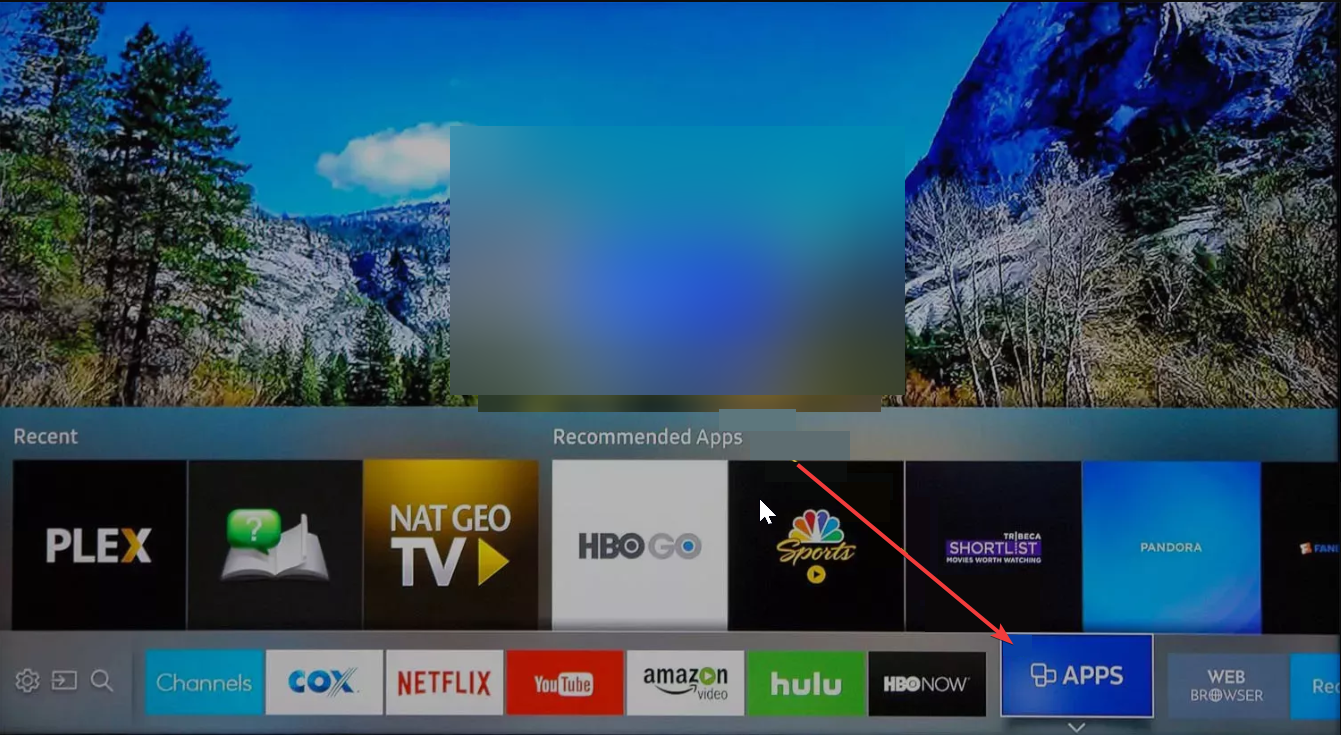
To access the Apps here, press the Smart Hub button on your remote to bring up the menu. Next, move through the icons until you reach Apps. Finally, select it to open the App Store for older models.
3) Why the app store might be missing on your Samsung TV
- Unsupported or legacy Samsung models: Some older Samsung TVs no longer support app downloads. These models rely on built-in apps only.
- Region-locked TV settings: Your TV’s region settings determine which apps appear. A mismatched region may hide the entire App Store.
- Samsung account or Smart Hub setup problems: You must sign in to a Samsung account to access full Smart Hub features. If the setup is incomplete, the Apps icon can disappear.
- Temporary system or network errors: Network outages or server issues can hide the store temporarily. A restart or firmware update typically restores it.
4) How to change your Samsung TV App Store region
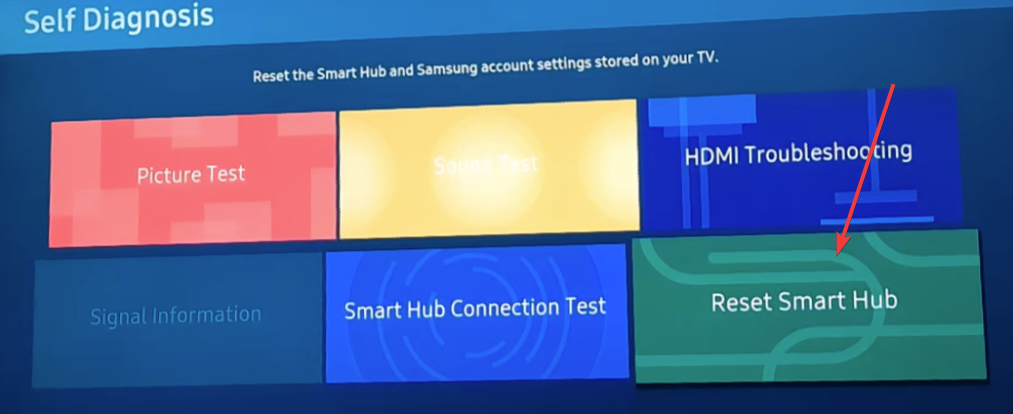
Go to Settings → Support → Device Care → Self Diagnosis → Reset Smart Hub. This resets the Smart Hub and restarts the setup process. When you are asked for your region details again, choose a popular region where there is no App Store restriction.
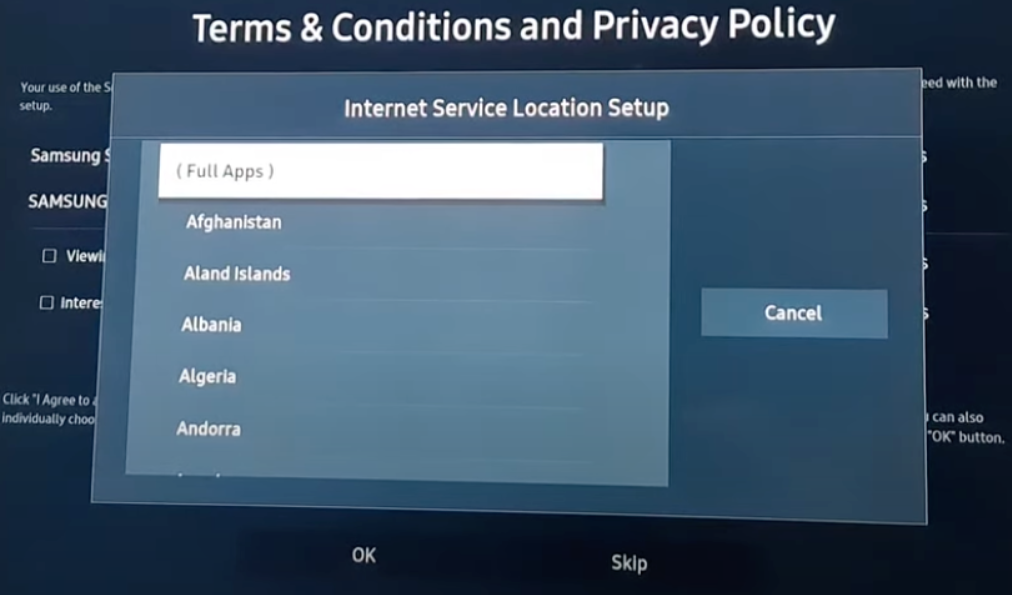
Tip: Region changes affect supported apps, billing, and localization. Some apps disappear when switching back.
5) How to fix missing App Store or apps not showing
- Restart the TV and reconnect to your network: Turn the TV off and on, then open Settings and reconnect to Wi-Fi to refresh Smart Hub.
- Update the TV firmware: Open Settings → Support → Software Update → Update Now. Updates fix Smart Hub bugs and restore App Store access.
- Check region settings: Resetting Smart Hub can re-prompt region selection. Select your correct region to restore app availability.
FAQs about the Samsung app store
Why doesn’t my Samsung TV have the app I want? Apps depend on region, developer support, and TV compatibility. If the app isn’t available, it may be unsupported on your model.
Can I sideload apps on a Samsung Smart TV? Tizen OS restricts sideloading on consumer models. Developer Mode exists but carries risk and isn’t recommended.
How do I reinstall apps that disappeared? Open the Apps tile and use the search bar to find the missing app. Then, select Install to restore it.
Summary
- Press Home and select Apps to open the Samsung App Store.
- Older TVs hide the Apps menu inside the classic Smart Hub layout.
- Missing App Store issues often come from region settings or Smart Hub errors.
- Firmware updates and Smart Hub resets restore most missing features.
- You can change regions to access more apps, but it has limitations.
- Apps install, move, and reinstall through the Apps tile.
Conclusion
Samsung places its App Store inside the Smart Hub interface, and the exact location varies by model year. You can find it quickly on modern TVs through the Home screen or inside the older Smart Hub layout.
If the Apps icon disappears, a reset or update usually brings it back. With the App Store accessible again, you can install and manage the apps you need without further issues.


Discussion (0)
Be the first to comment.