




Winlator lets you run certain Windows applications directly on an Android phone or tablet, without streaming from a PC. It works best for lightweight desktop apps and older Windows software, not modern AAA games or heavy productivity suites.
Below, you’ll learn what Winlator is, how it works, how to set it up correctly, and what limitations you should expect before investing time.
What is Winlator and how it runs Windows apps on Android
Winlator is an Android app that creates a Windows-like environment using Wine and container technology. It allows Android devices to execute Windows programs locally, instead of mirroring or streaming them from another computer.
Unlike cloud gaming or remote desktop tools, Winlator runs apps directly on your device, which means performance depends entirely on your phone’s hardware.
How Winlator works under the hood
Winlator combines several open-source technologies to translate Windows instructions into something Android hardware can execute. Understanding this explains why compatibility varies so much.
Wine and container-based execution
Winlator uses Wine to translate Windows system calls into Linux-compatible calls. Each app runs inside a container, which isolates settings, files, and libraries to reduce conflicts.
Graphics translation: DXVK, VKD3D, and OpenGL
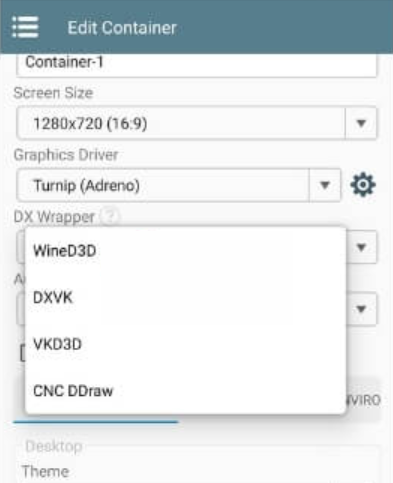
Windows graphics APIs like DirectX get translated to Vulkan or OpenGL. This translation layer directly affects performance, stability, and whether an app launches at all.
What you need before installing Winlator
Not every Android device can run Winlator reliably. Hardware matters more here than Android version alone.
Supported CPUs and GPUs
Snapdragon devices with Adreno GPUs deliver the best results. Mali GPUs work in some cases but often show lower performance or compatibility issues.
Storage, permissions, and file access
You need several gigabytes of free storage for containers and Windows files. Winlator also requires file access permissions to load EXE files correctly.
How to install Winlator on Android
Installing Winlator takes only a few minutes, but using the correct source matters.
Where to download the official Winlator build
Download Winlator only from its official project sources, such as the GitHub releases page. Avoid modded APK sites, which often break functionality or include malware.
Installing the APK and first launch
Install the APK manually, open the app, and wait for initial setup files to download. The first launch may take longer while Winlator prepares system components.

How to set up a Winlator container
Containers define how Windows apps behave on your device. Proper settings prevent most common errors.
Choosing the right graphics driver
Use Turnip drivers on Snapdragon devices for best results. If an app fails to launch, switching to VirGL often fixes black screen issues.

CPU, memory, and resolution settings
Start with default CPU settings and limit resolution to 720p. Higher resolutions increase crashes and thermal throttling on most phones.
How to run Windows apps in Winlator
Winlator works best with simple EXE-based programs that do not rely on deep system integrations.
Copying Windows apps to your Android device
Place Windows files in internal storage, then browse to them inside the container’s file manager. Avoid launching files directly from downloads.
Installing vs portable Windows apps
Portable apps run more reliably than installers. Many installers fail due to missing Windows services that Wine cannot emulate fully.
Best Winlator settings for common use cases
Starting with proven configurations saves hours of trial and error.
Productivity and utility apps
Tools like file managers, note apps, and legacy software usually work well. Disable unnecessary graphics features to improve stability.
Older and lightweight Windows games
2D games and older DirectX 9 titles perform best. Expect inconsistent results with newer 3D engines.
Common Winlator problems and how to fix them
- App won’t launch or crashes immediately: Switch graphics drivers, lower resolution, and disable DXVK first. Recreate the container if crashes persist.
- Black screen, no audio, or broken input: Try a different rendering backend and verify audio settings inside the container. Input issues often resolve by switching mouse or touch modes.
Winlator limitations you should know
Winlator cannot replace a full Windows PC. Some limitations cannot be fixed with settings.
DRM, launchers, and modern anti-cheat
Apps that rely on DRM, launchers, or kernel-level anti-cheat usually fail. This includes many modern commercial games.
Performance limits compared to a PC
Mobile CPUs throttle under sustained load. Expect lower frame rates, longer load times, and higher battery drain.
Alternatives to Winlator for running Windows apps
If Winlator struggles on your device, streaming solutions often work better.
Remote desktop tools and cloud gaming services provide higher compatibility, but they require a stable internet connection and another PC or subscription.
Tips
- Use portable Windows apps whenever possible
- Start with low resolution and increase gradually
- Create separate containers for different apps
- Save container backups before major changes
- Monitor device temperature during long sessions
FAQs
Can Winlator run Microsoft Office reliably?
Older Office versions may launch, but performance and stability vary. Android-native office apps work better for daily use.
Does Winlator work on tablets better than phones?
Larger screens and better cooling often improve usability, but hardware still matters more than screen size.
Can I use a keyboard and mouse with Winlator?
Yes, external input devices significantly improve usability, especially for desktop-style apps.
Is Winlator better than cloud gaming?
Winlator runs apps locally and works offline, but cloud gaming offers higher compatibility and performance.
Summary
- Winlator runs some Windows apps locally on Android using Wine and containers.
- Snapdragon devices deliver the best results and stability.
- Portable apps and older software work better than modern Windows programs.
- Proper container and graphics settings prevent most issues.
Winlator works best as an experimental tool for running legacy Windows apps on Android. If you set expectations correctly and use compatible software, it can be surprisingly useful.
Lastly, if you are looking to manage your phone from your PC, you can check our guide on how to pair your Android to Windows using the Phone Link app.
Discussion (0)
Be the first to comment.