




Your Windows PC has been silently keeping a diary of everything that happens on it. Every crash, every driver hiccup, every failed service start, every unexpected shutdown. It records all of it with timestamps, error codes, and descriptions. That diary is called the Windows Event Viewer, and most people never open it once.
The reason most people avoid it is the interface. Event Viewer looks like it was designed for IT administrators in 2003, and in fairness, it largely was. Open it for the first time and you are faced with thousands of log entries, most of them meaningless, and no obvious starting point. It is easy to walk away convinced your PC is catastrophically broken when in reality most of what you are seeing is completely normal.
This guide will show you how to open Event Viewer, what the logs actually mean, and how to find the specific entry that explains what went wrong on your PC.
How to Open Event Viewer
The fastest way is to press Windows + R, type eventvwr.msc, and press Enter. Event Viewer opens immediately without needing to search for it.
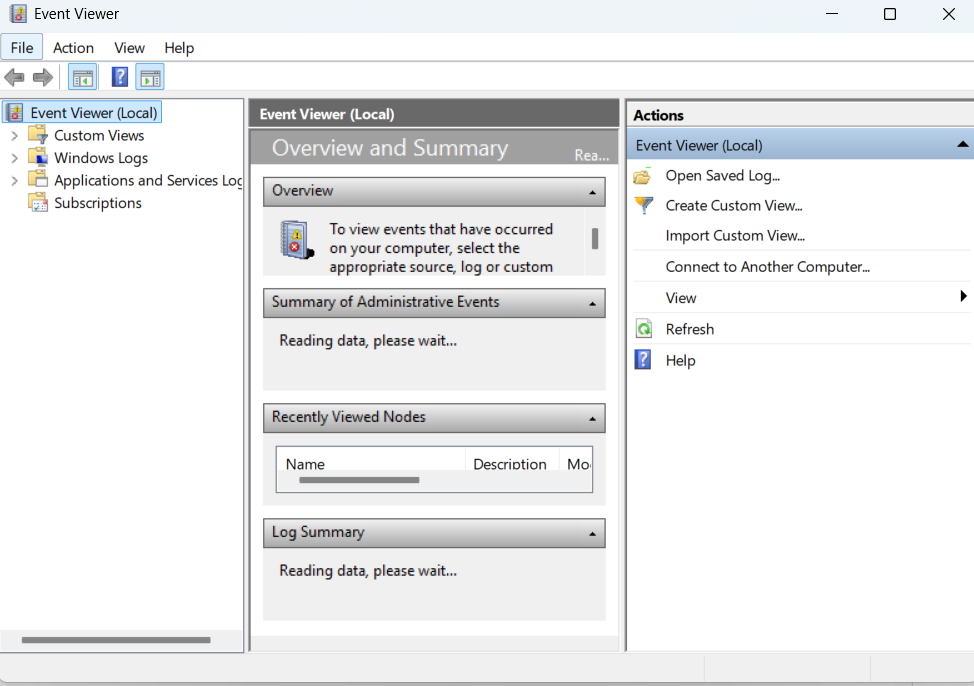
Alternatively, press the Windows key, type Event Viewer, and click the result. You can also right-click the Start button and select Event Viewer from the menu that appears.
Understanding the Layout
When Event Viewer opens, you see three panels. The left panel is the navigation tree where you browse different log categories. The centre panel shows the list of events for whichever log you have selected. The right panel contains action shortcuts for filtering and managing logs.
The area you will spend most of your time in is the Windows Logs folder in the left panel. Expand it and you see five categories:
Application records events from software installed on your PC. App crashes, installation failures, and program errors all appear here.
System records events from Windows itself and its components. Driver failures, hardware errors, unexpected shutdowns, and service problems appear here. This is usually the first place to look when Windows is misbehaving.
Security records login attempts, account activity, and permission changes. Useful for security monitoring but less relevant for everyday troubleshooting.
Setup records events related to Windows updates and installation processes.
Forwarded Events is only relevant in managed enterprise environments where logs from multiple computers are collected centrally. On a personal PC it is empty.
For most everyday troubleshooting, System and Application are the two logs that matter.
What the Severity Levels Mean
Every event in Event Viewer carries a severity level that tells you at a glance how serious it is. Understanding these stops you from panicking about entries that are completely harmless.
Information is the most common level by far. These entries record normal system activity, services starting, updates installing, programs launching successfully. The vast majority of entries in any log are Information and you can ignore almost all of them.
Warning means something unusual happened that Windows noticed but recovered from. A service that temporarily could not reach a server, a backup that was delayed, a network timeout that resolved itself. Warnings do not indicate a problem unless they repeat constantly or line up with a symptom you are experiencing.
Error means something failed. An application crashed, a driver could not load, a service could not start. Errors are worth investigating when they correspond to something you actually experienced. A single isolated Error in the log from three weeks ago that has not repeated is not something to worry about.
Critical is the most serious level and indicates a significant system failure such as a crash or unexpected shutdown. If your PC restarted without warning, you will find a Critical event explaining why.
How to Find What Caused a Specific Problem
The single most important principle when using Event Viewer is to use timestamps. Chasing every red Error entry in the log is a guaranteed path to confusion. Instead, note the exact time your problem occurred and look for events that happened at that same moment.
Step 1: Open the Right Log
For problems with a specific application, open the Application log. For Windows crashes, unexpected restarts, blue screens, or hardware-related issues, open the System log.
Step 2: Filter the Log
Rather than scrolling through thousands of entries manually, use the filter. Right-click the log name in the left panel and select Filter Current Log. In the Logged dropdown, choose a time period such as Last 24 hours or Last 7 days. Check the boxes for Error and Critical, then click OK. This narrows the list to only the entries that matter.
Step 3: Look at the Timestamp
Find entries that occurred at the exact time your issue happened. If your PC crashed at 14:23, look for Critical or Error events between 14:20 and 14:25. Events that cluster together at the same timestamp often tell the story of what happened: one failure triggering a chain of others.
Step 4: Read the Event Details
Click any event to see a summary in the panel below, or double-click it to open the full details window. The General tab gives you a plain English description of what happened. This is the tab to read first. The Details tab contains raw technical data that is mainly useful when you are researching the error further online.
In the details you will see four pieces of information that matter most: the Source (which component or application generated the event), the Event ID (a numerical code that identifies the specific type of event), the Level (the severity), and the Date and Time.
Step 5: Search the Event ID
The Event ID is your most useful tool for finding a fix. Take the number from the details panel and search for it online, for example searching Event ID 41 Kernel-Power or Event ID 1001 Application Error. The Event ID uniquely identifies the type of problem and searching it almost always turns up Microsoft documentation or community discussions explaining the cause and resolution.
Common Events Worth Knowing
A handful of Event IDs appear frequently enough that it is worth knowing what they mean before you encounter them.
Event ID 41, Kernel-Power in the System log means Windows restarted without completing a clean shutdown. This is what you find after a sudden power loss, a hard freeze, or a blue screen. It confirms the PC did not shut down properly but does not tell you why on its own. Look for events logged in the seconds before it to find the underlying cause.
Event ID 1001, BugCheck in the System log records blue screen crashes. It contains the stop code from the crash which you can search to find the specific cause.
Event ID 7034 or 7023, Service Control Manager in the System log means a Windows service crashed or failed to start. The event description names the specific service, which usually points you directly toward what to investigate or reinstall.
Event ID 1000, Application Error in the Application log records application crashes. The description names the program that crashed and often includes the name of the module that caused it, which helps narrow down whether the problem is with the app itself, a plugin, or a shared system library.
The Most Important Thing to Remember
Opening Event Viewer on any Windows PC and finding hundreds of Errors and Warnings is completely normal. Every Windows installation accumulates these. A log full of red entries does not mean your PC is broken. It means your PC has been running and logging everything it noticed, which is exactly what it is supposed to do.
The only entries that matter are the ones that line up with a problem you are actually experiencing. Use the timestamp, use the filter, and focus on what was happening at the exact moment something went wrong. That is how Event Viewer becomes useful rather than overwhelming.
Frequently Asked Questions
Should I be worried about the errors I see in Event Viewer?
Most of them, no. Windows logs thousands of events including routine information, minor warnings that resolved automatically, and one-off errors that never recurred. Errors only warrant investigation when they repeat consistently, occur at the same time as a problem you are experiencing, or are marked Critical. A handful of red entries in an otherwise functioning PC is completely normal.
How do I find what caused my blue screen using Event Viewer?
Open the System log and filter for Critical events around the time of the crash. Look for Event ID 41 from Kernel-Power, which marks the unclean shutdown, and Event ID 1001 which contains the blue screen stop code. Search the stop code online to find the specific cause and fix.
Can Event Viewer tell me if someone logged into my PC without my knowledge?
Yes. Open the Security log and look for Event ID 4624 which records successful logins, and Event ID 4625 which records failed login attempts. Each entry includes the username, login type, and timestamp. Unexpected entries outside your normal usage hours are worth investigating.
How far back do the logs go?
By default Windows limits Event Viewer logs to a maximum file size, typically 20MB for System and Application logs, which translates to days or weeks of history depending on how much activity your PC generates. Older events are overwritten when the log fills up. If you need to retain logs longer you can increase the maximum log size by right-clicking a log in the left panel and selecting Properties.
Is there an easier alternative to Event Viewer for troubleshooting?
Windows Reliability Monitor, found by searching for it in the Start menu, shows a simpler visual timeline of stability events and is much less intimidating than Event Viewer. It covers crashes, application failures, and Windows update failures in a calendar view. It is a good starting point before diving into Event Viewer's full logs.



Discussion (0)
Be the first to comment.