



If you have ever reinstalled Windows, tested a Linux distribution, or used a system recovery tool, you have probably used a bootable USB drive. The traditional approach involves formatting the drive for one ISO file at a time, which means every time you need a different operating system or tool, you have to wipe the drive and start over. Ventoy solves this completely. It lets you put dozens of ISO files on a single USB drive and boot any of them from a menu, with no reformatting required. This guide explains what Ventoy is and walks you through setting it up on Windows.
What Is Ventoy?
Ventoy is a free, open-source tool that turns a USB drive into a permanent multi-boot drive. Once you install Ventoy on a USB drive, you never need to use a bootable USB creation tool again for that drive. You simply copy ISO files onto it the same way you would copy any file, and Ventoy presents them in a boot menu when you start a computer from that drive.
Ventoy works with over 1,300 tested ISO files including every version of Windows, hundreds of Linux distributions, and system utilities like antivirus rescue disks, memory testing tools, partition managers, and Windows PE recovery environments. It supports both legacy BIOS and modern UEFI systems, and it handles large ISO files above 4GB without issue because it formats the data partition as exFAT rather than FAT32.
The tool was created by an independent developer and is completely free with no paid tiers or feature limits.
Ventoy vs Rufus: What Is the Difference?
Rufus is the most widely used tool for creating a single bootable USB drive quickly. It is excellent for that purpose. The difference is that Rufus writes one ISO to the drive and formats the drive in the process, which means the drive holds only one operating system at a time. Every time you want a different ISO, you run Rufus again and everything previously on the drive is overwritten.
Ventoy works differently. You install it once and the drive is set up permanently. After that, adding or swapping ISO files is as simple as copying files in File Explorer. You can have Windows 11, Ubuntu, a rescue toolkit, and a memory tester all on the same 32GB drive simultaneously, all accessible from a single boot menu.
What You Need
You need a USB drive with at least 16GB of storage. A 32GB or larger drive is more practical if you plan to keep multiple large ISOs on it, since a Windows 11 ISO alone is around 5GB. Be aware that installing Ventoy will erase everything currently on the USB drive, so back up any existing files before you start.
You also need the ISO files you want to boot. For Windows 11, you can download the official ISO directly from microsoft.com using the Media Creation Tool or by selecting the ISO option on the Windows 11 download page.
How to Install Ventoy on a USB Drive
Step 1: Download Ventoy
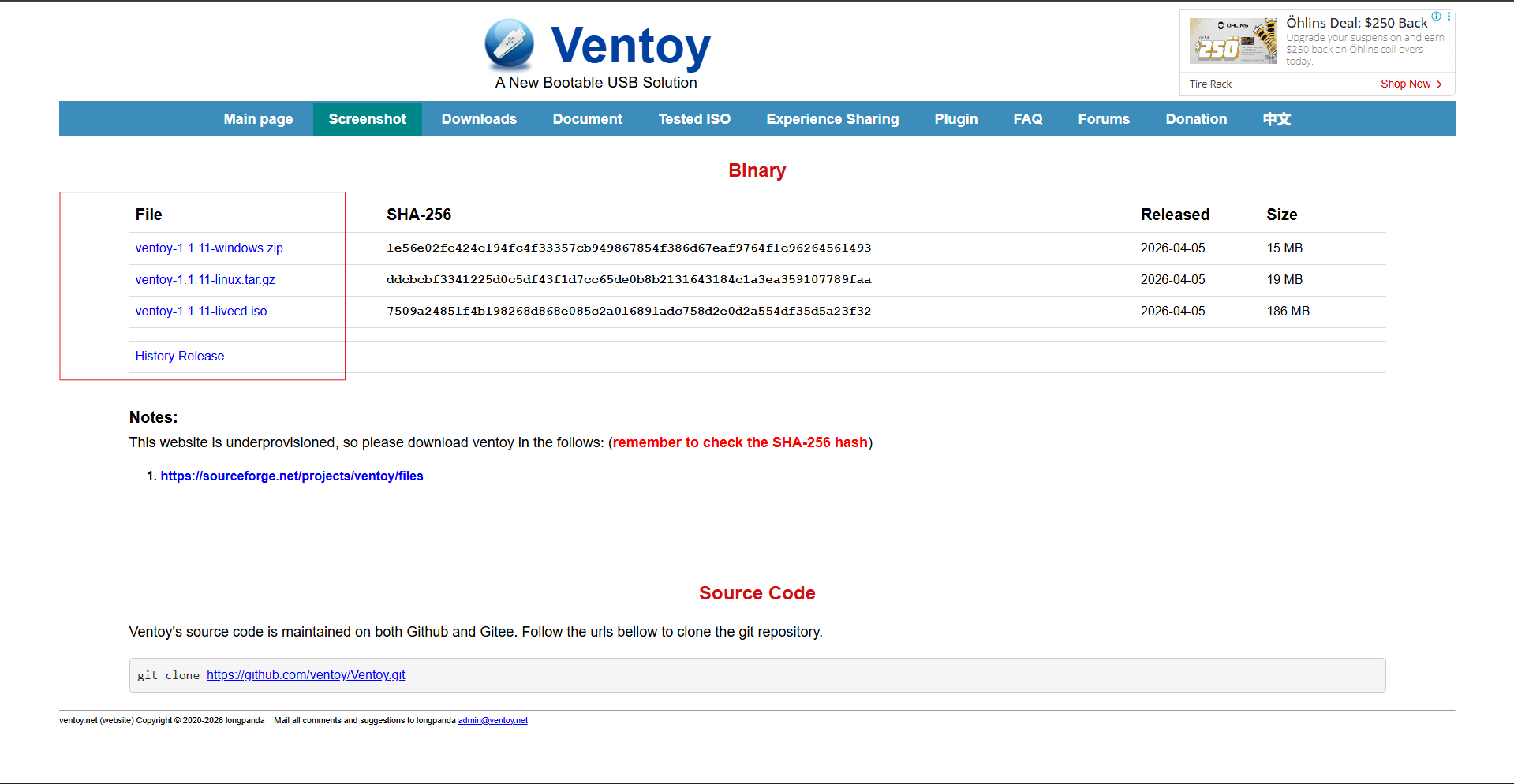
Go to ventoy.net and click the download link for the latest release. This takes you to the GitHub releases page. Under the Assets section, download the file named ventoy-x.x.xx-windows.zip, where x.x.xx is the current version number.
Step 2: Extract the Files
Once downloaded, right-click the zip file in File Explorer and select Extract All. Choose a destination folder and extract the contents. Open the extracted folder and you will find a file named Ventoy2Disk.exe.
Step 3: Run Ventoy2Disk
Right-click Ventoy2Disk.exe and select Run as administrator. The Ventoy application window opens. It shows two version fields: Ventoy In Package, which is the version you downloaded, and Ventoy In Device, which shows the version on your USB drive if Ventoy is already installed.
Step 4: Select Your USB Drive and Install
Plug in your USB drive if you have not already. In the Device dropdown at the top of the Ventoy window, select your USB drive. Double-check that you have selected the correct drive by confirming the drive letter and storage capacity match what you expect.
Click Install. Ventoy will show two warning dialogs confirming that all data on the drive will be erased. Click OK on both. The installation takes one to three minutes. When it finishes, your USB drive is ready.
How to Add ISO Files to Your Ventoy Drive
Open File Explorer. Your Ventoy USB drive now appears as a drive labeled Ventoy. Simply copy your ISO files into this drive the same way you would copy any file onto a USB drive. You can place ISOs directly in the root of the drive or create folders to keep them organized, for example a folder named Windows for Windows installers and a folder named Tools for recovery utilities. Ventoy automatically finds all ISO files in all folders and subfolders and lists them in the boot menu.
To add more ISOs in the future, just copy them onto the drive. To remove an ISO, simply delete it. No reformatting, no reinstalling, no tools required.
How to Boot From Your Ventoy USB Drive
Plug the Ventoy USB drive into the computer you want to boot. Restart the computer and enter the boot menu. The key for the boot menu varies by manufacturer but is typically F12 on most Dell, Lenovo, and HP laptops, F9 on HP desktops, or Esc on some systems. You can also check the screen during startup as most computers briefly display the key to press.
In the boot menu, select your USB drive. The computer will boot into the Ventoy menu, which lists all the ISO files on the drive. Use the arrow keys to highlight the ISO you want and press Enter to boot it.
Keeping Ventoy Updated
Ventoy releases updates periodically to add support for new ISO files and fix compatibility issues. To update, download the latest version from ventoy.net, run Ventoy2Disk.exe, select your USB drive, and click Update instead of Install. The update process preserves all ISO files on the drive and only updates the Ventoy bootloader itself.
Practical Uses for a Ventoy Drive
A Ventoy USB drive is genuinely useful to keep around permanently. Common setups include having a Windows 11 installer ready for reinstalling Windows on any PC, a Linux live environment for troubleshooting a broken Windows installation, a system rescue tool like SystemRescueCD for partition recovery, and a memory testing tool like MemTest86 for diagnosing RAM issues. All of these can sit on the same 32GB drive indefinitely without interfering with each other.
You can also continue using the remaining space on the Ventoy drive for regular file storage. The data partition is a standard exFAT drive and works like any USB drive for copying files, separate from the bootable ISOs.
Ventoy vs Traditional Bootable USB Tools
| Feature | Ventoy | Rufus |
|---|---|---|
| Multiple ISOs on one drive | Yes | No |
| Reformatting needed to add new ISO | No | Yes |
| Adding new ISO | Copy and paste the file | Re-run Rufus and format drive |
| Drive usable for regular file storage | Yes | Limited |
| UEFI and BIOS support | Both | Both |
| Price | Free | Free |
| ISO compatibility | 1,300+ tested | Single ISO at a time |
| Best for | Multi-boot permanent drive | Single one-off bootable USB |
Final Thoughts
Ventoy changes how bootable USB drives work in a fundamental way. Instead of treating a USB drive as a single-purpose tool that must be reformatted for every new ISO, Ventoy makes it a permanent multi-boot device that you maintain by copying and deleting files. If you regularly work with Windows installers, Linux distributions, or system recovery tools, setting up a Ventoy drive once will save you significant time and frustration every time you need to boot from external media.
Frequently Asked Questions
Is Ventoy safe to download and use?
Yes. Ventoy is a legitimate open-source project hosted on GitHub with millions of users worldwide. Download it only from ventoy.net or directly from the official GitHub repository to ensure you are getting the genuine software. Some browsers may flag the download as suspicious due to it being a less common executable, but it is safe if downloaded from the official source.
Does Ventoy work with Windows 11 ISO files?
Yes. Ventoy fully supports Windows 11 ISO files including the large 25H2 installer. It also includes built-in workarounds that allow Windows 11 to install on hardware that does not meet the official TPM 2.0 and CPU requirements, which makes it useful for installing Windows 11 on older PCs.
Does installing Ventoy erase my USB drive?
Yes. The initial Ventoy installation formats and erases the USB drive. Back up any files on the drive before installing. After Ventoy is installed, adding and removing ISO files does not erase the drive. Updating Ventoy to a newer version also preserves all ISO files on the drive.
How many ISO files can I put on a Ventoy drive?
There is no fixed limit. The number of ISOs you can store depends entirely on the storage capacity of your USB drive and the size of each ISO file. A 64GB USB drive could comfortably hold ten or more operating system ISOs simultaneously.
Can I still use the Ventoy drive as a regular USB drive for storing files?
Yes. The main partition on a Ventoy drive is a standard exFAT partition that works like any USB drive. You can store regular files alongside your ISO files and Ventoy will only display ISO and bootable image files in its boot menu while ignoring other files.



Discussion (0)
Be the first to comment.