



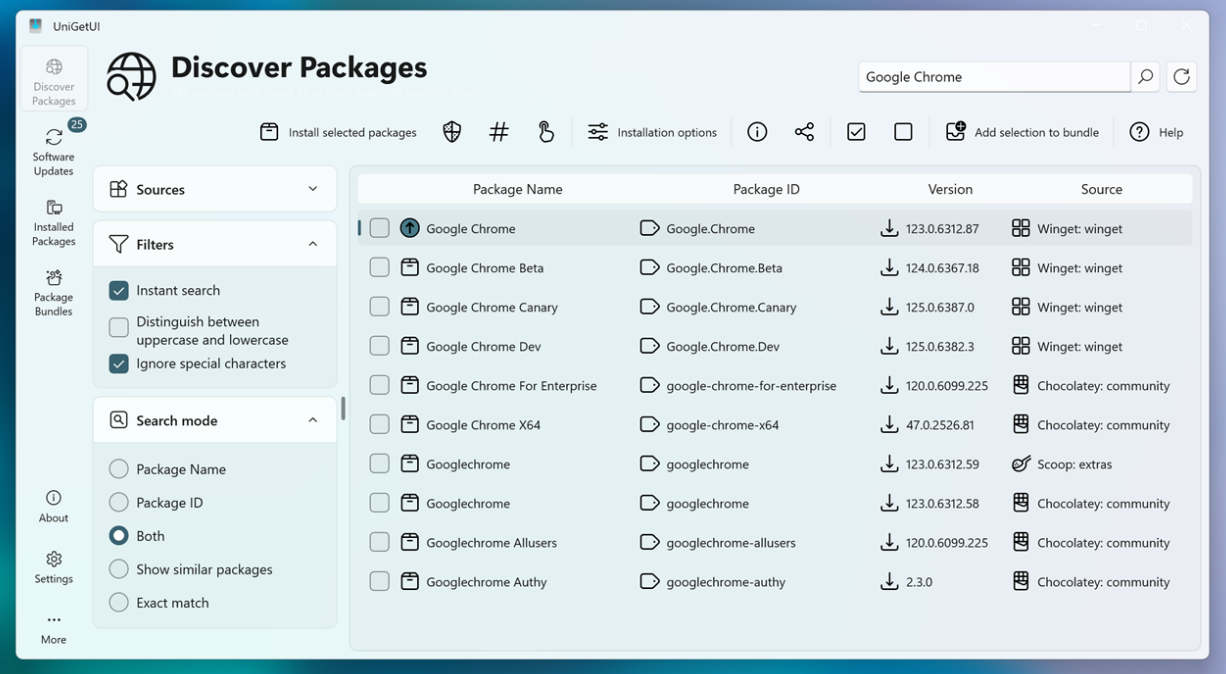
Installing software on Windows has always involved the same routine. Find the website, download the installer, click through the setup wizard, and repeat for every single app. Keeping everything updated is its own separate chore, with each application handling updates differently and many not reliably notifying you at all. UniGetUI changes this entirely. It gives you a single, clean interface to search, install, update, and uninstall software from multiple package managers at once, with no command line required. This guide explains what UniGetUI is and how to start using it.
What Is UniGetUI?
UniGetUI is a free, open-source graphical interface for Windows package managers. It was originally created by developer Martí Climent under the name WingetUI and is now maintained by Devolutions. The core idea is simple: Windows already has powerful package managers like Winget, Chocolatey, and Scoop, but all of them require you to type commands in a terminal. UniGetUI wraps all of them in a visual interface so you can do everything through clicks instead.
Package managers work like app stores that operate through the command line. They maintain large repositories of software, handle downloads from official sources, and manage installations, updates, and removals automatically. Winget is Microsoft's official package manager and comes built into Windows 11 and modern versions of Windows 10. Chocolatey and Scoop are community-maintained alternatives with their own repositories. UniGetUI brings all of them together in one place.
UniGetUI supports Winget, Chocolatey, Scoop, Pip, npm, .NET Tool, PowerShell Gallery, and Cargo. For most everyday Windows users, Winget alone covers the majority of popular software. The others become relevant for developers managing Python packages, Node.js modules, or PowerShell scripts.
Why UniGetUI Is Worth Using
The most immediate benefit is app updates. Windows has no central place that shows you which of your installed applications have updates available. Some apps check themselves. Many do not. UniGetUI solves this by scanning everything installed through the supported package managers and showing all available updates in a single list. One click updates everything at once.
The second benefit is how much easier it makes setting up a new PC. Instead of spending an afternoon visiting websites and downloading installers one by one, you search for every app you need in UniGetUI and install them all in a single batch operation. You can also export your complete software list and import it on another machine, making it trivial to recreate your exact setup after a reinstall or when moving to a new computer.
The third benefit is that every download comes from official, verified sources through the package manager repositories. You do not need to worry about landing on a shady download site or accidentally grabbing a bundled installer with unwanted software baked in.
How to Install UniGetUI on Windows
There are two straightforward ways to install UniGetUI.
The easiest is through the Microsoft Store. Open the Store, search for UniGetUI, and click Install. This method handles updates automatically and is the recommended starting point for most users.
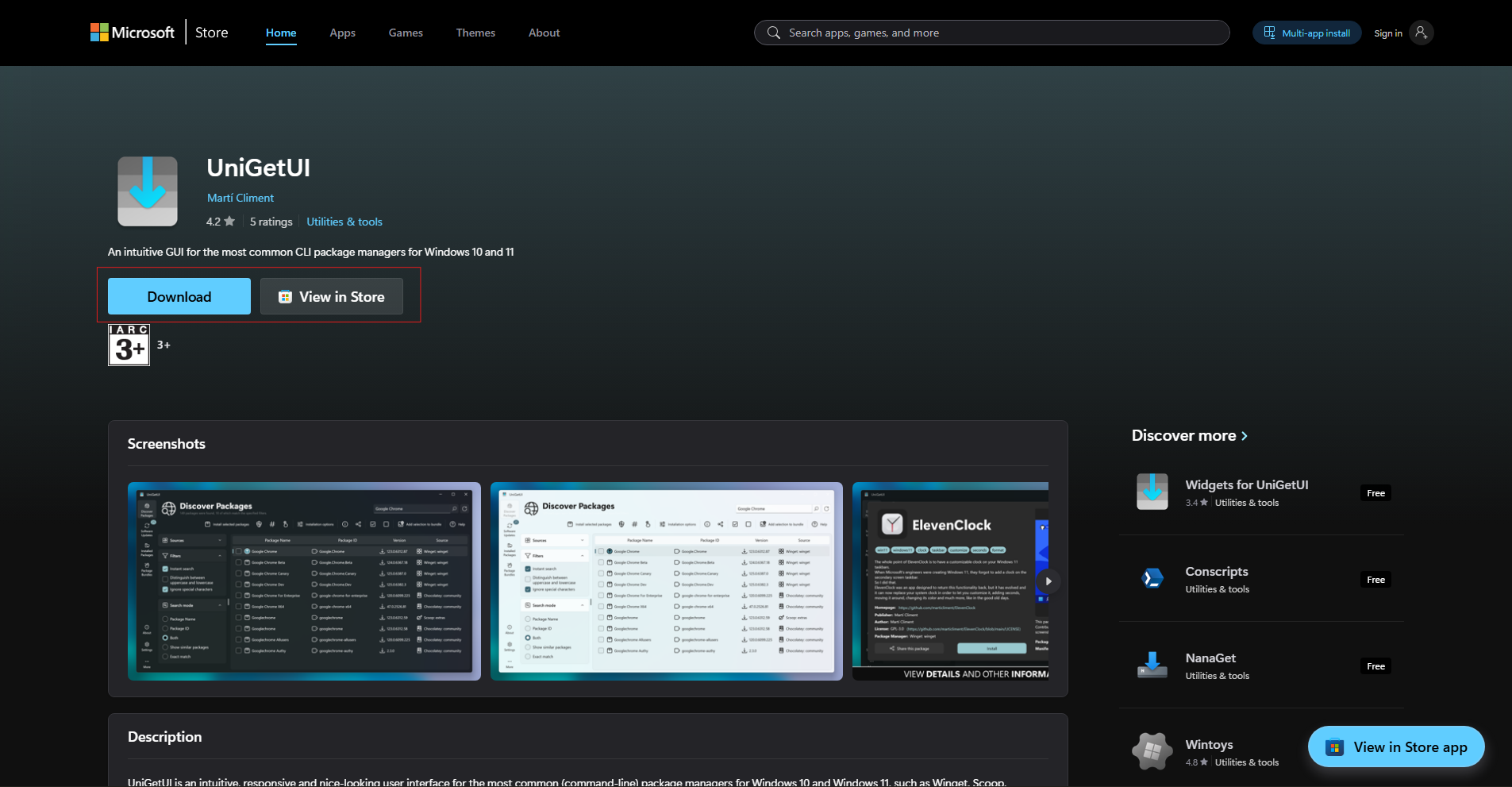
The second method is downloading the installer directly from the official UniGetUI page at github.com/Devolutions/UniGetUI. Download the latest UniGetUI.Installer.exe file from the Releases section, run it, and follow the standard installation steps. Once installed, launch UniGetUI from the Start menu.
On first launch, UniGetUI loads and detects which package managers are already present on your system. Winget is included by default on Windows 11 and modern Windows 10, so it will appear immediately. If you want to add Chocolatey or Scoop, UniGetUI can guide you through installing them from within the app.
How to Find and Install an App
The main screen when you open UniGetUI is the Discover Packages tab. This is where you search for and install new software.
- Click the Discover Packages tab in the left sidebar.
- Type the name of the app you want to find in the search bar at the top. UniGetUI searches across all connected package managers simultaneously. Results appear quickly with the app name, version, source package manager, and publisher listed for each entry.
- Click on any result to see more details about that package before installing, including the download size, publisher information, and the specific version available.
- Select the app you want by clicking its checkbox, then click the Install button at the top of the results list. If you want to install multiple apps at once, check all of them first and then click Install. UniGetUI handles each installation in sequence automatically.
You can filter results by package manager source if you want to search only within Winget, only within Chocolatey, or across all of them at once. The filter options appear above the results list.
How to Update Your Installed Apps
The Software Updates tab is where UniGetUI genuinely earns its place. Click it in the left sidebar and UniGetUI scans all your installed packages and shows every one that has an available update, regardless of which package manager installed it.
Each entry shows the current version you have installed, the version available, and the source it will update from. You can update individual apps by selecting them and clicking Update, or update everything at once by clicking Update All at the top of the list.
If there is a specific app you want to keep on its current version, right-click it and select Ignore Updates for this package. UniGetUI will stop flagging it as out of date. This is useful for apps where a new version broke a feature you rely on or changed something you prefer to keep as it was.
You can also configure UniGetUI to update apps automatically in the background by going to Settings and enabling the automatic updates option. This is the most hands-off approach and keeps your software current without requiring you to open the app regularly.
How to Uninstall Apps
The Installed Packages tab shows everything UniGetUI can see across your connected package managers. Scroll through the list or use the search bar to find a specific app.
To uninstall something, select it and click the Uninstall button. UniGetUI passes the uninstall command to the appropriate package manager, which removes the app cleanly. For apps installed through Winget, this is equivalent to running the proper uninstall process rather than just deleting files, so leftover registry entries and associated files are handled correctly.
How to Back Up and Restore Your App List
One of UniGetUI's most practical features is the ability to export your entire software list and reimport it later. This is invaluable when setting up a new PC or doing a clean Windows install.
Go to the Installed Packages tab and click the Export to a .json file button at the top. UniGetUI generates a file containing every package it manages, including which package manager each one belongs to. Save this file somewhere safe, such as a cloud storage folder or an external drive.
When you set up your next machine, install UniGetUI first, then go to the Discover Packages tab and click Import packages from a file. Select your saved file and UniGetUI will queue up every app for installation and run them all in a single batch. What used to take an afternoon now takes a few minutes of waiting while apps install themselves.
How UniGetUI Compares to the Microsoft Store
The Microsoft Store is the most obvious comparison. Both let you find and install apps through a graphical interface without hunting for download links. The differences are meaningful.
The Microsoft Store only distributes apps that have been packaged and submitted specifically for it, which excludes a large number of popular desktop applications. UniGetUI through Winget covers a far broader range of software including many tools that are not in the Store at all.
The Microsoft Store's update mechanism is also limited to apps installed through the Store itself. UniGetUI covers apps installed from any supported package manager, giving you a much more complete picture of what needs updating across your entire system.
UniGetUI and the Microsoft Store are not mutually exclusive. You can use both. Winget includes the Microsoft Store as one of its sources, so apps from the Store appear in UniGetUI's results and update list as well.
Final Thoughts
UniGetUI quietly solves one of the most persistently annoying parts of using Windows. Software management has never had a proper central home on the platform, leaving users to piece together their own systems of update reminders, download pages bookmarked in browsers, and manual installer hunts. UniGetUI provides that central home cleanly and for free. Whether you use it primarily for bulk updates, for setting up new machines faster, or simply for discovering apps you did not know existed, it earns its place in a Windows toolkit quickly. Installing it takes two minutes and the time it saves begins immediately.
Frequently Asked Questions
What is UniGetUI used for on Windows?
UniGetUI is a graphical interface for Windows package managers including Winget, Chocolatey, and Scoop. It lets you search, install, update, and uninstall apps from a single visual interface without using the command line. It is particularly useful for keeping all your apps updated from one place and for bulk-installing software on a new PC.
Is UniGetUI free to use?
Yes. UniGetUI is completely free and open-source under the MIT license. There are no paid tiers, no subscriptions, and no feature restrictions. It is available from the Microsoft Store and from the official GitHub repository at github.com/Devolutions/UniGetUI.
Does UniGetUI work on Windows 10?
Yes. UniGetUI runs on Windows 10 version 19041 and later as well as all editions of Windows 11, including Home and Pro. Winget is included in modern Windows 10 builds, so the core functionality works without any additional setup on most up-to-date Windows 10 machines.
Is UniGetUI safe to use?
Yes. UniGetUI is open-source and the code is publicly available for inspection on GitHub. All software it installs comes from the official repositories of the connected package managers, such as Microsoft's Winget repository. Some antivirus programs may flag it on first download because it is not widely known, but it contains no malware. You can verify this by checking the source on GitHub or downloading it from the Microsoft Store.
What is the difference between UniGetUI and Winget?
Winget is a command-line package manager built into Windows that requires you to type commands in a terminal. UniGetUI is a graphical interface that uses Winget under the hood, allowing you to do everything Winget can do through clicks and a visual interface instead of typed commands. UniGetUI also adds support for additional package managers beyond Winget, including Chocolatey and Scoop.



Discussion (0)
Be the first to comment.