



Most people who try to get organised start by downloading a task management app, setting it up enthusiastically for a few days, and then quietly abandoning it because it required more effort to maintain than the actual tasks did. The system became the task.
Todoist has survived nearly two decades partly because it resists this trap better than most. It launched in 2007 as a deliberately simple to-do list and has grown into something considerably more capable, but it has never lost that original quality of being fast to use. You can add a task, set a due date, and get back to work in under five seconds. That speed is the whole point.
What Todoist Actually Is
Todoist is a task manager, not a project management tool. That distinction matters and it is worth understanding before you download it. It will not give you Gantt charts, workload views, task dependencies, or time tracking. If you are running a team of ten people coordinating a complex multi-phase project, Todoist will frustrate you. Asana or ClickUp would serve you better.
What Todoist does is organise the tasks in your life, work tasks, personal tasks, recurring commitments, ideas you want to capture, things you need to do next week, all in one clean interface that works identically on every device you own. It syncs instantly. It has been doing this reliably for nearly two decades and it shows. Over thirty million people use it.
It is available on Windows, macOS, iOS, Android, and in the browser. There is also a browser extension for quick task capture. Your task list is always current regardless of which device you are on.
The Core Features Worth Knowing
Natural language input is the feature Todoist does better than almost anything else in its category. When you type a task, you do not need to navigate menus to set a due date or priority. You just type it naturally. Type "submit invoice every first Monday" and Todoist sets a recurring monthly task on the right date. Type "call accountant Friday at 2pm p1" and it schedules the task, sets the time, and marks it as highest priority. The parser handles almost anything you throw at it and saves an enormous amount of friction compared to clicking through date pickers and dropdowns.
Projects are folders for your tasks. You might have a Work project, a Personal project, a Home Maintenance project, and so on. Tasks live inside projects, and projects can have sections to organise further. A Work project might have sections for Active, Waiting, and Someday. You decide the structure. Simple is usually better.
Priority levels are four flags, P1 through P4, that mark how urgent or important a task is. P1 tasks appear in red. The system is straightforward and useful for quickly spotting what actually needs attention today among a longer list.
Recurring tasks handle anything that repeats. Weekly team meetings, monthly bill payments, annual renewals, daily habits. Set them once and they reappear automatically. This is one of Todoist's most practical features because it removes the mental overhead of remembering when things are due again.
The Today and Upcoming views are where most people spend their time. Today shows everything due today across all your projects. Upcoming shows the next seven days. These two views mean you rarely need to dig into individual projects to know what you should be working on.
Ramble, launched in January 2026, lets you speak your tasks out loud rather than typing them. You can say something like "I need to send the contract to Sarah by Friday and follow up with the supplier about the delivery next Wednesday" and Todoist creates two separate tasks with the right due dates and assigns them to the right projects if you have already set those up. It runs on Google's Gemini AI models and is available on all plans with limited sessions on the free tier.
How to Set It Up Without Creating More Work for Yourself
The biggest mistake people make with Todoist, and with task managers generally, is over-engineering the system. They create dozens of projects, elaborate label taxonomies, and complex filter views before they have captured a single useful task. Then maintaining the system becomes the job.
Step 1: Create Three to Five Projects
Start with the major areas of your life. Most people need something like Work, Personal, and perhaps Home or a specific ongoing project like House Renovation. Resist the urge to create a project for everything. Fewer projects means less friction when adding tasks.
Step 2: Use the Inbox as Your Starting Point
Every new task goes to your Inbox first. This is intentional. The Inbox is for capture, not organisation. Add tasks there when you think of them, then sort them into projects later during a weekly review. This separation means you never have to stop and think about where a task belongs at the moment of capture, which keeps the friction low.
Step 3: Set Priority Levels Sparingly
If everything is P1, nothing is. Most tasks should be P3 or P4. Reserve P1 for things that genuinely need to happen today without fail, and P2 for things that are important but not immediately urgent. A shorter list of genuinely high-priority tasks is far more useful than a sea of red.
Step 4: Set Up Recurring Tasks for Anything Repeating
Go through your calendar and your head for anything that happens regularly: weekly reports, monthly payments, quarterly reviews, annual renewals. Set these up as recurring tasks in Todoist once and stop thinking about them. This is where Todoist earns its keep for most people.
Step 5: Review Today Every Morning
Open Todoist at the start of each day, look at the Today view, and make sure what is there reflects what you actually intend to do today. Drag tasks to a different date if something cannot realistically happen today. This five-minute habit is more valuable than any elaborate system.
What the Free Plan Covers and Where the Paid Plan Adds Value
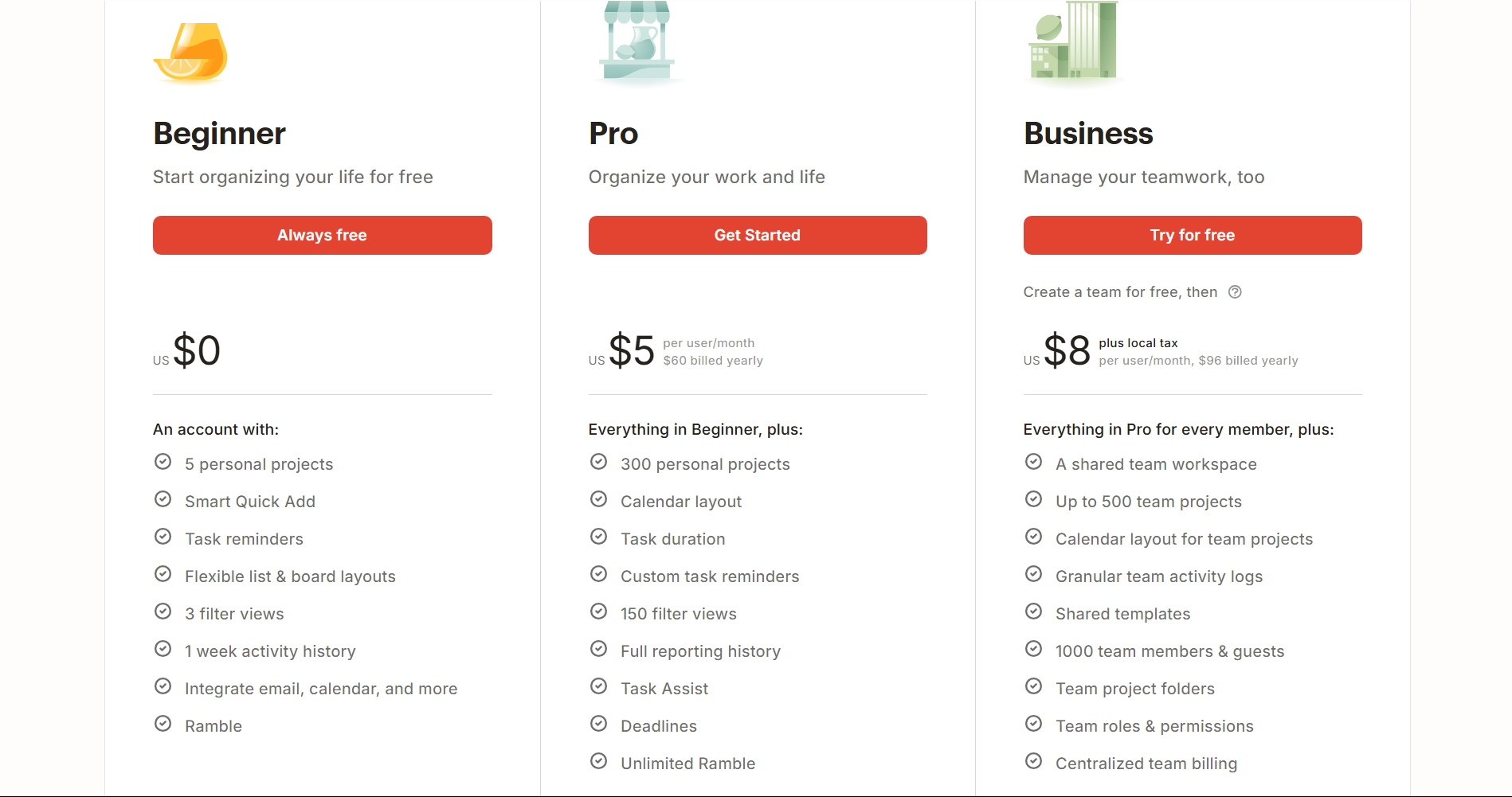
The free plan is genuinely usable. You get five projects, basic task features including subtasks and priorities, natural language input, Ramble voice capture with limited sessions, and sync across all your devices. For someone who wants a straightforward task list across their phone and computer, the free plan covers the basics without issue.
The main friction on the free plan is the five-project limit. Five projects sounds like enough until you start adding a project for each major area of your life and find yourself hitting the ceiling quickly. This is where most regular users end up upgrading.
The Pro plan costs five dollars per month billed annually and raises the project limit substantially, adds the calendar view, unlocks unlimited reminders, gives you full access to Todoist Assist AI features including task breakdown suggestions, and provides unlimited Ramble voice capture sessions. For anyone using Todoist seriously as their primary task management system, the Pro plan is where the tool becomes meaningfully better.
The Business plan at six dollars per user per month adds shared workspaces, team administration, and activity logs for collaborative use. It is aimed at small teams who want to share projects and assign tasks between members, though teams with complex workflows will likely outgrow it and need a dedicated project management tool.
Who Todoist Is Actually Built For
Todoist is the right tool if you think in lists and want a reliable, fast, cross-platform place to capture and organise tasks without the overhead of a full project management system. Freelancers, knowledge workers, and anyone juggling personal and professional tasks simultaneously will find it fits naturally.
It is less suited to teams managing complex projects with dependencies and timelines. It is also not a replacement for a full calendar. Todoist can show you what is due on a given day but it does not manage your time blocking or replace a proper scheduling tool. Some people pair Todoist with Google Calendar for that reason, and the two sync together if you connect them.
The honest summary is that Todoist is very good at the one thing it sets out to do: giving you a clean, fast, reliable place to put tasks so your brain does not have to hold them. Nearly two decades of sustained popularity suggests that for a lot of people, that is exactly what they needed.
Frequently Asked Questions
Is Todoist free to use?
Yes. There is a genuine free plan that includes five projects, natural language task input, subtasks, priorities, sync across all devices, and limited Ramble voice capture sessions. The free plan is a real starting point rather than a trial, though heavy users will likely upgrade to Pro for the higher project limit and calendar view.
How is Todoist different from something like Microsoft To Do or Apple Reminders?
Microsoft To Do and Apple Reminders are solid basic list tools that are free and integrated tightly with their respective ecosystems. Todoist has a more refined natural language parser, more powerful recurring task options, better project organisation, cross-platform sync that works equally well on all platforms regardless of ecosystem, and more advanced features like filters and Kanban boards. The trade-off is cost if you need the paid features.
Can I use Todoist with my team?
Yes, through the Business plan. You can share projects, assign tasks to team members, and see activity logs. Todoist is suitable for small team coordination on straightforward tasks. For teams managing complex projects with multiple dependencies, dedicated project management tools like Asana or ClickUp provide more depth.
Does Todoist work offline?
Yes. The desktop and mobile apps work offline. Tasks you add offline sync when your connection is restored. This makes Todoist reliable in situations where you might be working without internet access.
What is Todoist Karma?
Karma is Todoist's optional gamification system that gives you points for completing tasks and maintaining streaks. It shows your productivity trends over time in a graph. Some people find it motivating, others ignore it entirely. It does not affect how the app functions and you can simply not look at it if it is not useful to you.



Discussion (0)
Be the first to comment.