



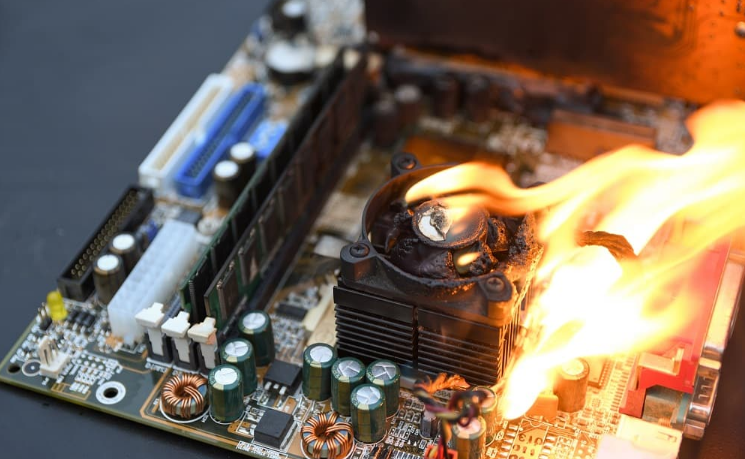
Something subtle is happening to a lot of PCs right now. Games that run smoothly for the first ten minutes start stuttering after twenty. A laptop that benchmarks well feels sluggish during long sessions. A desktop that should be capable of more just feels slightly off. The frame counter might look acceptable. The hardware looks fine on paper. But something is holding back performance in a way that is difficult to identify.
In a significant number of cases, the culprit is thermal throttling. It is one of the most common causes of performance problems in gaming PCs and laptops, and also one of the most frequently misdiagnosed because it does not produce an error message, does not show up in a speed test, and is easy to blame on something else entirely.
What Thermal Throttling Actually Is
Every modern CPU and GPU has a maximum safe operating temperature built into the chip itself. For most CPUs this is somewhere between 90 and 100 degrees Celsius, a value known as TjMax, short for Thermal Junction Maximum. For most GPUs it is around 83 to 90 degrees depending on the card. These are the temperatures at which the chip begins protecting itself.
When the temperature sensors inside the chip detect that this threshold is being approached, the chip reduces its own clock speed and voltage automatically. Running slower generates less heat, which brings the temperature back down to a safe level. This is thermal throttling. It is a self-preservation mechanism built directly into the silicon, and it works exactly as designed.
The problem is not that it exists. The problem is what it costs. Clock speed is performance. When a CPU drops from its boost frequency of 5.2GHz down to 3.8GHz because it is too hot, everything that CPU is doing gets slower. Game logic runs slower, physics calculations slow down, the GPU receives fewer instructions. Frame rates drop. Frame times spike. What was smooth becomes inconsistent.
The particularly frustrating aspect is that this happens silently. Nothing crashes. No error appears. The average frame rate counter might still show a number that looks roughly acceptable, while the 1% lows tank and the experience becomes noticeably unpleasant. You know something is wrong but the obvious indicators are not pointing you toward the cause.
Why It Happens
Thermal throttling occurs when cooling cannot keep up with heat output. There are several distinct reasons this happens, and identifying the right one matters for fixing it correctly.
Dried thermal paste is the most common cause in desktop PCs that are a few years old. The thermal paste between the CPU and its cooler is what allows efficient heat transfer. Over time it dries, cracks, and stops making good contact with the surfaces. What used to conduct heat efficiently now leaves microscopic air gaps. Temperatures that were fine when the system was new start climbing steadily until throttling begins. This is a two to three year process for most users, sometimes faster in hot environments.
Dust accumulation is the other extremely common cause. Dust builds up on heatsink fins and fan blades over months and years, reducing airflow and insulating the heatsink from the air it is trying to expel heat into. A heatsink clogged with dust can perform dramatically worse than a clean one. This is especially acute in carpeted rooms or households with pets.
Inadequate cooling for the CPU or GPU in the system is a design problem rather than a maintenance one. If a high-end processor was paired with a budget cooler, or if a laptop with a powerful CPU has insufficient thermal headroom in its chassis, the system may throttle under sustained load even when clean and well-maintained. This is more common in thin and light laptops where thermal solutions are constrained by space.
Poor case airflow means the CPU cooler is trying to exhaust heat into a case that is itself already full of hot air. The ambient temperature inside the case rises, the cooler has less thermal headroom to work with, and temperatures climb faster than they would in a well-ventilated system.
Overclocking without adequate cooling pushes a chip to generate more heat than the cooler was designed to manage. The CPU or GPU runs at higher voltages and higher clock speeds, generating substantially more heat, until the system throttles to compensate.
The Difference Between Thermal Throttling and Power Limit Throttling
This is a distinction worth understanding because the two look almost identical and require different fixes.
Thermal throttling occurs when the chip is too hot and reduces clocks to cool down. The fix involves cooling.
Power limit throttling occurs when the CPU or GPU hits a defined wattage ceiling set by the motherboard or system. The chip has not reached its thermal limit. The power delivery system is simply not allowing it to draw more than a set amount of power. The clock speed reduction looks identical in monitoring software but the cause is completely different.
Telling them apart requires looking at both temperature and power draw simultaneously. If power hits its ceiling well before temperatures reach the throttling threshold, it is a power limit issue rather than a thermal one. Adjusting power limits in BIOS or through manufacturer software is the relevant fix in that case.
How to Check If Your PC Is Throttling
The most reliable tool for this is HWiNFO64, a free monitoring application that reads an enormous range of hardware sensors simultaneously. Download it from hwinfo.com, launch it in Sensors-Only mode, and run it in the background while gaming or running a stress test.
The specific sensors to watch are CPU temperature, CPU clock speed, GPU temperature, GPU clock speed, and CPU power draw. In HWiNFO64, look for a sensor explicitly labelled Thermal Throttling for the CPU and Performance Cap Thermal for the GPU. These will show Yes or No as the session progresses.
The pattern that confirms throttling is straightforward: temperatures climb toward the threshold, and at the point they approach it, clock speeds visibly drop. If clock speeds are falling at the same time temperatures are high and load has not changed, throttling is happening. This is different from clock speeds falling because load dropped, which is expected normal behaviour.
MSI Afterburner with the RivaTuner overlay is another useful tool because it can display GPU and CPU temperatures, clock speeds, and frame times directly on screen while you are gaming. Watching clock speeds and temperatures together in real time while playing for fifteen to twenty minutes will reveal whether throttling occurs under sustained load.
For a quick sanity check without detailed monitoring, Cinebench is useful. Run a single multi-core test and note the score. Then run the same test immediately again. If the second score is noticeably lower than the first, the system throttled during the second run because it had not cooled back down between tests. A well-cooled system produces consistent scores across sequential runs.
What Safe Temperatures Actually Look Like
Knowing the threshold numbers helps interpret what the monitoring tools show.
For CPUs, temperatures under 80 degrees Celsius during gaming and everyday workloads are comfortable. Between 80 and 90 degrees is warmer than ideal but not yet throttling territory for most chips. Above 90 degrees is where throttling typically begins for modern Intel and AMD desktop processors. Sustained temperatures above 95 degrees during normal gaming indicate a cooling problem that should be addressed.
For GPUs, temperatures below 80 degrees during gaming are healthy. Between 80 and 85 degrees is normal operating range for many cards under full load. Above 85 degrees is where many GPUs begin reducing their boost clocks, and above 90 degrees is a clear signal that the GPU's cooling is not keeping up.
Laptops operate at higher temperatures than desktops as a general rule because of the physical constraints of their cooling systems. CPU temperatures in the 90 to 95 degree range under sustained load are not unusual in thin laptops. Whether throttling is occurring matters more than the absolute temperature in these cases.
How to Fix It
1: Clean the System
This is free, takes twenty minutes, and solves a significant proportion of throttling problems in older systems. Shut down, unplug, and use compressed air to blow dust out of every heatsink, fan, and vent. For desktops, remove the side panel and clean thoroughly. For laptops, remove the bottom panel if accessible and clean the fan and heatsink vents carefully.
The improvement in temperatures after a proper cleaning can be dramatic. Systems that were throttling consistently sometimes stop entirely after dust removal alone.
2: Replace the Thermal Paste
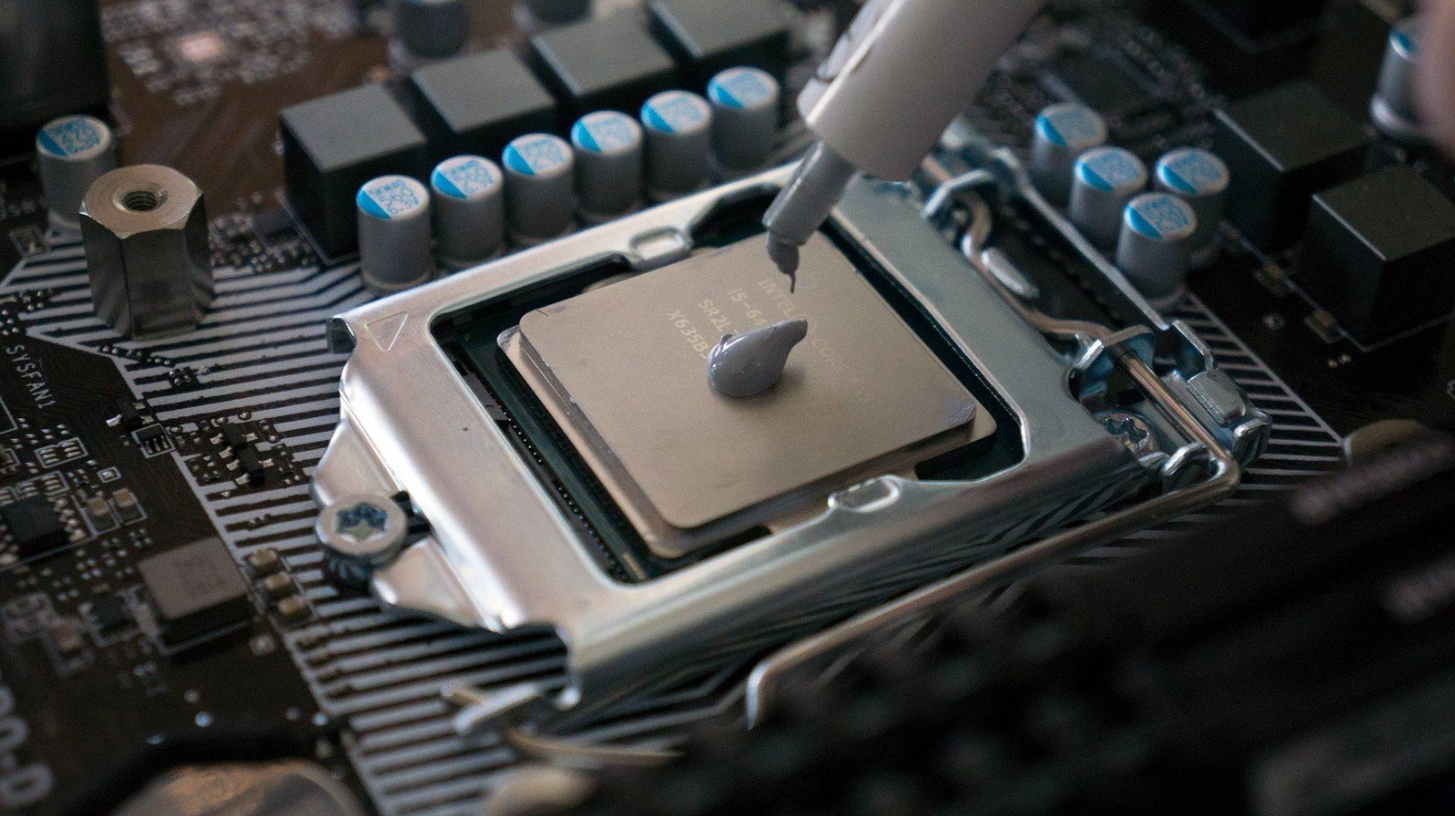
For a desktop or accessible laptop CPU, replacing the thermal paste is the single most impactful thermal improvement available for a system that is two or more years old. The process involves removing the cooler, cleaning the old paste from both surfaces with isopropyl alcohol and a lint-free cloth, applying a small pea-sized amount of fresh paste to the centre of the CPU, and reseating the cooler.
Temperature drops of 10 to 20 degrees Celsius after fresh paste application are common in systems where the original paste had fully dried. This directly translates into sustained higher clock speeds and eliminated throttling in many cases.
3: Improve Case Airflow
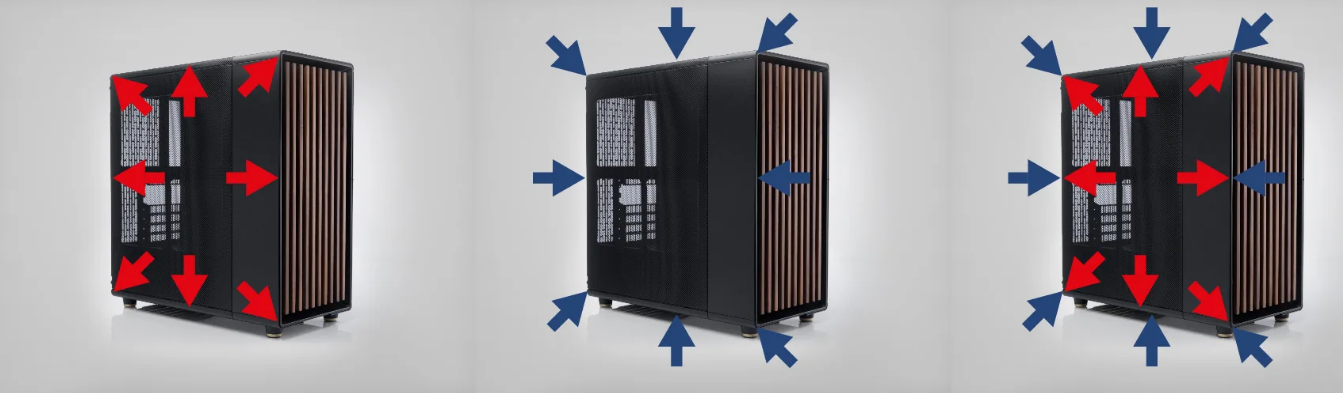
A desktop case needs to move air in one direction consistently: cool air enters from the front and bottom, hot air exits from the rear and top. Mixing intake and exhaust directions, having no intake fans, or having blocked intake areas all raise case ambient temperatures and reduce the effectiveness of every cooler in the system.
Adding a front intake fan or rearranging existing fans into a coherent intake-to-exhaust configuration can meaningfully reduce CPU and GPU temperatures without changing the coolers themselves.
4: Upgrade the Cooler
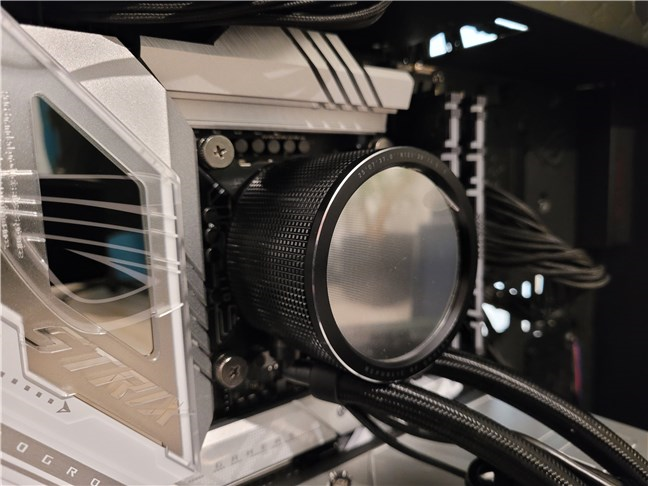
If the CPU cooler is insufficient for the processor's heat output, cleaning and paste replacement will help but may not solve the problem entirely. Upgrading from a stock cooler or a budget aftermarket cooler to a quality tower air cooler or a 240mm AIO provides more thermal headroom and typically resolves throttling under sustained load.
5: Undervolt the CPU or GPU
Reducing the voltage supplied to a chip without changing its target clock speeds allows it to produce less heat while maintaining the same or similar performance. For GPUs this is done through MSI Afterburner's voltage frequency curve editor. For CPUs it can be done through Intel XTU or AMD Ryzen Master depending on the platform.
Undervolting is particularly relevant for laptops where the cooling solution cannot be upgraded. Reducing the CPU's voltage allows it to sustain higher clock speeds within the thermal envelope the laptop's cooling can manage, which often results in better sustained performance despite technically running at lower voltage.
Final Thoughts
Thermal throttling is your hardware telling you that it is working harder than its cooling can support. It is not a sign of component failure and it is not a permanent condition. In most desktop systems it is caused by dried thermal paste, dust, or inadequate airflow, all of which are straightforwardly fixable. In laptops the constraints are tighter but undervolting and cleaning still make a real difference.
The most important step is confirming that throttling is actually what you are dealing with before drawing conclusions or spending money on upgrades. Buying a new GPU because your game stutters, when the real problem is a CPU running at 95 degrees and dropping its clocks, is an expensive mistake that does not solve anything. Spend fifteen minutes with HWiNFO64 first. The data will tell you exactly what is happening.
Frequently Asked Questions
Does thermal throttling permanently damage my CPU or GPU?
No. The entire purpose of thermal throttling is to prevent permanent damage by reducing heat output before temperatures reach destructive levels. The chip is protecting itself. Throttling itself does not cause hardware damage. However, consistently high temperatures over long periods do accelerate component degradation, so resolving the underlying cooling issue is worthwhile for long-term reliability.
How do I know if my laptop is throttling?
The clearest signs are performance that starts well and degrades after ten to fifteen minutes, fans running at maximum speed, and the chassis feeling very hot. Confirming it requires monitoring software. Download HWiNFO64 and watch CPU clock speeds and temperatures simultaneously during a demanding session. If clocks drop as temperatures climb, throttling is occurring.
Can thermal throttling happen even with a liquid cooler?
Yes. Liquid coolers eliminate many common causes but not all of them. A pump failure, a dried thermal interface between the cold plate and CPU, a clogged radiator, or a poorly ventilated case that does not exhaust heat effectively can all result in throttling even with an AIO installed.
Is it normal for a laptop to throttle under heavy load?
Some degree of thermal management is normal in thin laptops under sustained all-core CPU load. The question is whether it is happening frequently during typical gaming or workloads that should be well within the system's capability. Occasional brief throttling under extreme all-core stress tests is expected. Consistent throttling during normal gaming sessions indicates a problem worth addressing.
Will a cooling pad help a throttling laptop?
Sometimes, but results vary considerably. A cooling pad can reduce bottom-surface temperatures on laptops that draw intake air through the bottom, which helps if case temperature is contributing to throttling. On laptops that draw air through side vents or the keyboard, a cooling pad has minimal effect. Undervolting and cleaning the internal heatsink have a more reliable impact on laptop throttling than external cooling accessories.



Discussion (0)
Be the first to comment.