



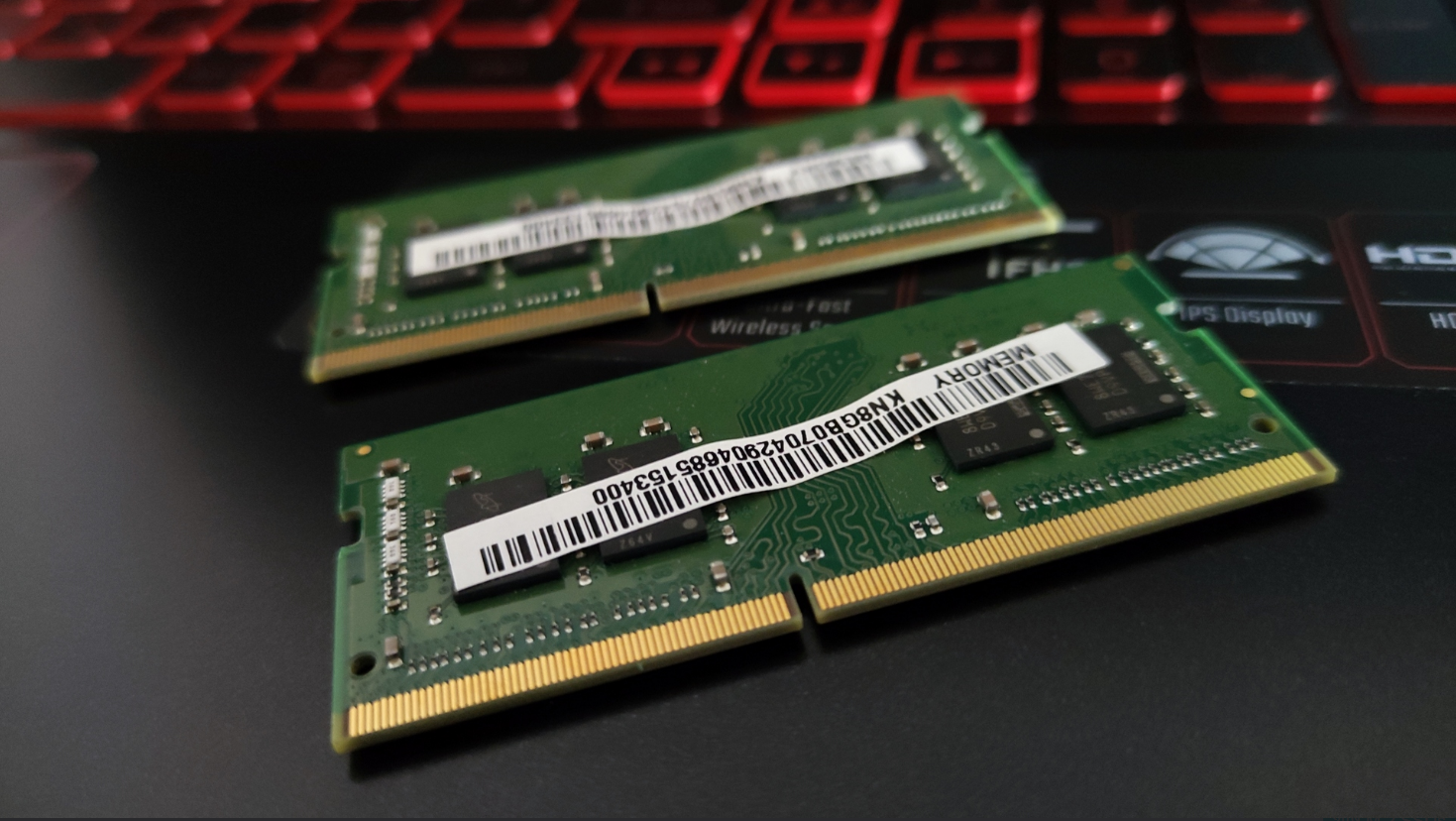
There is a small but meaningful decision hiding inside almost every PC build and laptop purchase that most people never consciously make. It is not about RAM speed, or capacity, or brand. It is about whether you have one stick of RAM or two.
Two sticks of 16GB RAM and one stick of 32GB RAM contain the same total memory. They will show the same number in Windows. On paper they look identical. In practice, how your CPU talks to that memory is fundamentally different, and in the wrong scenarios, noticeably so.
Here is what the difference actually is, when it matters, and how to check which mode your system is running.
What a Memory Channel Actually Is
Your CPU communicates with RAM through a channel. Think of it as a road. Data travels down it in both directions: the CPU requests something, the RAM sends it back.
A single channel setup gives the CPU one road. One lane in each direction, 64 bits wide. A dual channel setup gives the CPU two roads, doubling the potential data throughput to 128 bits wide. The two sticks work in parallel, which means while one module is finishing a data transfer, the other can begin the next one. This is called interleaving, and it smooths out the flow of data in ways that have real consequences for performance-sensitive tasks.
The critical point is that dual channel does not halve your latency or double your raw speed in a simple linear way. The underlying memory timings stay the same. What changes is how much data can move between the RAM and the CPU in a given period of time, which is called memory bandwidth. Doubling the bandwidth matters enormously for some workloads and barely at all for others.
Where the Difference Actually Shows Up
The tasks that benefit most from dual channel are the ones that continuously stream large amounts of data through RAM. Modern games are a primary example. Every frame rendered involves the CPU and GPU coordinating on textures, geometry, physics, and game state. The faster data flows through the memory system, the less the CPU sits waiting.
Integrated graphics are the most extreme example. If you are using the integrated GPU built into your CPU, such as Intel's UHD Graphics or AMD's Radeon Graphics in their Ryzen laptop chips, that GPU shares the system RAM entirely. It has no dedicated video memory of its own. In single channel mode, the integrated GPU is competing for a narrow bandwidth pipe with everything else the CPU is doing. The performance difference between single and dual channel on integrated graphics can reach 40% or more in some scenarios. It is not subtle.
For systems with a dedicated GPU, the difference is more moderate but still measurable. TechSpot benchmarked thirteen games comparing a single 16GB stick against two 8GB sticks in dual channel mode. Across all games at 1080p, the single stick configuration produced 12% lower average frame rates and 16% lower 1% lows. The 1% lows result matters because these are the moments of worst-case performance, the stutters and frame drops that make gameplay feel inconsistent. Dual channel consistently keeps these more stable.
Content creation workloads follow a similar pattern. Video export in tools like Adobe Premiere or DaVinci Resolve is heavily dependent on memory bandwidth. The difference can be significant in longer timelines or when working with high-resolution footage. 3D rendering, large spreadsheets, and running multiple demanding applications simultaneously all benefit from the wider data path.
For lighter work, the gap narrows considerably. Web browsing, email, document editing, and watching video are not memory bandwidth-constrained in any meaningful way. The CPU is lightly loaded, the bottleneck sits elsewhere, and whether you have one stick or two makes no practical difference to the experience.
Single Channel vs Dual Channel: At a Glance
| Single Channel | Dual Channel | |
|---|---|---|
| Memory bandwidth | 64-bit data bus | 128-bit data bus (doubled) |
| Typical gaming performance | Baseline | 10 to 16% higher average FPS |
| 1% lows (frame consistency) | Lower | Noticeably better |
| Integrated graphics | Significant bottleneck | Substantially better |
| Content creation | Slower render times | Faster, especially video export |
| Everyday tasks | No meaningful difference | No meaningful difference |
| Cost difference | Same total GB costs less in one stick | Matched kits sometimes priced slightly higher |
| Risk | No compatibility concerns | Requires correct slot placement |
The AMD X3D Exception Worth Knowing
AMD's 3D V-Cache processors, the Ryzen X3D series, are an interesting exception. These chips have an unusually large amount of L3 cache stacked directly on the processor. Because more data can be stored close to the CPU cores without touching system RAM at all, the processor makes far fewer trips to the RAM in the first place. Micro Center's testing with the Ryzen 9 9850X3D showed the performance gap between single and dual channel narrowed considerably compared to standard processors. Games that rely heavily on the cache see very little difference.
This does not mean single channel is fine on X3D chips universally. Memory-intensive workloads outside of gaming still benefit from dual channel. But it is a case where the conventional advice needs a footnote.
How to Check Which Mode You Are Currently Running
Open CPU-Z, which is a free tool available at cpuid.com. Go to the Memory tab. Look at the line labelled Channel. It will say either Single or Dual. That is your answer.
Alternatively, Task Manager in Windows shows this in a less obvious way. Open Task Manager, go to the Performance tab, click Memory, and look at the information on the right side of the screen. The slot information tells you how many sticks are installed, which helps you figure out your configuration, though CPU-Z is more direct.
Which RAM Slots to Use for Dual Channel
This is where people go wrong most often. Many motherboards have four RAM slots. Putting two sticks in the wrong slots defeats the purpose entirely. Most motherboards require the sticks to be installed in slots two and four, not slots one and two, to activate dual channel mode.
The slots are usually colour-coded. Look for the two matching colours and use those. Consult your motherboard manual if you are uncertain. The manual will have a diagram showing which slot combinations enable dual channel. The most common mistake is installing sticks in adjacent slots of the same colour when the correct slots have a gap between them.
Do the Sticks Need to Match?
Ideally yes. Matched kits, meaning two sticks sold together as a pair, are tested to work together at their rated speeds and are the safest choice. Using two sticks from the same manufacturer and part number but bought separately often works, but cannot be guaranteed.
Mixing sticks of different speeds is technically possible. The system will run both at the lower speed. Mixing sticks of different capacities can work but introduces some complications: only the capacity equal to twice the smaller stick will run in dual channel, and the remaining memory runs in single channel. A 16GB stick and an 8GB stick will give you 16GB in dual channel and 8GB in single channel. This is functional but far from optimal.
The most straightforward advice is to buy a matched pair of sticks from the outset rather than buying one stick with the intention of adding another later.
The Practical Recommendation
If you are building a PC or buying a laptop and have a choice between a single stick and a matched pair of the same total capacity, choose the matched pair. The cost difference is usually small, the performance benefit in gaming and content creation is real and consistent, and the benefit to integrated graphics is substantial. There is no scenario where single channel is preferable to dual channel if you have both options at similar cost.
If you already have a single stick and want to add a second, buying an identical stick from the same kit is the cleanest solution. Buying a second stick from a different manufacturer or batch may work, but there is a higher chance of compatibility issues, and you may need to manually configure XMP settings to get them running at the rated speed together.
Final Thoughts
Single channel versus dual channel is one of those decisions that sits underneath the more obvious specs people pay attention to when buying RAM. The capacity number is visible everywhere. The channel configuration requires a second look. But the performance difference is real, consistent across benchmarks, and particularly pronounced in exactly the scenarios where you want your PC to feel its best: gaming at high frame rates and working with large creative files.
Two matched sticks of 8GB each will consistently outperform a single stick of 16GB in the workloads that stress memory bandwidth. The total memory is the same. The experience is not.
Frequently Asked Questions
Does dual channel RAM double my memory speed?
Not exactly. Dual channel doubles the theoretical memory bandwidth, meaning twice as much data can move between the RAM and CPU in a given time. It does not halve latency or double raw clock speeds. The practical performance improvement in gaming is typically 10 to 16% in average frame rates, with a more noticeable improvement in frame consistency.
Can I add a single RAM stick later to enable dual channel?
Yes, but it works best when you add an identical stick from the same kit. Buying a second stick from a different manufacturer or batch may work, but there is a risk of compatibility issues at the rated XMP speed. For reliability, buy a matched pair from the start rather than planning to add a stick later.
Does dual channel matter for laptops?
Yes, especially for laptops using integrated graphics. Many thin and light laptops ship with a single RAM stick soldered to the motherboard, which permanently locks them into single channel mode. Before buying a laptop, checking whether the RAM is dual channel and whether it is user-upgradeable is worth doing.
What happens if I install two sticks of different sizes?
The system will attempt to run dual channel for the portion of memory where both sticks overlap. If you install a 16GB stick and an 8GB stick, 16GB will run in dual channel and the remaining 8GB from the larger stick will run in single channel. This is functional but not ideal. Matched sticks of equal capacity give you the cleanest dual channel configuration.
How do I know if my motherboard supports dual channel?
Almost all modern desktop motherboards support dual channel. Check your motherboard's specification page or manual to confirm, and look for the correct slot placement instructions. Most boards have four slots and require sticks to be installed in slots two and four, not one and two, for dual channel to activate.



Discussion (0)
Be the first to comment.