



You are browsing a webpage and come across an image you want to know more about. Previously your options were to right-click, open a new tab, navigate to Google Images, and paste or drag the image there. That is three steps too many for something that should take two seconds.
Search This Tab With Google Lens solves this. It brings Google's visual search engine directly into Chrome, letting you select anything on the current page and search it without leaving the tab you are on. Results appear in a side panel to the right. No new tab, no interruption to your browsing.
What Google Lens Actually Does in Chrome
Google Lens is an AI-powered visual search tool. On your phone, it uses the camera to identify objects in the real world. In Chrome on desktop, it does the same thing with anything on your screen.
Point it at an image on a webpage and it identifies the object, the product, the artwork, the breed of dog, the plant, or whatever it sees. It then shows you relevant search results in a side panel, including where to buy something if it recognises a product, or factual information if it identifies a landmark or a piece of art.
It works on more than just images. Select text on a page and Lens can perform a standard Google search for it, translate it, summarise it, or let you ask a follow-up question about it. Select a frame from a video and search what appears in that frame. Drag a selection box over part of a diagram or slide and get results for what is inside it.
The side panel stays open while the original page remains fully visible. Results load inside the panel without taking you anywhere else.
How to Open Search This Tab With Google Lens
There are three ways to activate it, each taking about two seconds.
Method 1: From the Address Bar
Click anywhere in the Chrome address bar at the top of the browser. A Google Lens icon appears on the right side of the bar. It looks like a small camera or the Google Lens logo. Click it.
The page dims slightly and a crosshair cursor appears. This is the selection mode. You can now click anywhere or drag a box around any part of the page to search that area.
Method 2: Right-Click Anywhere on the Page
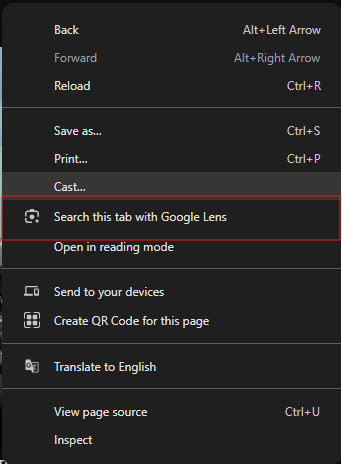
Right-click anywhere on a webpage that is not a link or a button. In the context menu that appears, click Search this tab with Google Lens. The same selection mode activates.
If you right-click directly on an image, you see a slightly different menu option that says Search image with Google Lens. This searches that specific image directly without requiring you to draw a selection box.
Method 3: Pin It to the Chrome Toolbar
If you use this feature regularly, adding it to your toolbar saves a click.
Open a new tab in Chrome. Click Customise Chrome in the bottom right corner of the new tab page. Click Toolbar in the left panel that opens. Scroll down to Tools and Actions. Find Search this tab with Google Lens and toggle it on.
The Google Lens icon now sits permanently in your Chrome toolbar, visible on every page. One click activates selection mode immediately.
How to Use the Selection Mode
Once selection mode is active, you have two options.
Click directly on an image. Chrome attempts to identify the image automatically and immediately shows results in the side panel. This works reliably for clear, standalone images. For complex pages with overlapping elements, the automatic selection is occasionally imprecise.
Click and drag to draw a selection box. This gives you precise control over exactly what you are searching. Draw a box around the specific part of the image, diagram, screenshot, or video frame you want to identify. This is the more reliable method, particularly when the item you want to search is part of a larger image or sits close to other content.
After the initial results appear in the side panel, you can refine the selection by dragging the handles at the edges of your selection box. You can also click and drag elsewhere on the page to start a fresh search without closing and reopening the feature.
At the bottom of the side panel, there is a follow-up question bar. Type a question about what you searched and Google provides an AI-powered answer. For example, after identifying a chair in a photo, you could type how much does this cost and get pricing information.
What You Can Search and What Results Look Like
Products and Shopping
This is where Search This Tab With Google Lens is most immediately practical. Select any product image and the side panel shows price comparisons across retailers, current deals, reviews, and direct links to where you can buy it. You get product context without opening a single additional tab.
For in-store shopping decisions, the feature works through your phone's camera in the Google app, showing whether a store's price is competitive and whether similar products are available elsewhere.
Text and Translation
Select a block of text on any page and Lens can search for it, summarise it, or translate it. If the text is inside an image rather than selectable HTML text, such as text in a photograph or a screenshot, Lens can still read it, extract it, and let you copy it to your clipboard or ask questions about it.
This is useful for pulling text from screenshots, reading foreign-language content in images, or quickly looking up a term without opening a search tab.
Art, Landmarks, and Objects
Select any artwork, building, or object and Lens identifies it with relevant information in the panel. A painting returns the title, artist, and historical context. A landmark returns its name and location. A plant or animal returns its species and details.
Video Frames
The feature works on video content playing in the browser. While a video is playing or paused, activate Lens and draw a selection over any frame to search whatever is visible in that moment. This is particularly useful for identifying products seen in reviews, identifying locations seen in travel content, or looking up anything shown briefly in a video that the creator did not reference directly.
Privacy: What Google Does With the Data
When you use Search This Tab With Google Lens in Chrome, a screenshot of the relevant page section and page data is sent to Google for processing. Google states it does not save any data beyond temporary storage required to process the specific query. The data is not linked to your browsing history for this feature.
If privacy is a concern, this is worth knowing before using it on pages containing sensitive information. The feature is best avoided on pages showing personal documents, banking information, or confidential content.
Why This Is More Useful Than It First Appears
The obvious use case is identifying products and images. But the feature genuinely changes how quickly you can act on things you see while browsing.
Reading an article that mentions an unfamiliar term in an infographic you cannot copy as text. Watching a cooking video and wanting to know the name of an ingredient shown briefly. Browsing architecture and wanting to know what style a building represents. Coming across a quote in an image and wanting to verify its source. All of these previously required interrupting your current browsing to search elsewhere. None of them do anymore.
The side panel approach is well-designed precisely because it does not replace what you were doing. The original page stays visible and fully interactive. The panel sits alongside it until you close it. It is an addition to your current context rather than a replacement for it.
Frequently Asked Questions
Does Search This Tab With Google Lens work in browsers other than Chrome?
No. The Search This Tab With Google Lens feature is exclusive to Google Chrome on desktop. The right-click Search image with Google Lens option for individual images is available in Chrome across all platforms. The full tab-level selection mode that lets you draw a box over any part of a page is a Chrome-specific feature that does not currently exist in Firefox, Safari, or Edge.
Does it work on all webpages including images inside videos?
Yes. The feature works on static images, text, and video content visible in the browser. You can draw a selection over a paused or playing video frame and search what is visible in it. Some websites that use strict content security policies may occasionally limit what the feature can access, but this is relatively rare.
Can I use it on my phone?
The Search This Tab With Google Lens feature as described here is a desktop Chrome feature. On Android and iOS, Google Lens is accessible through the Chrome address bar by tapping the Lens icon, but the selection interaction works differently on touch screens. The Google app on both platforms also provides full Lens functionality through the camera.



Discussion (0)
Be the first to comment.