




USB OTG lets your Android phone behave like a USB host so it can connect to flash drives, controllers, keyboards, and other peripherals without a computer. It expands what your phone can do and unlocks tools that usually require a laptop.
This guide explains what OTG is, how it works, and how to use it safely on modern Android devices.
1) What OTG means on Android
USB OTG stands for USB On-The-Go. It allows your Android phone or tablet to control and power USB accessories. This makes your device operate like a small computer that can read drives, connect controllers, and interact with other peripherals.

How OTG works
Your Android device switches to host mode when you plug in an OTG adapter. The phone provides minimal power to the USB device and opens a file prompt or input option if supported.
What devices support OTG
Most modern Android phones support USB OTG by default. Some older or budget models may require checking system specs or using an OTG checker app. Manufacturers usually list OTG support in online product pages.
2) What you can do with OTG
USB OTG enables multiple practical workflows that improve productivity and flexibility.
Transfer and manage files
OTG helps you copy photos, videos, and documents between flash drives and your Android storage. This works without Wi-Fi or a computer.
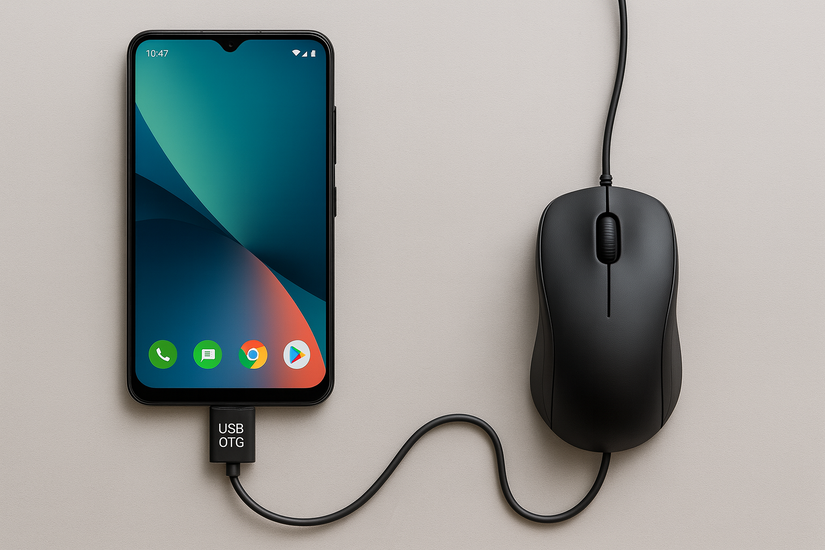
Connect a keyboard, mouse, or game controller
You can plug in wired keyboards, mice, and popular game controllers to improve typing or gaming. Android recognizes most plug-and-play devices instantly.
Use OTG for cameras and microphones
OTG supports DSLR photo imports and USB microphones. This helps creators edit media directly on their phones.
Connect Ethernet adapters and hubs
A USB-to-Ethernet adapter can give your phone a stable wired connection. Many hubs also work when the device supports USB-C host mode.
Charge another phone with OTG
Some Android phones support reverse charging through a USB OTG cable, letting you share battery power with another device.

3) How to check if your Android device supports OTG
You can verify OTG support in a few quick ways before buying an adapter.
Check manufacturer specs
Most product pages list USB OTG or USB host support. If your device includes “USB on-the-go,” it supports OTG accessories.
Use an OTG checker app
These apps scan your phone’s hardware profile and report compatibility. They help avoid buying incorrect cables.

Test with an OTG adapter
Plug a flash drive into an OTG cable and connect it to your phone. If a storage prompt appears, your device supports OTG.
4) How to use OTG on Android
OTG is simple to use once you have the right adapter.
Required OTG cables and adapters
USB-C OTG adapters work on most modern phones. Micro-USB OTG connectors work on older Android devices. Choose a certified cable to avoid connection issues.
Connect a USB device
Follow these steps to connect a USB device with OTG:
- Insert your USB drive or accessory into the OTG adapter.
- Plug the adapter into your Android phone.
- Wait for the system prompt or file manager notification.
File manager steps
Use these steps to access files from an OTG drive:
- Open your phone’s Files app.
- Select the USB drive listed under storage devices.
- Copy, move, or open the files you need.
Safely eject an OTG device
Always eject your USB device before you unplug it:
- Open the notification shade.
- Tap Eject USB storage or Unmount.
- Remove the device after Android confirms it is safe.
5) Types of OTG cables and adapters
- USB-C OTG adapters: Most new Android phones use USB-C OTG cables. They support higher data speeds and multi-port hubs.
- Micro-USB OTG adapters: Older phones use micro-USB OTG connectors. They function the same but support fewer modern accessories.
- OTG hubs: Hubs allow you to connect multiple accessories at once, including flash drives, keyboards, and Ethernet adapters.
6) OTG safety and limitations
Keeping a few limits in mind helps prevent data loss or hardware issues.
Power limitations
Phones provide limited power output, so some hard drives or accessories may not run without external power.
Security considerations
Avoid connecting unknown USB drives. Malware and corrupted storage can cause data loss or compromise your phone.
File system limitations
Some Android devices cannot interact with NTFS or other advanced file systems without additional support.
7) Troubleshooting OTG not working on Android
- Use a powered OTG hub: Some accessories require more power than a phone can provide. A powered hub ensures stable operation.
- Check file system support: Android reads FAT32 and exFAT by default. NTFS drives may not appear unless your device includes driver support.
- Check permissions and pop-ups: Denying the initial file access prompt blocks OTG detection. Reconnect the device to trigger a new prompt.
- Try a different cable or adapter: Low-quality or non-OTG cables cause most connection failures. A certified adapter fixes this issue.
Tips for using OTG on Android
- Use high-quality adapters to avoid unstable connections.
- Format storage drives to exFAT for the widest compatibility.
- Avoid connecting high-power devices unless you use a powered hub.
- Keep your phone’s battery charged when transferring large files.
FAQs
Can all Android phones use OTG? No. Most modern devices support OTG, but some older or budget models may lack host mode.
Do I need a special cable? Yes. You need a certified USB-C or micro-USB OTG adapter.
Does OTG drain battery faster? Yes. Your phone powers the connected USB device, which increases battery usage.
Can I use OTG to transfer files between two phones? Yes. If your phone supports reverse OTG, you can connect another phone or storage device.
Summary
- OTG lets Android devices connect directly to USB accessories.
- It supports file transfers, controllers, keyboards, and microphones.
- Most modern Android phones include OTG support.
- You only need the correct OTG adapter to get started.
- Troubleshooting focuses on cable quality, power, and file system compatibility.
Android OTG support turns your phone into a versatile tool for work and everyday tasks. Using the right adapter and understanding its limits helps you connect accessories safely and avoid common issues.


Discussion (0)
Be the first to comment.