




Sending a file from your Windows PC to your phone should be simple. In practice, it rarely is. You either upload it to Google Drive, email it to yourself, or connect a cable and hope the right driver is installed. None of those feel like a proper solution for something that should take five seconds. LocalSend fixes this. It is a free, open-source app that transfers files directly between devices on the same Wi-Fi network, with no internet required, no account, no cloud, and no file size limit. Think of it as AirDrop but for every operating system at once.
What Is LocalSend?
LocalSend is a cross-platform file sharing application available for Windows, macOS, Linux, Android, and iOS. It works by turning each device into a small local server that can discover and communicate with other devices running LocalSend on the same network.
When you send a file using LocalSend, it travels directly from one device to the other over your local Wi-Fi. It never leaves your network, never touches an external server, and is encrypted using HTTPS throughout the transfer. The person on the receiving end sees a prompt asking them to accept or decline. Once they accept, the file arrives in their Downloads folder.
There are no accounts to create, no subscriptions to manage, and no ads inside the app. It is completely free and the source code is publicly available for anyone to inspect. The project is actively maintained and has been downloaded millions of times across all platforms.
Why Use LocalSend Instead of Other Options
The most common alternatives all have meaningful drawbacks. Cloud storage services like Google Drive and OneDrive require uploading the file to a remote server and downloading it again on the other device. This uses your internet bandwidth twice and adds latency even when both devices are sitting in the same room.
Bluetooth transfers are slow and temperamental for anything larger than a small document. Nearby Share on Windows works only between Windows devices, which means it breaks the moment your recipient is on an iPhone or a Mac. AirDrop is Apple-only entirely.
LocalSend transfers at the full speed of your local Wi-Fi network with no artificial limits. A 400MB video that would take minutes to upload to the cloud and download again moves in seconds between devices on the same network. It also works across every combination of operating systems, so a Windows PC can send to an iPhone, a Mac can send to an Android phone, and a Linux machine can send to a Windows laptop. The only requirement is that both devices have LocalSend installed and are on the same Wi-Fi.
How to Install LocalSend on Windows
There are three ways to install LocalSend on Windows. All of them are straightforward.
The easiest method is through the Microsoft Store. Open the Store, search for LocalSend, and click Install. Updates are handled automatically this way.
The second method is a direct download from localsend.org. Download the Windows installer, run it, and follow the standard installation steps.
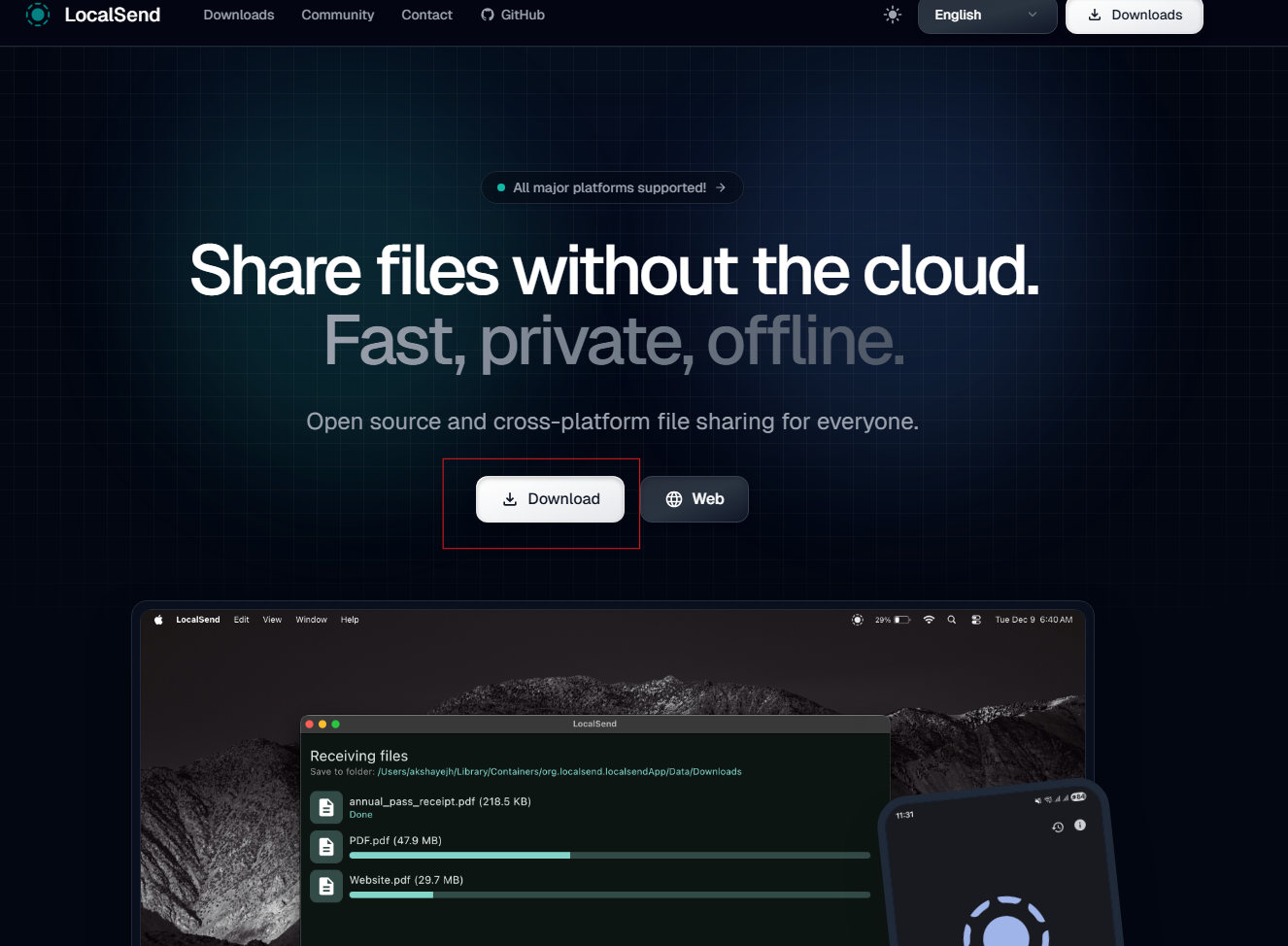
Once installed, launch LocalSend from the Start menu. It will appear in your system tray and run quietly in the background.
How to Send a File From Your Windows PC
Sending a file with LocalSend takes less than thirty seconds once it is installed on both devices.
- Open LocalSend on your Windows PC. Make sure both devices are connected to the same Wi-Fi network.
- On your Windows PC, click the Send tab at the top of the LocalSend window. A list of nearby devices running LocalSend will appear automatically under the Nearby Devices section. If the other device does not appear immediately, wait a moment or restart LocalSend on both ends.
- Click the File button to browse for the file you want to send, or drag and drop files directly into the LocalSend window. You can also send folders, text snippets, or clipboard contents.
- Click the device you want to send to from the nearby devices list.
- On the receiving device, a prompt will appear asking whether to accept the incoming transfer. Once the recipient taps or clicks Accept, the transfer begins immediately. The file is saved to the Downloads folder on the receiving device by default.
How to Receive a File on Your Windows PC
Receiving files on Windows is equally simple. LocalSend runs in the background once it is installed, and incoming transfers appear as a notification or a prompt in the app window.
When someone sends you a file, a popup will appear asking you to accept or decline. Click Accept and the file downloads directly to your Downloads folder. You can change the default save location inside LocalSend settings if you prefer files to go somewhere else.
If you want to allow trusted devices to send files without asking for approval each time, you can add them to your Favorites list inside the app. This is useful for devices you share files with regularly, like your own phone or a family member's laptop.
Useful Settings Worth Knowing
LocalSend has a small but practical set of settings accessible by clicking the gear icon in the top right corner of the app.
You can change the default download folder if you prefer received files to go somewhere other than Downloads. You can enable PIN verification, which requires the sender to enter a PIN before the transfer is accepted, adding an extra layer of control. Further you can also toggle Quick Save mode, which accepts incoming files automatically without showing a confirmation prompt.
The Device Name field lets you rename how your PC appears to other devices on the network. By default LocalSend assigns a random name, so changing it to something recognizable makes it easier to identify your machine from another device.
On the Windows Firewall side, LocalSend will typically ask for permission to communicate on the network the first time you launch it. Click Allow when this prompt appears. If transfers are failing and devices cannot see each other, the most common fix is checking that Windows Defender Firewall has allowed LocalSend through. You can verify this by going to Windows Security, then Firewall and network protection, then Allow an app through firewall, and confirming LocalSend is listed and checked for both Private and Public networks.
Sharing Without the Other Device Having LocalSend Installed
If you need to send a file to someone who does not have LocalSend installed, the app has a link sharing option. Select your file, click the gear icon next to the device list, and choose Share via link. LocalSend generates a URL that the recipient can open in any browser on the same network to download the file directly, without installing anything.
This only works while LocalSend is open on your PC and while both devices are on the same network, but it is a useful option for one-off transfers with a device you do not control.
Final Thoughts
LocalSend solves a problem that most people have quietly accepted as unavoidably annoying. Cross-device file transfers have always been more complicated than they should be, and most solutions involve sending your files through someone else's server to get them to a device sitting three feet away. LocalSend removes the middleman entirely. It is fast, private, free, and works between every combination of operating systems without any of the usual compatibility friction. If you regularly move files between your PC and other devices, installing LocalSend takes two minutes and will save you time every week afterward.
Frequently Asked Questions
Does LocalSend require an internet connection?
No. LocalSend works entirely over your local Wi-Fi network. No internet connection is needed for transfers and your files never leave your local network or pass through any external server.
Is LocalSend safe to use?
Yes. All transfers are encrypted using HTTPS. The app is open-source, meaning the code is publicly available for anyone to inspect. No account is required, no data is collected, and there are no ads.
Does LocalSend work between Windows and iPhone?
Yes. LocalSend works across Windows, macOS, Linux, Android, and iOS. You can send files from a Windows PC to an iPhone or any other combination of supported platforms as long as both devices are on the same Wi-Fi network and have LocalSend installed.
Is there a file size limit in LocalSend?
No. LocalSend has no file size limit. Transfer speed depends on your local Wi-Fi network speed, not on any restriction imposed by the app.
What happens if the other device does not appear in LocalSend?
Both devices must be on the same Wi-Fi network. If a device does not appear in the nearby devices list, try restarting LocalSend on both devices. Also check that Windows Firewall is not blocking LocalSend, and make sure your router does not have AP isolation enabled, as this prevents devices on the same network from communicating with each other.



Discussion (0)
Be the first to comment.