



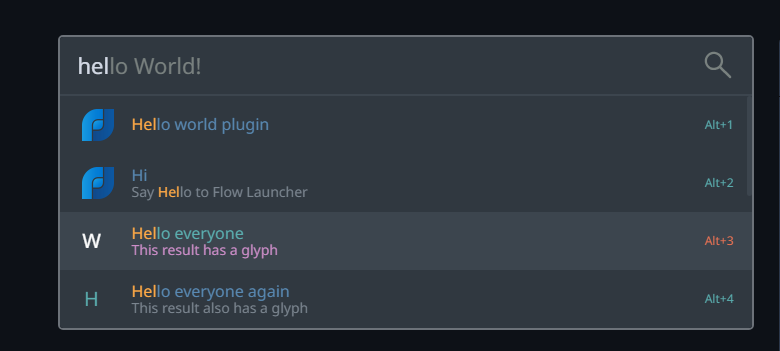
The Windows Start menu works fine. Nobody is saying it does not. But there is a difference between something working and something being fast. You press the Windows key, wait for the menu to open, start typing, wait for results, find the right one, click it. It gets the job done. It just takes longer than it should, every single time.
Flow Launcher cuts all of that out. Press Alt and Space from anywhere on your screen, type a couple of characters, and whatever you are looking for appears immediately. An app, a file, a quick calculation, a web search, a system command. Press Enter and you are done. No mouse, no menus, no waiting.
Once you get used to it, going back to the Start menu feels like driving with the handbrake on.
What Is Flow Launcher?
Flow Launcher is a free, open-source app launcher for Windows. You press a keyboard shortcut, a small search bar appears in the centre of your screen, you type what you want, and it opens it. That is the whole idea.
It is frequently compared to Alfred on macOS, a tool Mac users rely on dozens of times a day without thinking about it. Flow Launcher brings the same keyboard-first workflow to Windows and extends it with a plugin system that goes well beyond simple app launching.
It has over 13,000 stars on GitHub, is actively maintained, and costs nothing. No account, no subscription, no catches.
How to Install It
Go to flowlauncher.com and download the installer. Run it, click through the setup, and you are done in under a minute. Flow Launcher places a small icon in your system tray and starts automatically with Windows.
Press Alt and Space. A floating search bar appears in the centre of your screen. Start typing anything. That is all there is to getting started.
If you want to change the shortcut to something that feels more natural, press Ctrl and I to open Settings and change the Hotkey under General. Some people prefer Windows key and Space. Others use Ctrl and Space. Whatever feels right.
What You Can Do With It
The fastest way to understand Flow Launcher is to just try things.
Opening apps is the obvious starting point. Type the first few letters of any installed application and it appears before you finish typing. ch brings up Chrome. vs brings up Visual Studio Code. Press Enter to open it. It is reliably faster than the Start menu, especially for apps buried deep in your installed programs list.
Finding files works the same way. Type part of a file name and results appear as you type. For even faster results, install the free Everything app by voidtools separately. Flow Launcher detects it automatically and routes all file searches through Everything's index, which is essentially instant.
Calculations are built right in. Type any maths expression directly in the search bar. 15% of 340, sqrt(144), (23 + 17) * 4. The answer appears as a result you can press Enter to copy to your clipboard. No need to open a calculator app or a browser tab just to do quick maths.
Web searches work with short prefixes. By default, type g followed by a space and your search term to search Google. Type gg how to center a div and pressing Enter opens that search in your browser immediately. You can add shortcuts for any other site you search regularly.
System commands like restarting, shutting down, locking, or sleeping your PC are all available. Just type restart or sleep and the relevant option appears. Faster than going through the Start menu power button.
Windows Settings pages are searchable too. Type bluetooth or display or privacy and the relevant Settings page appears as a result. No more clicking through menus trying to find the right page.
Plugins
Flow Launcher's built-in features cover most everyday tasks, but plugins extend it further. Open Settings with Ctrl and I and go to the Plugin Store tab. Plugins install in one click from inside Flow Launcher itself.
Some useful ones: a browser bookmark plugin lets you search and open Chrome or Edge bookmarks directly from the launcher. A clipboard history plugin shows things you have recently copied. A VS Code plugin opens recent projects instantly. There are also plugins for controlling Spotify without switching to the app, searching Obsidian notes, and dozens of other specific workflows.
None of these are necessary to get real value from Flow Launcher. The built-in features alone are enough to change how you get around Windows every day.
Flow Launcher vs Windows Start Menu vs PowerToys Run
| Feature | Flow Launcher | Start Menu | PowerToys Run |
|---|---|---|---|
| Open apps instantly | Yes | Slower | Yes |
| Find files fast | Yes, instant with Everything | Unreliable | Basic |
| Built-in calculator | Yes | No | Yes |
| Web search shortcuts | Yes, configurable | No | No |
| System commands | Yes | Partial | Yes |
| Plugin ecosystem | 200+ community plugins | No | Limited |
| Free and open-source | Yes | Yes | Yes |
PowerToys Run is a solid choice if you already use PowerToys and want something simple with no extra setup. Flow Launcher is the better pick if you want faster file search, configurable web shortcuts, and the ability to grow it with plugins over time.
Final Thoughts
Flow Launcher takes about five minutes to install and about two days to become completely automatic. Once your hands know to press Alt and Space instead of reaching for the mouse, you stop thinking about it. Every app, file, calculation, or command you need is just a couple of keystrokes away. It is one of those rare tools that does not add anything to your routine. It just makes everything you already do a little faster and a lot less annoying.
Frequently Asked Questions
Is Flow Launcher free?
Yes, completely. It is open-source and released under the MIT licence, built and maintained by a volunteer community on GitHub. No paid version, no premium tier, no account required.
Does Flow Launcher replace the Start menu?
No. It runs alongside it. The Start menu stays exactly as it is. Most people find they naturally stop reaching for the Start menu after a few days with Flow Launcher, but it is always there if you want it.
What is the default keyboard shortcut?
Alt and Space. You can change it to anything you prefer in Settings under the General tab. Windows key and Space or Ctrl and Space are popular alternatives.
Does it slow down Windows?
No. Flow Launcher is lightweight and sits quietly in the system tray using minimal CPU and RAM when idle. Search results come from an in-memory index rather than a live disk scan, which is why they appear so quickly.
How is it different from PowerToys Run?
Both are keyboard-driven launchers. PowerToys Run is simpler and already bundled with PowerToys, which makes it convenient if you use that tool. Flow Launcher has faster file search when paired with Everything, configurable web search shortcuts, a much bigger plugin ecosystem, and more customisation options overall.



Discussion (0)
Be the first to comment.