




There is a pattern most people fall into with AI tools. You sit down at your desk, open a chat window, type your request, wait for a response, and move on. The moment you step away from your computer, that workflow stops entirely. Claude's Dispatch feature changes this in a meaningful way. It lets you assign tasks to Claude from your phone and have them run on your desktop while you are away, with Claude working in the background and notifying you when the job is done. This guide explains what Dispatch is, how it works, and how to get started.
What Is Dispatch?
Dispatch is a feature inside Claude Cowork that creates a single persistent conversation between your phone and your desktop. Instead of treating each device as a separate starting point for AI work, Dispatch ties them together into one continuous thread. You send Claude a task from your iPhone on the train to work, and by the time you sit down at your desk, the report is ready.
The key distinction from regular Claude usage is that with Dispatch, Claude does not just respond to your message in a chat window. It goes to work on your actual desktop computer, using the files, apps, connectors, and plugins you have already set up in Cowork. Your phone becomes the remote control. Your desktop does the real work.
Dispatch is available as a research preview for Pro and Max plan subscribers. It requires both the Claude Desktop app on your computer and the Claude mobile app on your phone.
How Dispatch Works
When you send Claude a task through Dispatch, it figures out what kind of work is needed and opens the appropriate session automatically. If the task involves coding, it runs in a Claude Code session. If it is knowledge work such as writing, research, or working with documents, it runs in a Cowork session. These sessions appear in their respective sidebars on your desktop so you can check in on the details if you want, or simply wait for the result to arrive in your thread.
Rather than showing you every step it takes, Claude messages you the finished output, whether that is a spreadsheet, a document, a summary, or a pull request. You get a push notification on your phone when a task is complete or when Claude needs you to approve something before it proceeds.
The thread itself is persistent, meaning it does not reset between sessions. Claude remembers the context of previous tasks, so you do not have to re-explain your preferences, your project structure, or how you like things formatted every time you start a new request.
What You Need
Before you can use Dispatch, make sure you have the following in place.
You need the most recent version of the Claude Desktop app installed and running on your computer. Dispatch works on both macOS and Windows. Your computer must be awake and the Claude Desktop app must be open for Claude to work on tasks, since the processing happens locally on your machine rather than in the cloud.
You also need the most recent version of the Claude mobile app on your phone. Existing users will need to update before Dispatch becomes available to them.
Finally, you need an active Pro or Max subscription and an internet connection on both devices.
How to Set Up Dispatch
Setting up Dispatch takes a few minutes and only needs to be done once.
Step 1: Update Both Apps
Download or update the Claude Desktop app from claude.com/download. Then update the Claude mobile app on your iPhone or Android device. If either app is not on the latest version, the Dispatch feature may not appear.
Step 2: Open Cowork and Find Dispatch
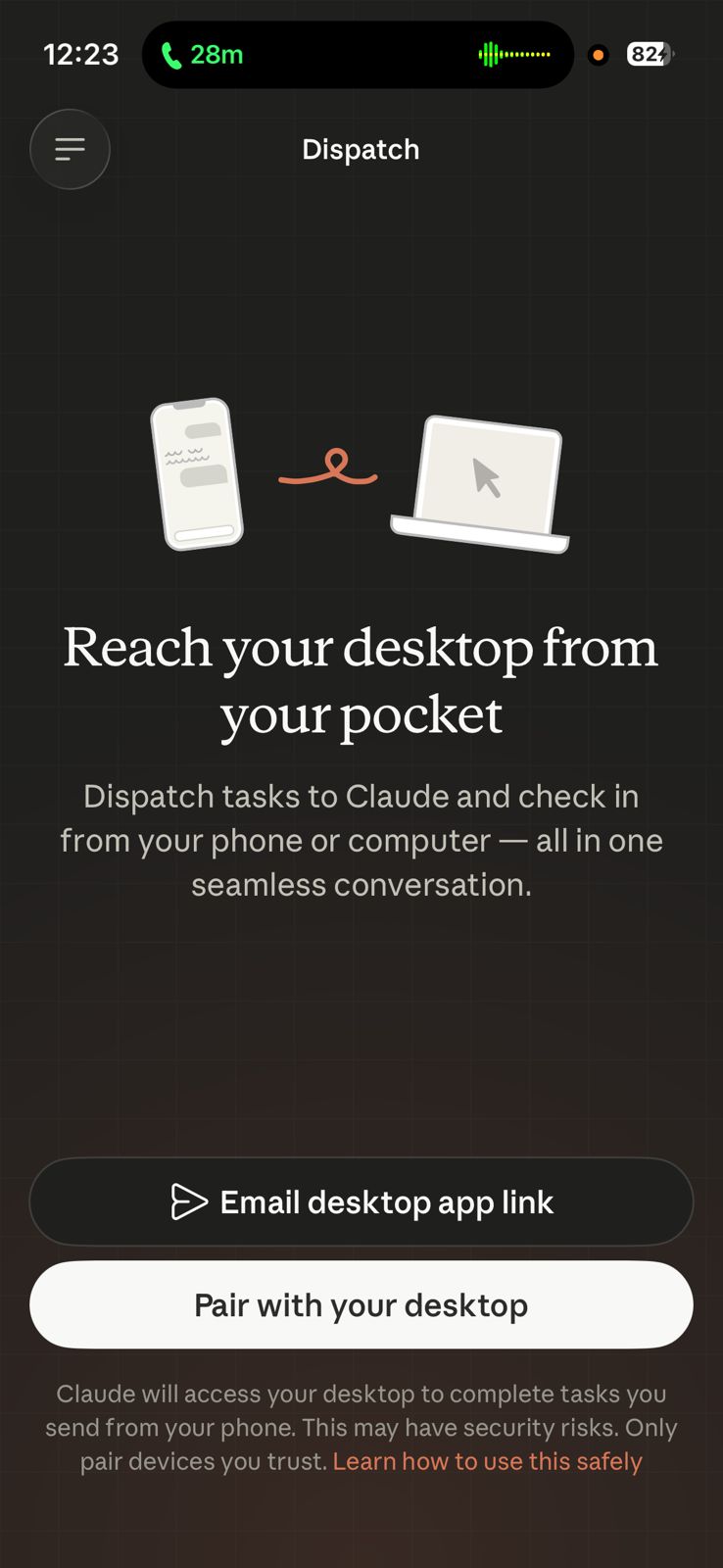
Open Cowork on either your phone or your desktop. Look for the Dispatch option in the left side panel and click it. You will land on a page explaining the feature.
Step 3: Complete the Setup
Click Get started. On the next screen, you can toggle on two options: giving Claude access to your files and keeping your computer awake. Enabling file access lets Claude work with documents and folders on your desktop when you assign tasks remotely. Keeping your computer awake prevents sleep from interrupting tasks that are running while you are away.
Click Finish setup when you are ready.
Step 4: Start Using Dispatch
You can now start messaging Claude within the Dispatch section. The conversation syncs automatically across your phone and desktop. Everything you have already configured in Cowork, including connectors, plugins, and file access, is available to Claude through Dispatch without any additional setup.
What You Can Do With Dispatch
The practical range of what Dispatch can handle is broad. From your phone, you can assign Claude tasks that involve everything available on your desktop, including files and apps that you could never access from a mobile device directly.
Some examples of what people use it for include asking Claude to pull data from a local spreadsheet and compile a summary report, having Claude search through emails and Slack messages to draft a briefing document, requesting a formatted presentation built from files in Google Drive, telling Claude to organize or process files in a specific folder on your computer, and setting up recurring workflows like a weekly metrics report or a daily email digest.
When a task produces a file, you can access it directly from your phone or find it on your desktop at the location Claude specifies. The finished output arrives in your Dispatch thread, not buried in some temporary folder you have to hunt for.
Scheduled Tasks Through Dispatch
One of the more useful things you can do with Dispatch is set up recurring tasks. You tell Claude once to run something on a schedule, and it handles it automatically going forward without you needing to ask again. Common examples include checking your email and summarizing unread messages every morning, pulling weekly performance metrics and creating a report every Friday, or monitoring specific folders for new files and processing them when they arrive.
This turns Dispatch from a reactive tool into something that runs in the background as part of your regular workflow, without you needing to trigger it manually each time.
Computer Use Through Dispatch
When paired with Claude's computer use capability, Dispatch becomes significantly more powerful. Computer use lets Claude interact directly with apps on your desktop, not just files and documents. If you ask Claude to update a spreadsheet in Excel, navigate an internal dashboard, fill out a form in a browser, or run developer tools, Claude can do all of that on your actual desktop while you are away.
This is the combination that makes Dispatch genuinely different from just sending a message to an AI chatbot. You are not getting a text response you have to act on yourself. You are delegating actual desktop work to Claude and coming back to the finished result.
Safety Considerations
Giving a mobile app remote control over a desktop AI agent that can read files, interact with apps, and control your browser creates a powerful but meaningful chain of trust. Anthropic is direct about this in the Dispatch documentation: mistakes, unexpected commands, or manipulated instructions encountered along the way can have real consequences and may be difficult or impossible to undo.
Before enabling Dispatch with full file and app access, it is worth understanding what Claude could do, not just what you intend it to do. Check which apps and services are connected in Cowork. Understand which folders Claude has access to. If Claude encounters something that requires your approval before proceeding, it will send a notification to your phone rather than acting unilaterally. That approval gate is an important safeguard to keep active rather than trying to automate past it.
The safety model is the same as regular Cowork, just extended to mobile. Any global instructions you have already set in Cowork, such as never delete files without confirmation, carry over to Dispatch sessions automatically.
Current Limitations
Dispatch launched as a research preview and has a few limitations worth knowing before you rely on it for critical work.
Your desktop must be awake and the Claude Desktop app must be open for tasks to run. If your computer goes to sleep mid-task, Claude cannot continue. The keep computer awake toggle in setup helps with this but is worth being aware of if you close your laptop or shut down.
There is currently only one thread. All your Dispatch messages live in a single continuous conversation and there is no way to start separate threads or manage multiple projects through Dispatch independently.
Computer use runs outside the Cowork virtual machine when interacting with your desktop apps. This means Claude is operating directly in your real desktop environment during those tasks rather than in a sandboxed container.
Dispatch vs Regular Claude Chat
| Feature | Dispatch | Regular Claude Chat |
|---|---|---|
| Works from your phone | Yes | Yes |
| Tasks run on your desktop | Yes | No |
| Access to local files | Yes | No |
| Access to desktop apps | Yes, via computer use | No |
| Persistent thread across devices | Yes | No |
| Scheduled recurring tasks | Yes | No |
| Notifications when done | Yes | No |
| Available on | Pro and Max plans | All plans |
Final Thoughts
Dispatch is the most practical implementation of the idea that AI should work for you rather than with you. The difference is subtle but significant. When you have to be in front of your computer to interact with AI, it becomes a tool that assists you while you work. When AI can keep working while you are away and report back when it is done, it starts to function more like a capable colleague you can delegate to and trust. Dispatch is still a research preview and has real limitations, but the direction it points toward, a persistent AI that works in the background and is accessible from wherever you are, is genuinely useful even in its current form.
Frequently Asked Questions
What plan do I need to use Dispatch in Claude?
Dispatch is available on Pro and Max plans only. It is not available on the free plan. You also need both the Claude Desktop app on your computer and the Claude mobile app on your phone.
Does my computer need to stay on for Dispatch to work?
Yes. Claude processes tasks on your local desktop computer, so the machine must be awake and the Claude Desktop app must be open for any tasks to run. During setup, you can enable the option to keep your computer awake automatically while Dispatch is active.
Can I use Dispatch to control apps on my desktop from my phone?
Yes, when computer use is enabled. Claude can interact directly with apps like Excel, your browser, internal dashboards, and developer tools on your desktop as part of a Dispatch task. You assign the task from your phone and Claude carries it out on your computer.
Is my data safe with Dispatch?
Your files are processed on your local desktop rather than routed through external cloud servers to reach your phone. Anthropic keeps the processing local by design. That said, you should understand which files and apps Claude has access to before enabling full permissions, and review the safety guidance in Cowork settings.
Can I have multiple Dispatch conversations?
Not currently. In the research preview, there is one single persistent conversation thread for all your Dispatch messages. You cannot create separate threads for different projects or workflows at this time.



Discussion (0)
Be the first to comment.