




Most people who use Microsoft Teams every day are sitting on a tool that could meaningfully reduce the time they spend on meetings, catching up on conversations they missed, and drafting follow-up messages. Copilot in Teams has been available since 2024 and has expanded considerably since then, but a large proportion of people who have access to it either do not know it is there or have only used it once and moved on.
This guide covers what Copilot in Teams actually does, where it lives, and how to use it in the situations where it genuinely saves time.
What Copilot in Teams Is
Copilot is Microsoft's AI assistant built directly into Teams. Unlike a standalone AI chatbot, it has context. It can read your meeting transcripts, search your chat history, summarise channel conversations, and answer questions about what happened in a call you missed, all without you having to copy anything anywhere.
It works across three main areas of Teams: meetings, chats and channels, and calls. Each area has slightly different capabilities, but the underlying idea is the same: Copilot knows what has been said in your Teams environment and can surface, summarise, and act on that information on your behalf.
Copilot in Teams requires a Microsoft 365 Copilot licence, which is separate from a standard Microsoft 365 subscription. Your organisation's IT administrators control whether it is available to you.
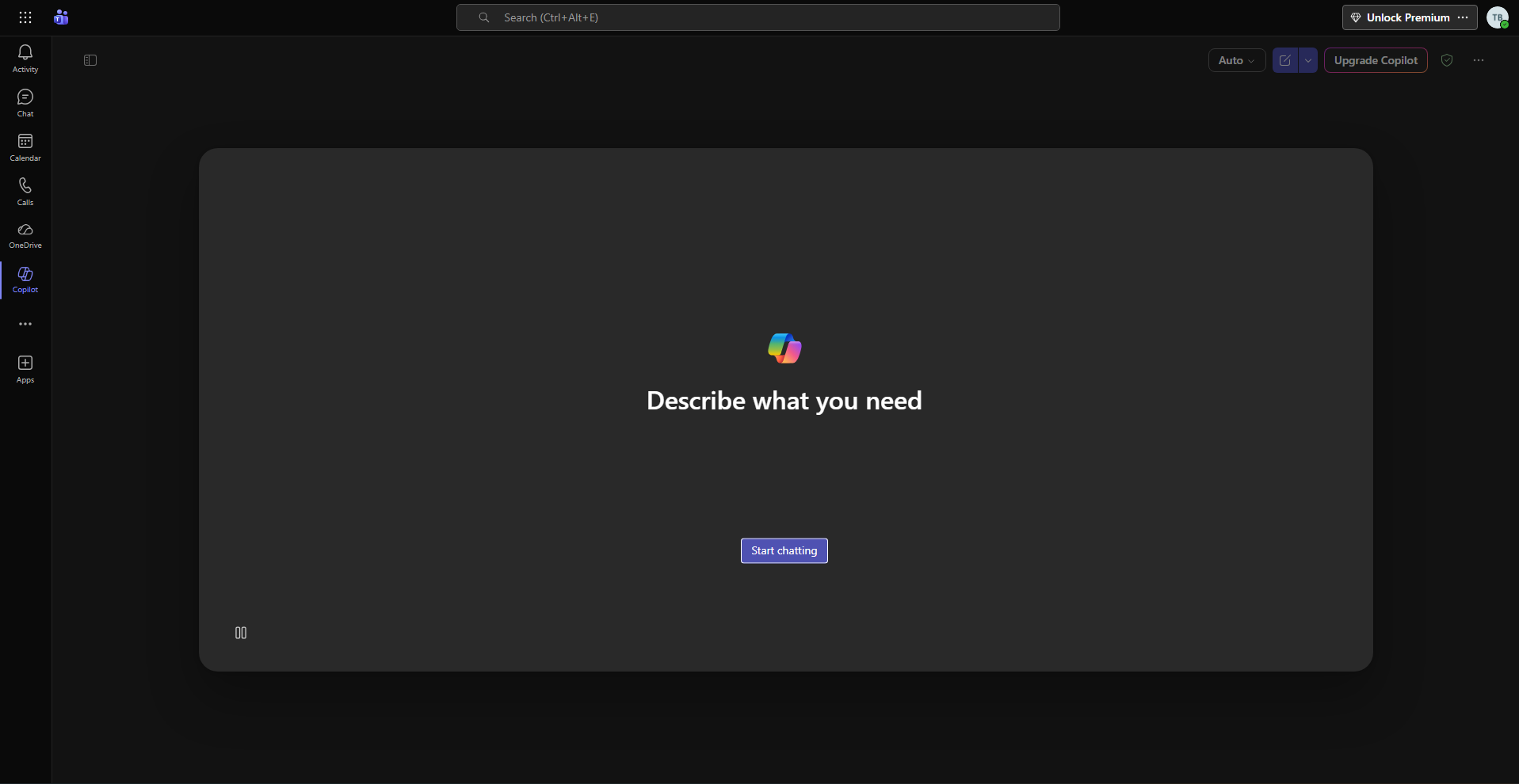
Copilot in Meetings
This is where most people get the clearest and most immediate value from Copilot in Teams.
During a live meeting, a Copilot panel opens on the right side of the screen. You can ask it questions about what is being discussed in real time. If you join a meeting that has already started, Copilot will offer to catch you up on what you missed before you joined. You can ask it to summarise the key decisions made so far, list the action items that have come up, or tell you what a specific person said on a particular topic.
For transcription to work properly, the meeting organiser needs to have live transcription enabled. Without transcription, Copilot can still reference the meeting chat but cannot access spoken content. The organiser can control whether Copilot is available in any given meeting through the meeting settings, so if you organise meetings yourself it is worth checking these are configured the way you want.
After the meeting ends, Copilot does not disappear. You can access it from the meeting chat and from the Recap tab. This is where the after-meeting workflow becomes genuinely useful.
How to Use the Meeting Recap
Step 1: Open the Meeting Recap
After a meeting finishes, go to the Chat section in Teams and find the meeting conversation. Select the Recap tab at the top. Copilot generates a summary of what was discussed, who said what, and what action items were identified.
Step 2: Review and Refine the Summary
The default recap gives you a general overview. You can ask Copilot follow-up questions directly in the recap view. Ask it to list only the action items assigned to you, pull out the decisions that were made, or summarise what was said about a specific topic. Each response includes source citations that link back to the specific moment in the transcript.
Step 3: Export to Word or Excel
If the recap is something you want to share or build on, Copilot can export its responses. Summaries export to Word and tables of information export to Excel. This turns what would have been fifteen minutes of post-meeting note-writing into a two-minute process.
Copilot in Chats and Channels
The second major use case is catching up on conversations without reading every message.
Open any chat or channel in Teams and look for the Copilot icon in the upper right corner of the conversation. Click it and a Copilot panel opens on the right. From here you can ask Copilot to summarise what you have missed, identify decisions or action items from the conversation, or tell you what was discussed on a specific topic or within a specific time period.
For channels, Copilot can also summarise individual threads. Within a long channel post with many replies, select the three-dot menu on the post and choose Summarise Thread, or scroll to the bottom of the thread and click the same option. Copilot generates a short summary of the entire discussion without you reading every reply.
The default time window Copilot works within is thirty days. You can specify a different period in your prompt, for example asking what was decided last week or what happened in this chat in March, and Copilot will adjust accordingly.
Copilot in Group Chats
A more recent addition allows you to bring Copilot into a group chat the same way you would add a teammate. Once it is in the chat, any member of the group can type @Copilot followed by a request and Copilot will respond in the thread. This is useful for teams that want to use AI assistance collaboratively rather than individually, letting everyone reference the same AI-generated summaries and answers without each person running their own separate queries.
What Copilot Cannot Do in Teams
Being clear about limitations saves frustration. Copilot in Teams works only within your organisation's Teams environment. It cannot access meetings hosted by other organisations, and it does not perform general web searches or pull in external information. Everything it references comes from your Teams content: transcripts, chat messages, and channel posts.
It also cannot summarise images, files, or Loop components shared within chats. If someone shared a document in a conversation, Copilot can tell you that the document was shared but cannot read its contents unless it is also available in your Microsoft 365 environment through another route.
For users aged 13 to 17 in educational settings, certain features operate under different policies set by administrators.
The Prompts That Work Best
Copilot in Teams responds to natural language, and more specific prompts produce more useful results. These are the types of requests that consistently deliver strong output.
Meetings: asking it to list every action item from this meeting with the name of the person responsible, or to summarise what was decided about a specific project or topic, produces focused and citable responses.
Chats: asking what key decisions were made in the last two weeks, what has been discussed about a particular project, or what did a specific colleague say about a deadline gives you targeted answers rather than a generic overview.
Channels: asking it to summarise the main points in this thread before you respond ensures you have the full context of a long discussion before adding your own message.
Is Copilot in Teams Worth It
For anyone who attends multiple meetings per day, manages threads across several channels, and regularly has to catch up on conversations they missed, the time savings are real and accumulate quickly. The meeting recap alone removes a significant chunk of post-meeting administration that most knowledge workers perform manually every day.
For occasional Teams users who attend a meeting or two per week and have manageable chat volumes, the benefit is less compelling, and the licence cost may not justify itself.
The honest assessment is that Copilot in Teams is most valuable for people who spend the majority of their working day in Teams and for whom the volume of information flowing through meetings and conversations is already a genuine problem. For those people, it is not a novelty feature. It is the kind of capability that quietly changes how the workday runs.
Frequently Asked Questions
Does Copilot in Teams record my meetings?
Copilot uses live transcription to follow meeting content, not a separate recording. Transcription must be enabled by the meeting organiser for Copilot to access spoken content. Your organisation's compliance and data retention policies govern how transcripts are stored. Meeting organisers control whether Copilot is active in any given meeting.
Can I use Copilot in Teams if I do not have a Microsoft 365 Copilot licence?
Basic Copilot Chat is available to some Microsoft 365 users without the full Copilot licence, but the meeting recap, channel summarisation, and in-meeting assistance features require a Microsoft 365 Copilot licence. Check with your IT administrator to confirm what is available on your account.
Does Copilot in Teams work on mobile?
Yes. The Microsoft Teams mobile app supports Copilot features including chat summarisation and meeting recap access. In-meeting Copilot use on mobile has more limited functionality than on desktop but improves with each Teams update.
Can people outside my organisation use Copilot in my Teams meetings?
Copilot is only available to licensed users within your organisation. External participants in a Teams meeting can attend the meeting normally, but they cannot access or interact with Copilot during the session. Meeting organisers can also choose to disable Copilot for specific meetings through meeting settings.



Discussion (0)
Be the first to comment.