



Most people handle their passwords in one of two ways. They reuse the same password across multiple websites, or they use something simple and memorable that feels easy to remember. Both approaches create serious security risks. When one website gets breached, every other account using the same password is immediately at risk. A password manager solves this by generating and storing a unique, strong password for every account you have, so you only ever need to remember one. Bitwarden is the best free option available, and it works on Windows, in your browser, and on your phone. This guide explains what Bitwarden is and walks you through setting it up and using it on Windows.
What Is Bitwarden?
Bitwarden is a free, open-source password manager that stores all your login credentials in an encrypted vault. You access everything with one master password, and Bitwarden handles the rest. It generates strong unique passwords for new accounts, saves them automatically, and fills them in when you return to those sites.
What makes Bitwarden stand out from other password managers is its combination of being genuinely free and genuinely trustworthy. The free tier has no meaningful restrictions. You can store unlimited passwords, use it on unlimited devices, and sync everything across your PC, phone, and browser without paying anything. The source code is publicly available on GitHub, meaning security researchers and independent experts can audit exactly how it works. Multiple independent security audits have been conducted, and there is no history of Bitwarden suffering a breach.
WIRED named it the best password manager for most people. It consistently ranks first in independent security assessments. For everyday Windows users who want reliable password security without a subscription, Bitwarden is the starting point.
Free vs Premium
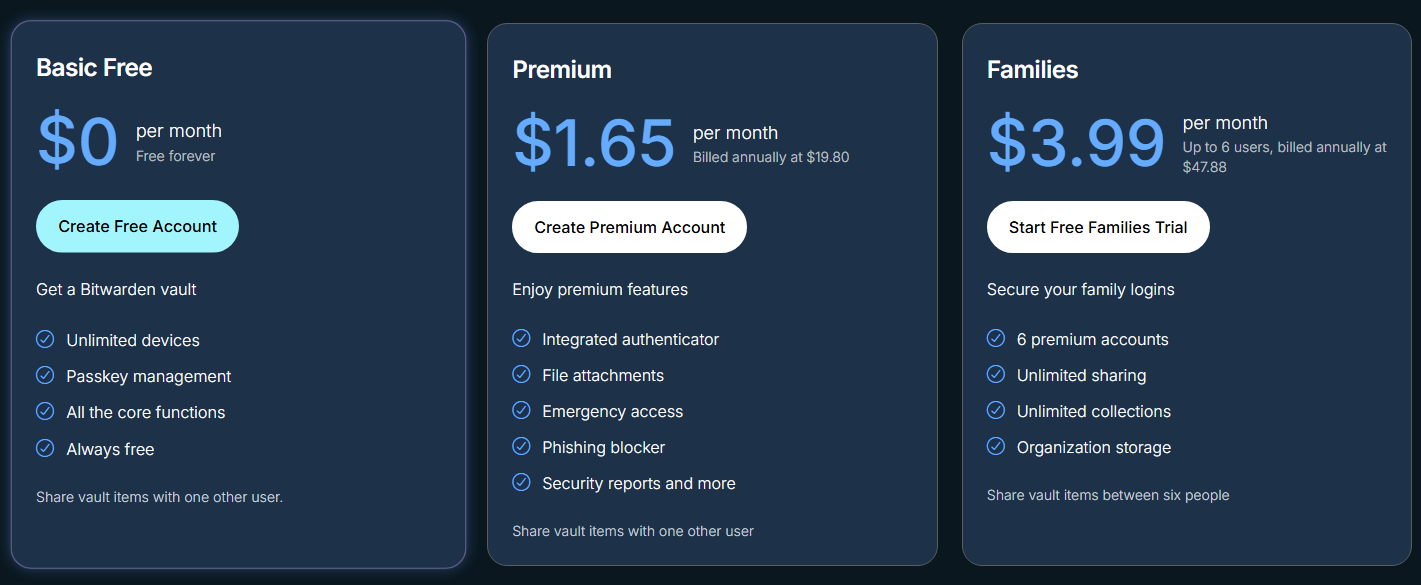
The free version covers everything most individual users need. Unlimited passwords, unlimited devices, autofill in browsers, a password generator, and secure notes are all included at no cost.
The Premium plan costs $1.65 per month billed annually. It adds integrated two-factor authentication codes stored inside Bitwarden, vault health reports that flag weak or reused passwords, emergency access for trusted contacts, and encrypted file attachments up to 1GB. For most people starting out, the free version is the right place to begin.
How to Create a Bitwarden Account
Before installing anything, you need a Bitwarden account. Go to bitwarden.com and click Get Started. Enter your email address and create your master password.
Your master password is the single most important thing in this entire setup. It is the only password you need to remember. Bitwarden uses zero-knowledge encryption, meaning the company never sees your master password and has no way to recover it if you forget it. Choose something long and memorable that you have never used anywhere else. A phrase of four or more random words works well. Write it down and store it somewhere physically safe until you have it memorized.
After creating your account, Bitwarden will send a verification email. Click the link in that email to verify your address before continuing.
How to Install Bitwarden on Windows
Bitwarden on Windows has two components that work together. The desktop app and the browser extension. You want both.
Installing the Desktop App
Go to bitwarden.com/download and click the Windows installer under Desktop Apps. Download and run the installer. Once installed, Bitwarden opens automatically. Sign in with your email and master password.
Inside the desktop app, go to File, then Settings. Under Security, enable Unlock with Windows Hello if your PC has a fingerprint reader or face recognition set up. This lets you unlock your vault with biometrics instead of typing your master password every time. Under App Settings, check the Start automatically on login box so Bitwarden launches in the background every time Windows starts.
Installing the Browser Extension
The browser extension is where you will actually use Bitwarden most of the time. It handles autofill directly in your browser as you log in to websites.
Go to bitwarden.com/download and find the extension for your browser. Bitwarden supports Chrome, Edge, Firefox, Safari, Brave, Vivaldi, and Opera. Click the link for your browser. This takes you to the extension page in the appropriate store. Click Add to install it.
Once installed, click the Bitwarden icon in your browser toolbar and sign in. You only need to sign in once. After that, Bitwarden stays connected and the extension icon shows how many saved logins it finds on each website you visit.
How to Add Passwords to Your Vault
There are three ways passwords get into your Bitwarden vault.
The first is automatic capture. When you log in to a website that Bitwarden does not already have saved, a prompt appears asking if you want to save those credentials. Click Save and Bitwarden adds them to your vault immediately. This is how most of your passwords will be added as you use the web normally.
The second is manual entry. Click the Bitwarden icon in your browser toolbar, then click the plus icon to add a new item. You can add the website URL, your username, and your password manually. This is useful for accounts you rarely visit in a browser, like email accounts or services you access through apps.
The third is importing from another password manager or your browser. If you have saved passwords in Chrome, Edge, Firefox, or a previous password manager like LastPass, you can export them from those apps and import them directly into Bitwarden. Go to the Bitwarden web vault at vault.bitwarden.com, click Tools, then Import Data, and select the source from the dropdown list. Follow the instructions for your specific app. This is the fastest way to move an existing collection of passwords into Bitwarden at once.
How Autofill Works
Autofill is what makes Bitwarden actually useful in daily use. When you visit a login page, the Bitwarden extension icon in your toolbar shows a number indicating how many saved logins it has for that site. Click the icon, click the correct account, and Bitwarden fills in your username and password automatically.
If Bitwarden does not fill automatically, you can click directly on a username or password field and look for Bitwarden's inline suggestion. A small Bitwarden icon or dropdown appears inside the field. Click it to select your saved credentials.
You can also use the keyboard shortcut Ctrl + Shift + L to trigger autofill on the current page. Pressing the shortcut again cycles through multiple saved accounts for the same site if you have more than one.
How to Generate Strong Passwords
Every time you create a new account somewhere, let Bitwarden generate the password instead of creating one yourself. Click the Bitwarden extension icon in your browser, then click the Generator tab. You will see a randomly generated password with options to adjust its length and complexity, including the mix of uppercase letters, numbers, and symbols.
Copy the generated password, paste it into the new account's password field, and save the login in Bitwarden when prompted. You never need to know or remember what that password actually is. Bitwarden handles it from that point on.
You can also access the generator from the desktop app and from the Bitwarden website at vault.bitwarden.com.
What Else Bitwarden Stores
Bitwarden is not limited to website passwords. Your vault can also store secure notes for sensitive information you want encrypted, such as Wi-Fi passwords, software license keys, or recovery codes. It stores payment card details that can be autofilled on checkout pages. It stores identity information like your name, address, and phone number for filling out online forms. On the premium plan, you can also attach encrypted files to any vault item.
Everything stored in Bitwarden is encrypted with AES-256 encryption before it leaves your device. The encryption and decryption happen locally on your machine. Bitwarden's servers only ever store encrypted data that only your master password can unlock.
Setting Up Two-Factor Authentication
Adding two-factor authentication to your Bitwarden account itself is one of the most important steps you can take. Even if someone obtained your master password, they would still need a second verification to access your vault.
Go to vault.bitwarden.com, click your account icon, then Account Settings, and then Security. Select Two-step Login. The free tier supports two-factor authentication via an authenticator app such as Google Authenticator or Authy, and via email codes. Select Authenticator App and follow the instructions to scan the QR code with your authenticator app. From that point on, logging into Bitwarden on a new device will require both your master password and a six-digit code from your authenticator app.
Accessing Your Vault Without the App
If you are on a computer that does not have Bitwarden installed, you can access your vault from any browser by going to vault.bitwarden.com and logging in with your email and master password. Everything is available there, though autofill does not work without the extension installed. This is useful when you are traveling or using a shared computer and need to look up a password manually.
Final Thoughts
Using a password manager is one of the most meaningful steps you can take to improve your online security, and Bitwarden makes it easier than it has ever been. The free tier is genuinely complete for individual use, the setup takes less than ten minutes, and once the browser extension is installed, it fades into the background and just works. You generate a password when you sign up for something new, Bitwarden saves it, and fills it in automatically next time. That is the entire workflow. If you are still reusing passwords or relying on your browser's built-in password storage, switching to Bitwarden is a straightforward upgrade worth making today.
Frequently Asked Questions
Is Bitwarden really free?
Yes. Bitwarden's free tier includes unlimited passwords, unlimited devices, autofill, a password generator, secure notes, and sync across all your devices. There are no meaningful restrictions on the free plan for individual use. The Premium plan at $1.65 per month adds extras like integrated two-factor authentication codes and vault health reports.
Is Bitwarden safe to use?
Yes. Bitwarden uses AES-256 encryption and encrypts everything locally on your device before it is sent to Bitwarden's servers. The company cannot see your passwords or your master password. The source code is open-source and has been independently audited multiple times. There is no history of Bitwarden suffering a data breach.
What happens if I forget my master password?
Bitwarden uses zero-knowledge encryption, meaning the company has no access to your master password and cannot recover it for you. If you forget your master password and have no recovery options set up, you will lose access to your vault. This is why it is essential to store your master password somewhere physically safe when you first create it.
Do I need both the desktop app and the browser extension?
The browser extension is the most important component for daily use as it handles autofill directly in your browser. The desktop app is useful for managing your vault, generating passwords, and enabling Windows Hello biometric unlock. Most users will benefit from having both installed.
Can I import passwords from Chrome, Edge, or another password manager?
Yes. Bitwarden supports importing from Chrome, Edge, Firefox, LastPass, 1Password, Dashlane, KeePass, and many other sources. Go to vault.bitwarden.com, click Tools, then Import Data, select your source from the dropdown, and follow the instructions to export and import your existing passwords.



Discussion (0)
Be the first to comment.