




Partitioning a hard disk drive means dividing a single physical drive into multiple logical sections. Each section works like its own storage space, which helps you organize data, install operating systems, and manage files more efficiently. This structure improves control, stability, and flexibility on any Windows, macOS, or Linux device.
Table of contents
- Understanding what partitioning a hard disk drive means
- Why users partition a hard disk drive
- How partitions work inside the drive
- Types of partitions and what they are used for
- Benefits of partitioning a hard disk drive
- Risks and limitations of partitioning
- When you should consider partitioning your drive
- How to create or edit partitions on Windows
- How to create or edit partitions on macOS
- How to create or edit partitions on Linux
- Understanding file systems and why they matter
- Troubleshooting common partitioning issues
- Tips for managing partitions safely
- FAQs
- Summary
Understanding what partitioning a hard disk drive means
Partitioning creates virtual boundaries inside a drive, forming independent storage zones. These zones act like separate disks, even though they share the same hardware. This setup helps you structure your storage in a more organized way.
Why users partition a hard disk drive
Partitioning improves file organization by separating system files from personal data. It also helps you manage backups, recovery, and security more effectively. Some people also partition their drives to run multiple operating systems.
How partitions work inside the drive
Your drive stores a map called a partition table that tells the operating system how each section is arranged. The operating system reads this layout and mounts each partition as a separate volume. This process makes storage management predictable and structured.

The role of the partition table (MBR and GPT)
MBR and GPT define how partitions are stored and accessed. MBR supports up to four primary partitions, while GPT supports many more and handles large drives better. Modern systems prefer GPT for reliability and flexibility.
Types of partitions and what they are used for
Different partitions handle different storage roles. Choosing the right type helps you maintain a clean and functional system. It also improves recovery options after errors or hardware problems.
Primary, logical, and extended partitions
Primary partitions store bootable systems or standard data volumes. Logical partitions sit inside an extended partition and let you exceed the primary partition limit. This structure helps older systems organize storage more efficiently.

System, recovery, and data partitions
System partitions hold boot files and operating system components. Recovery partitions store tools for fixing startup issues or resetting Windows. Data partitions store user files and help keep personal content separate from system data.
Benefits of partitioning a hard disk drive
Partitioning can make reinstalls easier because you keep personal data on a separate partition. It also helps limit damage if corruption affects only one section. Some users also see performance improvements when separating workloads.
Risks and limitations of partitioning
Deleting or resizing partitions without backups can cause data loss. MBR limits how many primary partitions you can create. Editing system partitions without planning may break startup processes or recovery tools.
When you should consider partitioning your drive
Partitioning helps when you set up a new PC or prepare for a dual-boot setup. It also works well for separating work files from personal content. Users who want safer backup workflows benefit from a dedicated data partition.
How to create or edit partitions on Windows
You can partition a drive on Windows using two native tools. These tools work for most home and office setups without requiring paid software.
Using disk management
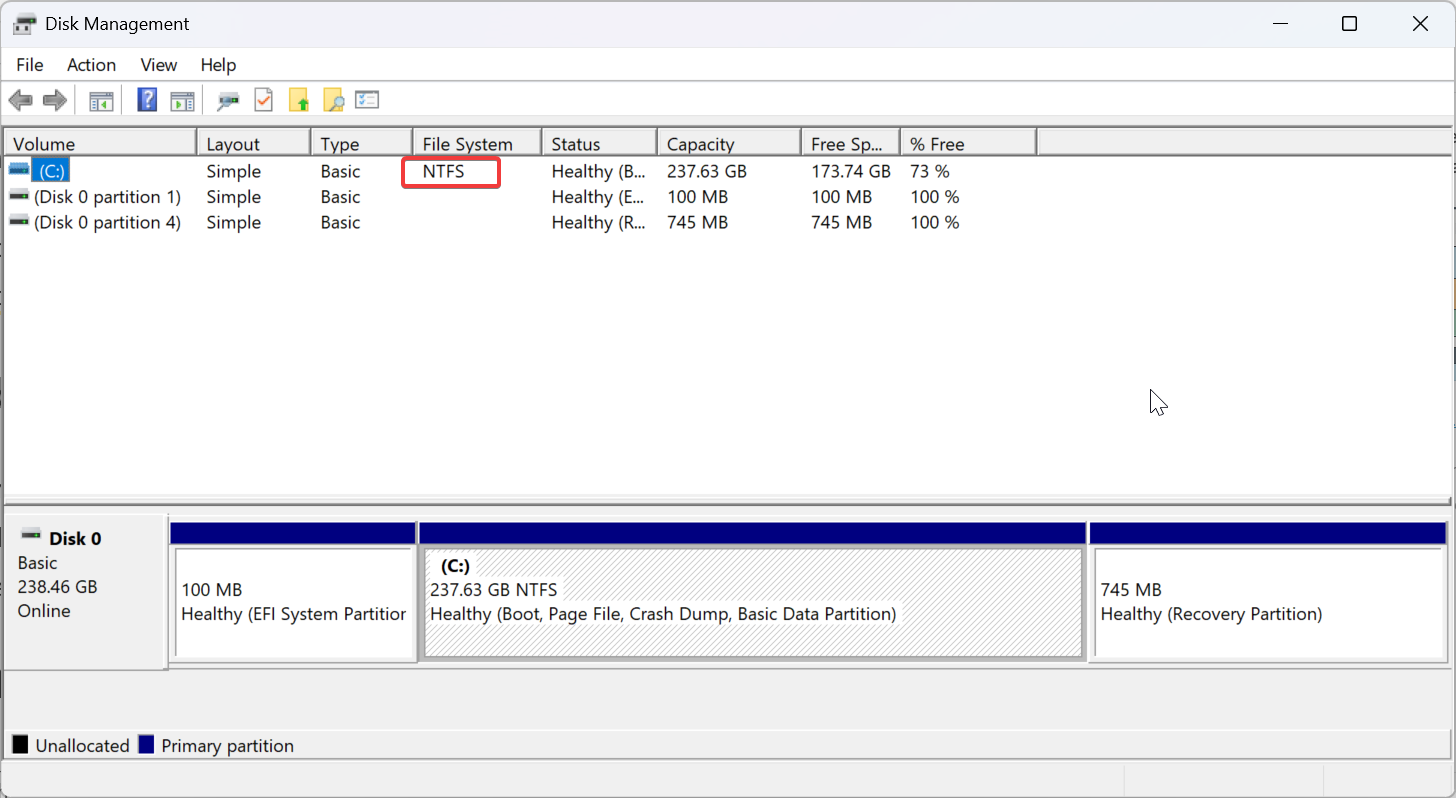
Disk Management offers a graphical interface for resizing and creating partitions. It works well for basic operations like shrinking the system partition or adding a new volume. Most users can manage partitions here without advanced knowledge.
Using diskpart commands
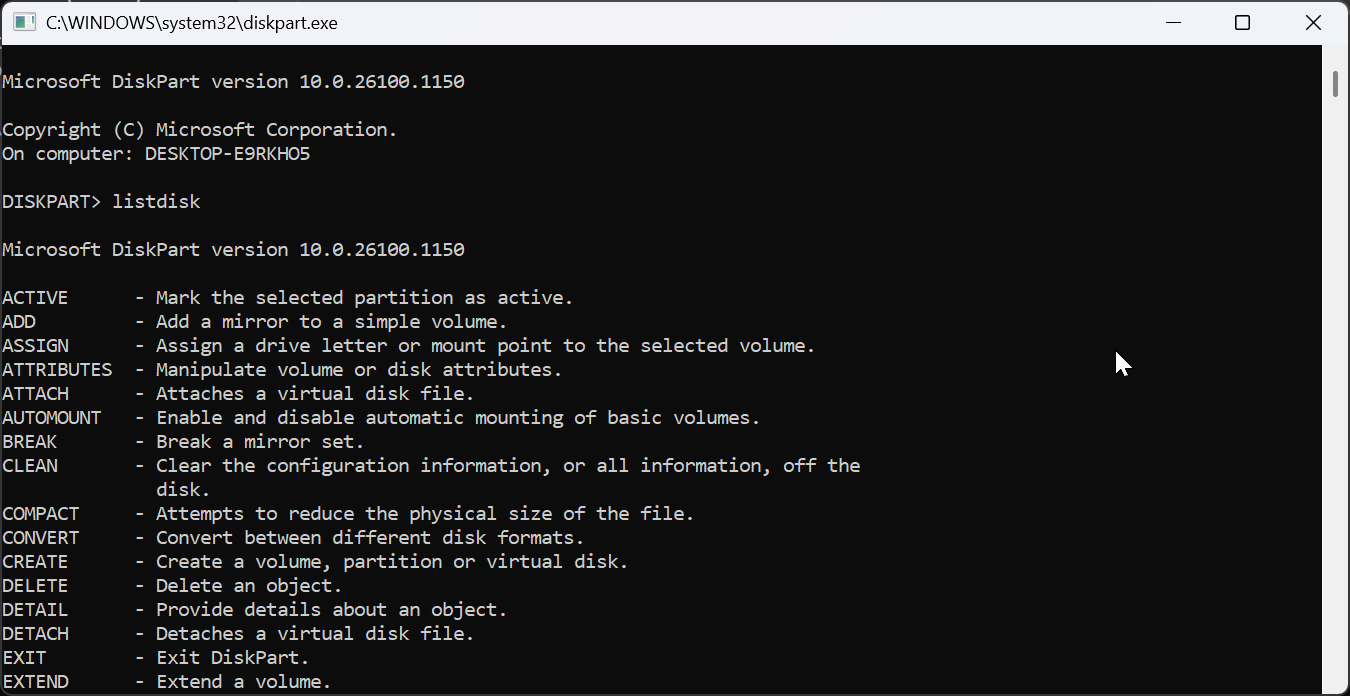
DiskPart uses command-line instructions to create, delete, and format partitions. It gives more control than Disk Management and handles complex layouts. This option works best for advanced users who need precision.
How to create or edit partitions on macOS
Disk Utility lets macOS users split, merge, or format partitions. It supports APFS and other formats used in Apple environments. The interface keeps the process simple, even when you prepare a drive for Boot Camp.
How to create or edit partitions on Linux
Linux users can manage partitions through GParted or terminal tools like fdisk and parted. These utilities support a wide range of file systems used in Linux environments. They give full control over drive layouts and advanced configurations.
Understanding file systems and why they matter
A partition must use a file system before it stores data. File systems determine compatibility, speed, and reliability. Choosing the right one helps you avoid errors and performance issues.
Common formats: NTFS, FAT32, exFAT, APFS, EXT4
NTFS works best for Windows systems and large files. FAT32 and exFAT offer cross platform compatibility. APFS works for macOS, while EXT4 is the standard for Linux.
Troubleshooting common partitioning issues
Partitioning fails when free space becomes fragmented, or system files block shrink operations. Errors also occur when partitions overlap or use unsupported formats. Checking disk health and defragmenting often fixes these issues.
Tips for managing partitions safely
- Keep a full backup before you resize or delete partitions.
- Use GPT instead of MBR on modern PCs for more reliability.
- Label your partitions clearly to avoid confusion later.
- Leave some unallocated space available for system recovery or future resizing.
FAQs
What does partitioning actually do to my drive? Partitioning creates separate storage sections that the operating system treats as independent volumes.
Will partitioning erase my data? Creating a new partition does not erase data, but resizing or deleting partitions can if you do it incorrectly.
Is partitioning still useful on SSDs? Yes, partitioning helps organize data and manage multiple operating systems on SSDs just as it does on HDDs.
How many partitions should I create? Most users only need a system partition and a data partition. Advanced setups may need more.
Summary
- Partitioning divides a physical drive into multiple logical sections.
- It improves organization, recovery, and operating system management.
- Windows, macOS, and Linux offer native tools for partitioning.
- Users should understand file systems before they format partitions.
- Backups and best practices reduce risk during partitioning.
Partitioning your hard disk drive gives you more control over how your storage works and how your operating system manages data. When you do it carefully, it improves organization, simplifies recovery, and makes your system easier to maintain.

Discussion (0)
Be the first to comment.