



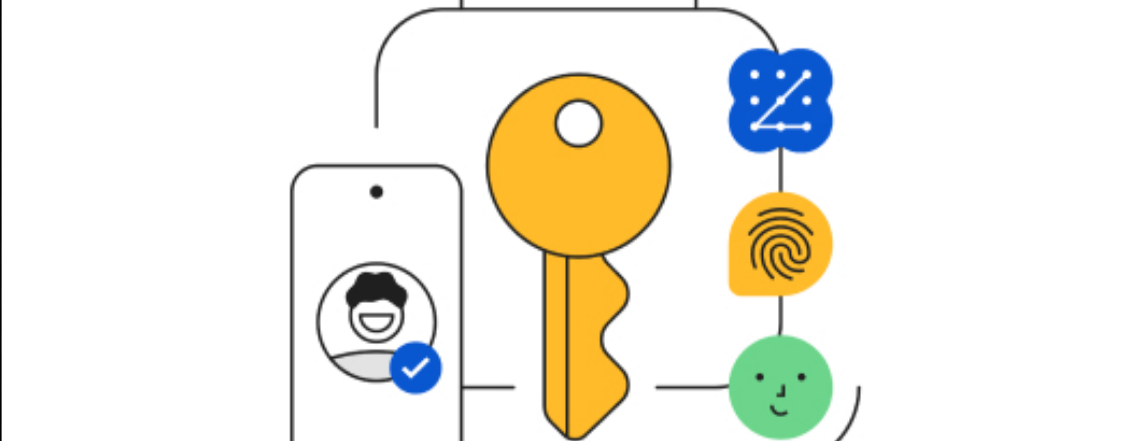
Think about the last time you forgot a password. You clicked the reset link, checked your email, made up a new one, tried to make it different enough from the last one while still being memorable, gave up and let your browser generate something unreadable, and then forgot where you saved it. Most people have done this dozens of times. It is one of the most reliably frustrating experiences on the internet.
Passkeys exist to end that cycle entirely. They are not a new type of password. They are a replacement for passwords, and the way they work is fundamentally different from anything that came before. Google, Apple, Microsoft, PayPal, Amazon, and hundreds of other services now support them, and the shift toward making passkeys the default way to sign in is well underway.
Why Passwords Are the Problem
Before understanding passkeys, it helps to understand exactly what is wrong with passwords, because the problems go deeper than most people realise.
When you create a password on a website, that website stores something derived from your password on its servers. If that server gets breached, which happens regularly to even large companies, attackers can potentially work backwards to figure out your actual password. Once they have it, they try it on every other service you use, because most people reuse passwords. This is called credential stuffing, and it is responsible for a large proportion of account takeovers that happen every day.
Phishing makes things worse. A convincing fake login page for your bank or email provider can capture your password the moment you type it, and you would never know until the damage was done. Even two-factor authentication sent by SMS can be intercepted or socially engineered away from you.
The uncomfortable truth is that passwords require you to create a secret and share it with every website you use, trusting each of them to store it properly. That is a lot of trust to extend to a lot of organisations, and history shows it is often misplaced.
What a Passkey Actually Is
A passkey is a pair of cryptographic keys: one public and one private. When you create a passkey for a website, your device generates this pair automatically. The public key goes to the website's server. The private key stays on your device and never leaves it.
When you want to sign in, the website sends a challenge to your device, essentially asking it to prove it holds the right private key. Your device uses your biometric, whether that is your fingerprint, face scan, or PIN, to unlock the private key and respond to the challenge. The website checks the response against the public key it stored, confirms they match, and signs you in. The whole process takes a few seconds and requires no typing.
The private key never travels over the internet. The website never learns it. There is nothing stored on a server that an attacker could steal to compromise your account. Even if the website suffers a data breach, all the attacker gets is your public key, which is useless on its own.
How It Is More Secure Than Passwords and Two-Factor Authentication
The security advantage of passkeys comes from one critical property: they are phishing-resistant by design. A passkey is tied to the specific domain it was created for. A passkey you created for google.com will not work on a fake site at g00gle.com, even if that site looks identical. Your device verifies the origin of the request before responding, and if it does not match, nothing happens. You cannot be tricked into handing over your credentials because there are no credentials to hand over.
This is a meaningful difference from passwords with two-factor authentication. If you fall for a sophisticated phishing page, you might type your password and then your two-factor code, and an attacker could use both in real time to take over your account before the code expires. Passkeys make this attack impossible, because the authentication happens between your device and the legitimate server without any user-typed information that could be captured.
Microsoft measured that passkey sign-ins to their services take an average of eight seconds, compared to sixty-nine seconds for password sign-ins with a second factor. Faster and safer is a rare combination.
Where Your Passkeys Are Stored
This is the question most people ask immediately, and it is a reasonable one. The answer depends on which ecosystem you are in.
With iPhone or Mac, passkeys are stored in iCloud Keychain and sync automatically across all your Apple devices. On an Android phone, they sync through Google Password Manager. On Windows, Microsoft's ecosystem handles them through Windows Hello. All three major platforms support third-party password managers including 1Password and Bitwarden for passkey storage, which is useful if you work across different platforms and do not want to be locked into one ecosystem.
Because passkeys sync across your devices, losing your phone does not mean losing access to your accounts. If you have an iPhone and an iPad with the same Apple ID, your passkeys exist on both. Getting a new phone does not require recreating your passkeys either, because they restore from your cloud keychain when you sign into your account on the new device.
How to Create a Passkey on a Website
The process is slightly different on each site but follows the same pattern everywhere.
Step 1: Find the Passkey Option in Settings
Log into the account on a website that supports passkeys. Go to your security or account settings and look for an option labelled Passkeys, Passwordless sign-in, or Security keys. Major platforms including Google, Apple, Microsoft, PayPal, GitHub, and Amazon all have this option. The number of supporting sites grows weekly.
Step 2: Choose to Add a Passkey
Select the option to create or add a passkey. The website will ask you to confirm using your device's authentication method. On a phone this is your fingerprint or face. On a Windows PC this is Windows Hello, which could be fingerprint, face recognition, or your PIN.
Step 3: Authenticate Once to Register
Confirm using your biometric or PIN when prompted. Your device generates the key pair, sends the public key to the website, and stores the private key. The whole process takes about ten seconds.
Step 4: Sign In With Your Passkey Next Time
The next time you visit that site, instead of typing a password you tap Sign in with a passkey or simply scan your fingerprint or face when prompted. The site recognises you and lets you in without any passwords, codes, or typing.
What About Your Existing Passwords
Passkeys do not require you to delete your password. Most services maintain your password as a backup option, at least for now. You can create a passkey and still use your password if you need to. Over time, as passkey support becomes universal, many services will likely phase out passwords entirely or relegate them to account recovery scenarios only.
You do not need to migrate everything at once. A practical approach is to create a passkey the next time a service prompts you to do so, or to set one up on the accounts that matter most to you, your email, your banking apps, and your primary cloud storage, and expand from there as you get comfortable with how they work.
The Current Limitations
Passkeys are not perfect yet. The main friction point is cross-platform use. If you created a passkey using Apple's ecosystem and need to sign in on a Windows PC that is not yours, the process is slightly more involved. You can use your phone's camera to scan a QR code and approve the sign-in from your phone, which works but is less seamless than using a device that already has your passkey stored.
Some older devices and browsers do not fully support passkeys yet. The support is expanding rapidly but is not yet universal. And while losing all your devices at once is an unlikely scenario, it is worth making sure your cloud account recovery is set up properly so you could restore your passkeys if needed.
These are temporary growing pains rather than fundamental problems. The underlying technology is mature, the major platforms are committed, and the experience will continue to improve.
Frequently Asked Questions
Do passkeys work across different browsers and operating systems?
Yes, with some caveats. Modern versions of Chrome, Safari, Firefox, and Edge all support passkeys. The major operating systems, Windows, macOS, iOS, and Android, all support them too. Cross-platform sign-ins, such as using a passkey stored on your iPhone to sign into a website on a Windows PC, work via a QR code that you scan with your phone to confirm the login.
What happens if I lose my phone with all my passkeys on it?
If your passkeys are synced to a cloud keychain such as iCloud Keychain or Google Password Manager, they restore automatically when you sign into that account on a new device. This is why setting up cloud backup for your credential manager is important. Passkeys tied to a specific device without cloud sync would need to be recreated, which is why most consumer implementations use synced passkeys by default.
Can a website be hacked to steal my passkeys?
No. The server only stores your public key, which is not sensitive. The private key that actually authenticates you never leaves your device. A breach of the server gives an attacker nothing useful for accessing your account.
Can I still use my password if I create a passkey?
Yes, in most cases. Most services keep your password as a fallback option when you create a passkey. The passkey becomes your primary sign-in method but the password remains as a backup. Some services may eventually remove passwords entirely as passkey adoption matures.
Are passkeys the same as two-factor authentication?
No. Two-factor authentication adds a second step on top of a password. Passkeys replace the password entirely. A passkey is both the first and second factor in one: possession of your device and verification of your identity through biometrics or PIN happen simultaneously. This makes them more convenient than password plus two-factor authentication while being more secure.



Discussion (0)
Be the first to comment.