




Most people use Claude as a chat interface. You ask a question, Claude answers, you copy what you need and move on. Artifacts change that relationship entirely. Instead of receiving a wall of text you then paste somewhere else, Claude produces a live, interactive piece of content in a dedicated panel right next to the conversation. Code that runs, websites that render, diagrams you can see, apps you can use and share immediately.
AI-powered Artifacts take this a step further. They embed Claude's intelligence directly into whatever Claude builds, so the finished artifact is not just a static output but a working AI-powered tool that other people can use without needing their own API key or any technical setup.
Here is what Artifacts actually are, how to enable them, and what you can do with AI-powered Artifacts once they are on.
What Are Claude Artifacts?
An Artifact is a piece of substantial, self-contained content that Claude displays in a dedicated window to the right of your conversation. Rather than dumping code or a long document into the chat where it gets buried, Claude opens a separate panel so you can see, interact with, and iterate on the output while continuing to talk.
Claude creates an Artifact automatically when what it is producing meets a few criteria: it is significant and self-contained, typically over 15 lines; it is something you are likely to want to edit or reuse; and it stands on its own without needing the surrounding conversation to make sense.
Common examples include code snippets, single-page HTML websites, SVG images, interactive React components, Markdown documents, and diagrams and flowcharts. You do not need to ask Claude to use an Artifact specifically. It decides when one is appropriate based on what you are asking for.
Artifacts are available on all plans including the free tier.
How to Enable Artifacts
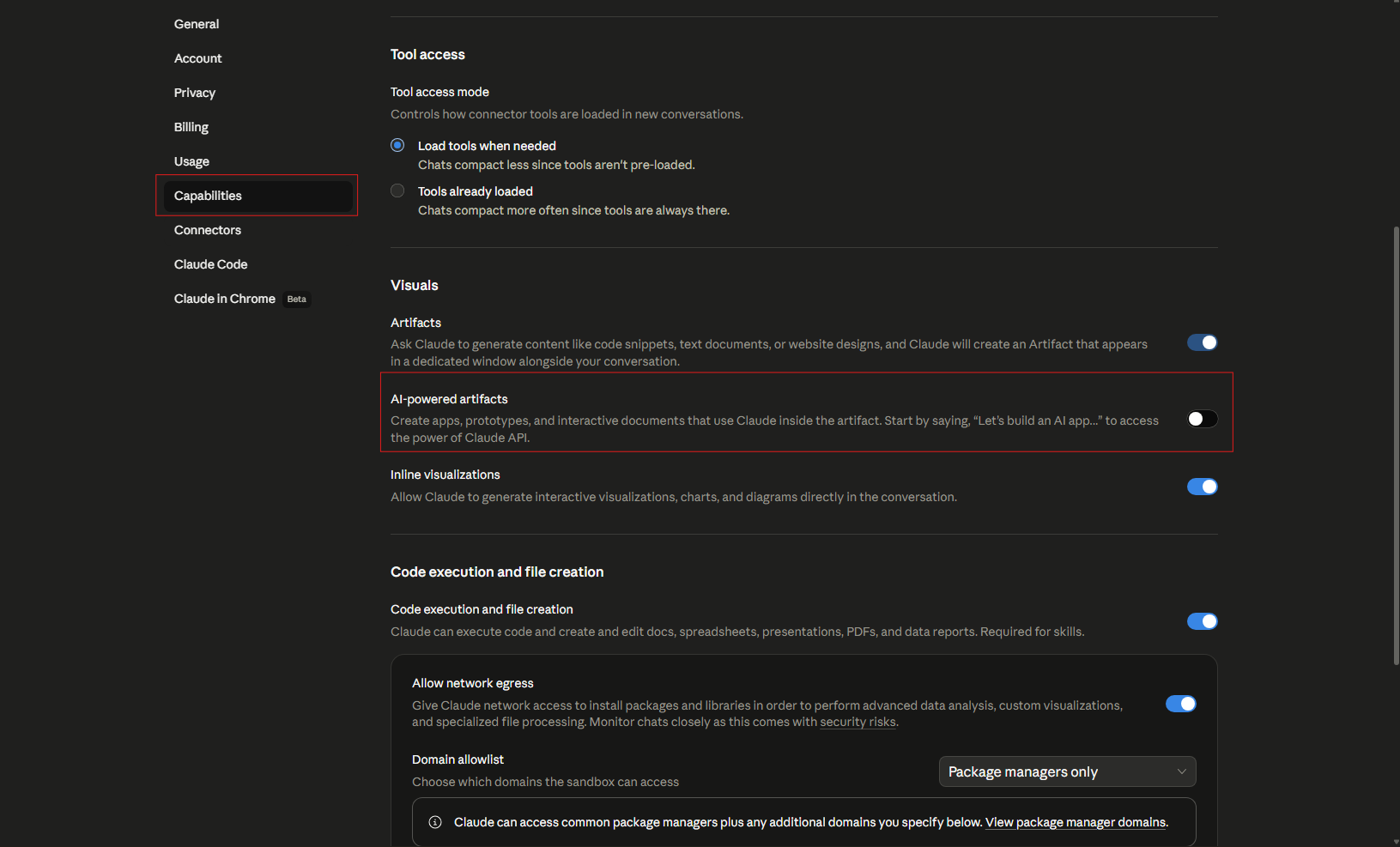
Artifacts may already be on by default, but if they are not appearing or you want to confirm the setting, here is where to find it.
1: Open Settings
Click your initials or name in the lower left corner of the Claude interface. A small menu appears. Select Settings.
2: Go to Capabilities
Inside Settings, select the Capabilities tab from the navigation on the left.
3: Toggle Artifacts On
Find the Artifacts entry in the list and make sure the toggle is switched on. If it is off, click it to enable it. You can return here at any time to turn it off again if you prefer Claude to respond without the side panel.
That is all it takes. From that point, any time you ask Claude for something that warrants an Artifact, the panel opens automatically on the right side of the screen.
What Are AI-Powered Artifacts?
Standard Artifacts produce content: a website, a chart, a document, a component. AI-powered Artifacts go a step further by embedding Claude itself into whatever is built, turning the output into a functioning AI application.
When you build an AI-powered Artifact, Claude writes code that calls Claude's own API. The finished artifact is an interactive app where users can ask questions, generate content, get personalised responses, play games, solve problems, or do anything else you have designed it to do. The app runs on Anthropic's infrastructure, not on your machine.
The process is straightforward. You describe what you want Claude to build. Claude writes the code. The app runs immediately in the Artifact panel. You can share it with anyone.
How Sharing and Usage Work
This is one of the genuinely impressive aspects of AI-powered Artifacts. When you share one, there are no API keys for the recipient to set up and no costs passed on to you as the creator. The person using your artifact authenticates with their own Claude account and usage counts against their own subscription limits, not yours. Sharing is free regardless of how many people use what you have built.
For Team and Enterprise plans, sharing an AI-powered Artifact within an organisation means team members can use it without additional costs to the person who created it.
Working With Artifacts Once They Are Running
Once an Artifact appears in the side panel, a few things are worth knowing.
You can ask Claude to modify or update the Artifact at any time and changes appear directly in the panel. A version selector lets you switch between different iterations, so you can try different directions without losing previous work. Editing prior chat messages creates a branching version of the conversation with its own set of Artifacts, which is useful for exploring alternatives.
In the lower right corner of the Artifact window you can view the underlying code, copy content to the clipboard, or download the file to use outside Claude entirely.
If an Artifact produces an error, a Try Fixing with Claude button appears near the error message. Clicking it copies the error details into a new message automatically. Send it to Claude and it will attempt to diagnose and resolve the issue.
MCP Integration and Persistent Storage
Two more advanced features are available on Pro, Max, Team, and Enterprise plans.
Artifacts can connect to external services through the Model Context Protocol, which means an artifact can read from and write to tools like Google Calendar, Asana, or Slack. When an artifact needs to access one of these tools, it asks for your approval on the first interaction and remembers the preference for future use.
Artifacts can also store data across sessions, which enables stateful applications like journals, trackers, and leaderboards. Storage can be personal, where each user sees only their own data, or shared, where all users see and interact with the same data. Persistent storage has a 20MB limit per artifact and works with text only. It is worth noting that persistent storage only becomes active once an artifact is published. During testing and development, storage operations will not save.
Final Thoughts
Artifacts shift Claude from a conversational assistant to something closer to a creative and development environment. For everyday use, the standard Artifact panel makes it easier to work with substantial content without losing it in the scroll of a long chat. For anyone who wants to build something shareable, AI-powered Artifacts are one of the more impressive things Claude can do, producing working AI applications from a plain language description with no code knowledge required on your part.
Enabling them takes about thirty seconds in Settings. Everything else follows from what you ask Claude to build.
Frequently Asked Questions
Are Artifacts available on the free plan?
Yes. Artifacts, including access to the sidebar and AI-powered Artifacts, are available on all Claude plans including the free tier.
How do I get to the Artifacts setting?
Click your name or initials in the lower left corner of Claude, go to Settings, then select the Capabilities tab. The Artifacts toggle is listed there.
What is the difference between a regular Artifact and an AI-powered Artifact?
A standard Artifact is self-contained content that Claude renders in a side panel, such as a webpage, a chart, or a React component. An AI-powered Artifact embeds Claude itself into the output, creating a working application that responds to users dynamically rather than displaying a static result.
Do people I share an AI-powered Artifact with need a Claude account?
Yes. Recipients need to authenticate with their own Claude account to use AI-powered Artifacts. Usage counts against their own subscription limits, not yours, and there is no cost to you as the creator regardless of how many people use what you have shared.
Can I turn Artifacts off if I do not want them?
Yes. Return to Settings, go to the Capabilities tab, and toggle Artifacts off. Claude will then respond with content inline in the chat rather than opening the side panel.



Discussion (0)
Be the first to comment.