



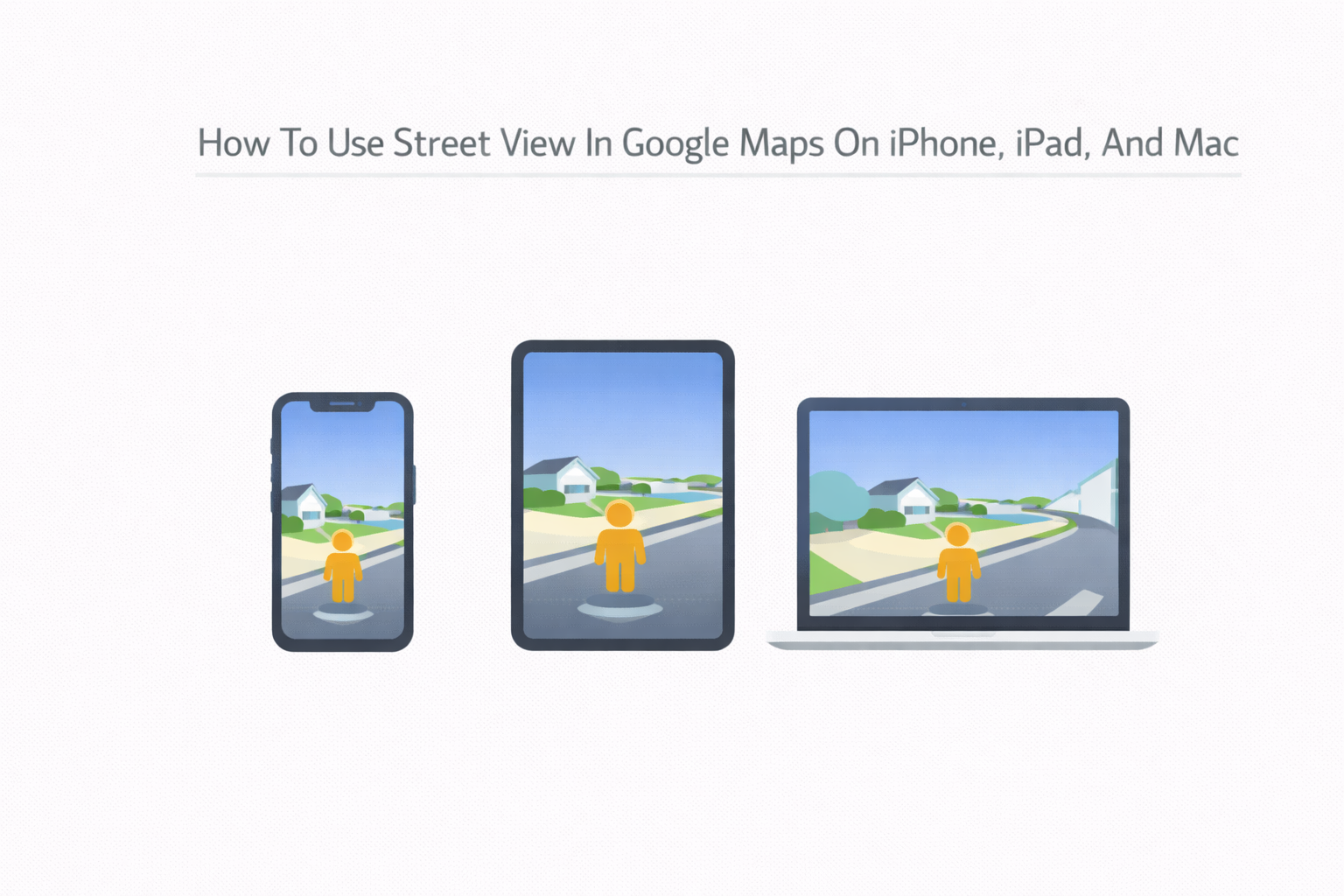
Google Maps Street View lets you explore real-world locations through street-level imagery before you ever arrive. Whether you are checking an unfamiliar address, previewing a travel destination, or confirming landmarks, Street View helps you understand your surroundings visually on iPhone, iPad, and Mac.
The feature works slightly differently depending on the device you use, but the core idea remains the same. Once you know where to tap or click, accessing Street View in Google Maps becomes quick and intuitive.
How To Use Street View In Google Maps On iPhone Or iPad
On iPhone and iPad, Street View appears through place previews, dropped pins, or the Street View layer. All methods rely on the Google Maps app being installed and updated.
Use any of the following methods based on how you prefer to browse locations.
Search For A Place Or Drop A Pin
- Open Google Maps and tap the search bar.
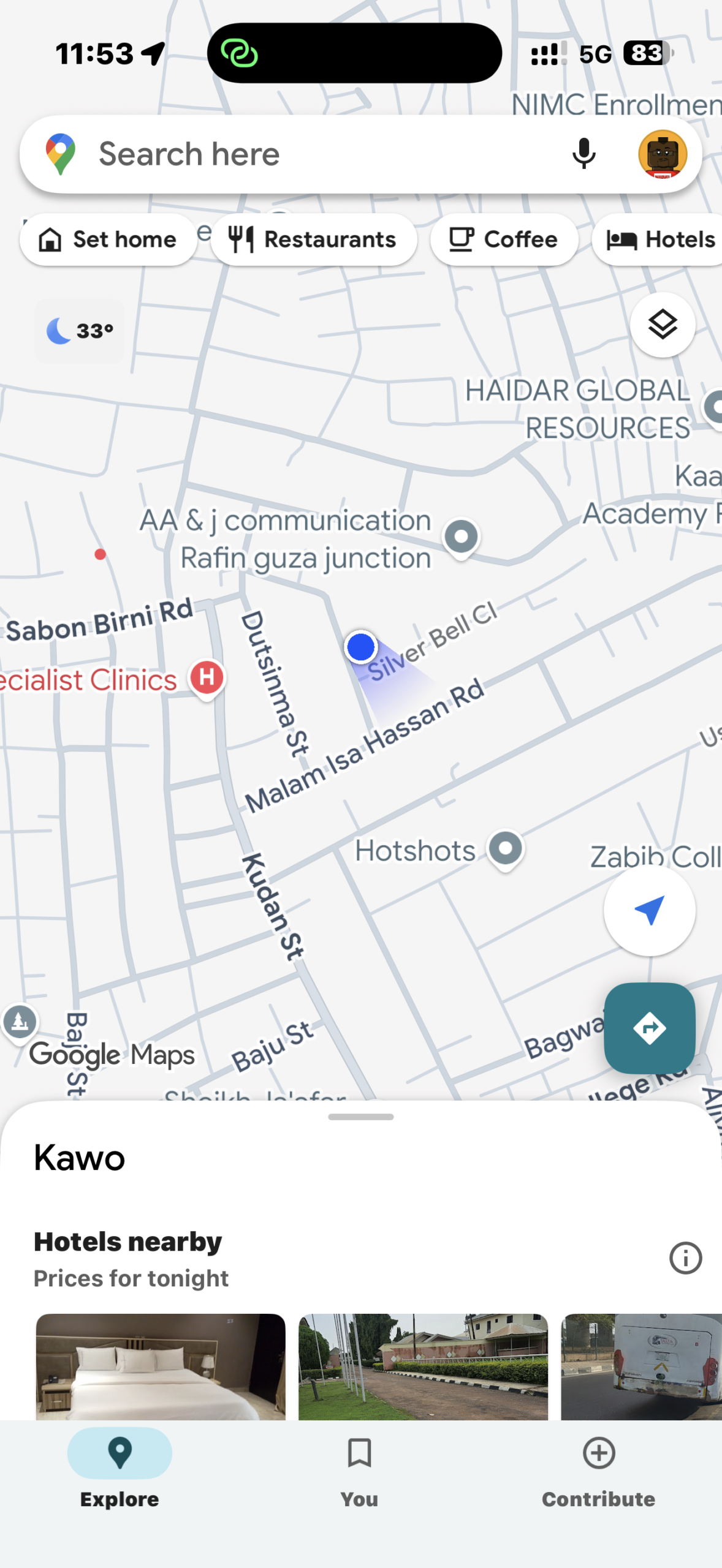
- Enter an address, business name, or landmark.
- Tap the red pin that appears on the map.
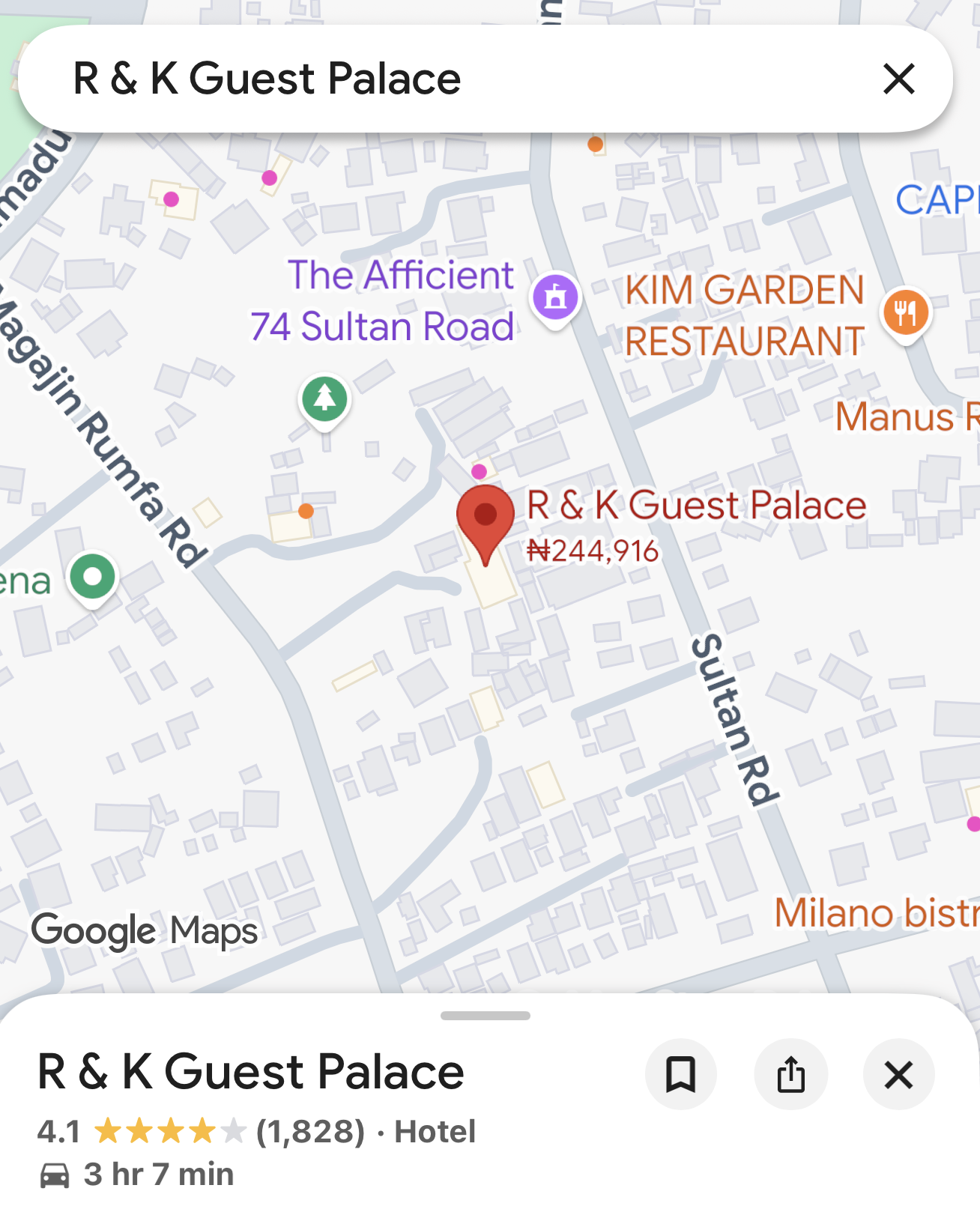
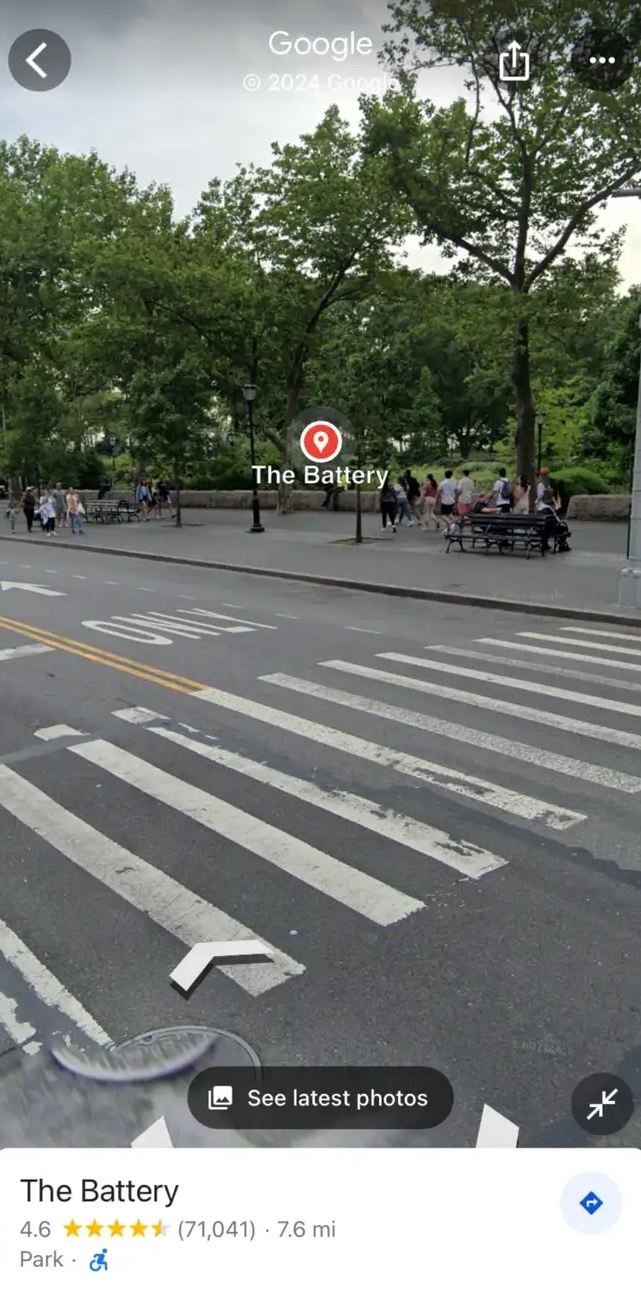
- Select the image preview labeled Street View.
Use A Saved Or Marked Location
- Open Google Maps and tap Saved.
- Select Favorites or another saved list.
- Tap a location, then scroll to Street View & 360°.
- Tap the image preview to enter Street View.
Enable The Street View Layer
- Tap the Layers icon in Google Maps.
- Select Street View, then close the menu.
- Look for blue lines highlighting streets.
- Tap any highlighted street to open Street View.
How To Use Split-Screen Street View On iPhone
Split-screen mode helps you view Street View and the map at the same time, which is useful for navigation and orientation.
- Open Street View using any method above.
- Tap the resize icon on the Street View window.
- View Street View and the map side by side.
- Tap the back arrow to return to full-screen mode.
How To Use Street View In Google Maps On Mac
On Mac, Street View works directly from your browser using Google Maps. The experience offers a wider view and easier navigation using your mouse and keyboard.
Search For A Place Or Drop A Pin
- Open a browser and go to Google Maps.
- Enter a location in the search bar.
- Zoom in until Street View becomes available.
- Click Street View when it appears.
Use The Street View Layer
- Click Layers in Google Maps.
- Select More, then choose Street View.
- Look for blue highlighted streets.
- Click a street to enter Street View.
Navigate Using Pegman
- Click and drag the Pegman icon onto a street.
- Release to enter Street View instantly.
- Use arrows or your mouse to explore.
How To Report A Street View Issue In Google Maps
If you notice outdated imagery, privacy concerns, or inappropriate content, Google allows you to report Street View issues directly.
On iPhone Or iPad
- Open Street View for the location.
- Tap the three-dot menu.
- Select Report A Problem.
- Adjust the red box and submit details.
On Mac
- Open Street View in Google Maps.
- Click the three-dot menu.
- Select Report A Problem.
- Describe the issue and submit.
Troubleshooting Common Problems
If Street View does not appear, zoom in further or enable the Street View layer. Some rural or private locations may not have street-level imagery available.
If images fail to load, check your internet connection or restart the Google Maps app or browser.
Tips
- Rotate your device to landscape for a wider Street View on iPhone and iPad.
- Use pinch gestures to zoom in and out on mobile devices.
- Click the compass icon on Mac to change direction quickly.
- Check blue lines before tapping to confirm Street View availability.
FAQ
Is Street View available everywhere?
No. Some locations do not have Street View coverage due to privacy or accessibility limits.
Can I share a Street View location?
Yes. Use the share option in Google Maps to send a Street View link.
Does Street View work without an internet connection?
No. Street View requires an active internet connection to load imagery.
Summary
- Street View lets you explore locations using real-world imagery.
- You can access it on iPhone, iPad, and Mac using multiple methods.
- The Street View layer highlights supported streets.
- Split-screen and Pegman improve navigation.
Conclusion
Street View in Google Maps makes exploring unfamiliar places easier and more visual. Whether you use an iPhone, iPad, or Mac, the feature helps you preview destinations with confidence and clarity before you arrive.


Discussion (0)
Be the first to comment.