



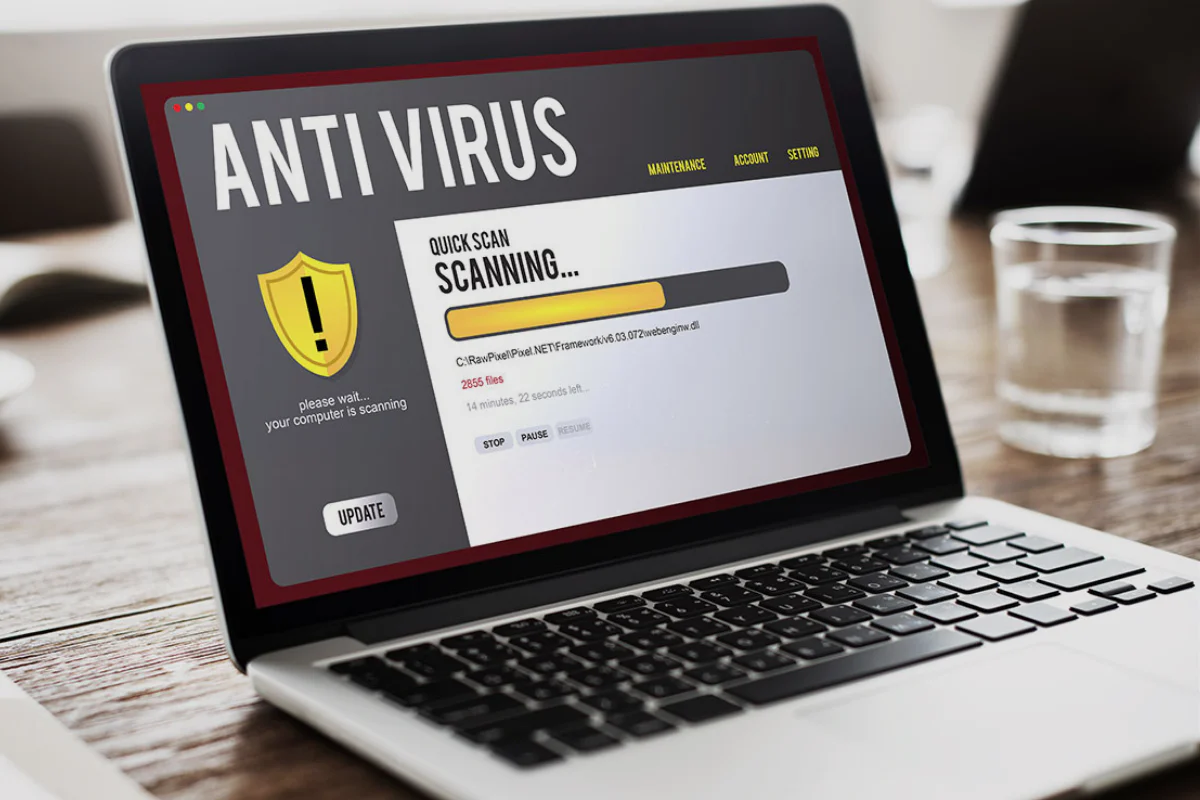
Many antivirus apps now do more than block viruses. They often include extra tools for cleaning junk files, tuning performance, checking passwords, and deleting files “securely.” One of those tools is usually called a file shredder, data shredder, or secure delete tool. It sounds useful, but on a modern PC with an SSD, it is usually the feature you should skip.
A file shredder is designed to make deleted files harder to recover. On older hard drives, this idea made more sense. When you deleted a file, the system often only removed the pointer to that file, while the actual data could remain on the disk until something else replaced it. A shredder tried to solve that by overwriting the same area again and again.
That approach does not fit SSDs well. Solid-state drives do not store and rewrite data in the same simple way as older mechanical hard drives. SSDs spread writes across memory cells to manage wear. Because of that, a tool that thinks it is overwriting one file may not always overwrite the exact old data in the way users expect. NIST’s media sanitization guidance also treats modern storage carefully, with methods such as clear, purge, destroy, and cryptographic erase depending on the media and risk level.
File shredders can waste SSD write cycles without giving you the clean security result you expect
The biggest issue is not only that file shredding can be unreliable on SSDs. It can also create unnecessary writes. SSDs have a limited number of write cycles over their lifetime. A normal user does not need to panic about this, because modern SSDs are built to last. But running a shredder that writes data multiple times is still not a smart habit when better protection is available.
A safer answer for most people is encryption. Instead of trying to destroy sensitive files after they already exist, encryption makes the data unreadable without the correct key. Microsoft says BitLocker protects data by encrypting the whole drive, and Windows device encryption can automatically enable BitLocker protection on supported systems.
| Situation | Better choice |
|---|---|
| Daily use on an SSD laptop | Use drive encryption instead of file shredding |
| Deleting normal files | Delete them normally and let the system manage the SSD |
| Storing sensitive documents | Keep them in an encrypted folder or encrypted drive |
| Selling or giving away a PC | Reset or wipe the device using proper drive sanitization steps |
| Using an old external HDD | A shredder can still be useful in some cases |
Encryption is not perfect if you set it up carelessly. You must save your recovery key somewhere safe. Microsoft warns that its support team cannot recreate a lost BitLocker recovery key, so losing it can mean losing access to your own data.
For extra protection, users can also keep private documents inside an encrypted container or folder using tools such as VeraCrypt or Cryptomator. That helps when you want a second layer of protection for files like tax records, personal documents, or business files.
The main lesson is simple: old security habits do not always match new hardware. File shredders were built around the way hard drives worked. SSDs need a different approach. For most people, full-drive encryption, careful account security, and safe recovery-key storage will do more good than repeatedly overwriting files with a shredder.

Discussion (0)
Be the first to comment.