UP

CMD

How to use command-line apps like the Windows Terminal and the Command Prompt from Windows, Linux Bash, Telnet, and similar tools.

tutorial How to change a drive’s letter in Windows

How to change a drive’s letter in Windows

Windows assigns drive letters for all the hard disk drives, solid-state drives, optical media units, removable drives, and memory cards connected to your computer. Because the operating system does that on its own, you might be tempted to think that these drive letters cannot be changed. However, that is not true because Windows lets you change the drive letter of any drive as long
tutorial How to check the Windows installation date

How to check the Windows installation date

Do you need to know when you installed Windows on your computer? You may require this information for work or you may want it just to brag about how stable your operating system is after all these years of abuse. Or perhaps you just don’t want your Windows to run for more than six months without reinstalling it. Whatever the reason, here’s how to
tutorial How to export a folder tree to a file (including Excel)

How to export a folder tree to a file (including Excel)

Did you ever need to export the entire directory tree from a particular folder? Did you need to get a text or Excel document that lists all the files and folders inside a specific folder from your computer in a hierarchical structure? I needed this when trying to create a document that was supposed to be a summary of all the Word documents and
tutorial How to list all the users on a Windows computer (7 ways)

How to list all the users on a Windows computer (7 ways)

Sometimes, you may need to extract a list of all the user accounts on a Windows computer. What if you want to see all the hidden user accounts that exist alongside your user account? Can you use graphical tools in Windows to learn all that? Can you list all users with Windows’ CMD? Moreover, which Windows PowerShell CLI command can be used to list
tutorial 6 ways to find your IP address in Windows

6 ways to find your IP address in Windows

The IP address or Internet Protocol address is a numerical label used in networks to identify and locate network devices, from computers and smartphones to printers, TVs, and other devices. The IP address can be a useful piece of information, especially when you want to set up your home router or connect to other devices on a network. But how do you see a
tutorial How to hide or unhide a partition in Windows

How to hide or unhide a partition in Windows

If you work with Windows computers and devices that have multiple partitions and drives, you may need to hide a particular partition. For instance, many computer manufacturers create hidden recovery partitions on their devices. However, in certain situations, the recovery partitions might start showing up in File Explorer and elsewhere on your device. While helpful in restoring your PC, you might not always want
tutorial Repair the EFI Bootloader or the MBR (Master Boot Record) for Windows

Repair the EFI Bootloader or the MBR (Master Boot Record) for Windows

You can use system recovery tools to fix most of your computer problems. However, there are times when you'll need to address such issues manually, for example, when your Windows computer won't boot. In these cases, you can use a tool named Bootrec.exe. It can help you troubleshoot and repair things like the EFI Bootloader, master boot record (MBR), the boot sector, or the

How to download, install, and use SteamCMD in Windows

If you’re a gamer, it’s extremely likely that you’re using Steam to buy and play games on your computer. But did you hear about SteamCMD? Do you want to know what SteamCMD is, how to get it, and how to use it? In this guide, we’re explaining everything, showing you how to use SteamCMD to download a game server to which you and your friends can connect and play “friendly”
tutorial What is Telnet and what is it still used for?

What is Telnet and what is it still used for?

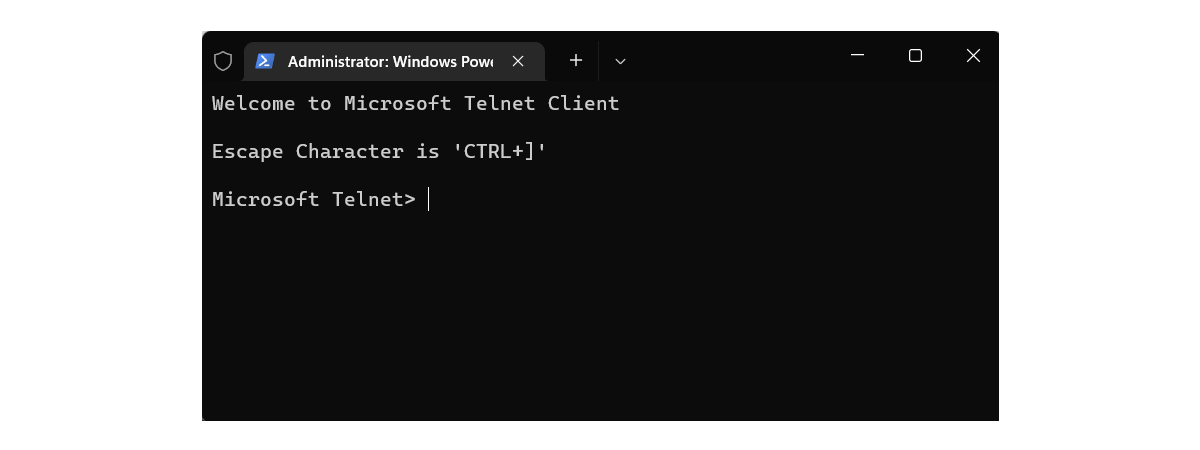
While surfing the internet, you may have stumbled on the term Telnet. Some people might have made fun of it, while others may have had fun with it. Others may still use it because they are nostalgic and they love the good old days of technology. For those of you who don't know what Telnet is and its “relevance” on the modern internet, read
tutorial How to use SFC to repair missing or corrupt Windows files in CMD

How to use SFC to repair missing or corrupt Windows files in CMD

When you have problems with your computer, Windows system files may become corrupted or go missing. This might be caused by sudden power drops, hardware malfunctions, a hard disk or solid-state drive approaching its end of life, and so on. If Windows reports that it can’t start because some of its files are corrupted or missing, you should use the System File Checker (SFC)
tutorial 5 fun & geeky things you can do on Telnet

5 fun & geeky things you can do on Telnet

It’s the 21st century, and Telnet is not exactly the world's most popular protocol. Very few people know about it, and you can say without being contradicted that this protocol is almost dead. However, a small but active community is still using it for several reasons, including having fun. So we've done a bit of research, and here are five fun things you can
tutorial How to install and use Telnet in Windows

How to install and use Telnet in Windows

Telnet was developed as a network protocol in 1969, and it was famous for many years until the rise of internet broadband and more secure alternatives. You might be surprised to learn that even today, there are still plenty of Telnet servers and resources available, including several active communities. Start with this guide if you are curious to know more about using Telnet. We
tutorial Command Prompt (CMD): 10 network-related commands you should know

Command Prompt (CMD): 10 network-related commands you should know

Command Prompt proved to be one of the best tools for running basic commands that allow you to work with files and folders from Windows. However, the Command Prompt is much more powerful than just that. You can take things to the next level by learning and using a couple of advanced commands, including a range of handy network-related commands. Today, we’re going to
tutorial How to print the list of running processes in Windows

How to print the list of running processes in Windows

One of our readers asked us: “How do you print the list of running processes from Task Manager?”. Unfortunately, you can’t do this from Task Manager. However, you can run some commands to generate a list of running processes in Windows and then print it like you would print a standard document. Here’s how it all works, using only the tools built into Windows:
article What is the Windows Terminal?

What is the Windows Terminal?

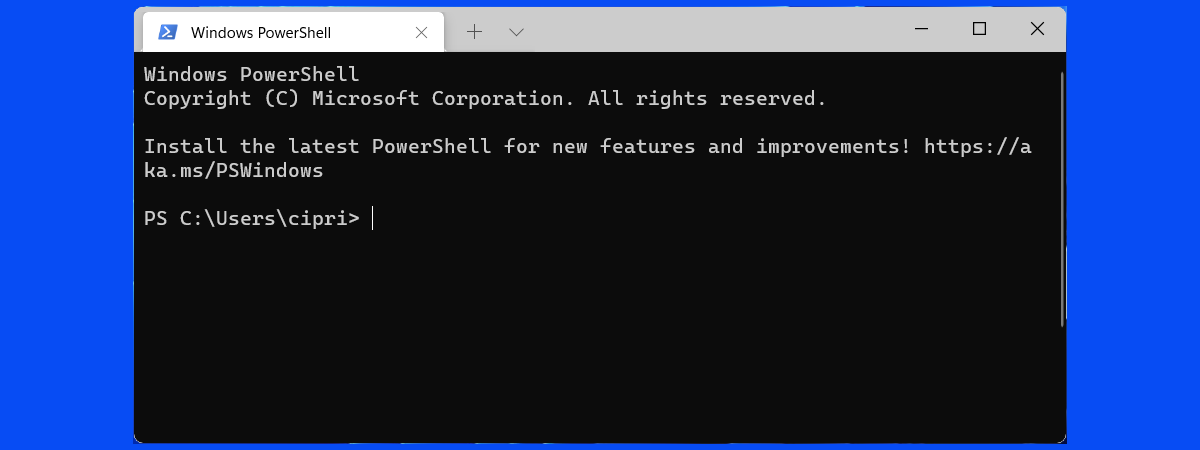
The Windows Terminal is a relatively new app that command-line enthusiasts are probably going to like a lot. Although it’s been developed and improved by Microsoft for several years now, and you could already use it in Windows 10, it only made the headlines with the announcement of Windows 11. Are you curious to know more about the Windows Terminal, what it is and
tutorial How to switch between CMD and PowerShell in Windows Terminal

How to switch between CMD and PowerShell in Windows Terminal

When starting Windows Terminal, the default shell that opens is Windows PowerShell. However, Windows Terminal supports many applications that have a command-line interface, including the venerable Command Prompt (CMD). If you want to switch to CMD in Windows Terminal, or if you want to make CMD the default shell for Windows Terminal, here’s how to do it: NOTE: This tutorial applies both to

How to create multiple folders at once

Are you wondering how to create multiple folders in Windows 10 or Windows 7? That can be very useful if you’re a teacher, for instance. Say that you have a dozen students in a class, and you need to make a folder for each of them on your Windows PC. Sure, you can manually create a folder for each student, but that might take a long time. Fortunately, there are
tutorial Reset PowerShell and CMD to their default settings

Reset PowerShell and CMD to their default settings

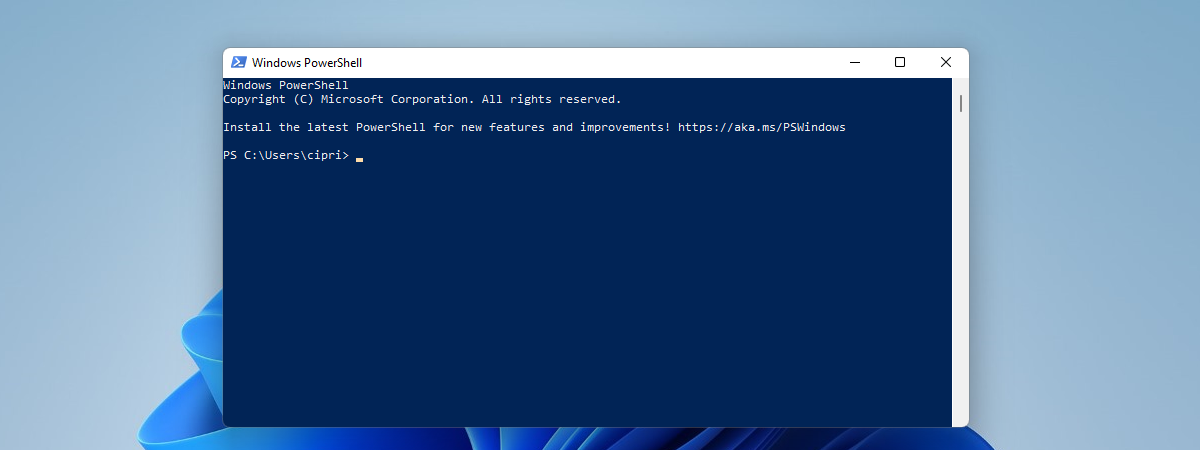
After you work for a while with the Command Prompt or PowerShell, you are likely to end up customizing the way they look. After all, by default, their looks and colors look quite dull for many. You might change the font, its size, the color of the background, and other things. What do you do if you want to reset PowerShell to its default